
Introduction
The AWESAFE 9-inch GPS Navigator is a versatile navigation system designed for cars, trucks, and RVs. It features a large, clear display and provides reliable, turn-by-turn voice guidance to help you reach your destination efficiently and safely. This manual provides detailed instructions for setting up, operating, and maintaining your device.
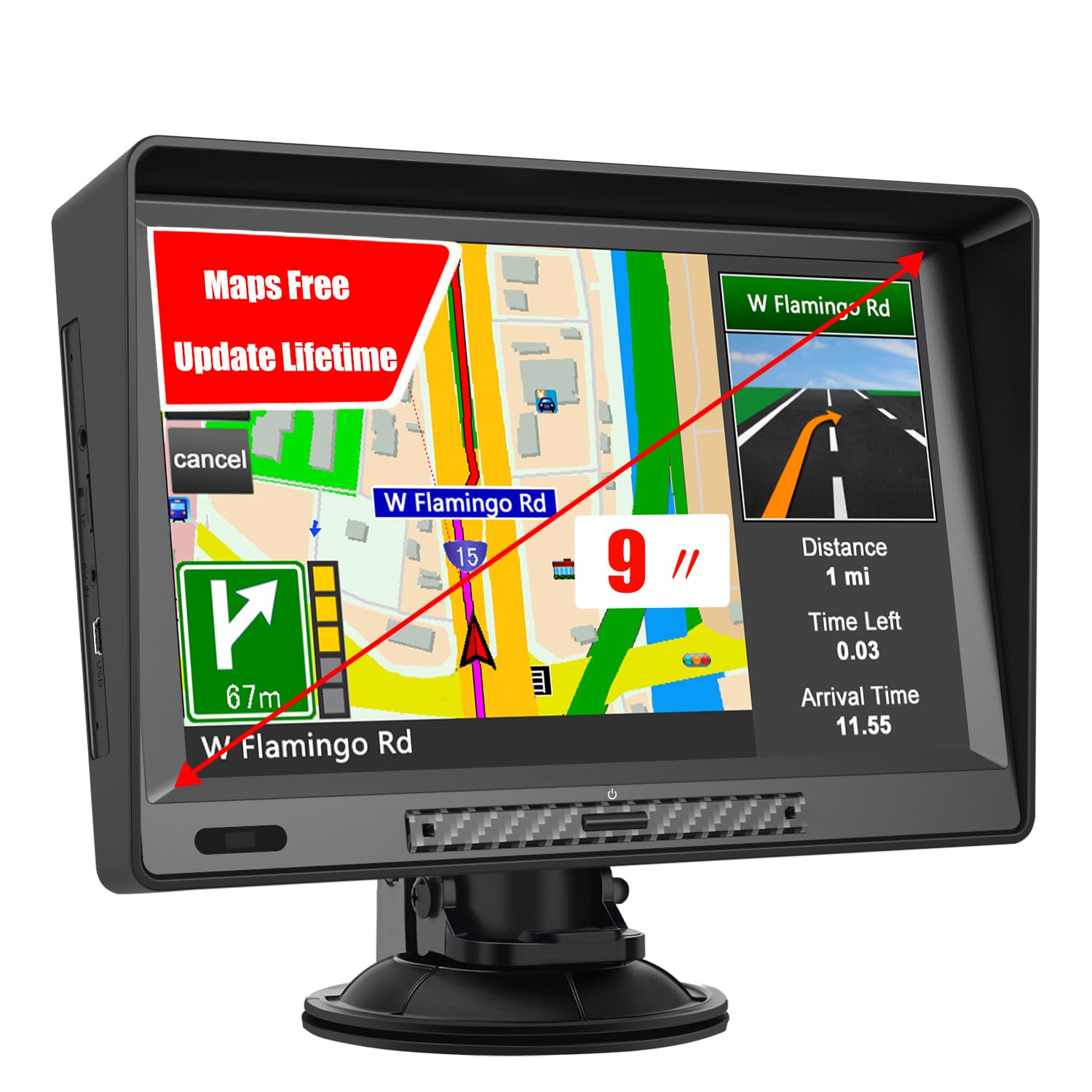
Image: AWESAFE 9-inch GPS Navigator mounted on a car dashboard, displaying a map with a route. This image illustrates the device in a typical in-car usage scenario.
What's in the Box
Upon unboxing your AWESAFE GPS Navigator, ensure all the following components are present:
- GPS Navigation Unit
- Car Charger
- USB Cable
- Suction Cup Mount
- User Manual

Image: A flat lay of all items included in the AWESAFE GPS Navigator package. This shows the GPS device, car charger, USB cable, suction cup mount, and the instruction manual.
Setup
1. Mounting the Device
The AWESAFE GPS Navigator comes with a suction cup mount for secure placement in your vehicle. For optimal visibility and safety, mount the device on your windshield or dashboard where it does not obstruct your view of the road.
- Attach the suction cup mount to the back of the GPS unit by aligning the tabs and sliding it into place until it clicks securely.
- Clean the desired mounting surface (windshield or dashboard) to ensure a strong suction.
- Press the suction cup firmly against the surface and push down the lever to create a vacuum seal.
- Adjust the angle of the GPS unit for comfortable viewing.

Image: Step-by-step visual guide for attaching the suction cup mount to the GPS unit and adjusting its position. This demonstrates the physical installation process.
2. Initial Power-On and Charging
Before first use, it is recommended to fully charge the device. Connect the car charger to your vehicle's cigarette lighter socket and the USB cable to the GPS unit's charging port.
- Connect the USB cable to the GPS unit and the car charger.
- Plug the car charger into your vehicle's 12V power outlet.
- The device will automatically power on or can be turned on by pressing the power button.
3. Map Updates
The AWESAFE GPS Navigator comes with preloaded North America maps (USA, Canada, Mexico) and offers lifetime free map updates. To ensure you always have the latest routes and points of interest, regularly update your maps.
Map updates can typically be performed by connecting the device to a computer and using the provided software or by downloading updates via a TF card. Refer to the specific instructions provided with your device for detailed update procedures.

Image: A graphic illustrating two methods for updating the GPS maps: connecting to a Windows PC or downloading via a TF card. This highlights the ease of keeping maps current.
Operating Instructions
1. Basic Navigation
To begin navigating, tap the "Navigation" icon on the main menu. You can search for destinations using various methods:
- Postcode/Address: Enter the full address or postcode of your destination.
- Coordinates: Input specific GPS coordinates.
- Favorite: Select from your saved favorite locations.
- POI (Points of Interest): Search for nearby restaurants, gas stations, hotels, and other points of interest.
After entering your destination, the device will calculate the route. You can choose from four route options: Fast, Green, Short, or Convenient.
2. Smart Voice Guidance & Real-Time Alerts
The GPS provides clear, turn-by-turn voice prompts, allowing you to keep your eyes on the road. It also offers real-time alerts for enhanced safety:
- Speed Camera Alerts: Notifies you of upcoming speed cameras.
- Red Light Warnings: Alerts you to traffic lights.
- Speed Limit Changes: Informs you of changes in speed limits.
- Active Lane Assistant: Guides you to the correct lane for upcoming turns or exits.

Image: The GPS screen showing voice broadcast messages, such as "Downhill, please pay attention to slow down" and "Speed limit 45". This illustrates the voice guidance feature.
3. Customized Route for Trucks and RVs
For truck and RV drivers, the device allows you to customize routes based on your vehicle's specific dimensions and weight. This feature helps avoid roads with width, height, or weight restrictions, ensuring a safer and more efficient journey.
- Access the settings menu to input your vehicle's length, width, height, and weight.
- The navigation system will then calculate routes that are suitable for your vehicle type.

Image: A collage of images depicting traffic lights, a truck height limit sign (1.9m), and a road information camera. This visually represents the device's ability to customize routes and provide alerts for various road conditions and vehicle restrictions.
4. FM Broadcast Function
The device supports FM broadcast, which allows you to transfer the GPS sound (voice guidance) to your car's audio system. This is not an FM radio function but a way to output audio through your car speakers.
- Go to the main menu and select "FM" or "Settings" to find the FM broadcast option.
- Enable the FM broadcast and select an unused FM frequency.
- Tune your car's FM radio to the same frequency.
- GPS voice guidance will now play through your car speakers.

Image: The GPS navigator screen showing a map with navigation information, including distance and estimated arrival time. The image also highlights the device's sun visor design, which helps reduce glare for better screen visibility.
5. Bluetooth Connectivity
The AWESAFE GPS Navigator features Bluetooth connectivity, enabling hands-free calling for a safer driving experience.
- Pair your mobile phone with the GPS device via Bluetooth in the settings menu.
- Once paired, you can answer calls directly through the GPS unit.

Image: The GPS screen displaying an incoming call, with a woman driving in the background. This demonstrates the Bluetooth hands-free calling capability of the device, promoting safer driving.
6. GPS Signal and Information
The device utilizes a powerful GPS signal to provide precise location data. You can view detailed GPS information, including signal strength, latitude, longitude, and altitude, through the "GPS Info" or "Tools" menu.
Image: The GPS screen displaying detailed signal status, including latitude, longitude, altitude, and the number of satellites currently in use. This confirms the device's ability to acquire and display precise location data.
Maintenance
- Cleaning: Use a soft, lint-free cloth to clean the screen and exterior of the device. Avoid abrasive cleaners or solvents.
- Storage: When not in use, store the GPS navigator in a cool, dry place away from direct sunlight and extreme temperatures.
- Software & Map Updates: Regularly check for and install software and map updates to ensure optimal performance and the most current navigation data. Connect your device to a computer and follow the instructions provided by the manufacturer's software.
Troubleshooting
| Issue | Possible Solution |
|---|---|
| Device does not power on. | Ensure the device is fully charged or connected to a power source. Check the car charger and USB cable for damage. |
| No GPS signal. | Ensure the device has a clear view of the sky. Move away from tall buildings or dense foliage. Allow a few minutes for the device to acquire satellites. |
| Screen is unresponsive. | Perform a soft reset by pressing and holding the power button for 10-15 seconds. If the issue persists, ensure the screen is clean and free of debris. |
| Voice guidance is too low or not audible. | Adjust the volume settings on the device. If using FM broadcast, ensure your car radio is tuned to the correct frequency and its volume is adequate. |
Specifications
- Item Weight: 2.61 pounds
- Package Dimensions: 10.28 x 7.17 x 4.21 inches
- Display Size: 9 Inches
- Screen Size: 9 Inches
- Display Type: LCD, LED
- Voice Command: Microphone
- Connectivity Technology: Bluetooth
- Map Type: North America (USA, Canada, Mexico)
- Vehicle Service Type: Car, RV, Truck
- Mounting Type: Windshield Mount

Image: A technical diagram illustrating the physical dimensions of the 9-inch GPS unit and labeling its various input/output ports, including headset socket, TF card slot, AV-IN, and USB. This provides a clear overview of the device's physical attributes and connectivity options.
Warranty Information
This AWESAFE GPS Navigator comes with a 1-year warranty from the date of purchase. This warranty covers manufacturing defects and malfunctions under normal use. Please retain your proof of purchase for warranty claims. For detailed terms and conditions, refer to the warranty card included in your product packaging or contact customer support.
Customer Support
If you encounter any issues or have questions regarding your AWESAFE 9" GPS Navigator that are not addressed in this manual, please contact AWESAFE customer support. You can typically find contact information (email, phone, or website) on the product packaging or the official AWESAFE website.
For further assistance, you may also visit the AWESAFE Store on Amazon.
Helpful Videos
GPS Navigator for Car - Product Overview
Video: A short overview of the GPS Navigator for Car, demonstrating its features and interface. This video is provided by the seller, Cutebe Store.