
1. Important Compatibility Information
This Naifay Android car radio is designed for Ford Transit Connect models from 2010 to 2013. Before installation, it is crucial to verify compatibility with your vehicle's dashboard configuration.
Note: This unit is not compatible with car models that have three buttons on the OEM center console. Please examine the year, dimensions, and shape of your vehicle's center console.
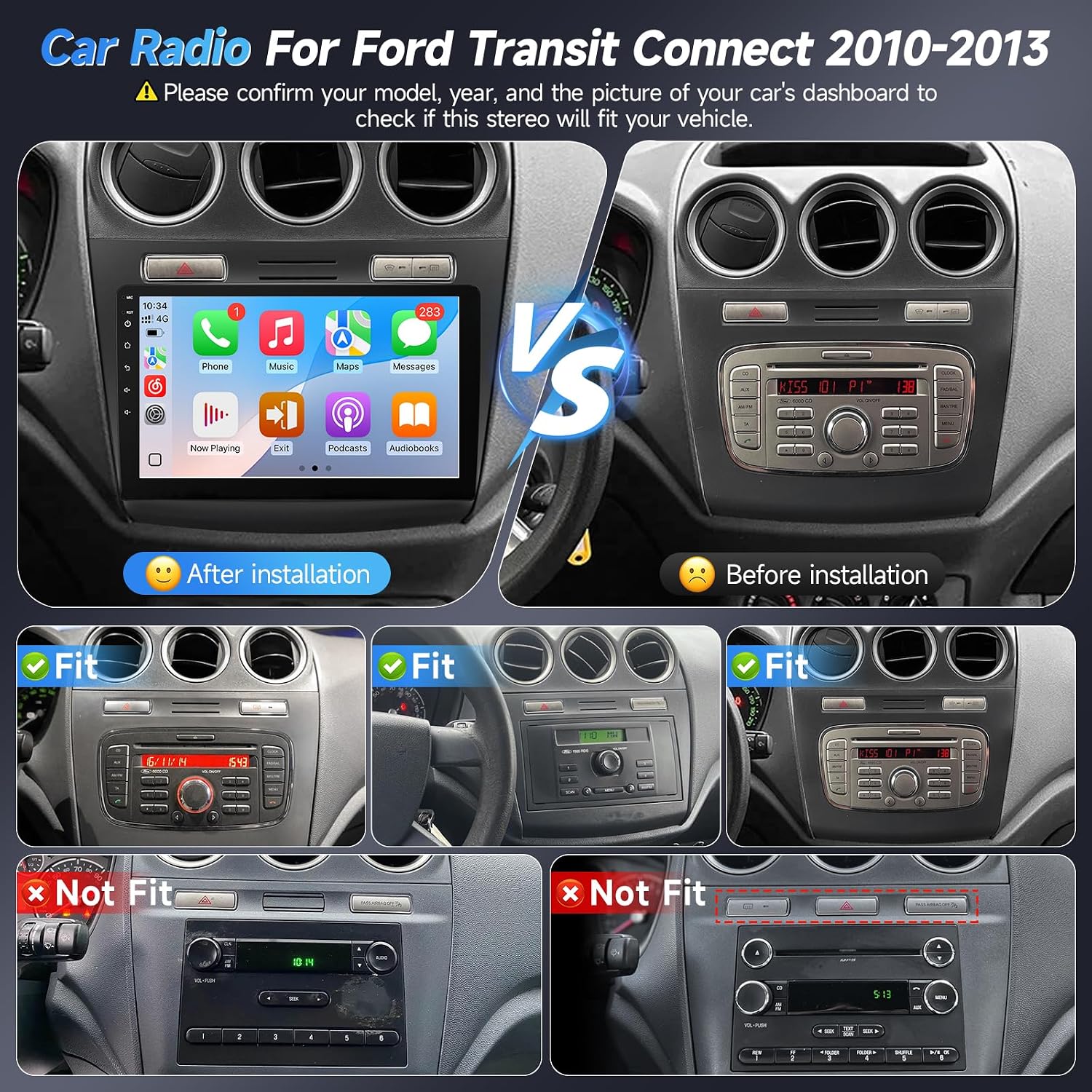
Image 1.1: Visual guide for checking dashboard compatibility. The image displays various Ford Transit Connect dashboards, indicating which configurations are compatible ('Fit') and which are not ('Not Fit'), specifically highlighting dashboards with three buttons on the OEM center console as incompatible.
If you are uncertain about compatibility, please consult the seller with your vehicle's model year and a picture of your car's dashboard and original radio interface.
2. Package Contents
Verify that all components listed below are included in your package:
- Naifay 10.1-inch Android Car Radio Unit
- Backup Camera
- RCA Cable Set
- Rear View Input Cable
- GPS Antenna
- Microphone (MIC)
- USB Cables (x2)
- Power Cable
- Radio Adapter
- User Manual

Image 2.1: Diagram showing the dimensions of the 10.1-inch head unit and a visual representation of all included accessories in the package.
3. Installation Guide
Professional installation is recommended. If performing self-installation, ensure the vehicle's battery is disconnected before starting. Refer to the included user manual and any provided installation videos for detailed steps.
3.1 Wiring Harness Instruction
Carefully connect the wiring harness to the corresponding ports on the car radio and your vehicle's electrical system. Ensure all connections are secure.
- Power Cord: Connect to the vehicle's power supply.
- RCA: For audio/video input/output connections.
- USB: Connect the two USB cables for external devices.
- Reverse Input: For the backup camera connection.
- GPS: Connect the GPS antenna.
- Radio Cable: Connect the radio antenna.
Important: The white plug must be connected to the car radio to ensure proper Bluetooth and Wi-Fi signal reception. If you do not connect the camera, please plug the camera input cable on the back of the car radio to enhance Bluetooth and Wi-Fi signals.

Image 3.1: Detailed diagram illustrating the connections for the power cord, RCA cables, USB ports, reverse input, GPS antenna, and radio cable.
3.2 Reversing Camera Wiring
The backup camera requires specific wiring for power and video signal transmission. There are typically two choices for wiring: roof wiring or under-seat wiring.
- Connect the camera power cable (red wire) to the reversing lamp power.
- Connect the black wire to ground (GND).
- Connect the video signal cable from the camera to the 'CAM-IN' input on the car stereo.
- The pink or brown wire from the car stereo needs to be connected to the reversing lamp signal wire.

Image 3.2: Diagram detailing the wiring connections for the backup camera, including power and video signal lines, and options for cable routing.
4. Operating Instructions
This Android car radio offers a range of features for enhanced in-car entertainment and navigation.
4.1 Wireless CarPlay & Android Auto
Connect your iPhone or Android smartphone wirelessly or via USB to access CarPlay or Android Auto. This allows for hands-free calling, navigation, music playback, and access to compatible apps directly on the car radio's screen.
- Wireless Connection: Enable Bluetooth and Wi-Fi on your phone and connect to the car radio.
- Wired Connection: Use a USB cable to connect your phone to one of the car radio's USB ports.
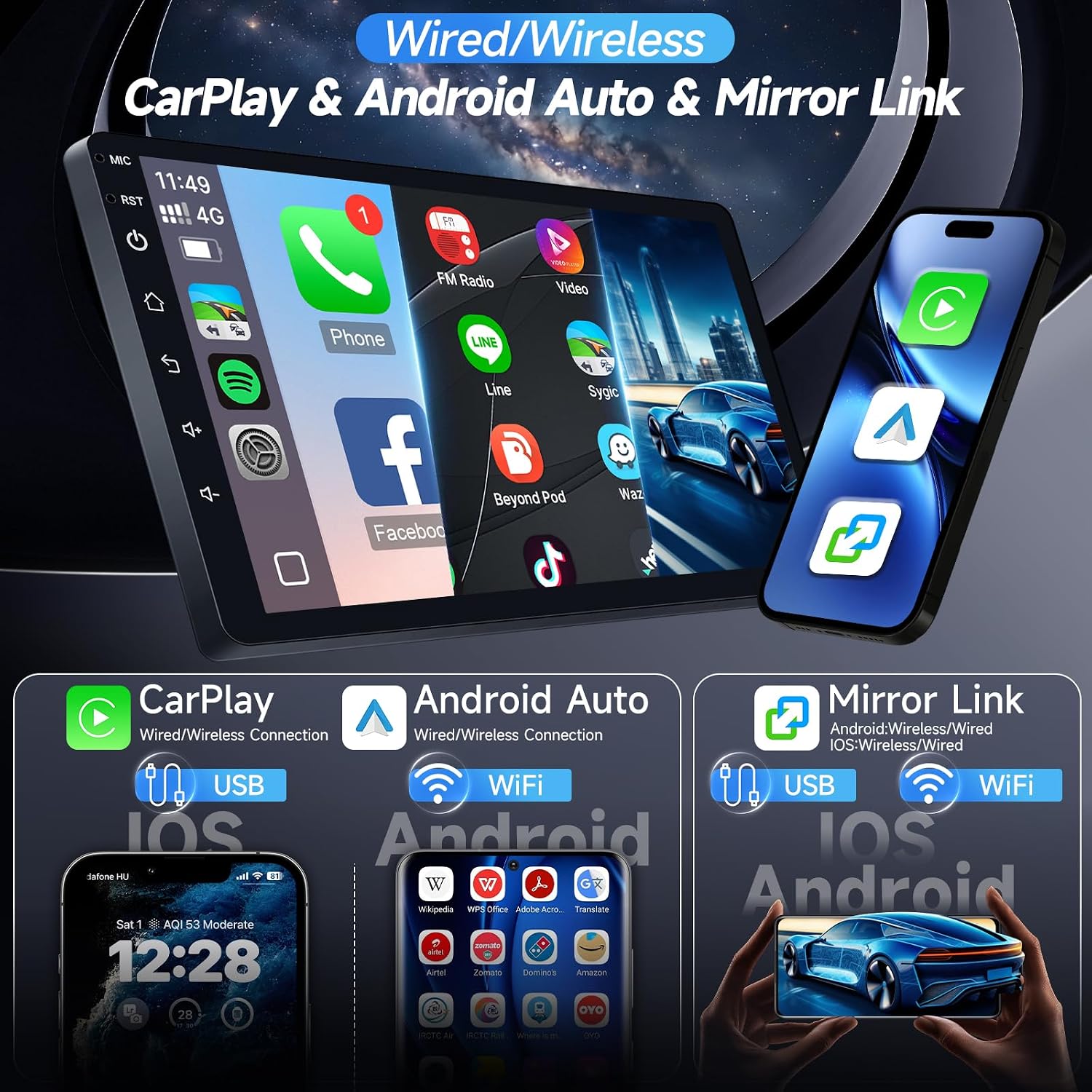
Image 4.1: Display showing the user interface for Wireless CarPlay and Android Auto, demonstrating phone integration for navigation, music, and calls.
4.2 Mirror Link
Mirror Link functionality allows you to display your smartphone's screen directly onto the car radio's 10.1-inch display. This feature supports both iOS and Android devices via Wi-Fi or USB connection.

Image 4.2: Illustration of the Mirror Link function, showing a smartphone screen duplicated on the car radio display.
4.3 GPS Navigation
The unit includes a GPS module, supporting both offline and online navigation. Connect to Wi-Fi or a mobile hotspot for real-time traffic updates and online map services. Pre-installed maps or downloadable map applications can be used for navigation.

Image 4.3: Screenshot of the GPS navigation system, showing map display and route information.
4.4 Wi-Fi Connection
Connect the car radio to a Wi-Fi network or your phone's mobile hotspot to access online features, download applications, stream music and videos, and browse the internet.

Image 4.4: Visual representation of Wi-Fi connectivity, showing access to various online applications like YouTube and Spotify.
4.5 Bluetooth Functionality
Pair your smartphone via Bluetooth for hands-free calling and audio streaming. The system supports phonebook synchronization for convenient access to your contacts.
- Hands-Free Calling: Make and receive calls directly from the car radio screen.
- Bluetooth Music: Stream audio from your paired device.

Image 4.5: Display showing Bluetooth interface for calls and music, alongside FM radio and EQ settings.
4.6 FM Radio
Access a wide range of FM radio stations with clear reception. The system allows for unlimited presets to quickly switch between your favorite channels.

Image 4.6: Screenshot of the FM radio interface, showing frequency display and station presets.
4.7 Steering Wheel Control (SWC)
The unit supports steering wheel controls, allowing you to manage audio playback, answer calls, and navigate menus without taking your hands off the wheel. This enhances driving safety and convenience.

Image 4.7: Diagram illustrating how steering wheel controls can be mapped and used with the car radio.
4.8 Split Screen Functionality
Utilize the split-screen feature to run two applications simultaneously on the 10.1-inch display. For example, you can view navigation maps on one side while controlling music playback or another app on the other.

Image 4.8: Visual demonstration of the split-screen mode, displaying navigation and a video player side-by-side.
4.9 EQ Adjustable
Customize your audio experience with the built-in EQ (Equalizer) settings. Adjust various frequency bands to fine-tune the sound output to your preference.
5. Backup Camera
The included AHD (Analog High Definition) backup camera provides a clear, wide-angle view of the area behind your vehicle. The display automatically switches to the camera feed when the vehicle is put into reverse, enhancing safety during parking and maneuvering.
- HD Image: Provides high-definition video feed.
- IR Night Vision: Improves visibility in low-light conditions.
- Waterproof: Designed to withstand various weather conditions.
- 170° Wide-Angle: Offers a broad field of view.

Image 5.1: Screen display of the AHD backup camera, showing parking guidelines and a wide-angle view.
6. Specifications
| Feature | Specification |
|---|---|
| Brand | Naifay |
| Model Number | US11-SW810 |
| Operating System | Android 12 |
| Processor | 8-Core |
| RAM | 2GB |
| Internal Storage | 32GB |
| Screen Size | 10.1 Inches |
| Display Type | IPS 2.5D Touch Screen |
| Resolution | 1280x720P (HD) |
| Connectivity | Wireless, Bluetooth, USB, Wi-Fi |
| Navigation | GPS (Offline/Online Maps) |
| Special Features | Wireless/Wired CarPlay & Android Auto, Mirror Link, FM Radio, Backup Camera Support, Steering Wheel Control, Split Screen, EQ Adjustable, Multi-format media player, Video/Audio output/input |
| Compatible Devices | iPhone, Android Phone |
| Vehicle Service Type | Ford Transit Connect 2010-2013 |
7. Troubleshooting
This section addresses common issues and provides solutions.
7.1 General Installation Tips
- Voltage Check: Ensure the car's voltage is 12V. Over 12V may damage the unit.
- CAM-IN Connection: You MUST connect the 'CAM-IN' reversing input cable. This cable, which comes with two small antennas, enhances the radio's Bluetooth and Wi-Fi signals. Failure to connect it may result in unstable connections.
- Power Cable/Accessories: If the power cable is different or accessories are missing/damaged, contact customer support for assistance.
7.2 How to Reach Support
If you encounter problems that cannot be resolved using this manual, please contact customer support:
- Go to the product page on Amazon.
- Click on the seller name "Naifay".
- Click "Ask a question" to send a message.
- Provide details of the issue and attach relevant pictures or videos to help resolve the problem faster.

Image 7.1: Guide for installation tips and how to contact customer support for problem resolution.
8. Warranty and Support
Naifay is committed to providing quality products and customer satisfaction. For any product-related inquiries, technical support, or warranty claims, please contact our customer service team through the methods described in the Troubleshooting section.
The product typically includes a standard return policy. Please refer to your purchase details for specific return and warranty periods.