
1. Introduction
This manual provides essential information for setting up, operating, maintaining, and troubleshooting your onn Google TV 4K Plus Streaming Device. Please read this guide thoroughly before using the device to ensure optimal performance and safety.
The onn Google TV 4K Plus Streaming Device offers a powerful and fast streaming experience, transforming your television into a cinematic hub with vibrant 4K Ultra HD resolution, Dolby Vision, and Dolby Atmos support. It features 16GB of storage, 2GB of RAM for smooth performance, and Wi-Fi 6 connectivity.
2. What's in the Box
Carefully unpack your onn Google TV 4K Plus Streaming Device and ensure all components are present.

Image: The onn Google TV 4K Plus Streaming Device (black box) and its white remote control, surrounded by logos of popular streaming services.
- onn Google TV 4K Plus Streaming Device
- Remote Control with Voice Control
- Power Adapter
- HDMI Cable
3. Setup Guide
Follow these steps to set up your streaming device:
- Connect to TV: Plug one end of the HDMI cable into the HDMI port on your onn Google TV 4K Plus Streaming Device and the other end into an available HDMI input on your television.
- Connect to Power: Connect the power adapter to the streaming device and then plug it into a wall outlet.
- Power On: Turn on your television and select the correct HDMI input using your TV remote.
- Pair Remote: Follow the on-screen instructions to pair your remote control. This usually involves pressing and holding specific buttons on the remote until it pairs with the device.
- Network Connection: Select your Wi-Fi network from the list and enter the password. The device supports Wi-Fi 6 (2.4/5GHz 802.11ax) for fast connectivity. An optional USB-C hub with an Ethernet port can be used for a wired connection.
- Google Account Sign-in: Sign in with your Google account. This is required to access Google TV features, download apps, and personalize your experience.
- Complete Setup: Follow any remaining on-screen prompts to complete the initial setup, including accepting terms of service and installing recommended apps.
4. Operating Your Device
4.1 Navigating Google TV

Image: A television displaying the Google TV interface, showing various streaming apps and content recommendations.
The Google TV interface organizes your movies, shows, and live TV from across your subscriptions into one easy-to-navigate platform. Use the directional pad on your remote to browse content, select apps, and access settings.
4.2 Voice Control with Google Assistant
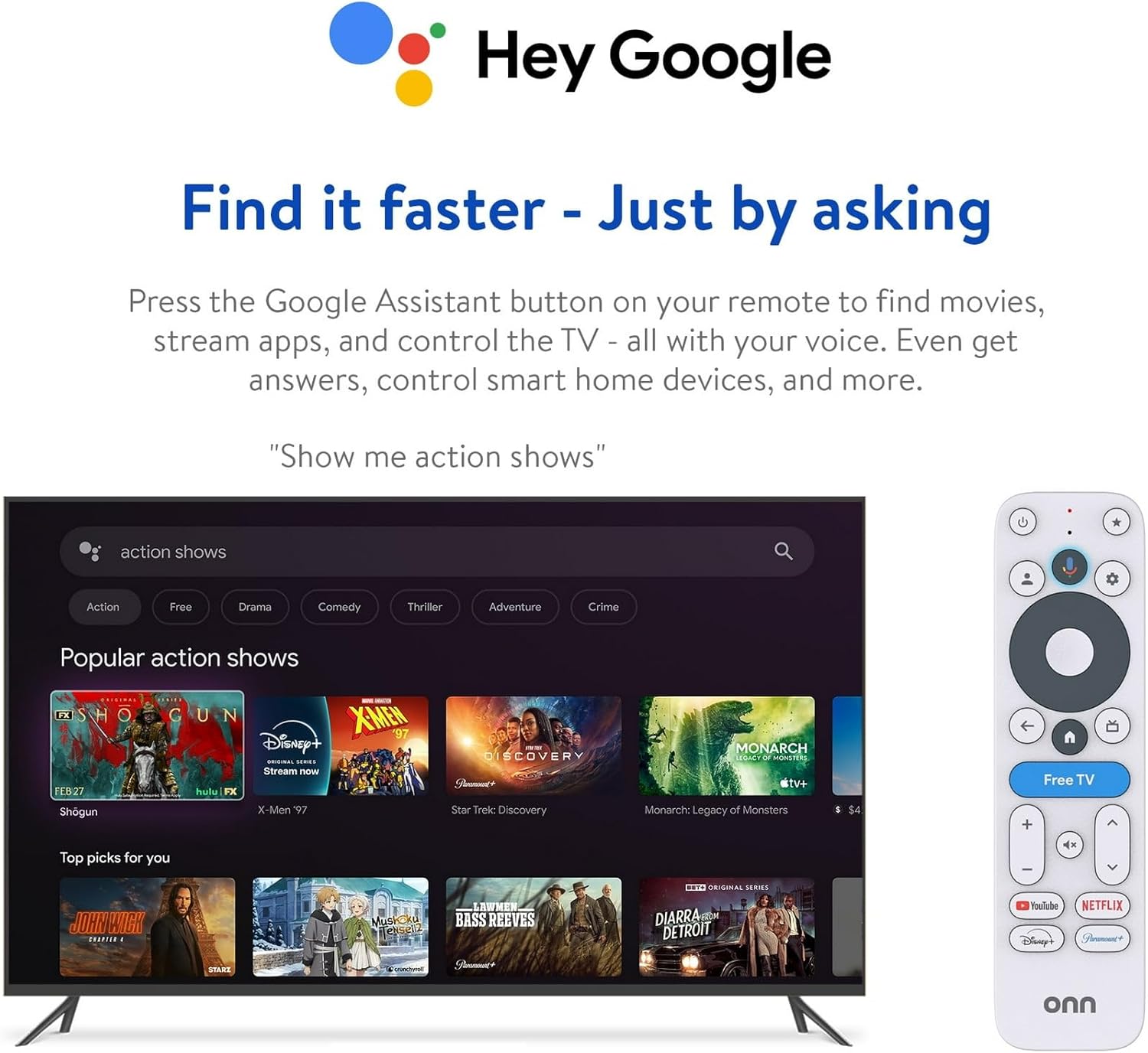
Image: The onn Google TV remote control next to a television screen showing a search interface, demonstrating voice command functionality.
Press the Google Assistant button on your remote to use voice commands. You can ask to find movies, stream apps, control your TV, get answers, and manage smart home devices.
4.3 4K UHD, Dolby Vision & Atmos

Image: A split-screen view on a television, illustrating the enhanced visual quality of 4K Ultra HD with Dolby Vision and the immersive audio of Dolby Atmos.
Your device supports 4K Ultra HD resolution, Dolby Vision for true-to-life visuals, and Dolby Atmos for immersive sound. Ensure your television and audio system are compatible with these technologies to experience their full benefits.
4.4 Personalized Recommendations
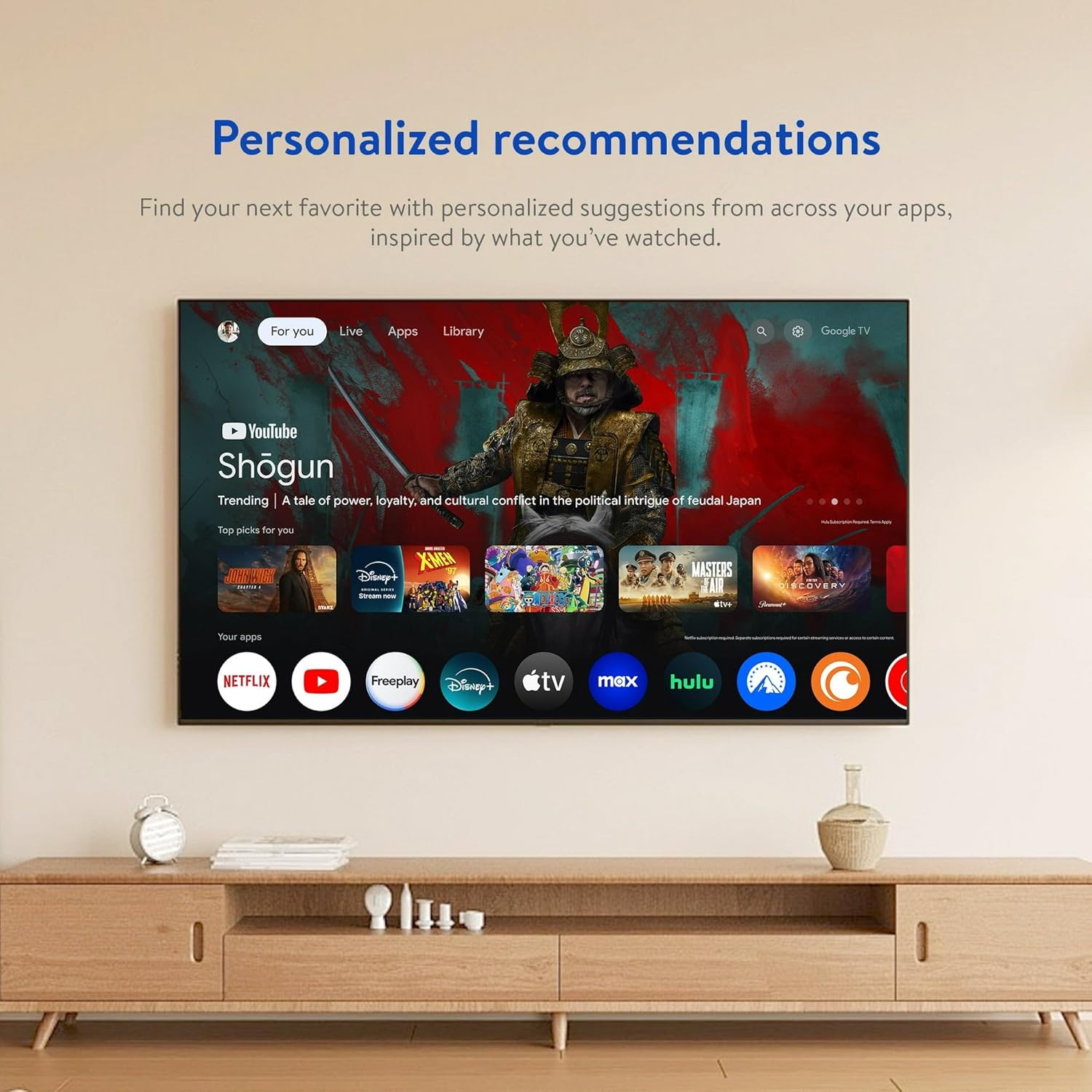
Image: A television screen displaying personalized content recommendations from various streaming services on the Google TV interface.
Google TV provides personalized suggestions based on your viewing history and preferences, helping you discover new content across your installed apps.
5. Maintenance
5.1 Cleaning
To clean your device, unplug it from the power source. Use a soft, dry, lint-free cloth to wipe the exterior. Do not use liquid cleaners or abrasive materials.
5.2 Software Updates
Your device will periodically receive software updates to improve performance and add new features. Ensure your device is connected to the internet to receive these updates automatically. Do not unplug the device during an update.
5.3 Storage Management
The device comes with 16GB of storage. If you experience performance issues or cannot install new apps, consider uninstalling unused applications or clearing app caches through the device settings.
6. Troubleshooting
If you encounter issues with your device, refer to the following common solutions:
| Problem | Solution |
|---|---|
| Device does not power on | Ensure the power adapter is securely connected to the device and a working power outlet. Check if the outlet is functional. |
| No picture or sound | Verify the HDMI cable is securely connected to both the device and the TV. Ensure your TV is set to the correct HDMI input. Check TV volume and mute settings. |
| Remote control not responding | Ensure the remote's batteries are fresh and correctly inserted. Try re-pairing the remote by following the initial setup instructions or consulting the on-screen help. |
| Wi-Fi connection issues | Restart your Wi-Fi router and the streaming device. Ensure you are entering the correct Wi-Fi password. Move the device closer to the router if possible. |
| Apps are slow or crashing | Close and reopen the app. Clear the app's cache or data through the device settings. Ensure the device software is up to date. Consider uninstalling and reinstalling the app. |
7. Specifications
- Model Number: 36233631
- ASIN: B0GFXY1P61
- Product Dimensions: 4 x 6.5 x 2 inches
- Item Weight: 14.4 ounces
- Storage: 16GB
- RAM: 2GB
- Connectivity: Wi-Fi 6 (2.4/5GHz 802.11ax), USB-C (for optional Ethernet hub)
- Video Output: 4K Ultra HD, Dolby Vision
- Audio Output: Dolby Atmos
- Batteries Required (Device): No


