
1. Introduction
This manual provides detailed instructions for the Donner DEK-630 61-Key Electronic Keyboard. Please read this manual thoroughly before using the instrument to ensure proper operation and to maximize your musical experience. The DEK-630 is designed for beginners and music enthusiasts, featuring lighted keys, various tones and rhythms, and learning modes to support your musical journey.

Image 1.1: The Donner DEK-630 61-Key Electronic Keyboard Set, including the keyboard, Z-stand, and bench.
2. What's in the Box
Verify that all components are present in the package:
- Donner DEK-630 Electric Keyboard
- Z-shaped Stand
- Piano Bench
- Music Rest
- Note Stickers
- Power Adapter
- Instruction Manual (this document)
3. Setup
3.1 Assembling the Z-shaped Stand
- Unfold the main frame of the Z-stand.
- Attach the horizontal support bars to the vertical frames using the provided screws and knobs. Ensure they are securely tightened.
- Adjust the height of the stand to your preferred playing position using the adjustment knobs.
Video 3.1: Official Donner Music video demonstrating the assembly of the DEK-630 keyboard stand.
3.2 Assembling the Piano Bench
- Unfold the legs of the piano bench.
- Ensure all locking mechanisms are engaged for stability.
3.3 Placing the Keyboard and Music Rest
- Carefully place the DEK-630 keyboard onto the assembled Z-stand. Ensure it is stable and centered.
- Insert the music rest into the designated slots on the top panel of the keyboard.

Image 3.1: The Donner DEK-630 keyboard fully set up with the Z-stand and piano bench.
3.4 Power Connection
- Connect the provided power adapter to the DC 12V input jack (8) on the rear panel of the keyboard.
- Plug the power adapter into a standard electrical outlet.

Image 3.2: Close-up of the DEK-630's rear panel, highlighting the power adapter input and other connectivity options.
4. Operating Instructions
4.1 Power On/Off
Press the POWER button located on the control panel to turn the keyboard on or off. The LCD display will illuminate upon power-on.
4.2 LCD Display Overview
The LCD display provides visual feedback on the current tone, rhythm, tempo, and learning mode status. Use the navigation buttons to browse through options.

Image 4.1: The DEK-630's LCD display, showing active settings for tones, rhythms, and learning modes.
4.3 Tone Selection (300 Tones)
To select a tone:
- Press the TONE button.
- Use the number pad or the +/- buttons to select from 300 available tones. The selected tone number and name will appear on the LCD.
4.4 Rhythm Selection (256 Rhythms)
To select a rhythm:
- Press the RHYTHM button.
- Use the number pad or the +/- buttons to select from 256 available rhythms.
- Press START/STOP to begin or end the rhythm playback.
4.5 Demo Songs (40 Songs)
The keyboard includes 40 demo songs for listening and practice.
- Press the DEMO SONG button.
- Use the +/- buttons to cycle through the demo songs.
- Press PLAY to start the selected demo song.
4.6 Learning Modes
The DEK-630 offers built-in learning modes to assist beginners, including lighted keys, auto-chord, and metronome functions.
- Lighted Keys: Keys illuminate to guide you during learning exercises.
- Auto-Chord: Automatically plays chords based on single key presses, simplifying accompaniment.
- Metronome: Provides a steady beat to help develop rhythm and timing. Activate by pressing the METRONOME button.

Image 4.2: A user's hands playing the DEK-630, demonstrating the lighted key feature for learning.
4.7 Recording and Playback
To record your performance:
- Press the REC button. The REC indicator will light up.
- Play your desired melody.
- Press PLAY to stop recording and listen to your recorded performance.
4.8 Dual Keyboard / Split Functions
- Dual Keyboard: Allows two different voices to be layered and played simultaneously.
- Split Function: Divides the keyboard into two sections, each with its own tone, allowing two different instruments to be played at once. Refer to the full manual for detailed activation steps.
4.9 Volume Control
Adjust the master volume using the MASTER VOLUME knob or buttons on the control panel.
4.10 Connectivity Options
The DEK-630 offers various ports for expanded functionality:
- Sustain Pedal Jack (1): Connect an optional sustain pedal for expressive playing.
- MIDI Port (2): Connect to computers or other MIDI devices for music production and learning software.
- USB Port (3): For USB MIDI connectivity.
- Audio Input Line (4): Connect external audio sources (e.g., MP3 player) to play along.
- Output (L/R) (5): Connect to external amplifiers or mixing consoles.
- Mic Jack (6): Connect a microphone for vocal accompaniment.
- Headphone Jack (7): Connect headphones for private practice. Headphones need to be purchased separately.
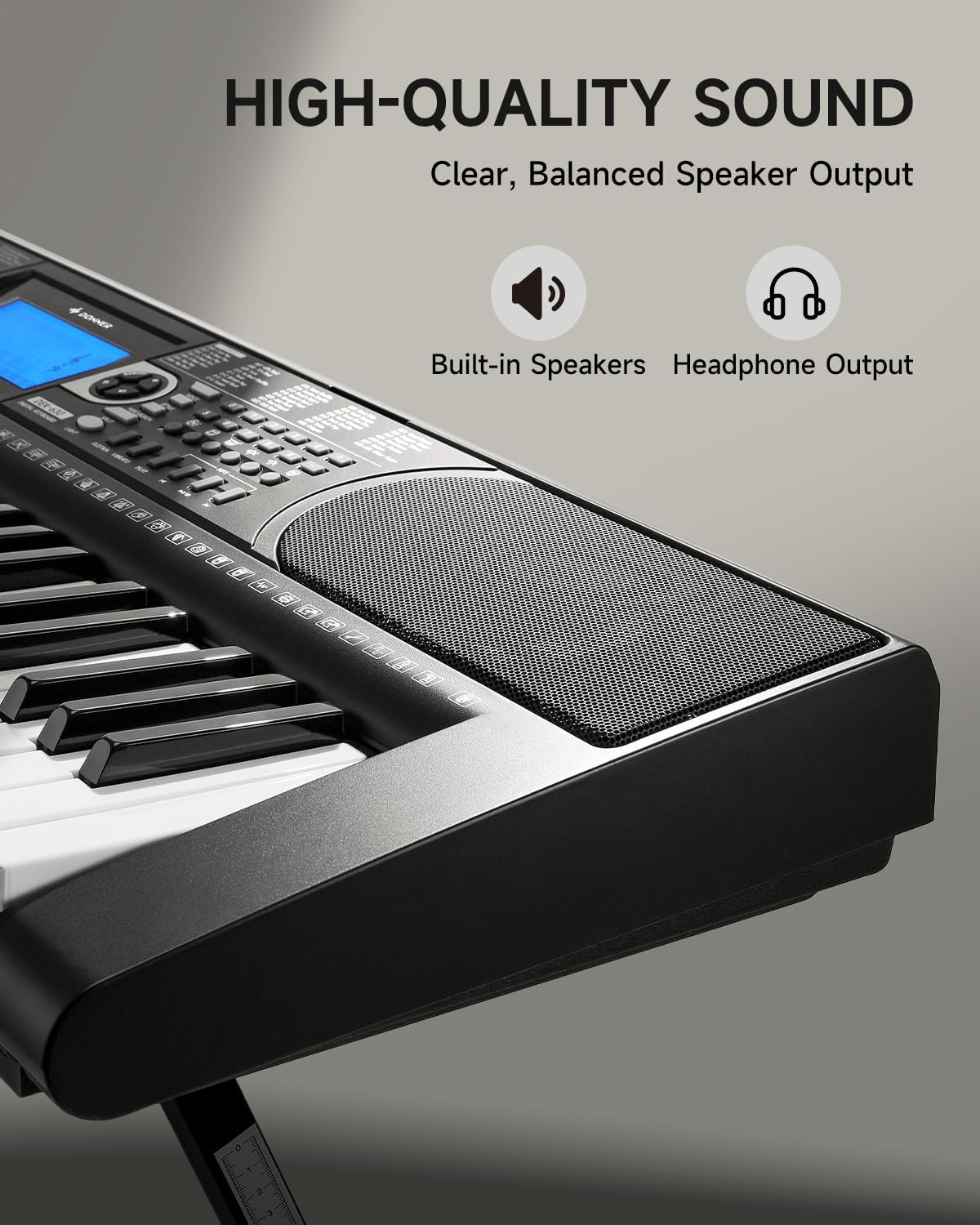
Image 4.3: The DEK-630's built-in speaker and headphone output for versatile sound options.
5. Maintenance
5.1 Cleaning
- Wipe the keyboard and stand with a soft, dry cloth.
- For stubborn dirt, use a slightly damp cloth and then dry thoroughly.
- Avoid using abrasive cleaners, solvents, or waxes, as these can damage the finish.
5.2 Storage
- Store the keyboard in a cool, dry place away from direct sunlight and extreme temperatures.
- If storing for an extended period, disconnect the power adapter.
6. Troubleshooting
| Problem | Possible Cause | Solution |
|---|---|---|
| No sound |
|
|
| Keys not responding |
|
|
| LCD display is blank |
|
|
7. Specifications
- Model: DEK-630
- Number of Keys: 61
- Tones: 300
- Rhythms: 256
- Demo Songs: 40
- Special Features: Built-In Speaker, Lighted Keys, Portable, LCD Display, Learning Modes (Auto-Chord, Metronome)
- Connectivity: USB MIDI, Audio Input, Output (L/R), Mic Jack, Headphone Jack, Sustain Pedal Jack
- Power: DC 12V Power Adapter
- Dimensions (Keyboard without stand): 37.80 x 11.81 x 3.54 inches (96 x 30 x 9 cm)
- Included Components: Electric Keyboard, Z-shaped Stand, Piano Bench, Music Rest, Note Stickers
8. Warranty and Support
8.1 Warranty Information
The Donner DEK-630 Electronic Keyboard comes with a 2-year warranty from the date of purchase. This warranty covers manufacturing defects and malfunctions under normal use. Please retain your proof of purchase for warranty claims. The warranty does not cover damage caused by misuse, accidents, unauthorized modifications, or normal wear and tear.
8.2 Customer Support
For technical assistance, troubleshooting, or warranty inquiries, please contact Donner customer support. Visit the official Donner website for contact information and additional resources.
Donner Official Website: www.donnerdeal.com