
CREALITY FALCON CR-Ferret Pro
Creality CR-Scan Ferret Pro 3D Scanner: User Manual
Model: CR-Ferret Pro
1. Introduction
This user manual provides detailed instructions for the safe and effective operation of your Creality CR-Scan Ferret Pro 3D Scanner. Please read this manual thoroughly before using the device to ensure proper functionality and to prevent damage.
The Creality CR-Scan Ferret Pro is a handheld 3D scanner designed for high-accuracy and fast scanning, featuring WiFi 6 wireless transmission, anti-shake tracking, and outdoor scanning capabilities. It is suitable for various applications, including 3D printing, design, and digital archiving.
2. Product Overview
The CR-Scan Ferret Pro offers advanced features for precise and efficient 3D scanning.
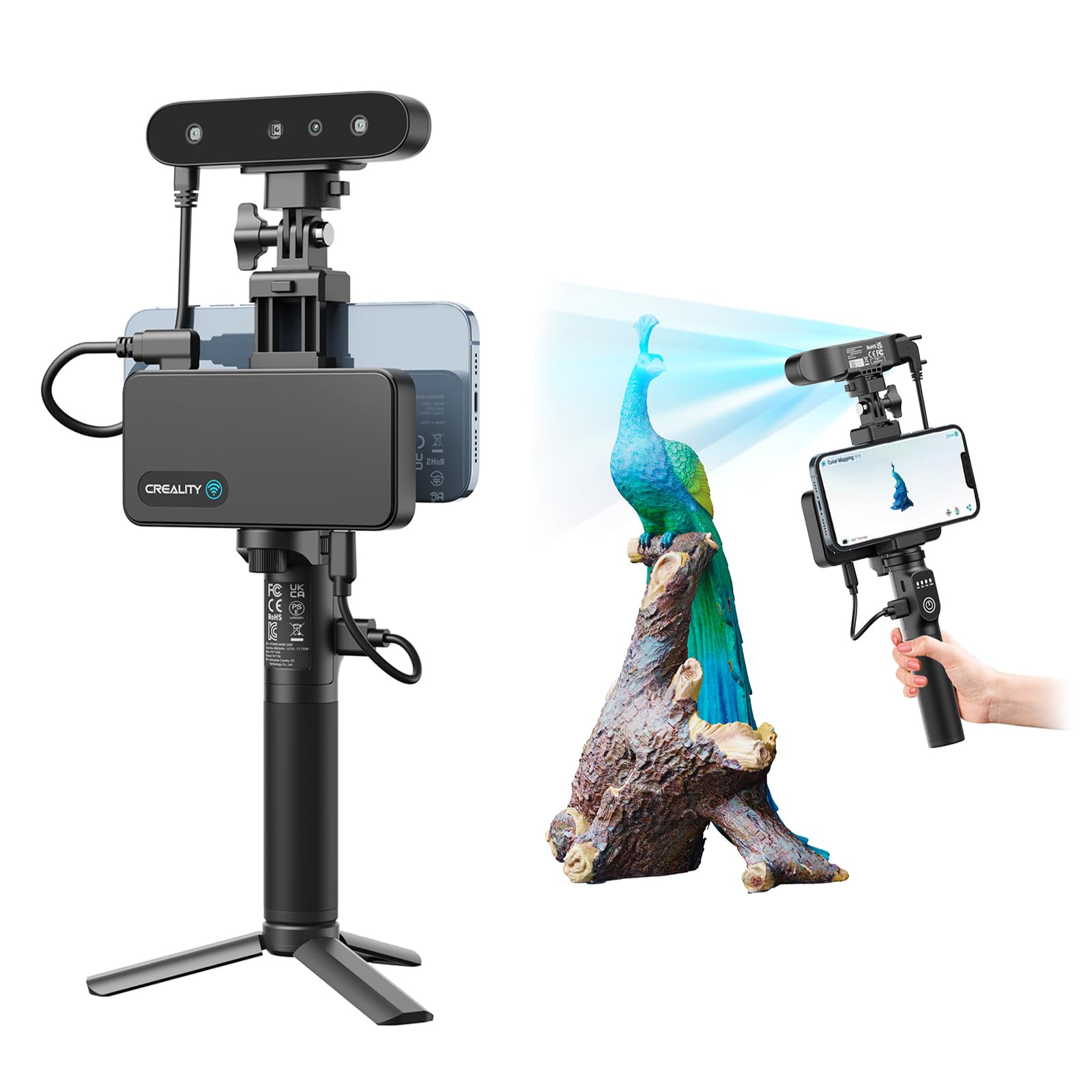
Figure 2.1: Creality CR-Scan Ferret Pro 3D Scanner with its accessories, including a tripod and smartphone holder.
Key Features:
- High Accuracy & Fast Scanning: Achieves up to 0.1mm accuracy and 30FPS scanning speed for detailed 3D models.
- WiFi6 Wireless Transmission: Provides 3x faster data transfer speeds compared to WiFi5 for efficient workflow.
- Outdoor Scanning Support: Capable of reliable performance in outdoor environments, even under sunlight.
- Anti-Shake Tracking: Utilizes one-shot 3D imaging for improved tracking accuracy and stable scanning.
- Full-Color Scanning: Captures vibrant 24-bit full-color textures for realistic models.
- Black/Metal Object Scanning: Supports scanning of black and metal objects without the need for scanning spray.
- Multi-mode Scanning: Offers Geometry, Texture, and Marker modes for versatile scanning applications.
- Wide Compatibility: Compatible with iOS, Android, Mac, and Windows operating systems.
Visual Features:

Figure 2.2: The scanner captures 24-bit full-color scans, enhancing color and texture accuracy for realistic 3D models.

Figure 2.3: The WiFi6 Wireless Bridge enables 3x faster data transfer for high-precision scanning and smoother workflow.

Figure 2.4: Anti-Shake Tracking technology improves scanning success rates, ensuring smooth, error-free scanning even with minor hand movements.

Figure 2.5: The scanner supports Geometry, Texture, and Marker scanning modes for diverse object types and applications.

Figure 2.6: The CR-Scan Ferret Pro supports wireless outdoor scanning, performing reliably even in bright sunlight.

Figure 2.7: The scanner can capture black and metal objects without the need for scanning spray, saving time and resources.
3. Setup
3.1 System Requirements
Ensure your device meets the following minimum specifications for optimal performance:
- Windows: i5-Gen8 CPU or later, Windows 10/11 (64-bit), RAM: >8GB, Software: >V2.3.0
- Mac OS: M1/M2/M3/M4 series, macOS 11.7.7+ or Intel i5-Gen8+, RAM: >8GB
- Android: OS: Android 10.0+, RAM: >8GB, Connectivity: Wi-Fi 6, App: V2.0.2
- iOS: Model: iPhone 11+, iOS 15+, RAM: >4GB
3.2 Connecting the Scanner
- Unpack: Carefully remove all components from the packaging.
- Assemble: Attach the scanner to the provided tripod or handheld grip. Secure your smartphone to the holder if using it as a display.
- Power On: Connect the scanner to a power source or ensure the internal battery is charged. The device features a 5000 mAh battery providing up to 2.5 hours of continuous scanning.
- Software Installation: Download and install the latest version of the Creality Scan software or mobile application compatible with your operating system.
- Wireless Connection (Recommended):
- Ensure WiFi 6 Bridge is powered on and connected to the scanner.
- Verify your device is connected to the WiFi 6 Bridge's network.
- Restart the scanner, WiFi 6 Bridge, and your computer/smartphone.
- Launch the Creality Scan software/app and select the scanner.
- Wired Connection (Alternative):
- Connect the scanner directly to your computer using a Type-C cable.
- Launch the Creality Scan software and select the scanner.

Figure 3.1: Connection options for the CR-Scan Ferret Pro, including WiFi 6 and Type-C, for efficient project transfers.
4. Operating Instructions
4.1 Preparing for Scan
- Object Placement: Place the object to be scanned on a stable surface. For smaller objects, consider using a turntable for easier rotation.
- Lighting: Ensure adequate and even lighting. The scanner supports outdoor scanning in sunlight (up to 30000 lux), but consistent indoor lighting is ideal.
- Surface Preparation: For highly reflective or transparent objects, applying a matte scanning spray is traditionally recommended. However, the CR-Scan Ferret Pro can scan black and metal objects without spray.
4.2 Scanning Process
- Select Mode: In the Creality Scan software/app, choose the appropriate scanning mode:
- Geometry Mode: For precise capture of geometric shapes.
- Texture Mode: For objects where detailed color and surface textures are important.
- Marker Mode: For scanning larger objects or areas using reference markers for improved tracking.
- Start Scan: Initiate the scan from the software. Follow on-screen prompts for optimal scanning distance and movement. The working distance is typically 150-700mm.
- Maintain Steady Movement: Move the scanner smoothly around the object. The Anti-Shake Tracking feature helps maintain stability, but consistent movement is crucial for best results.
- Monitor Progress: Observe the real-time scan preview on your connected device to ensure complete coverage and proper data capture.
- Complete Scan: Once the object is fully scanned, stop the process in the software.

Figure 4.1: Optimal working distance for the CR-Scan Ferret Pro is between 150mm and 700mm.
4.3 Post-Processing and Export
- Data Processing: Use the Creality Scan software to process the raw scan data. This typically involves aligning scans, merging point clouds, and generating a mesh.
- Editing: The software allows for basic editing, such as hole filling, smoothing, and decimation.
- Export: Export your 3D model in common formats like OBJ, STL, or PLY for use with 3D printing software, CAD programs, or other 3D modeling applications.

Figure 4.2: The scanner integrates with leading 3D software and supports OBJ, STL, PLY file formats for versatile post-processing.
5. Maintenance
- Cleaning: Gently wipe the scanner's optical lenses and body with a soft, dry, lint-free cloth. Avoid using abrasive cleaners or solvents.
- Storage: Store the scanner in a cool, dry place, away from direct sunlight and extreme temperatures. Use the original packaging or a protective case when not in use.
- Software Updates: Regularly check for and install software and firmware updates to ensure optimal performance and access to new features.
- Battery Care: For prolonged storage, charge the battery to approximately 50% to maintain its health. Avoid fully discharging the battery for extended periods.
6. Troubleshooting
| Problem | Possible Cause | Solution |
|---|---|---|
| Scanner not connecting wirelessly. | Incorrect WiFi settings, WiFi 6 Bridge issue, software conflict. |
|
| Poor scan quality or tracking issues. | Insufficient lighting, rapid scanner movement, highly reflective/transparent object, software calibration. |
|
| Software crashes or freezes. | System requirements not met, outdated software, conflicting applications. |
|
| Battery not charging or holding charge. | Faulty cable/charger, battery degradation, incorrect charging procedure. |
|
7. Specifications
| Feature | Detail |
|---|---|
| Model Number | CR-Ferret Pro (CR-scanner) |
| Accuracy | Up to 0.1mm |
| Resolution | 0.16mm |
| Scanning Speed | 30 FPS (Frames Per Second) |
| Connectivity | WiFi 6 Wireless, Type-C Wired |
| Outdoor Scanning | Supported (up to 30000 lux sunlight) |
| Battery Capacity | 5000 mAh |
| Battery Runtime | Up to 2.5 hours continuous scanning |
| Working Distance | 150-700mm |
| Item Weight | 3.3 pounds (approx. 1.5 kg) |
| Package Dimensions | 10.91 x 8.7 x 3.27 inches |
| Supported OS | Windows, macOS, Android, iOS |
| Supported File Formats | OBJ, STL, PLY |
8. Warranty and Support
For warranty information, technical support, or service inquiries, please contact Creality customer support through their official website or the retailer where the product was purchased.
You can also visit the CREALITY FALCON Store on Amazon for additional resources and product information.
Related documentsCR-Ferret Pro


Ask a question about this manual
Ask about setup, troubleshooting, compatibility, parts, safety, or missing instructions. Manuals+ will review the question and use this page’s manual context to help answer it.