
WOLFANG WS03
WOLFANG WS03 2K Indoor Security Camera User Manual
Model: WS03 | Brand: WOLFANG
1. Introduction
This user manual provides detailed instructions for the installation, operation, and maintenance of your WOLFANG WS03 2K Indoor Security Camera. Please read this manual thoroughly before using the product to ensure proper functionality and safety. The WOLFANG WS03 camera offers 2K (3MP) resolution, 360° pan/tilt/zoom (PTZ) capabilities, automatic motion tracking, infrared night vision, two-way audio, and compatibility with smart home systems like Alexa and Google Assistant.
2. Package Contents
Verify that all items are present in the package:
- WOLFANG WS03 2K Indoor Security Camera (Quantity: 1 or 2, depending on pack)
- Power Adapter
- USB Power Cable
- Mounting Bracket
- Mounting Screws and Wall Plugs
- User Manual (this document)

Image: WOLFANG WS03 camera and its included accessories.
3. Setup
3.1 Physical Installation
The WOLFANG WS03 camera can be placed on a flat surface or mounted to a wall or ceiling. Ensure the camera is positioned within range of your 2.4GHz Wi-Fi network.
- Choose a Location: Select a location that provides the desired viewing angle and is close to a power outlet.
- Mounting (Optional): If mounting, use the provided bracket, screws, and wall plugs. Mark the drill holes, drill, insert wall plugs, and secure the bracket. Attach the camera to the bracket.
- Power Connection: Connect the USB power cable to the camera and the power adapter. Plug the adapter into a power outlet. The camera will power on and initiate a self-test, indicated by its rotation.

Image: WOLFANG WS03 camera placed on a surface, connected to power, with a smartphone displaying its live feed.
3.2 App Installation and Connection
The WOLFANG WS03 camera operates via the Osaio app. Download and install the app on your smartphone.
- Download App: Search for "Osaio" in your mobile app store (App Store for iOS or Google Play Store for Android) and install it.
- Create Account: Open the Osaio app and register for a new account or log in if you already have one.
- Add Device: Tap the "+" icon in the app to add a new device. Select your camera model (WS03).
- Wi-Fi Connection: Follow the in-app instructions to connect the camera to your 2.4GHz Wi-Fi network. Ensure your phone is also connected to the same 2.4GHz network during setup. The camera's LED indicator will flash red when ready for pairing.
- Scan QR Code: The app will display a QR code. Hold your camera approximately 15-20 cm (6-8 inches) in front of your phone screen until you hear a confirmation sound from the camera.
- Completion: Once connected, the camera's LED indicator will turn solid blue, and you can view the live feed in the app.

Image: WOLFANG WS03 camera with a smartphone indicating 2.4GHz Wi-Fi connectivity.
4. Operation
4.1 Live View and PTZ Control
Access the live video feed from your camera through the Osaio app. You can remotely control the camera's pan and tilt functions.
- Live Feed: Open the Osaio app and select your camera to view the real-time video stream.
- PTZ Control: Use the directional controls within the app interface to rotate the camera horizontally (360°) and vertically (110°) to adjust the viewing angle.

Image: Overview of WOLFANG WS03 features, including 360° horizontal and 110° vertical rotation.
4.2 Motion Tracking and Alerts
The camera can detect motion and sound, automatically track subjects, and send alerts to your phone.
- Enable Detection: In the Osaio app settings for your camera, enable motion detection and sound detection.
- Automatic Tracking: When motion is detected, the camera will automatically pan and tilt to follow the moving object.
- Notifications: Configure push notifications in the app to receive instant alerts on your mobile device when motion or sound is detected.

Image: WOLFANG WS03 camera monitoring a sleeping baby in night vision mode.
4.3 Two-Way Audio
Communicate through the camera using its built-in microphone and speaker.
- Listen: In the live view, tap the speaker icon to listen to audio from the camera's location.
- Speak: Tap and hold the microphone icon to speak through the camera. Release to stop speaking.

Image: WOLFANG WS03 camera demonstrating two-way audio with a dog in a living room, controlled via smartphone.
4.4 Night Vision
The camera is equipped with infrared LEDs for clear vision in low-light or complete darkness, up to 8 meters.
- Automatic Activation: Night vision activates automatically in low light conditions.
- Manual Control: You can manually toggle night vision on/off or set it to automatic mode within the app settings.
4.5 Storage Options
The WOLFANG WS03 offers flexible storage solutions for recorded video.
- Micro SD Card: The camera supports a Micro SD card up to 128GB (not included). Insert the card into the designated slot on the camera. Continuous recording or event-based recording can be configured in the app.
- Cloud Storage: Encrypted cloud storage is available, often with a free trial period (e.g., 14 days). This provides off-site backup for your recordings. Details and subscription options are available within the Osaio app.
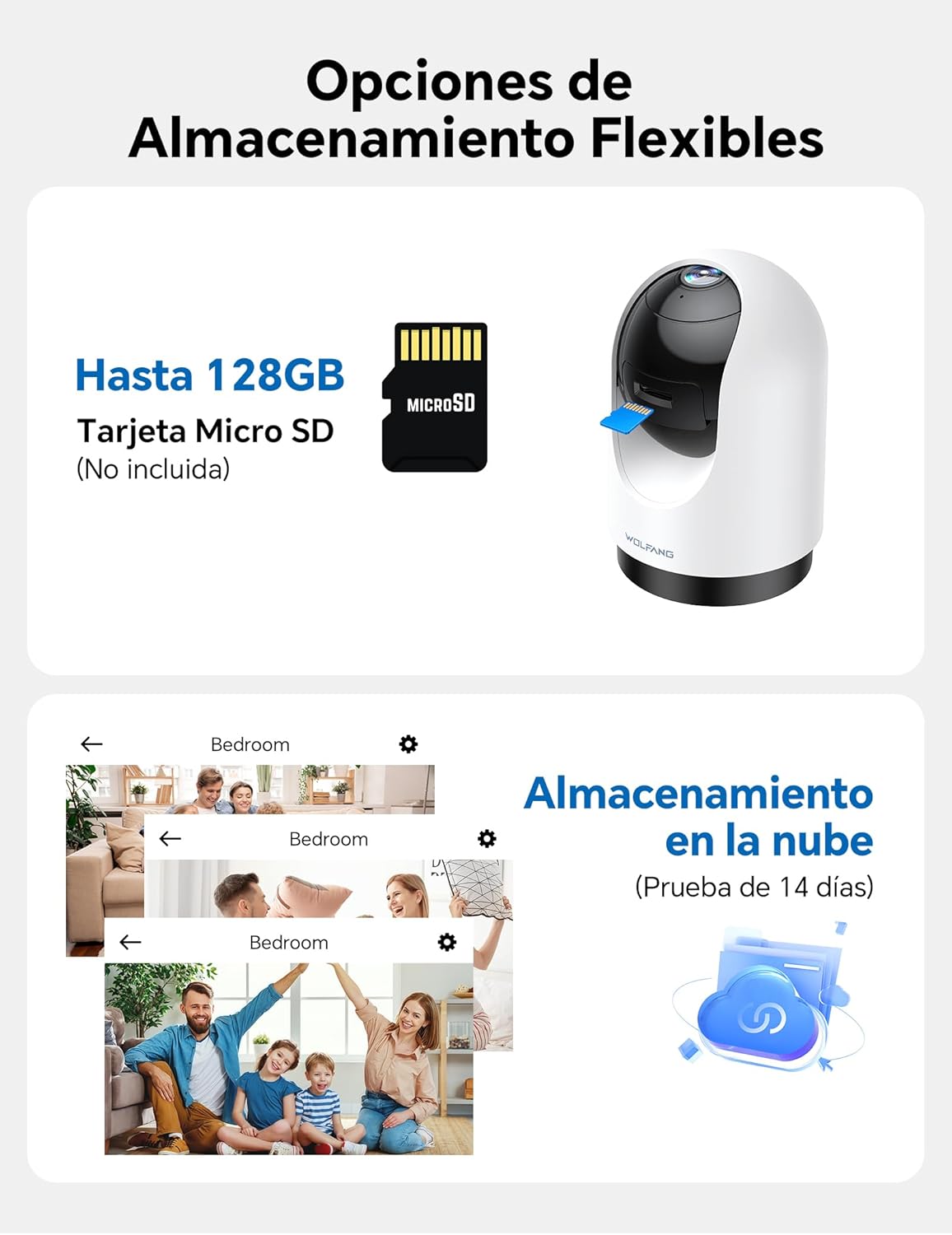
Image: WOLFANG WS03 camera illustrating MicroSD card and cloud storage options.
4.6 Multi-User Access and Multi-View
Share camera access with family members and view multiple cameras simultaneously.
- Share Access: In the Osaio app, you can invite up to 3 additional users to view your camera feed.
- Multi-View: If you have multiple WOLFANG cameras, the app allows you to view live feeds from several cameras on a single screen.

Image: WOLFANG WS03 camera demonstrating multi-user sharing and multi-view functionality on a smartphone.
4.7 Voice Control (Alexa & Google Assistant)
Integrate your WOLFANG WS03 camera with Amazon Alexa or Google Assistant for convenient voice control.
- Enable Skill/Action: In the Alexa or Google Home app, search for and enable the "Osaio" skill or action.
- Link Account: Link your Osaio account with your Alexa or Google account.
- Discover Devices: Ask your smart assistant to discover new devices.
- Voice Commands: Use commands such as "Alexa, show me the living room camera" or "Hey Google, show me the baby monitor" to view the live feed on compatible smart displays.

Image: A woman using a voice command with Alexa to display the WOLFANG WS03 camera feed on a tablet.
5. Maintenance
5.1 Cleaning
Regular cleaning helps maintain optimal performance.
- Camera Lens: Gently wipe the camera lens with a soft, dry, lint-free cloth. Avoid abrasive cleaners or solvents.
- Camera Body: Clean the camera body with a slightly damp cloth. Ensure no moisture enters the device.
- Power Off: Always disconnect the camera from power before cleaning.
5.2 Firmware Updates
Keep your camera's firmware updated to ensure the latest features, security patches, and performance improvements.
- Check for Updates: The Osaio app will typically notify you when a new firmware update is available. You can also manually check in the camera's settings within the app.
- Update Process: Follow the on-screen instructions in the app to perform the update. Ensure the camera remains powered on and connected to Wi-Fi during the entire update process. Do not disconnect power or close the app until the update is complete.
6. Troubleshooting
6.1 Common Issues and Solutions
| Issue | Possible Solution |
|---|---|
| Camera fails to connect to Wi-Fi. |
|
| Poor video quality or lag. |
|
| Motion detection alerts are too frequent or not working. |
|
| Two-way audio is unclear or not working. |
|
| Micro SD card not recording. |
|
7. Specifications
| Feature | Detail |
|---|---|
| Model Name | WS03 |
| Brand | WOLFANG |
| Resolution | 2K (3MP) |
| Connectivity | Wi-Fi (2.4GHz only) |
| Pan/Tilt Range | 360° Horizontal, 110° Vertical |
| Night Vision | Infrared, up to 8m |
| Audio | Two-Way Audio (Built-in Microphone & Speaker) |
| Storage | Micro SD card (up to 128GB, not included), Cloud Storage (optional) |
| Voice Assistant Compatibility | Amazon Alexa, Google Assistant |
| Power Source | Wired (USB cable and power adapter) |
| Dimensions (L x W x H) | 7.5 x 14.9 x 7.5 cm |
| Video Capture Format | MP4 |
| UPC | 850067892434 |
8. Warranty and Support
WOLFANG provides a 2-year after-sales guarantee for this product. For any questions or assistance regarding your WOLFANG WS03 Indoor Security Camera, please contact our customer service.
- Email Support: support.vc@wolfang.co
- Warranty Period: 2 years from the date of purchase.

Image: WOLFANG customer support details, including 24-hour response, 30-day return, 365-day replacement, and lifetime after-sales service.
Related documentsWS03


Ask a question about this manual
Ask about setup, troubleshooting, compatibility, parts, safety, or missing instructions. Manuals+ will review the question and use this page’s manual context to help answer it.