
1. Introduction
Welcome to the TOPTRO TP3 Smart Projector user manual. This guide provides essential information for setting up, operating, maintaining, and troubleshooting your new projector. The TOPTRO TP3 is a versatile smart projector featuring Google TV, native 1080P resolution with 4K support, WiFi 6, Bluetooth 5.3, and advanced AI auto-setup capabilities for focus, keystone correction, obstacle avoidance, and screen alignment. Its ultra-compact design and rotatable stand make it ideal for various projection environments, from home theaters to outdoor movie nights.

Image 1.1: The TOPTRO TP3 Smart Projector displaying its Google TV interface with popular streaming applications.
2. What's in the Box
Please check the package contents to ensure all items are present:
- TOPTRO TP3 Smart Projector (x1)
- Remote (2x AAA Batteries Required, NOT Included) (x1)
- Power Cord (x1)
- HDMI Cable (x1)
- Lens Cap (x1)
- Lens Cleaning Kit (x1)
3. Setup
3.1 Physical Placement
Position your TOPTRO TP3 projector on a stable, flat surface. The built-in rotatable stand allows for flexible projection angles, including walls, ceilings, or even attic spaces. For optimal viewing, ensure the projection surface is smooth and light-colored. The ultra-short throw ratio of 0.8:1 enables a large 120-inch image from just 6.9 feet away, making it suitable for small rooms.
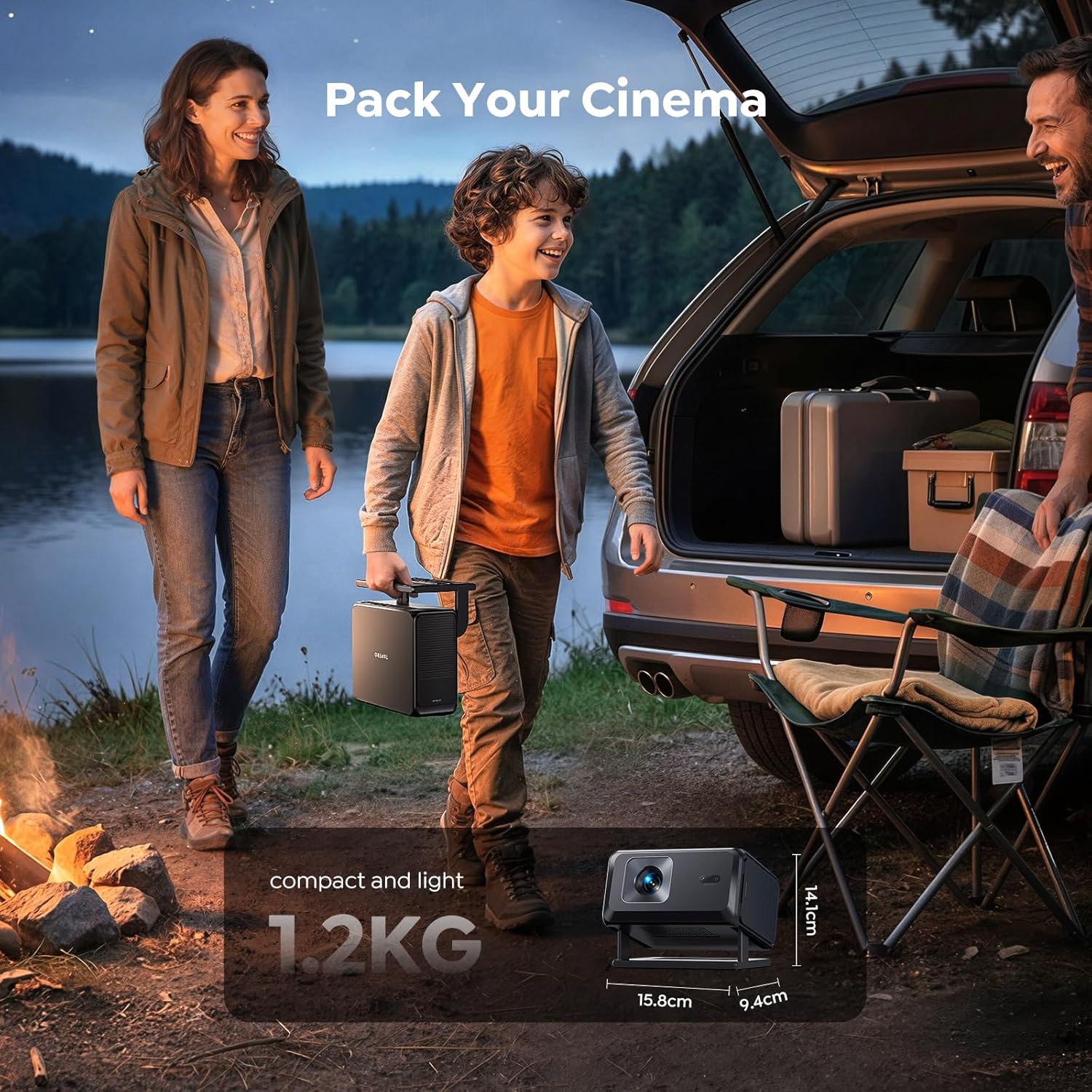
Image 3.1: The TOPTRO TP3 projector creating a large display from a short distance in a living room setting.
3.2 Power On and Initial Configuration
Connect the power cord to the projector and a power outlet. Press the power button to turn on the device. The projector features an advanced AI auto-setup system that automatically adjusts focus, keystone correction, avoids obstacles, and aligns the screen for a perfectly clear image within seconds. For fixed installations, you can turn off Auto Focus and Auto Four-Corner Correction in the settings and manually adjust once; the projector will remember these settings.

Image 3.2: Visual representation of the TOPTRO TP3's AI automatic adjustment features ensuring a perfect display.
3.3 Network Connection
Navigate to the settings menu on the projector's main interface. Select 'Network & Internet' and connect to your Wi-Fi network. The projector supports WiFi 6 for fast and stable streaming.
4. Operating Instructions
4.1 Google TV and Built-in Apps
The TOPTRO TP3 comes bundled with a Google TV Stick, providing access to over 10,000 apps including Netflix, YouTube, Prime Video, Disney+, and more. Use the voice remote with built-in Google Assistant to navigate, search for content, and control playback.

Image 4.1: The projector's home screen powered by Google TV, offering a wide selection of applications.
Video 4.1: An overview of the TOPTRO TP3 Smart Projector's features, including its Google TV integration and smart functionalities.
4.2 Screen Mirroring
The projector supports multi-device screen mirroring from iOS, Android, and laptops. Ensure both your device and the projector are connected to the same Wi-Fi network.
4.2.1 Mirroring iOS Devices
To mirror your Apple iOS device, locate the 'Apps' section on the projector's main screen. Click 'Go to Play Store' at the bottom. Search for and install 'AirScreen - AirPlay & Cast'. Open the app after installation. Ensure both devices are on the same Wi-Fi network. Use your Apple phone to scan the QR code displayed on the projector or find '[AS-TVStick [AirPlay]]' in your iOS device's screen mirroring options and connect.
Video 4.2: Step-by-step instructions on how to screen mirror an iOS device to the TOPTRO TP3 projector.
4.2.2 Mirroring Android Devices
For Android devices, ensure the projector and your mobile device are connected to the same Wi-Fi network. Select 'Settings' on the projector's main interface, then click 'Device Preferences', and finally 'Google Cast'. Android users should download the Google Home app beforehand and ensure their phone and projector are logged into the same Google account. Find the projector device name (TP3) in the Google Home app and mirror your screen.
4.2.3 Mirroring Computer Devices
Ensure the projector and your computer are connected to the same Wi-Fi network. Open the Google Chrome browser on your computer. Click the three-dot menu in the top-right corner, then select 'Cast...'. In the 'Cast tab' window, find the projector device name (TP3) and click 'Connect'.
4.3 External Connectivity
The TOPTRO TP3 offers versatile connectivity options:
- HDMI ARC/CEC: Connect soundbars, gaming consoles, or other HDMI-enabled devices.
- USB Ports: For media playback from USB drives or connecting external devices.
- Bluetooth 5.3: Seamlessly connect headphones, external speakers, or mobile devices for audio.
- 3.5mm Jack: For wired audio output to headphones or speakers.

Image 4.2: The TOPTRO TP3 serving as a central entertainment hub with multiple connectivity options.
5. Maintenance
5.1 Cleaning the Lens and Filter
Regular cleaning ensures optimal image quality and extends the projector's lifespan. Use the provided lens cleaning kit for the lens and follow the instructions below for the filter.
Video 5.1: A guide on how to properly clean the lens and internal filter of your TOPTRO TP3 projector.
- Remove the filter screen from the back of the projector.
- Wash the filter screen with clean water and let it air dry, or use a hair dryer on a cool setting.
- Open the dust cover and protective cover on the side of the projector (a flathead screwdriver or utility knife can assist).
- With the projector powered on, use cotton swabs from the cleaning kit to carefully clean any black spots on the projector's LCD screen. Clean both internal layers.
- After cleaning, replace the dust cover and filter screen.
6. Troubleshooting
This section addresses common issues you might encounter with your TOPTRO TP3 projector.
- No Power: Ensure the power cord is securely connected to both the projector and a working power outlet. Check if the power adapter is functioning correctly.
- No Image/Signal: Verify that the input source (HDMI, USB, screen mirroring) is correctly selected on the projector. Check all cable connections. If using screen mirroring, ensure both devices are on the same Wi-Fi network and the mirroring app is active.
- Blurry Image: The projector has auto-focus. If the image remains blurry, try moving the projector slightly or manually adjusting the focus in the settings. Ensure the lens is clean (refer to Maintenance section).
- Distorted Image (Trapezoid Shape): The projector features auto-keystone correction. If the image is still distorted, check for any physical obstructions or try manually adjusting the keystone in the settings.
- No Sound: Check the volume levels on both the projector and the connected source device. If using external speakers or headphones via Bluetooth or 3.5mm jack, ensure they are properly connected and selected as the audio output.
- Wi-Fi/Bluetooth Connectivity Issues: Ensure the projector is within range of your Wi-Fi router or Bluetooth device. Restart both the projector and the network device.
7. Specifications
| Feature | Detail |
|---|---|
| Brand | TOPTRO |
| Model Number | TP3 |
| Display Resolution | Native 1920 x 1080 (1080P) |
| Display Resolution Maximum | 3840 x 2160 (4K Support) |
| Connectivity Technology | Bluetooth 5.3, Wi-Fi 6, USB, HDMI (CEC/ARC), 3.5mm Jack, IR |
| Throw Ratio | 0.8:1 (Ultra Short Throw) |
| Maximum Image Size | 120 Inches |
| Minimum Image Size | 30 Inches |
| Light Source Operating Life | 30,000 Hours |
| Item Dimensions (L x W x H) | 7.63"L x 6.22"W x 5.55"H |
| Item Weight | 2.6 Pounds |
| Special Features | Google TV System, AI Auto Focus, Auto Keystone, Smart Obstacle Avoidance, Screen Alignment, Rotatable Stand, HDR Technology |
8. Warranty and Support
The TOPTRO TP3 Smart Projector is backed by a comprehensive 2-year warranty and lifetime technical support. We are committed to your satisfaction and offer a 1-year replacement policy for added peace of mind.
Our dedicated 24/7 customer support team is available to assist you with setup, troubleshooting, or any questions you may have.
For support inquiries, please contact us at: service@toptro.com


