
1. Product Overview
The Blackview Rock 2 Pro 5G is a rugged smartphone designed for demanding environments and extended use. It features a large 15000mAh battery, a powerful 5G MediaTek UMS9620 chipset, and runs on Android 16 with DokeOS. Key features include a dual 400LM camping light, IP68/IP69K waterproof and dustproof ratings, and MIL-STD-810H drop resistance. The device also offers a 6.67-inch 120Hz display, 32GB RAM, 256GB internal storage expandable up to 2TB, and advanced camera capabilities.

Image: The Blackview Rock 2 Pro 5G rugged phone showcasing its robust design and key features like the camping light and large display.
Video: An overview of the Blackview Rock 2 Pro, highlighting its design and features.
2. Initial Setup
2.1 Package Contents
Verify that all items are present in the package:
- Blackview Rock 2 Pro Smartphone
- USB Cable
- Power Adapter
- SIM Ejector Tool
- User Manual (this document)

Image: Illustration of the Blackview Rock 2 Pro packaging contents, including the phone, USB cable, and other accessories.
2.2 Inserting SIM Cards and MicroSD Card
- Locate the SIM card tray on the side of the phone.
- Insert the SIM ejector tool into the small hole next to the tray to open it.
- Carefully pull out the tray.
- Place your Nano-SIM cards (up to two) and/or a MicroSD card (up to 2TB) into the designated slots on the tray. Ensure the metal contacts face downwards.
- Gently push the tray back into the phone until it clicks into place.

Image: A close-up view of the dual SIM card slot, illustrating how to insert SIM and MicroSD cards.
2.3 Initial Power On and Charging
- Press and hold the Power button (located on the right side) until the Blackview logo appears.
- Follow the on-screen instructions to complete the initial setup, including language selection, Wi-Fi connection, and Google account setup.
- For optimal battery life, fully charge the device before first use. Connect the USB cable to the phone's USB-C port and the power adapter, then plug it into a wall outlet.
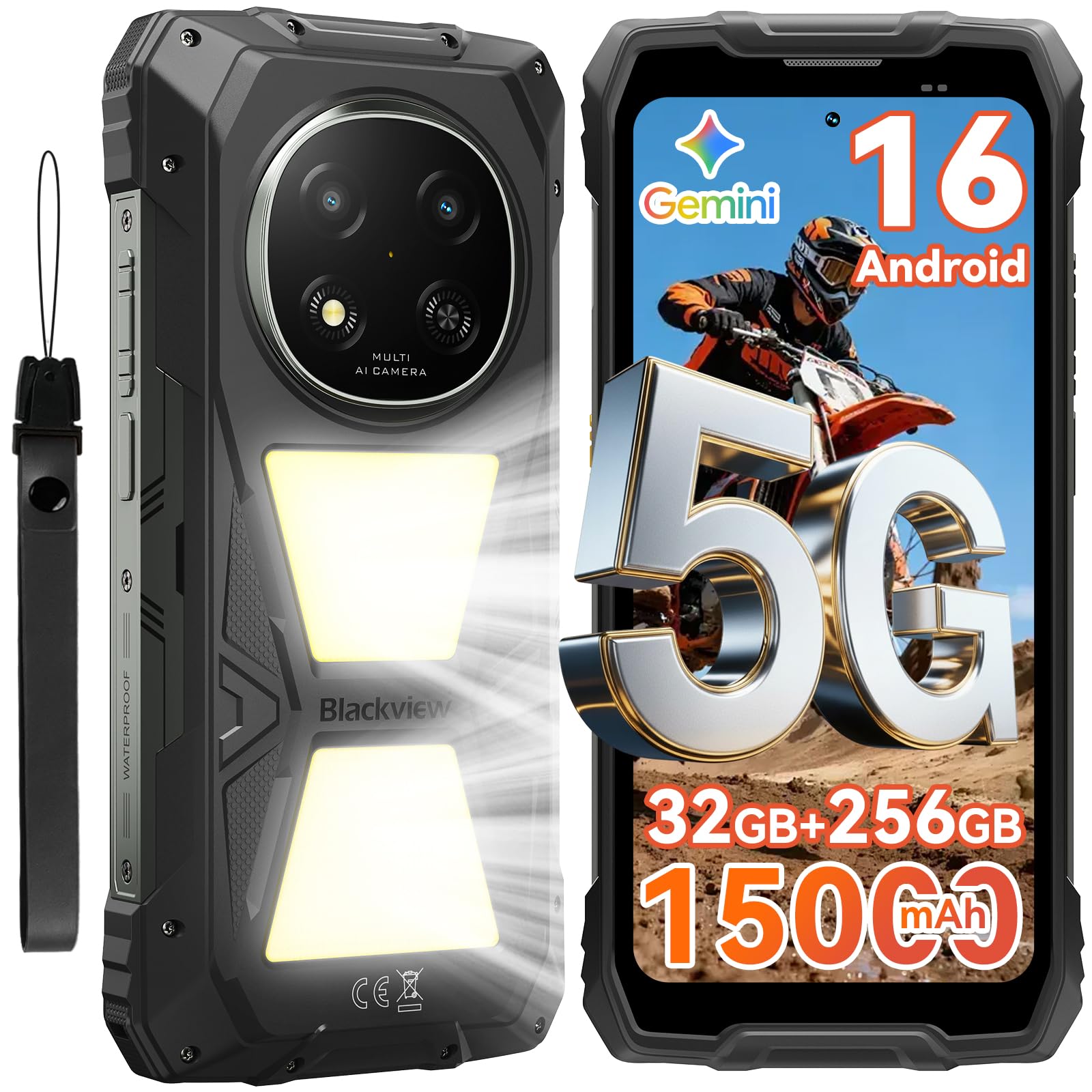
Image: The Blackview Rock 2 Pro phone powered on, displaying its home screen.
2.4 Memory Expansion
The Blackview Rock 2 Pro supports virtual RAM expansion. You can adjust the virtual RAM size through the phone's settings to enhance multitasking performance.
Video: Instructions on how to expand the phone's memory virtually through settings.
3. Operating Instructions
3.1 Basic Navigation and Interface
The Blackview Rock 2 Pro runs on Android 16 with DokeOS 5.0, offering a user-friendly interface. Swipe up from the bottom to access the app drawer, swipe down from the top for notifications and quick settings. Customize your home screen by long-pressing on empty space.

Image: The phone's display showing the DokeOS 5.0 interface based on Android 16, highlighting personalization and efficiency.
3.2 Using the Dual Camping Light
The device features a powerful dual 400LM camping light on the rear. This light can be activated and controlled via the customizable side key or through the ToolBag application. It offers multiple modes including constant lighting, SOS, and quick flashing, suitable for various outdoor situations.

Image: The Blackview Rock 2 Pro with its bright dual camping light illuminated, demonstrating its utility in dark environments.
3.3 Glove Mode 2.0
Activate Glove Mode 2.0 in settings to enable seamless operation of the touchscreen even when wearing thick gloves. This feature is particularly useful in cold weather or industrial environments.

Image: A user interacting with the Blackview Rock 2 Pro touchscreen while wearing gloves, demonstrating Glove Mode 2.0.
3.4 Useful ToolBag Application
The pre-installed ToolBag app provides a suite of practical tools for outdoor and professional use, including a compass, torch, magnifier, sound meter, protractor, and plumb bob. Access these tools directly from the app or assign them to the customizable side key.

Image: The Blackview Rock 2 Pro screen showing the various tools available within the ToolBag application.
Video: A demonstration of the useful ToolBag app and its various functions.
3.5 Camera Features
The Blackview Rock 2 Pro is equipped with a 16MP AI main camera and a 13MP AI front camera. Utilize various modes such as Portrait for depth effects, Beauty for enhanced selfies, and Night mode for improved low-light photography.

Image: The camera interface of the Blackview Rock 2 Pro, highlighting Portrait, Beauty, and Night modes.
3.6 OTG Reverse Charging
The 15000mAh battery allows the Rock 2 Pro to function as a power bank. Use an OTG cable (not included) to charge other devices like earbuds, smartwatches, or other smartphones.

Image: A Blackview Rock 2 Pro connected via OTG cable to charge another smartphone, demonstrating its reverse charging capability.
3.7 Security Features (Fingerprint & Face Unlock)
Unlock your phone securely using the side-mounted fingerprint sensor or facial recognition. Configure these options in the Security settings.
Image: Visual representation of the fingerprint unlock and face unlock features on the Blackview Rock 2 Pro.
4. Maintenance
4.1 Water and Dust Resistance
The Blackview Rock 2 Pro is IP68/IP69K certified, meaning it is resistant to water and dust. However, ensure all port covers (e.g., USB-C) are securely closed to maintain water resistance. After exposure to water, dry the phone thoroughly before charging.

Image: The Blackview Rock 2 Pro being held in the rain, demonstrating its waterproof capabilities.

Image: The Blackview Rock 2 Pro partially submerged in water, illustrating its IP68/IP69K certification for water resistance.
4.2 Speaker Cleaning
The device features an auto-expel function for water and debris from the speakers to ensure clear audio. If audio quality is affected after water exposure, allow the phone to dry completely, and the function will activate automatically.
4.3 System Updates
Regularly check for and install system updates to ensure your phone has the latest features, security patches, and performance improvements. Navigate to Settings > System > System updates to check for available updates.
Video: A guide on how to check for and perform system updates on your Blackview Rock 2 Pro.
5. Troubleshooting
5.1 Common Issues and Solutions
- Phone not turning on: Ensure the battery is charged. Connect to the charger and wait a few minutes before attempting to power on again.
- Slow performance/Lag:
- Close unused applications running in the background.
- Clear cache data for apps.
- Restart the phone.
- Consider adjusting virtual RAM settings (see section 2.4).
- Network connectivity issues:
- Check if airplane mode is off.
- Ensure SIM cards are correctly inserted.
- Verify your mobile data plan is active.
- Restart the phone.
- Note: This phone is not compatible with CDMA carriers such as AT&T, Cricket Wireless, Verizon, Straight Talk, or U.S. Cellular.
- Fingerprint scanner unresponsive: Ensure your finger is clean and dry. If the issue persists, try re-registering your fingerprint in settings. A factory reset might be necessary if software related.
Video: Tips and methods for handling lag and improving phone performance.
6. Technical Specifications
| Brand | Blackview |
| Model Name | Rock 2 Pro |
| Operating System | Android 16 (DokeOS 5.0) |
| CPU Model | MediaTek UMS9620 5G (T8100 Octa-core) |
| RAM Memory | 32 GB (8GB physical + 24GB virtual) |
| Internal Storage | 256 GB |
| Expandable Storage | Up to 2 TB (TF card) |
| Screen Size | 6.67 Inches |
| Resolution | 2400 x 1080 (2.4K) |
| Refresh Rate | 120 Hz |
| Battery Capacity | 15000 mAh |
| Charging Power | 33W |
| Rear Camera | 16 MP AI Main Camera |
| Front Camera | 13 MP AI Front Camera |
| Water Resistance | IP68/IP69K Certified |
| Drop Resistance | MIL-STD-810H Certified (1.5-meter drop-proof) |
| Connectivity | 5G, Bluetooth, NFC, USB Type-C, Wi-Fi |
| Dimensions | 85.8mm (W) x 187.6mm (H) x 25mm (D) |
| Weight | 558g |

Image: Technical diagram illustrating the dimensions and weight of the Blackview Rock 2 Pro.
7. Warranty and Support
7.1 Warranty Information
The Blackview Rock 2 Pro comes with a 2-year manufacturer's warranty. This warranty covers defects in materials and workmanship under normal use. Please retain your proof of purchase for warranty claims.
7.2 Customer Support
For technical assistance, troubleshooting, or warranty inquiries, please contact Blackview customer service. They offer 7/24 quick response and lifetime technical support.
- Online Support: Visit the official Blackview website for FAQs and support resources.
- Email Support: Refer to your product packaging or the official website for contact email.

Image: A team of Blackview customer service representatives, symbolizing available support.


