
1. Introduction
This manual provides instructions for the setup, operation, and maintenance of your BYDIFFER 4K Digital Media Player, Model HD30. This device is designed to play various media formats from USB drives and Micro SD cards on your television, monitor, or projector, supporting 4K@60Hz resolution output.
2. Package Contents
Verify that all items listed below are included in your package:
- 1 x Media Player
- 1 x Remote Control
- 1 x HDMI Cable
- 1 x AV Cable
- 1 x DC Adapter
- 1 x User Manual

3. Product Features
- HDMI/AV/Optical Output: Connects to various display devices (TV, monitor, projector) via HDMI or AV, and to audio systems via Optical output for stereo surround sound. Supports 4K@60Hz video quality via HDMI.
- 4K@60Hz Media Playback: Utilizes H.265/HEVC decoding technology for ultra-high-definition images and smooth playback, offering improved performance over H.264 decoding and 1080P resolution.
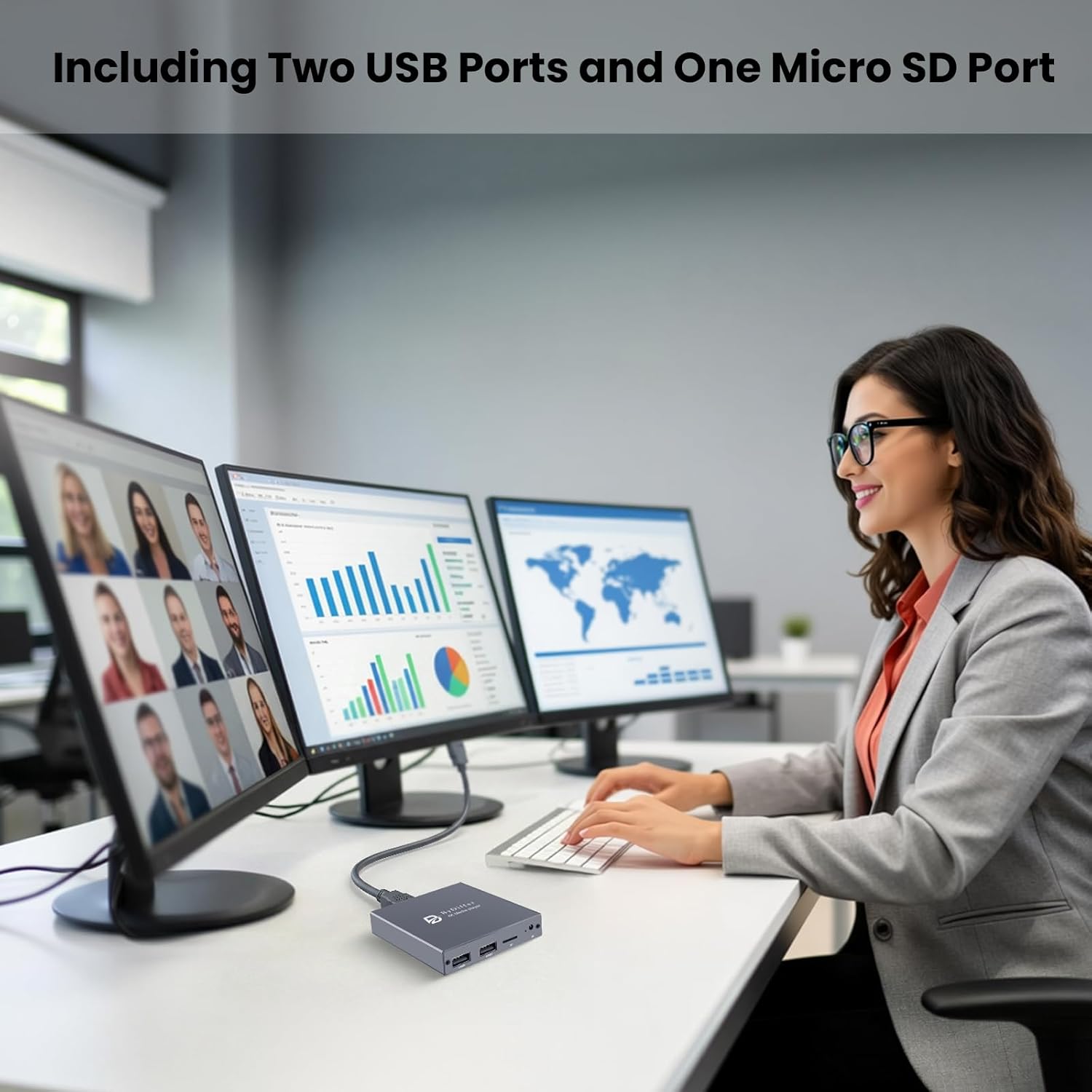
- Dual USB Ports & Micro SD Card Slot: Reads media from USB flash drives, USB hard drives (up to 8TB), and Micro SD cards (up to 128GB). Supports FAT32, exFAT, and NTFS file systems. Two USB ports allow connection of multiple devices, though only one can be read at a time.
- Multiple Playback Modes: Features automatic playback, video resume from the last stop point, and shuffle playback with repeat. Videos and photos can play in sequential orders, while music can play in random orders. Compatible with horizontal and vertical screen orientations.
- Digital Signage Functionality: Allows customization of advertising subtitles for autoplay videos to scroll in a loop, suitable for commercial digital signage applications.
- Compact and Durable Design: Palm-sized zinc alloy construction for portability, fast heat dissipation, and enhanced protection.
4. Setup Guide
4.1 Connecting the Media Player
Identify the ports on the media player and your display/audio devices.

- Power Connection: Connect the included DC Adapter to the DC5V port on the media player and plug it into a power outlet.
- HDMI Connection (for 4K/HD displays): Use the provided HDMI cable to connect the 'HD' port on the media player to an HDMI input on your TV, monitor, or projector.
- AV Connection (for older TVs): Use the provided AV cable to connect the 'AV' port on the media player to the corresponding AV input (usually yellow, white, red) on your older TV.
- Optical Audio Connection: For stereo surround sound, connect an optical cable (not included) from the 'OPTICAL' port on the media player to your speaker or amplifier.
- IR Receiver Extender (Optional): If needed, connect an IR receiver extender cable (not included) to the 'IR' port for remote control functionality when the player is out of direct line of sight.
4.2 Inserting Media Storage
- USB Drive/Hard Drive: Insert your USB flash drive or external USB hard drive into either the USB1 or USB2 port. Ensure external hard drives requiring additional power are connected to their own power source.
- Micro SD Card: Insert your Micro SD card into the 'TF' slot until it clicks into place.
5. Operating Instructions
5.1 Basic Playback
After connecting the media player and inserting your storage device, power on the player and select the correct input source on your display (e.g., HDMI1, AV).
- Navigation: Use the remote control to navigate the on-screen menu. Select the desired media type (Video, Music, Photo) from the main interface.
- File Selection: Browse your storage device to locate the file you wish to play. Press 'OK' on the remote to start playback.
- Supported Formats:
- Videos: H.265/HEVC (MKV, MOV, AVI), MPEG (MP4, FLV, RM, 3GP), WMV, RMVB, DAT, MPG, TS, M2TS.
- Music: MP3, OGG, FLAC, APE, AAC, WMA.
- Photos: JPG, JPEG, BMP, GIF, PNG.
5.2 Playback Modes
- Automatic Playback: The player can be configured to automatically start playing media upon power-on.
- Resume Playback: For videos, the player can resume playback from the last stopped point.
- Shuffle/Repeat: Music can be played in random order, and videos/photos can be set to repeat sequentially.
5.3 Digital Signage Application
For commercial use, the player supports customizable advertising subtitles that scroll in a loop with autoplay videos. Refer to the on-screen settings for subtitle configuration.

6. Specifications
| Brand Name | BYDIFFER |
| Model Number | HD30 |
| Item Weight | 3.53 ounces |
| Product Dimensions | 3.1 x 3.1 x 0.6 inches |
| Color | Grey |
| Resolution | 4K@60Hz |
| Connectivity Technology | HDMI, AV, Optical |
| Controller Type | Remote Control |
| Supported File Systems | FAT32, exFAT, NTFS |
| Max USB/HDD Capacity | 8TB |
| Max Micro SD Capacity | 128GB |
7. Troubleshooting
- No Power: Ensure the DC adapter is securely connected to the media player and a working power outlet.
- No Signal on TV: Verify that the HDMI or AV cable is correctly connected to both the media player and the TV. Ensure your TV's input source is set to the correct HDMI or AV input.
- No Audio: Check audio cable connections (HDMI, AV, or Optical). Ensure your TV or audio system volume is not muted or too low.
- USB Hard Drive Not Detected: Some USB hard drives may require an external 12V power supply to function correctly due to varying power demands. Consult your hard drive's manufacturer for guidance. Ensure the hard drive is formatted with a supported file system (FAT32, exFAT, NTFS). MAC formatted drives are not supported.
- Remote Control Not Responding: Check the batteries in the remote control. Ensure there are no obstructions between the remote and the media player's IR sensor.
- Playback Issues (Stuttering/Freezing): Ensure your media files are not corrupted. For 4K content, ensure your display and cables support 4K@60Hz.
8. Maintenance
- Cleaning: Use a soft, dry cloth to clean the exterior of the media player. Do not use liquid cleaners or abrasive materials.
- Storage: Store the device in a cool, dry place away from direct sunlight and extreme temperatures when not in use.
- Ventilation: Ensure the media player has adequate ventilation to prevent overheating. Do not block ventilation openings.
9. Warranty and Support
For warranty information or technical support, please refer to the documentation provided with your purchase or contact BYDIFFER customer service through the retailer where the product was purchased.