
1. Introduction
The Portronics Soundflow is a versatile 4-in-1 device designed to enhance your daily routine. It integrates a 5W Bluetooth 5.3 speaker, a 15W fast wireless charging pad, a digital clock with alarm settings, and a built-in white noise generator. This manual provides detailed instructions for setting up, operating, and maintaining your Soundflow device.
2. Package Contents
- Portable Speaker (1N)
- Charging Cable (1N)
- Documentation (1N)
3. Product Features
- 4-in-1 Multifunctionality: Combines a Bluetooth speaker, 15W wireless charger, digital clock, and white noise generator.
- 5W HD Bluetooth Audio: Features Bluetooth 5.3 for stable connectivity and clear sound.
- 15W Fast Wireless Charging: Conveniently charge compatible smartphones. (Note: Requires a 25W power adapter for optimal performance; wireless charging does not function on battery mode.)
- Digital Clock with Alarm: Displays time and includes alarm setting capabilities.
- Built-in White Noise: Offers soothing sounds for improved sleep, concentration, and relaxation.
- RGB LED Lights: Provides ambient lighting for various moods.
- TWS Mode: Allows pairing two Soundflow units for immersive stereo sound.
- Multiple Input Options: Supports USB, SD card, and AUX-in for flexible audio playback.
- Up to 4 Hours Playback: Enjoy wireless audio on the go.
4. Setup
4.1 Initial Power Connection
Connect the provided Type-C charging cable to the Soundflow device and a suitable power adapter. For wireless charging functionality, a 25W power adapter is required. Ensure the device is connected to power for all features to operate efficiently, especially wireless charging.
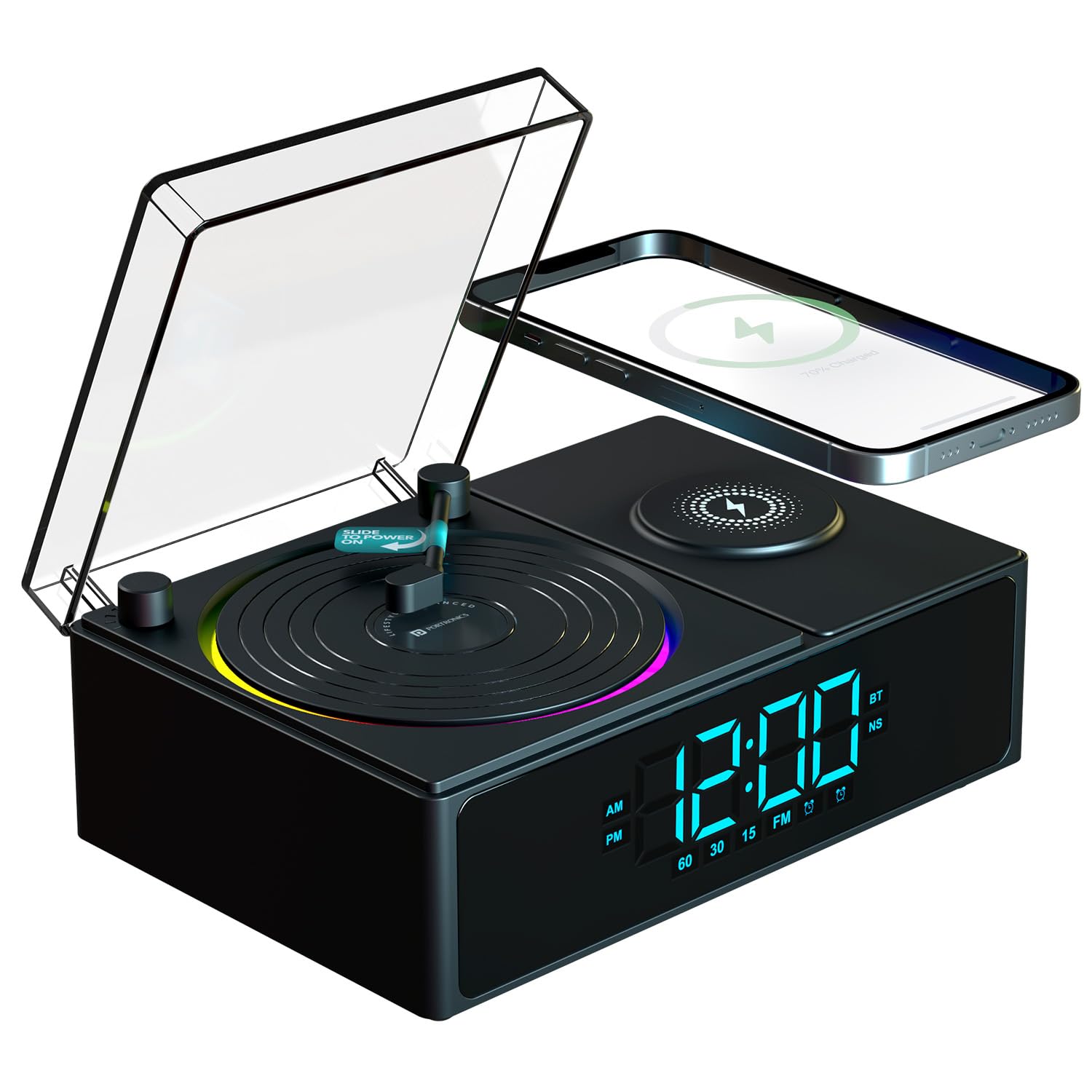
Image: Portronics Soundflow device displaying the digital clock and showing a phone wirelessly charging on the pad.

Image: Close-up of the Portronics Soundflow's wireless charging pad with a smartphone actively charging, emphasizing its 15W capability.
5. Operating Instructions
5.1 Power On/Off
Locate the power button, typically on the side or back of the device. Press and hold to power on or off. The digital display will illuminate upon powering on.
5.2 Bluetooth Pairing
When powered on, the Soundflow will automatically enter Bluetooth pairing mode. On your smartphone or other Bluetooth-enabled device, search for 'Portronics Soundflow' in the Bluetooth settings and select it to connect. A confirmation sound will indicate successful pairing.

Image: The Portronics Soundflow device showcasing its 5W Bluetooth speaker functionality, with a vintage-inspired design.
5.3 Wireless Charging
Place your Qi-compatible smartphone on the designated wireless charging pad. Ensure the phone is centered for optimal charging. The charging indicator on your phone will confirm charging has begun. Remember, a 25W adapter is necessary for wireless charging, and it will not work when the device is running on battery power alone.
5.4 Digital Clock and Alarm Setting
The digital display shows the current time. Refer to the device's physical buttons (usually labeled 'Time Set' or 'Alarm Set') to adjust the time and set alarms. The clock supports both 12-hour and 24-hour formats.

Image: The Portronics Soundflow displaying the digital clock, indicating its 12/24H format and alarm clock features.
5.5 White Noise Generator
Press the dedicated 'White Noise' button (or cycle through modes using a 'Mode' button) to activate the built-in white noise sounds. Options may include bird, water, fire, forest, clock tick, and alarm beep sounds to aid relaxation or concentration.

Image: Visual representation of the Portronics Soundflow's built-in white noise feature, showing icons for various sounds like bird, water, fire, forest, clock tick, and alarm beep.
5.6 RGB LED Lights
The Soundflow features RGB LED ambient lighting. Use the designated button (often labeled 'Light' or 'RGB') to cycle through different light modes or turn them off. The lights can create a cozy ambiance.
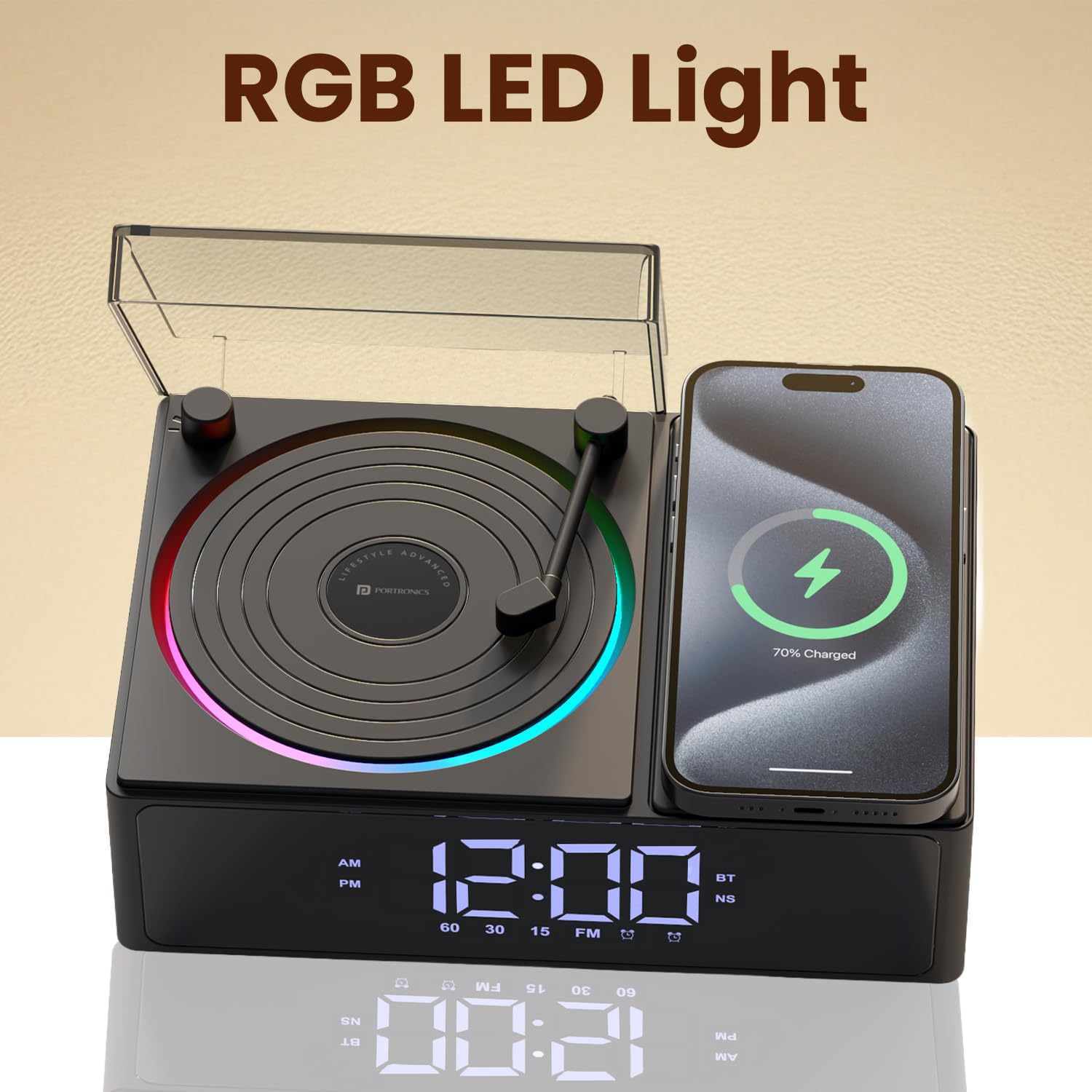
Image: The Portronics Soundflow device with its RGB LED lights illuminated, showcasing the ambient lighting feature.
5.7 TWS Mode (True Wireless Stereo)
To achieve immersive stereo sound, you can pair two Soundflow units together. Power on both devices. On one device, initiate TWS pairing (refer to specific button instructions in the included documentation). The two units will connect, and audio will play in stereo across both speakers.

Image: Two Portronics Soundflow devices shown together, illustrating the TWS (True Wireless Stereo) mode for synchronized audio playback.
5.8 USB, SD Card, and AUX Playback
Insert a USB drive or SD card into the respective ports to play audio files directly. Connect an external audio device using a 3.5mm AUX cable to the AUX-in port. Use the 'Mode' button to switch between input sources (Bluetooth, USB, SD, AUX).

Image: Diagram showing the Portronics Soundflow's various input ports, including USB-IN, SD Card Slot, and AUX-in, highlighting its wide compatibility.
5.9 Product Overview Video
Video: A short demonstration of the Portronics Soundflow's key features, including setting an alarm, wireless charging a phone, playing music, adjusting volume, and showcasing the RGB lighting. It also briefly shows the unboxing process.
6. Maintenance
To ensure the longevity and optimal performance of your Portronics Soundflow, follow these maintenance guidelines:
- Cleaning: Use a soft, dry cloth to wipe the device. Avoid using abrasive cleaners, solvents, or strong chemicals, as these can damage the surface.
- Storage: Store the device in a cool, dry place away from direct sunlight and extreme temperatures.
- Water Exposure: This device is not waterproof. Avoid exposure to water or high humidity.
- Handling: Handle the device with care to prevent physical damage.
7. Troubleshooting
| Problem | Possible Cause | Solution |
|---|---|---|
| Device does not power on. | Low battery or no power connection. | Connect the device to a power source using the provided Type-C cable. Ensure the power adapter is working. |
| Wireless charging is not working. | Incorrect power adapter, phone not centered, or device running on battery. | Ensure a 25W power adapter is used and the device is connected to power. Reposition your phone on the charging pad. Wireless charging does not work when the Soundflow is operating on its internal battery. |
| Bluetooth pairing fails. | Device not in pairing mode, or too far from source. | Ensure the Soundflow is powered on and in Bluetooth mode. Move your audio source closer to the speaker. Restart both devices and try pairing again. |
| No sound from speaker. | Volume too low, incorrect input mode, or disconnected. | Increase the volume on both the Soundflow and your connected device. Verify the correct input mode (Bluetooth, USB, SD, AUX) is selected. Re-establish Bluetooth connection if necessary. |
8. Specifications
| Feature | Detail |
|---|---|
| Brand | Portronics |
| Model Number | POR-3303 |
| Connectivity Technology | Bluetooth 5.3 |
| Sound Output | 5 Watts |
| Wireless Charging Output | 15 Watts (requires 25W adapter) |
| Display Type | Digital |
| Special Features | Digital Alarm Clock, RGB LED Lights, Built-in White Noise, USB-A/SD Card/AUX in |
| Power Source | Battery Powered / Electrical |
| Battery Type | 1 Nonstandard Battery (included) |
| Battery Energy Content | 2000 Milliampere Hour (mAh) |
| Item Weight | 889 Grams |
| Product Dimensions (LxWxH) | 15.3 x 9 x 21.9 cm |
| Material | ABS Plastic |
9. Warranty and Support
Your Portronics Soundflow POR-3303 comes with a standard manufacturer's warranty. For specific warranty terms and conditions, please refer to the documentation included in your package or visit the official Portronics website.
For technical support, troubleshooting assistance, or any product-related queries, please contact Portronics customer service:
- Email: help@portronics.com
- Phone: +91 9555-245-245
