
1. Introduction
Thank you for choosing the Joysea E41 Pro Bluetooth Thermal Label Printer. This manual provides essential information for setting up, operating, and maintaining your printer. Please read it thoroughly before use to ensure proper functionality and extend the product's lifespan.
Key Features:
- Dual Connectivity: USB and Bluetooth for versatile use.
- High-Quality Printing: 203 DPI thermal print head for clear labels.
- Fast Printing Speed: Up to 100mm/s.
- Wide Compatibility: Supports Windows, Mac, iOS, and Android.
- Supports various label sizes from 0.98" to 4.4" (25mm-112mm).
2. Safety Information
To prevent damage to the printer or injury to yourself or others, please observe the following safety precautions:
- Use only the power adapter provided with the printer.
- Do not expose the printer to water, moisture, or extreme temperatures.
- Avoid placing the printer in direct sunlight or near heat sources.
- Keep the printer away from dust and debris.
- Do not attempt to disassemble or repair the printer yourself. Contact customer support for assistance.
- Ensure proper ventilation around the printer during operation.
3. Package Contents
Please check the box for the following items:
- Joysea E41 Pro Thermal Label Printer
- Power Adapter
- USB Cable
- Quick Start Guide
- Sample Labels (may vary)
4. Product Overview
Familiarize yourself with the main components of your Joysea E41 Pro printer.
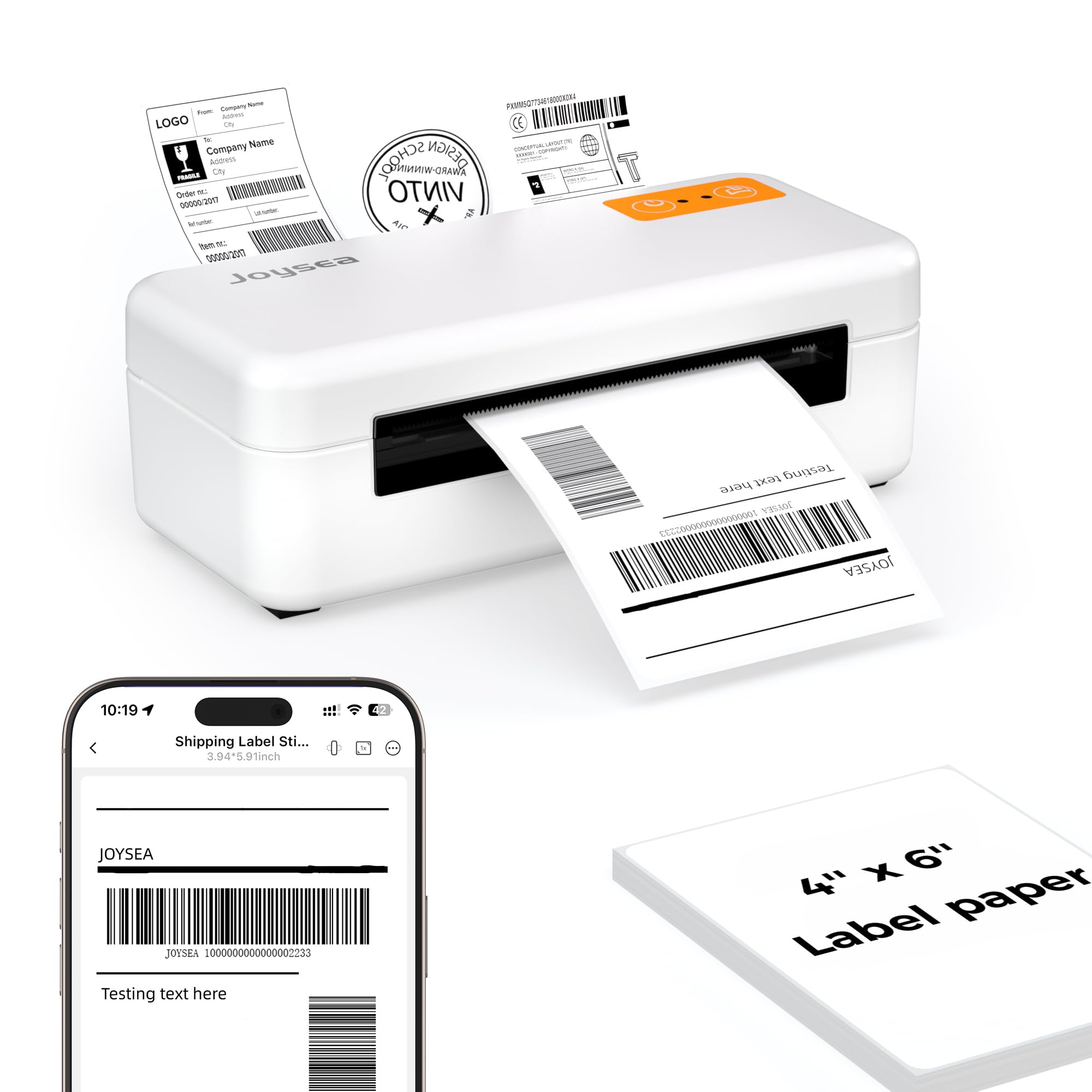
Image: Joysea E41 Pro Thermal Label Printer with its power and USB cables connected.
The printer features a label exit slot, power button, status indicator lights, and ports for USB and power connections. The internal mechanism includes the thermal print head and label roll holder.
5. Setup
5.1 Unpacking and Initial Placement
Remove the printer and all accessories from the packaging. Place the printer on a stable, flat surface with adequate space for label feeding and exiting.
5.2 Loading Labels
- Open the top cover of the printer.
- Place the label roll into the label compartment, ensuring the labels feed from the bottom and the printable side faces up.
- Adjust the label guides to fit the width of your labels snugly, without being too tight.
- Feed the first label through the exit slot until it is slightly past the print head.
- Close the top cover firmly. The printer will automatically calibrate the label size.

Image: The Joysea E41 Pro printer supports various label sizes, including standard 4x6 inch shipping labels, as well as smaller barcode and product labels.
5.3 Power Connection
- Connect the power adapter to the printer's power port.
- Plug the power adapter into a wall outlet.
- Press the power button to turn on the printer. The status indicator light will illuminate.
6. Connectivity
6.1 USB Connection (Windows/Mac)
- Connect the USB cable from the printer to an available USB port on your computer.
- For Windows and Mac users, drivers may need to be installed. Refer to the 'Driver Installation' section for details.
6.2 Bluetooth Connection (iOS/Android)
- Ensure the printer is powered on and Bluetooth is enabled on your mobile device.
- Download the "Label Expert" app from the App Store (iOS) or Google Play Store (Android).
- Open the app and follow the on-screen instructions to search for and connect to your printer via Bluetooth. The printer will typically appear as "E41 Pro_XXXX".
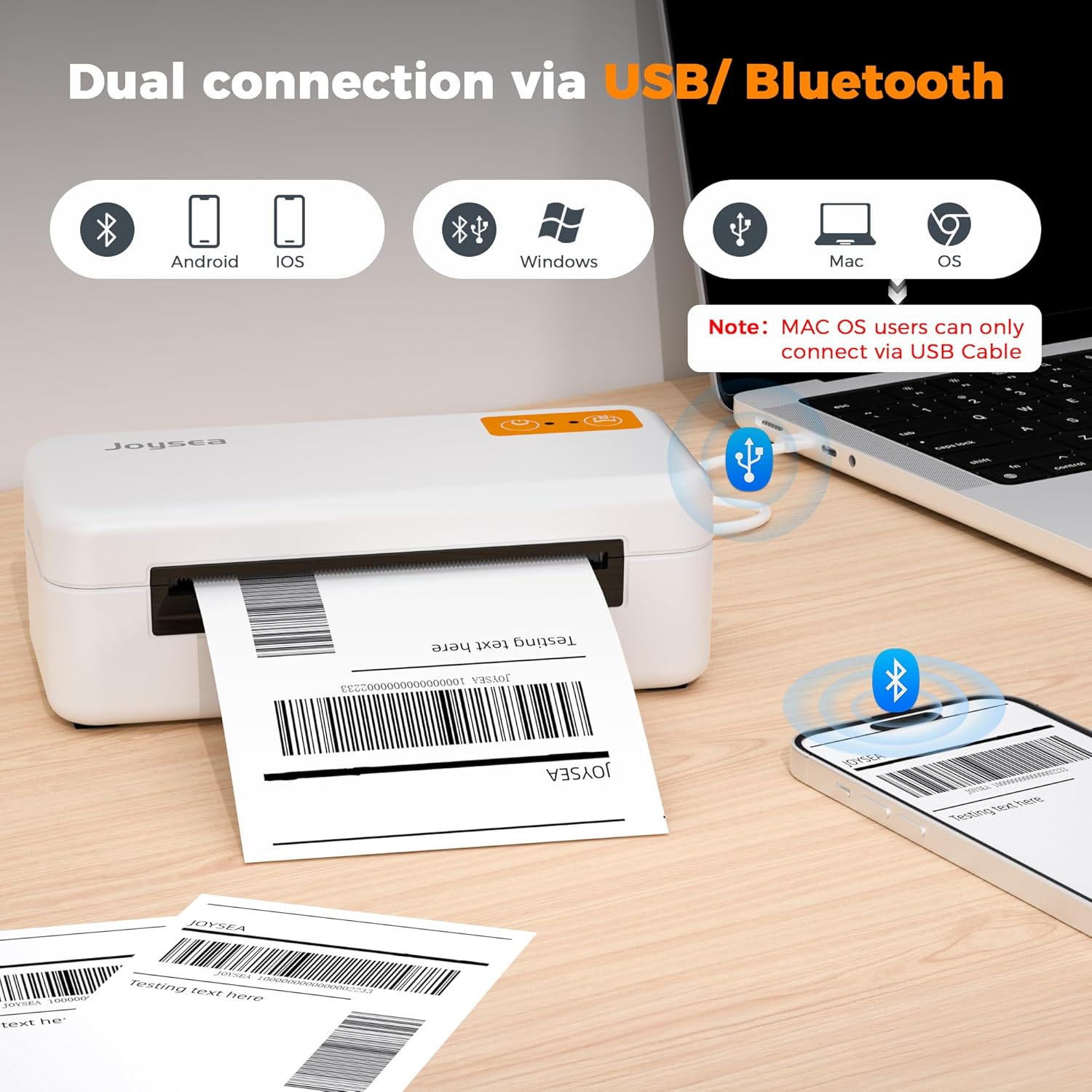
Image: The Joysea E41 Pro printer offers dual connectivity, allowing connection to Windows/Mac via USB and to iOS/Android devices via Bluetooth. Note: Mac OS users can only connect via USB cable.
7. Operating Instructions
7.1 Driver Installation (Windows/Mac)
For USB connection, you may need to install the printer drivers. Drivers can typically be found on the official Joysea website or provided on a USB drive with the printer. Follow the installation wizard instructions.
7.2 Mobile App Usage (iOS/Android)
The "Label Expert" app provides various functions for printing labels from your mobile device.
- Download and Connect: Install the "Label Expert" app and connect to your printer via Bluetooth as described in Section 6.2.
- Select Model: In the app, tap the top right corner to select the E41 Pro model.
- Print Options: The app allows for various print types, including new labels, PDF print, image print, and scanning codes to create new labels.
- Template Selection: Utilize multiple scene templates for different label needs (e.g., express logistics, receipt templates).
- Custom Design: Design your own labels within the app, adjusting content, layout, and adding elements.
- Print Settings: Before printing, set the paper size and adjust density (e.g., "Black White" option). Tap "Print" to initiate printing.

Image: The Label Expert app provides a user-friendly interface for various print types, pre-designed templates, and custom label creation. Note: The printer is monochrome; consider purchasing color label paper for color printing effects.
7.3 Label Calibration
After loading new labels or if the printer is not detecting label gaps correctly, perform a calibration:
- Ensure the printer is on and labels are loaded.
- Press and hold the feed button until the printer emits a beep or the status light changes, then release. The printer will feed a few labels to detect the label size and gap.
7.4 Compatible Platforms
The Joysea E41 Pro printer is compatible with major shipping and e-commerce platforms.

Image: The Joysea E41 Pro printer integrates seamlessly with popular shipping platforms such as Amazon, eBay, UPS, FedEx, USPS, Shopify, Etsy, ShipStation, and others.

Image: The Joysea E41 Pro printer delivers fast printing at 100mm/s with sharp clarity, thanks to its 203 DPI resolution, ensuring professional-looking labels.
8. Maintenance
8.1 Cleaning the Printer
Regular cleaning helps maintain print quality and extends the printer's life.
- Print Head: Use an alcohol swab or a specialized print head cleaning pen to gently wipe the thermal print head. Ensure the printer is off and cooled down before cleaning.
- Exterior: Wipe the exterior of the printer with a soft, damp cloth. Do not use harsh chemicals or abrasive cleaners.
- Sensors: Gently clean any dust or debris from the label sensors using a soft brush or compressed air.
8.2 Storage
When not in use for extended periods, store the printer in a cool, dry place away from direct sunlight and dust. Remove any label rolls to prevent dust accumulation inside the printer.
9. Troubleshooting
If you encounter issues with your printer, refer to the following common problems and solutions:
| Problem | Possible Cause | Solution |
|---|---|---|
| Printer not turning on | No power, faulty adapter | Check power cable connection, try a different outlet. Ensure power adapter is functional. |
| Labels not feeding correctly | Improper label loading, label jam, incorrect label size detection | Reload labels correctly, clear any jams, perform label calibration (Section 7.3). |
| Poor print quality (faint, streaky) | Dirty print head, low-quality labels, incorrect density settings | Clean the print head (Section 8.1), use high-quality thermal labels, adjust print density in software/app. |
| Cannot connect via Bluetooth | Bluetooth off, printer not discoverable, app issues | Ensure printer is on, Bluetooth is enabled on device, restart app and printer, try pairing again. |
| Printer not recognized by computer (USB) | Missing/incorrect drivers, faulty USB cable/port | Install/reinstall drivers (Section 7.1), try a different USB cable or port. |
10. Specifications
Technical specifications for the Joysea E41 Pro Thermal Label Printer.
| Feature | Specification |
|---|---|
| Brand | Joysea |
| Model Name | E41 Pro |
| Printing Technology | Thermal |
| Connectivity Technology | Bluetooth, USB |
| Printer Output | Monochrome |
| Max Print Speed (Monochrome) | 100 mm/s (36 ppm) |
| Print Resolution | 203 DPI |
| Label Width Compatibility | 0.98" to 4.4" (25mm-112mm) |
| Item Weight | 0.49 Kilograms |
| Item Dimensions (D x W x H) | 3.35"D x 7.28"W x 2.56"H |
| Control Method | App |
| Supported OS | iOS, Android, Windows, Mac |
| Product ID | JOYSEA 1000000000000002233 |
11. Warranty and Support
11.1 Warranty Information
Your Joysea E41 Pro printer comes with a standard manufacturer's warranty. Please refer to the warranty card included in your package or visit the official Joysea website for detailed warranty terms and conditions.
11.2 Customer Support
For technical assistance, troubleshooting, or any questions regarding your Joysea E41 Pro printer, please contact Joysea customer support through their official website or the contact information provided in your product packaging.