
Introduction
Thank you for choosing the OBZ Bluetooth Barcode Scanner OV-26T. This device is a versatile 2D/1D/QR code reader designed for efficient data capture in various environments such as retail, warehousing, and inventory management. It features wireless connectivity via Bluetooth and a 2.4G wireless base, along with a convenient charging stand. This manual provides detailed instructions for setting up, operating, and maintaining your scanner to ensure optimal performance.
Product Overview
The OBZ OV-26T scanner is engineered for reliability and ease of use. It combines a comfortable handheld design with advanced scanning technology.
Key Components
- Barcode Scanner: The main handheld unit for scanning codes.
- Charging Stand/Base: Provides charging and 2.4G wireless connectivity.
- USB Cable: For charging and connecting the base to a host device.
- Lithium Polymer Batteries: Two included for extended operation.

Image: The OBZ Bluetooth Barcode Scanner with its charging stand, illustrating the complete product setup.
Setup
1. Charging the Scanner
Before first use, ensure the scanner is fully charged.
- Connect the USB cable to the charging stand and then to a power source (e.g., computer USB port or USB wall adapter).
- Place the scanner into the charging stand. The indicator light on the scanner will show charging status.
- A full charge takes approximately 3.5 hours and provides up to 10 hours of scanning time. The battery is detachable for convenience.

Image: Illustration of the detachable battery design and charging specifications, including 10 hours scanning time, 3.5 hours charging time, and 100 days standby time for the 2200mAh battery.
2. Connecting the Charging Stand (for 2.4G Wireless Mode)
If you plan to use the 2.4G wireless connection, connect the charging stand to your host device.
- Plug the USB cable from the charging stand into an available USB port on your computer or POS system. The system should automatically recognize the device.
Operating Instructions
Connection Modes
The OBZ OV-26T scanner supports two wireless connection modes: Bluetooth and 2.4G Wireless Base.
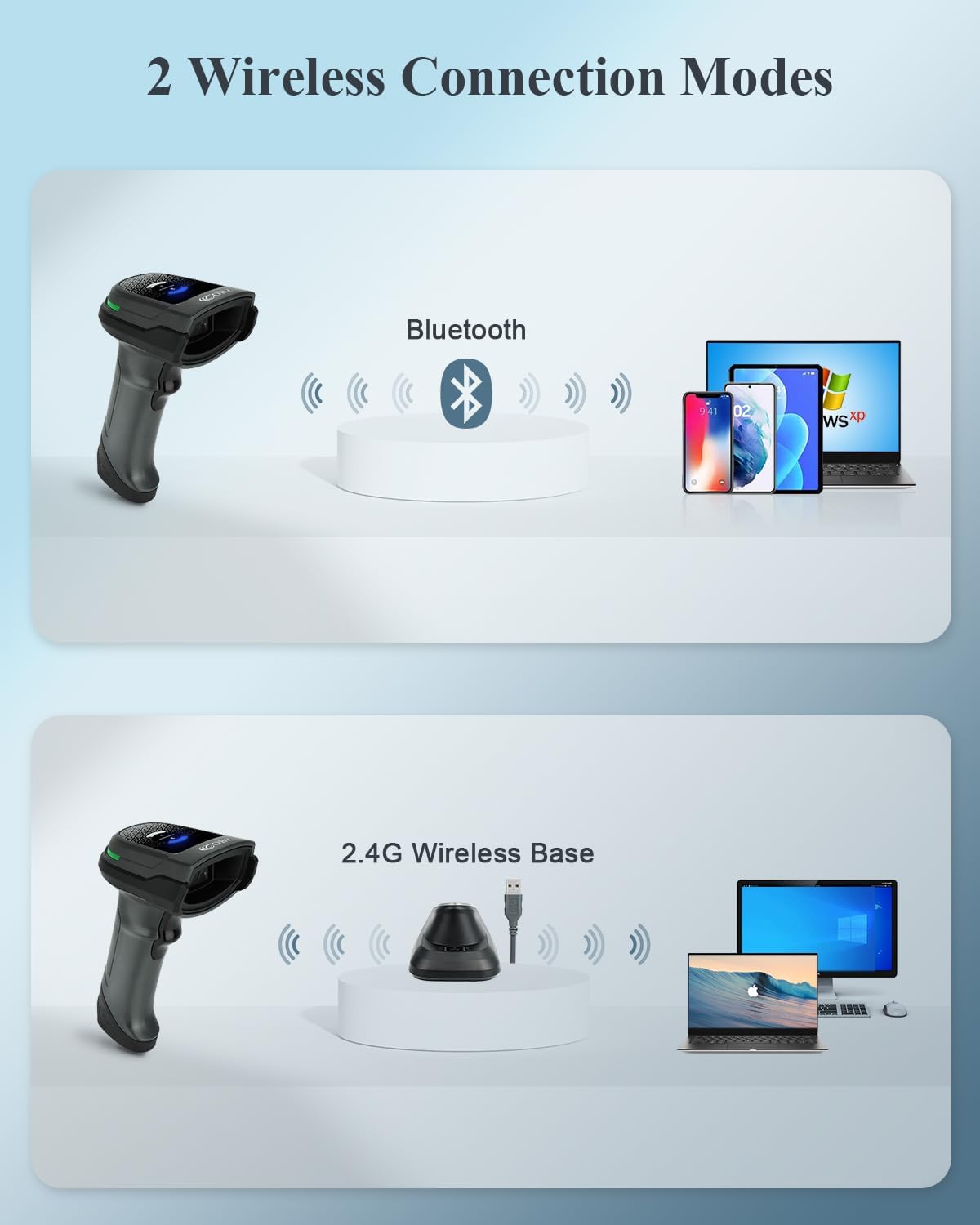
Image: Diagram illustrating the two wireless connection modes: Bluetooth for direct connection to devices like smartphones, tablets, and laptops, and 2.4G Wireless Base for connection via a USB dongle to computers.
1. Bluetooth Connection
- Turn on the scanner.
- Activate Bluetooth on your host device (smartphone, tablet, laptop, etc.).
- Search for available Bluetooth devices. The scanner should appear as "OBZ Scanner" or similar.
- Select the scanner to pair. A successful connection will be indicated by a specific sound or light on the scanner.
2. 2.4G Wireless Base Connection
- Ensure the charging stand is connected to your computer via USB.
- Turn on the scanner.
- The scanner and base are typically pre-paired. If not, press the "Connection Button" on the base to initiate pairing. The scanner will automatically connect to the base.

Image: The Smart Base, highlighting its functions: recharging the scanner, transmitting barcode data, and a one-click pairing function via the connection button.
Scanning Barcodes
The scanner is capable of reading various 1D, 2D, and QR codes from both paper and digital screens.
- Point the scanner's window at the barcode you wish to scan.
- Press the trigger button. A red aiming beam will appear.
- Ensure the aiming beam covers the entire barcode.
- A successful scan will be indicated by a beep and/or a green light. The scanned data will be transmitted to your connected device.
Image: The scanner demonstrating its ability to read various barcode types including 1D, PDF417, ISSN/ISBN, QR Code, Aztec, and DataMatrix from both physical labels and digital screens.

Image: Visual representation of the scanner's fast reading speed, capable of decoding PDF417, DataMatrix, QR Code, Aztec, ISSN/ISBN, UPC/EAN, and all 1D types.
Compatibility
The OBZ OV-26T scanner is compatible with a wide range of operating systems and devices.
- Operating Systems: Mac OS, Windows, Linux, Android, iOS.
- Devices: PC, Laptops, Tablets, iPads, Smartphones, Point-of-Sale (POS) systems.

Image: Display of the scanner's broad compatibility with Mac OS, Windows, Linux, Android, and iOS, connecting to PCs, laptops, tablets, iPads, smartphones, and POS systems.
Maintenance
- Cleaning: Use a soft, dry cloth to clean the scanner's exterior. For the scanning window, use a soft, lint-free cloth lightly dampened with water or a mild glass cleaner. Avoid abrasive materials or harsh chemicals.
- Battery Care: To prolong battery life, avoid fully discharging the battery frequently. Store the scanner in a cool, dry place when not in use for extended periods.
- Storage: Store the scanner and charging stand in a safe environment, away from extreme temperatures, moisture, and direct sunlight.
- Handling: Handle the scanner with care. Avoid dropping it, as this can damage internal components.
Troubleshooting
- Scanner not turning on:
- Ensure the battery is properly inserted and charged. Place the scanner on the charging stand for at least 30 minutes.
- Scanner not connecting via Bluetooth:
- Make sure Bluetooth is enabled on your host device.
- Ensure the scanner is in Bluetooth pairing mode (refer to specific pairing instructions if available in the quick start guide).
- Delete any previous pairings of the scanner from your device's Bluetooth list and try pairing again.
- Ensure the scanner is within the effective range of your Bluetooth device.
- Scanner not connecting via 2.4G Wireless Base:
- Verify the charging stand is securely connected to your computer's USB port.
- Try pressing the "Connection Button" on the base to re-establish the link.
- Test with a different USB port on your computer.
- Scanner not reading barcodes:
- Ensure the barcode is not damaged or poorly printed.
- Clean the scanner's reading window.
- Adjust the distance and angle between the scanner and the barcode.
- Ensure the barcode type is supported by the scanner (1D, 2D, QR).
- Check if the scanner is properly connected to your host device.
- Inconsistent or slow scanning:
- Ensure the scanner battery is sufficiently charged.
- Minimize interference from other wireless devices.
- For dense QR codes, ensure proper lighting and a steady hand.
Specifications
| Feature | Detail |
|---|---|
| Model Number | OV-26T |
| Connectivity Technology | Bluetooth, 2.4G Wireless (via base), USB Cable |
| Scanning Capability | 1D, 2D, QR Codes (e.g., UPC/EAN, PDF417, DataMatrix, QR Code, Aztec) |
| Compatible Devices | Android Devices, iOS Devices, Mac OS, Point Of Sale Systems, Windows PC |
| Power Source | Battery-Powered, Corded Electric (via USB) |
| Battery Type | Lithium Polymer (2 included) |
| Battery Capacity | 2200mAh (approximate, based on image) |
| Charging Time | Approx. 3.5 hours |
| Scanning Time | Up to 10 hours |
| Standby Time | Up to 100 days |
| Product Dimensions | 5.7 x 3 x 3.54 inches |
| Item Weight | 6.9 ounces |
| Manufacturer | OBZ |
Warranty and Support
For warranty information and technical support, please refer to the documentation included with your product or contact OBZ customer service directly. Contact details can typically be found on the manufacturer's official website or on the product packaging.


