
1. Introduction
Thank you for purchasing the NiPoGi P1-4300U Mini PC. This manual provides essential information for setting up, operating, and maintaining your device. Please read it carefully before use and keep it for future reference.

Figure 1.1: NiPoGi P1-4300U Mini PC Overview
2. Package Contents
Verify that all items are present in the package:
- NiPoGi P1-4300U Mini PC Unit (x1)
- Power Adapter (x1)
- HDMI Cable (x1)
- VESA Mount Bracket (x1)
- Screws for VESA Mount (x1 set)
- User Manual (x1)
3. Product Overview
3.1. Front and Rear Ports

Figure 3.1: NiPoGi P1-4300U Mini PC Port Layout
The NiPoGi P1-4300U Mini PC is equipped with a variety of ports for versatile connectivity:
- Front Ports: Power Button, 3.5mm Audio Jack, USB 3.2 Gen 2x2 (x2), Full-Function Type-C (x1)
- Rear Ports: USB 3.2 Gen 1x4 (x4), RJ45 Ethernet (1.0Gbps LAN) (x1), DisplayPort 1.4 (x1), HDMI 2.0 (x1), DC Power Input (x1)
3.2. Compact Design
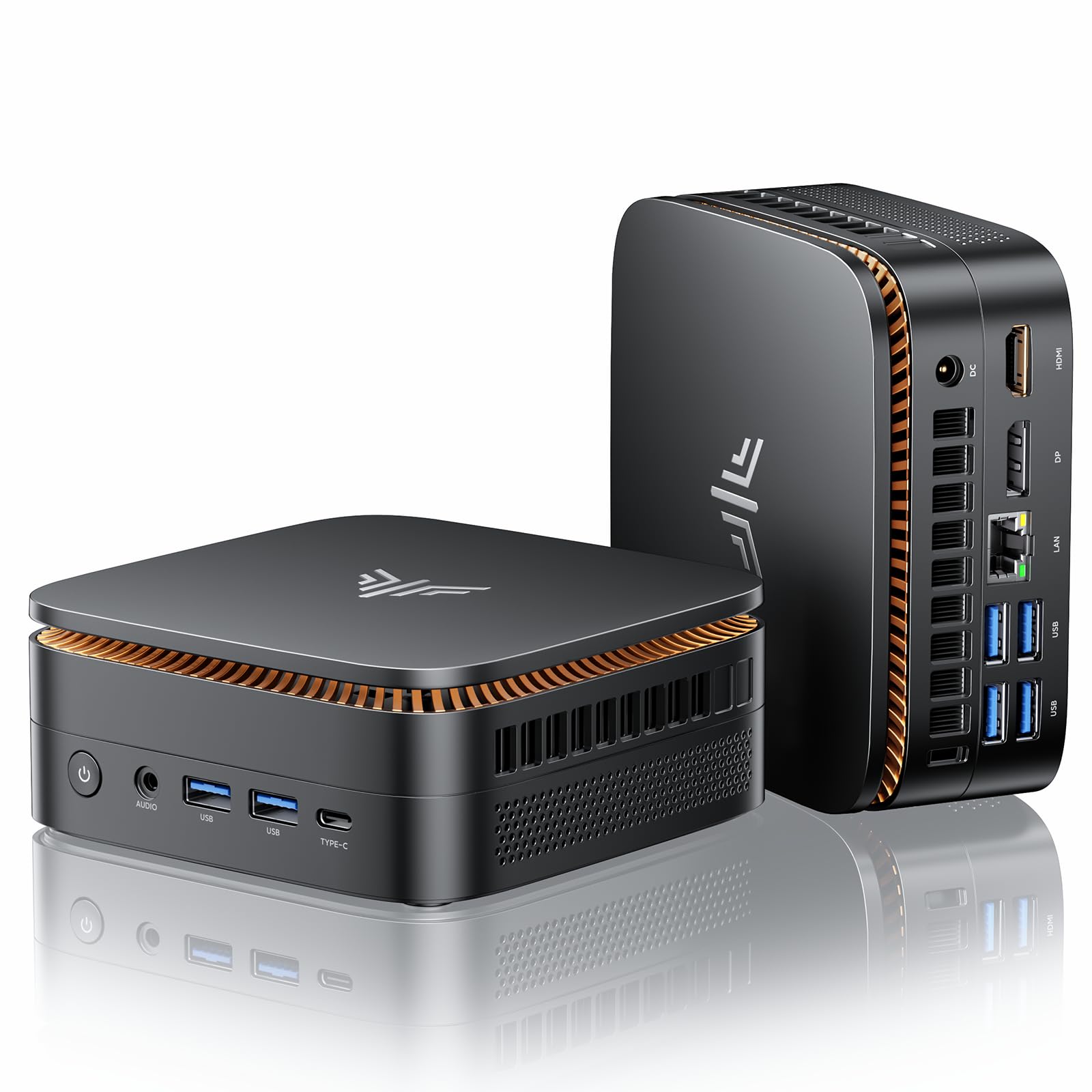
Figure 3.2: Compact Size of the Mini PC
The device features a compact, palm-sized design, approximately 11cm x 11cm. The included VESA mount allows for attachment to the back of a monitor, optimizing desk space.
4. Setup
4.1. Initial Connection
- Connect Display: Connect your monitor(s) to the Mini PC using the HDMI, DisplayPort, or Type-C ports. The device supports up to three simultaneous 4K displays.
- Connect Peripherals: Connect your keyboard, mouse, and other USB devices to the available USB 3.2 ports.
- Connect Network: For a wired connection, connect an Ethernet cable to the RJ45 LAN port. For wireless, ensure your WiFi network is available.
- Connect Power: Plug the power adapter into the DC power input port on the Mini PC, then plug the adapter into a power outlet.
4.2. Power On
Press the power button located on the front of the Mini PC. The device will boot up, and Windows 11 Pro will load automatically as it is pre-installed.
4.3. VESA Mount Installation (Optional)
To save desk space, you can attach the Mini PC to the back of a VESA-compatible monitor:
- Attach the VESA mount bracket to the back of your monitor using the provided screws.
- Slide the Mini PC onto the bracket until it clicks securely into place.
5. Operating Instructions
5.1. Operating System
The NiPoGi P1-4300U Mini PC comes with Windows 11 Pro pre-installed. Follow the on-screen instructions for initial Windows setup, including language, region, and user account creation.
5.2. Multi-Display Configuration

Figure 5.1: Triple Display Setup
The Mini PC supports simultaneous output to up to three 4K displays via HDMI 2.0, DisplayPort 1.4, and the full-function Type-C port. To configure multiple displays in Windows:
- Connect all desired monitors to the Mini PC.
- Right-click on the desktop and select "Display settings."
- Windows should detect all connected displays. You can arrange them, change their resolution, and set their display mode (e.g., Extend, Duplicate) from this menu.
5.3. Connectivity
The Mini PC offers flexible network and peripheral connectivity:
- Wi-Fi: Supports dual-band 2.4G/5G Wi-Fi 5 for stable wireless internet access. Connect via Windows network settings.
- Bluetooth: Integrated Bluetooth 4.2 allows connection to wireless peripherals like keyboards, mice, and speakers. Pair devices through Windows Bluetooth settings.
- Wired LAN: A 1000Mbps Ethernet port provides a stable and fast wired network connection.
- USB 3.2: Six USB 3.2 ports (two 10Gbps capable) ensure high-speed data transfer for external storage and other devices.
- Full-Function Type-C: This port supports video output, high-speed data transfer, and power delivery (PD) through a single cable, simplifying connections to compatible devices.
6. Storage and Memory Expansion

Figure 6.1: Memory and Storage Expansion Options
The Mini PC offers flexible options for memory and storage upgrades:
- RAM: Equipped with 16GB DDR4 SO-DIMM RAM. It features two DDR4 SO-DIMM slots, supporting up to a maximum of 64GB (3200MHz).
- Storage: Includes a 256GB M.2 2280 SSD. It supports storage expansion up to 4TB through a dual configuration of one PCIe 3.0 compatible M.2 slot and one SATA SSD slot.
For memory or storage upgrades, it is recommended to consult a qualified technician or refer to detailed upgrade guides provided by NiPoGi to avoid damaging the device.
7. Cooling System
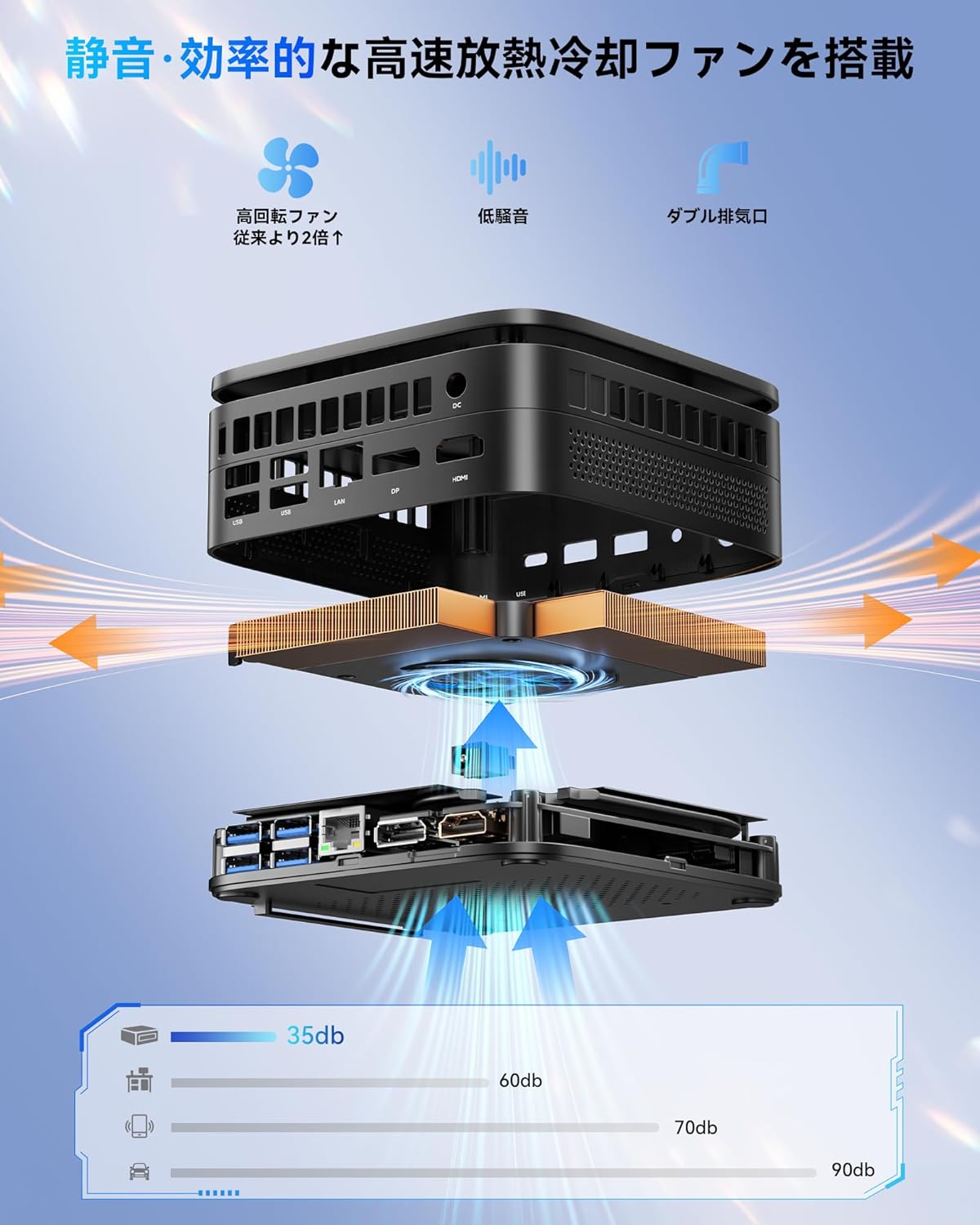
Figure 7.1: 2.0 Heat Pipe Cooling System
The NiPoGi P1-4300U Mini PC incorporates a 2.0 heat pipe cooling system designed for quiet and stable operation. This system combines a silent cooling fan, a large heat dissipation area, and dual exhaust vents to efficiently dissipate heat, even under high loads. This design helps maintain stable performance and prevents temperature increases during extended use. The system operates at approximately 30dB, ensuring a quiet working environment.
8. Maintenance
Regular maintenance helps ensure the longevity and optimal performance of your Mini PC:
- Cleaning: Use a soft, dry cloth to clean the exterior of the device. Avoid using liquid cleaners directly on the Mini PC. Use compressed air to gently clear dust from vents periodically.
- Software Updates: Regularly update Windows 11 Pro and device drivers to ensure security and performance.
- Ventilation: Ensure the Mini PC is placed in a well-ventilated area and that the cooling vents are not obstructed.
- Power Management: Use the provided power adapter. Avoid frequent abrupt power shutdowns; always shut down Windows properly.
9. Troubleshooting
If you encounter issues with your Mini PC, refer to the following common troubleshooting steps:
| Problem | Possible Cause | Solution |
|---|---|---|
| No power/Doesn't turn on | Power adapter not connected, faulty outlet, power button issue. | Check power connections. Try a different power outlet. Ensure the power adapter is functioning. |
| No display output | Monitor not connected, incorrect input source on monitor, faulty cable. | Ensure display cables (HDMI, DP, Type-C) are securely connected. Select the correct input source on your monitor. Try a different cable or monitor. |
| No Wi-Fi connection | Wi-Fi disabled, incorrect password, router issue. | Check Wi-Fi settings in Windows. Ensure Wi-Fi is enabled. Verify password. Restart your router. |
| Slow performance | Too many applications running, low storage space, outdated drivers. | Close unnecessary applications. Free up disk space. Update Windows and drivers. Consider upgrading RAM or SSD if frequently experiencing slowdowns. |
| Excessive fan noise | Dust accumulation, high CPU usage. | Clean vents with compressed air. Check Task Manager for processes consuming high CPU. Ensure proper ventilation. |
If the problem persists after trying these steps, please contact NiPoGi customer support.
10. Specifications
Detailed technical specifications for the NiPoGi P1-4300U Mini PC:
| Brand | NiPoGi |
| Model Name | P1-4300U |
| Operating System | Windows 11 Pro |
| CPU | AMD Ryzen 3 4300U (4 Cores, 4 Threads, up to 3.7 GHz) |
| Graphics | Integrated AMD Radeon Graphics |
| RAM | 16GB DDR4 SO-DIMM (Expandable up to 64GB, 3200MHz) |
| Storage | 256GB M.2 2280 SSD (Expandable up to 4TB via PCIe 3.0 M.2 and SATA SSD slots) |
| Video Output | HDMI 2.0 (x1), DisplayPort 1.4 (x1), Full-Function Type-C (x1) - Supports 3x 4K displays |
| USB Ports | USB 3.2 Gen 2x2 (x2, 10Gbps), USB 3.2 Gen 1x4 (x4) |
| Network | Wi-Fi 5 (2.4G/5G Dual-band), Bluetooth 4.2, 1.0Gbps RJ45 LAN |
| Audio | 3.5mm Audio Jack |
| Cooling System | 2.0 Heat Pipe Cooling System (approx. 30dB) |
| Dimensions | Approx. 11cm x 11cm (Palm-sized) |
| Included Components | Mini PC unit, Power Adapter, HDMI Cable, VESA Mount Bracket, Screws, User Manual |
11. Warranty and Support
11.1. Warranty Information
The NiPoGi P1-4300U Mini PC comes with a 1-year warranty from the date of purchase. This warranty covers manufacturing defects and hardware malfunctions under normal use. It does not cover damage caused by misuse, accidents, unauthorized modifications, or natural disasters.
Please retain your proof of purchase for warranty claims.
11.2. Customer Support
For technical assistance, troubleshooting, or warranty inquiries, please contact NiPoGi customer support through the retailer where you purchased the product or visit the official NiPoGi website for contact information.
When contacting support, please have your product model (P1-4300U) and purchase details ready.


