
Ulefone RugKing Pad Pro
Ulefone RugKing Pad Pro Android 16 Rugged Tablet User Manual
Model: RugKing Pad Pro | Brand: Ulefone
1. Introduction
This manual provides essential instructions for setting up, operating, and maintaining your Ulefone RugKing Pad Pro rugged tablet. Please read this manual thoroughly before using the device to ensure proper function and longevity.
2. Package Contents
Verify that all items are present in your product package:
- Ulefone RugKing Pad Pro Tablet x 1
- AC Charger (100~240V) x 1
- Type-C Data Cable (100 cm) x 1
- Protective Film (Pre-installed) x 1
- Metal Pry Opener x 1
- Portable Strap x 1
- Screws x 2
- Multilingual User Manual x 1
- Charging Instruction Card x 1
- Safety Warning Declaration x 1

Figure 2.1: Contents of the Ulefone RugKing Pad Pro package.
3. Product Overview
The Ulefone RugKing Pad Pro is a rugged tablet designed for durability and performance. Familiarize yourself with its physical components.
3.1 Physical Components
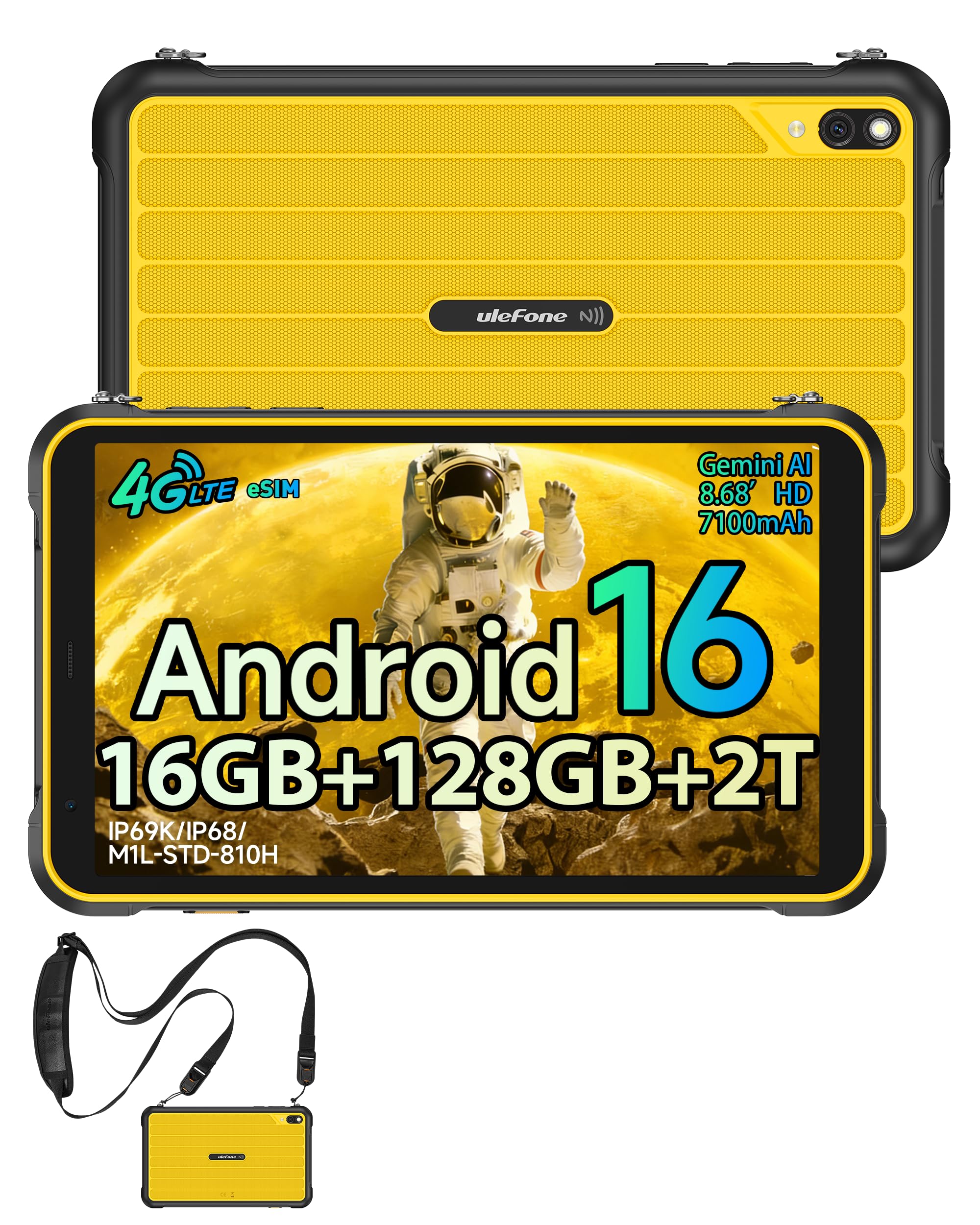
Figure 3.1: Front view of the Ulefone RugKing Pad Pro.

Figure 3.2: Side view with buttons and ports.
- Display: 8.68-inch, 90Hz refresh rate, Corning Gorilla Glass.
- Power Button: Located on the side, used to power on/off or wake/sleep the device.
- Volume Buttons: Adjust audio levels.
- USB Type-C Port: For charging and data transfer.
- Speaker Grilles: Dual stereo speakers for audio output.
- Camera: 16MP rear camera, 8MP front camera.
- Flashlight: Integrated 133 lumen Super Torch.
- SIM/MicroSD Card Slot: Supports dual SIM and up to 2TB microSD expansion.
- uSmart Expansion Connector: For compatible peripherals like endoscopes.
- 3.5mm Headphone Jack: For audio accessories.
4. Setup
4.1 Initial Power On
- Press and hold the Power Button until the Ulefone logo appears.
- Follow the on-screen prompts to select your language, region, and connect to a Wi-Fi network.
- Sign in with your Google account or create a new one to access the Google Play Store and other services.
4.2 SIM Card and eSIM Setup
The RugKing Pad Pro supports dual physical SIM cards and eSIM functionality for 4G LTE connectivity.

Figure 4.1: Triple card slot for SIM and MicroSD.
4.2.1 Physical SIM Card Installation
- Locate the SIM card tray on the side of the tablet.
- Use the provided metal pry opener to eject the tray.
- Place your Nano-SIM cards into the designated slots.
- Carefully reinsert the tray into the tablet.
4.2.2 eSIM Activation
To activate eSIM, navigate to Settings > Network & internet > SIMs and follow the instructions to add a new mobile plan. You will typically need a QR code or activation code from your network provider.

Figure 4.2: eSIM connectivity feature.
5. Operating Instructions
5.1 Android 16 Operating System
The RugKing Pad Pro runs on Android 16, offering a dynamic and fluid user interface with enhanced security and usability features. Enjoy desktop-like window views for multitasking and smarter notification management.

Figure 5.1: Android 16 user interface.
5.2 Display and Interaction
The 8.68-inch display with a 90Hz refresh rate provides smooth navigation and streaming. With 860 nits peak brightness, the screen is readable even in bright sunlight. Corning Gorilla Glass offers enhanced scratch resistance.

Figure 5.2: Display features including 90Hz refresh rate and Gorilla Glass.
5.2.1 Glove Mode
For use in cold environments or industrial settings, enable Glove Mode in settings to allow touch input while wearing gloves. Note that some leather gloves may not be compatible due to material differences.

Figure 5.3: Tablet operation with gloves enabled.
5.3 Camera and Flashlight
The tablet features a 16MP rear camera for clear photos and document scanning, and an 8MP front camera for video calls. The integrated 133 lumen Super Torch provides bright illumination in low-light conditions.

Figure 5.4: Camera and Super Torch features.
5.4 Connectivity and Navigation
- 4G LTE: Stay connected with dual SIM or eSIM.
- NFC: Supports Google Pay and other NFC functions for identification and authentication.
- GPS: Integrated GPS, GLONASS, BeiDou, and Galileo for accurate navigation.
- Wi-Fi: Supports 802.11b/g/n standards.
- Bluetooth: For connecting wireless accessories.

Figure 5.5: NFC enabled device for various applications.

Figure 5.6: GPS navigation in a vehicle.
5.5 Special Features
- Custom Key: Assign specific functions to a programmable key for quick access.
- Face ID: Unlock your device using facial recognition.
- FM Radio: Listen to FM radio without headphones.
- uSmart Expansion Connector: Connect compatible external peripherals such as endoscopes (uSmart E01, E02) or digital microscopes (uSmart C01).

Figure 5.7: uSmart expansion connector and peripherals.
6. Durability Features
The RugKing Pad Pro is built to withstand extreme conditions, certified with IP68, IP69K, and MIL-STD-810H standards.
- IP68: Dustproof and resistant to continuous immersion in water up to 2 meters for 30 minutes.
- IP69K: Protected against high-pressure, high-temperature jet sprays.
- MIL-STD-810H: Military-grade standard ensuring reliable resistance to shocks, vibrations, and extreme temperatures.

Figure 6.1: Rugged design and certifications.

Figure 6.2: Dust, water, and drop resistance tests.
7. Battery Management
The RugKing Pad Pro is equipped with a 7100 mAh battery, offering extended usage. It supports 492 hours of standby time or 10 hours of video playback on a single charge.
7.1 Charging
- Standard Charging: Connect the provided Type-C cable and AC charger to the tablet.
- Pogo Pin Charging: The tablet is compatible with Pogo Pin charging docks (sold separately) for convenient charging.
- Reverse Charging (OTG): Use the tablet as a power bank to charge other devices via an OTG cable (sold separately).

Figure 7.1: Battery capacity and charging methods.
8. Storage and Performance
Powered by an Unisoc T7250 Octa-core processor, the RugKing Pad Pro handles complex applications and demanding tasks efficiently. It comes with 16GB RAM (8GB physical + 8GB virtual) and 128GB internal storage, expandable up to 2TB via microSD card.

Figure 8.1: Octa-core processor for uninterrupted flow.

Figure 8.2: Memory and storage specifications.
*MicroSD card is sold separately for storage expansion. Dynamic RAM activation is user-configurable in Settings.
9. Maintenance
9.1 Cleaning the Device
- Use a soft, lint-free cloth to clean the screen and body.
- For stubborn dirt, slightly dampen the cloth with water. Avoid harsh chemicals or abrasive materials.
- Ensure all port covers are securely closed before cleaning with liquids to maintain water resistance.
9.2 Software Updates
Regularly check for software updates to ensure optimal performance, security, and access to new features. Navigate to Settings > System > System update to check for and install available updates.
9.3 Storage Management
Periodically review your stored files and applications. Delete unnecessary data to free up space and maintain device speed. Utilize the microSD card slot for large media files.
10. Troubleshooting
| Problem | Solution |
|---|---|
| Device does not power on. | Ensure the battery is charged. Connect the charger and wait a few minutes before attempting to power on again. |
| Screen is unresponsive. | Perform a forced restart by holding the Power button for 10-15 seconds. If the issue persists, ensure Glove Mode is not causing interference if not needed. |
| Cannot connect to Wi-Fi. | Check if Wi-Fi is enabled in settings. Restart your router and the tablet. Verify the Wi-Fi password. |
| SIM card not detected. | Ensure the SIM card is correctly inserted into the tray. Restart the tablet. Check if the SIM card is active with your carrier. |
| Battery drains quickly. | Reduce screen brightness, close unused apps, disable unnecessary connectivity features (Bluetooth, GPS, Wi-Fi) when not in use. Check for background app activity. |
11. Specifications
| Feature | Detail |
|---|---|
| Model Name | Ulefone RugKing Pad Pro |
| Operating System | Android 16 |
| Processor | Unisoc T7250 Octa-core |
| RAM | 16 GB (8 GB physical + 8 GB virtual) |
| Internal Storage | 128 GB |
| Expandable Storage | Up to 2 TB via microSD |
| Display Size | 8.68 inches |
| Display Resolution | 1400x800 pixels (HD+) |
| Refresh Rate | 90 Hz |
| Display Protection | Corning Gorilla Glass |
| Rear Camera | 16 MP |
| Front Camera | 8 MP |
| Video Recording | FHD 1080p |
| Battery Capacity | 7100 mAh (Lithium Polymer) |
| Battery Life (Average) | 13 Days (standby), 10 Hours (video playback) |
| Connectivity | 4G LTE (Dual SIM, eSIM), Wi-Fi (802.11b/g/n), Bluetooth, NFC |
| Navigation | GPS, GLONASS, BeiDou, Galileo |
| Durability Ratings | IP68, IP69K, MIL-STD-810H |
| Security Features | Face ID |
| Dimensions (L x W x T) | 20 x 10 x 1 cm |
| Weight | 450 Grams |
12. Warranty and Support
12.1 Warranty Information
The Ulefone RugKing Pad Pro comes with a 2-year manufacturer's warranty. This warranty covers defects in materials and workmanship under normal use. Please retain your proof of purchase for warranty claims.


Figure 12.1: Ulefone brand and 2-year warranty indication.
12.2 Customer Support
For technical assistance, warranty claims, or further inquiries, please contact Ulefone customer support. A service center is available in Europe.
- Refer to the official Ulefone website for contact details.
- Consult the "Multilingual User Manual" included in your package for additional information.
- The tablet includes a "Service Center 2.0" application for intelligent support.
Related documentsRugKing Pad Pro


Ask a question about this manual
Ask about setup, troubleshooting, compatibility, parts, safety, or missing instructions. Manuals+ will review the question and use this page’s manual context to help answer it.