
1. Introduction
The Blackview Fort 5 is a rugged smartphone designed for durability and high performance in challenging environments. This manual provides essential information to help you get started, operate, maintain, and troubleshoot your device effectively.
2. Initial Setup
2.1 Package Contents
- Blackview Fort 5 Smartphone x1
2.2 SIM Card and MicroSD Card Installation
The Blackview Fort 5 supports Dual SIM cards and expandable storage via a MicroSD card. Follow these steps to install your cards:
- Locate the SIM card tray on the side of the device.
- Insert the SIM ejector tool into the small hole next to the tray and push gently until the tray pops out.
- Place your Nano SIM cards and/or MicroSD card into the designated slots on the tray. Ensure they are correctly oriented.
- Carefully push the tray back into the device until it is flush with the side.

Figure 2.2.1: SIM and MicroSD Card Installation
2.3 First Power On and Basic Configuration
Press and hold the power button until the Blackview logo appears. Follow the on-screen prompts to complete the initial setup, including language selection, Wi-Fi connection, and Google account setup. The device runs on Android 16 with the DokeOS 5.0 interface.
3. Operating Your Blackview Fort 5
3.1 Display Features
The Fort 5 features a 6.78-inch 2.4K IPS display with a 120Hz refresh rate and up to 700 nits brightness. It also includes an enhanced Glove Mode 2.0, allowing seamless operation while wearing gloves.

Figure 3.1.1: High-Resolution Display in Use
3.2 Camera Functions
Capture high-quality photos and videos with the 108MP main camera, 50MP front camera, and a dedicated 13MP night vision camera. The night vision camera allows for clear imaging in complete darkness.
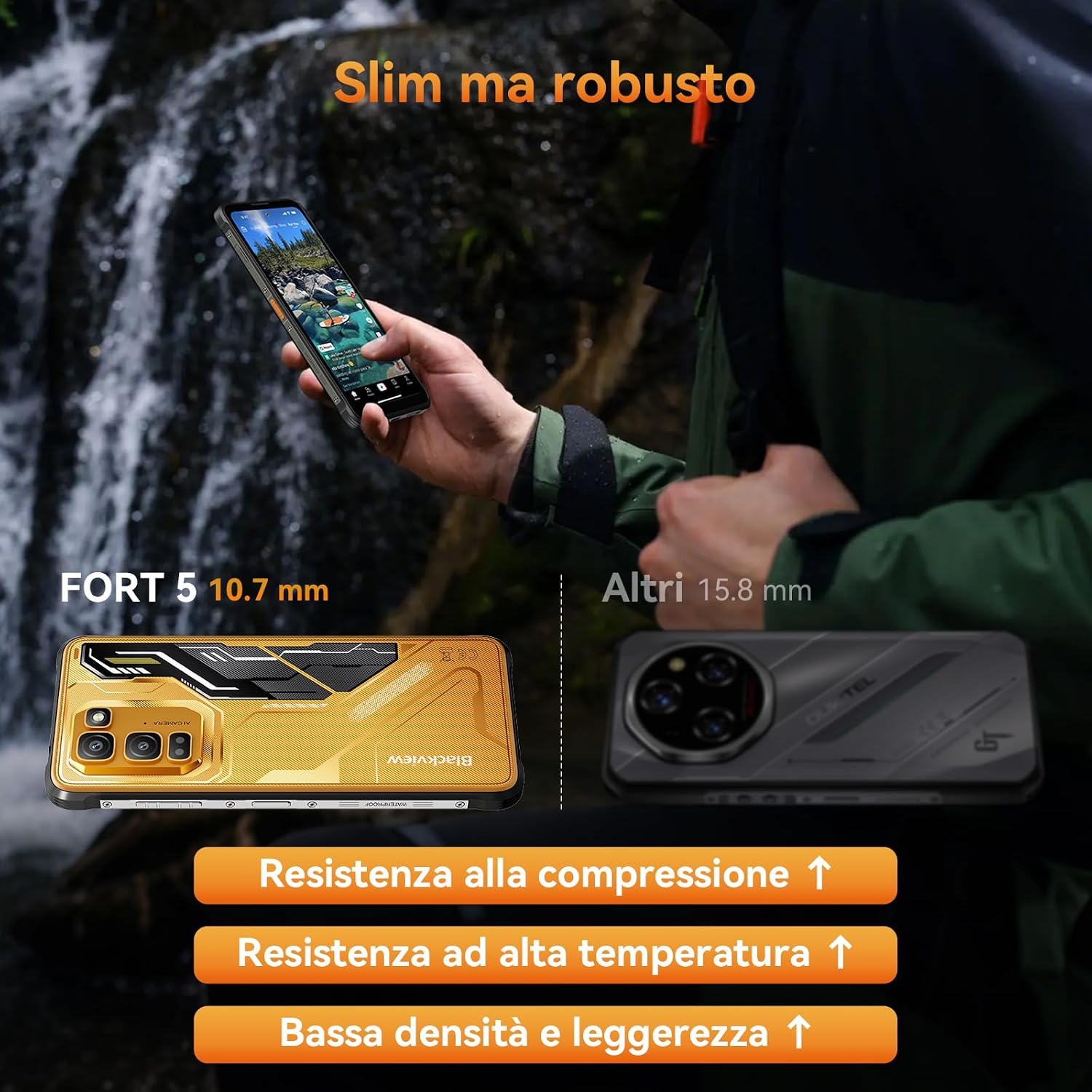
Figure 3.2.1: Camera System Overview
3.3 Infrared Remote Control
The Blackview Fort 5 includes a powerful infrared remote control feature, allowing you to control various electronic devices such as TVs, air conditioners, and projectors directly from your phone.

Figure 3.3.1: Infrared Remote Control Functionality
3.4 Toolbox Applications
The device comes pre-installed with a multi-functional toolbox, including useful utilities such as a compass, rangefinder, sound meter, flashlight, protractor, and level. These tools are beneficial for outdoor activities and professional use.

Figure 3.4.1: Integrated Toolbox Applications
3.5 Navigation (GPS)
The Fort 5 supports high-precision five-mode satellite navigation (GPS, GLONASS, Galileo, BeiDou, QZSS), ensuring accurate positioning even in remote areas.

Figure 3.5.1: GPS Navigation
3.6 Battery Management
The device is equipped with a 5000mAh battery, supporting 15W wireless charging and 5W reverse charging. Intelligent power-saving modes optimize energy consumption for extended battery life.

Figure 3.6.1: Battery Status Display
4. Device Maintenance
4.1 Cleaning Your Device
To maintain optimal performance and appearance, regularly clean your Blackview Fort 5. Use a soft, damp cloth to wipe the screen and body. Avoid harsh chemicals or abrasive materials that could damage the device's rugged coatings.
4.2 Water and Dust Resistance
The Fort 5 is certified with MIL-STD-810H, IP68, and IP69K ratings, providing protection against drops, dust, and water. It can withstand immersion in 2 meters of water for 30 minutes and high-pressure hot water jets. Ensure all ports are securely closed before exposing the device to water or dust.

Figure 4.2.1: Rugged Durability in Action
5. Troubleshooting Common Issues
If you encounter issues with your Blackview Fort 5, try the following steps:
- Device Unresponsive: Press and hold the power button for about 10-15 seconds to force a restart.
- App Crashing: Close the problematic app and reopen it. If the issue persists, clear the app's cache or reinstall it.
- Poor Network Connection: Check your SIM card installation. Try toggling airplane mode on and off. Ensure you are within network coverage.
- Battery Draining Quickly: Review app usage in battery settings. Reduce screen brightness, disable unnecessary features like GPS or Wi-Fi when not in use, and activate power-saving mode.
- Software Glitches: Ensure your device's software is up to date. Go to Settings > System > System update to check for and install any available updates.
- Factory Reset: As a last resort, if software issues persist, you may perform a factory reset. Warning: This will erase all data on your device. Back up important data before proceeding. Go to Settings > System > Reset options > Erase all data (factory reset).
6. Technical Specifications
| Feature | Specification |
|---|---|
| Brand | Blackview |
| Model Name | FORT 5 |
| Operating System | Android 16, DokeOS 5.0 |
| Processor | MediaTek Helio G100 (Octa-core) |
| RAM | 12 GB (expandable to 36 GB) |
| Internal Storage | 256 GB |
| Expandable Storage | Up to 2 TB via MicroSD |
| Screen Size | 6.78 Inches |
| Display Resolution | 2400 x 1080 (2.4K) |
| Refresh Rate | 120 Hz |
| Pixel Density | 396 PPI |
| Rear Camera | 108 MP Main + 13 MP Night Vision |
| Front Camera | 50 MP |
| Battery Capacity | 5000 mAh |
| Charging | 15W Wireless Charging, 5W Reverse Charging |
| SIM Card Type | Nano SIM (Dual SIM support) |
| Connectivity | 4G LTE, Wi-Fi 5G, OTG, NFC, Bluetooth 5.2 |
| Navigation | GPS, GLONASS, Galileo, BeiDou, QZSS |
| Durability Ratings | MIL-STD-810H, IP68, IP69K (Waterproof, Dustproof, Shockproof) |
| USB Interface | USB-C |
| Product Features | 10.7mm ultra-thin, 248g ultra-light, Glove Mode, Infrared Remote Control, Toolbox Apps |
7. Warranty and Customer Support
7.1 Warranty Information
The Blackview Fort 5 comes with an official 3-year warranty, providing long-term protection and reliable after-sales service.
7.2 Customer Support
For any inquiries, technical assistance, or warranty claims, please contact Blackview customer support:
- Email: support@blackview.hk
- Phone: +44 7700 156388
- Operating Hours: Monday to Friday, 9 AM - 5 PM (PST)

Figure 7.2.1: Blackview Customer Support Details


