
1. Introduction
This manual provides detailed instructions for the safe and efficient operation of your WSTER WS-589 Off-Road Pickup Truck Bluetooth Speaker. Please read this manual thoroughly before using the product and retain it for future reference.
2. Safety Information
- Do not expose the speaker to extreme temperatures, direct sunlight, or high humidity.
- Avoid dropping or subjecting the speaker to strong impacts.
- Do not disassemble, repair, or modify the unit yourself. Contact qualified service personnel for any repairs.
- Keep the speaker away from water and other liquids.
- Use only the provided charging cable or a certified equivalent.
- Clean the speaker with a soft, dry cloth. Do not use abrasive cleaners or solvents.
3. Package Contents
Verify that all items are present in the package:
- WSTER WS-589 Off-Road Pickup Truck Bluetooth Speaker
- Power Cable
- Quick Start Guide
4. Product Overview
The WSTER WS-589 is a portable Bluetooth speaker designed in the shape of an off-road pickup truck. It features LED roof lights, a rear tire design, and multiple playback options.

Figure 4.1: Front-side view of the WSTER WS-589 Off-Road Pickup Truck Bluetooth Speaker.

Figure 4.2: The WS-589 speaker, highlighting its car-like design.

Figure 4.3: Close-up view showcasing the detailed design of the speaker's front.
4.1 Controls and Ports
The rear of the speaker houses various ports and controls for different functionalities.

Figure 4.4: Rear view of the speaker, indicating ports for AUX, TF card, USB, and Type-C charging, along with power and control buttons.
The speaker supports Bluetooth, AUX input, TF card playback, and USB drive playback. It also includes a built-in microphone for hands-free calls.
5. Setup
5.1 Initial Charging
- Connect the provided power cable to the Type-C charging port on the rear of the speaker.
- Connect the other end of the cable to a suitable USB power adapter (not included).
- Allow the speaker to fully charge before first use. The charging indicator light will change to indicate a full charge.
5.2 Powering On/Off
- To power on, press and hold the Power button (usually labeled ON/OFF) located on the rear of the speaker.
- To power off, press and hold the Power button again.
6. Operating Instructions
6.1 Bluetooth Pairing
To connect your speaker to a Bluetooth-enabled device:
- Ensure the speaker is powered on and in Bluetooth mode. A voice prompt or indicator light will confirm Bluetooth mode.
- On your device (smartphone, tablet, etc.), enable Bluetooth and search for available devices.
- Select "WS-589" from the list of devices.
- Once paired, the speaker will emit a confirmation sound, and the indicator light will stabilize.

Figure 6.1: Illustration of the Bluetooth pairing process between a mobile device and the speaker.
6.2 TWS (True Wireless Stereo) Interconnection
To achieve stereo sound, you can pair two WS-589 speakers together:
- Ensure both WS-589 speakers are powered on and not connected to any Bluetooth device.
- On one of the speakers, press and hold the TWS button (refer to the Quick Start Guide for exact button location if not clearly marked).
- The speakers will attempt to pair with each other. A confirmation sound will indicate successful TWS pairing.
- Once paired, connect your device to one of the speakers via Bluetooth as described in Section 6.1. Audio will now play in stereo through both speakers.
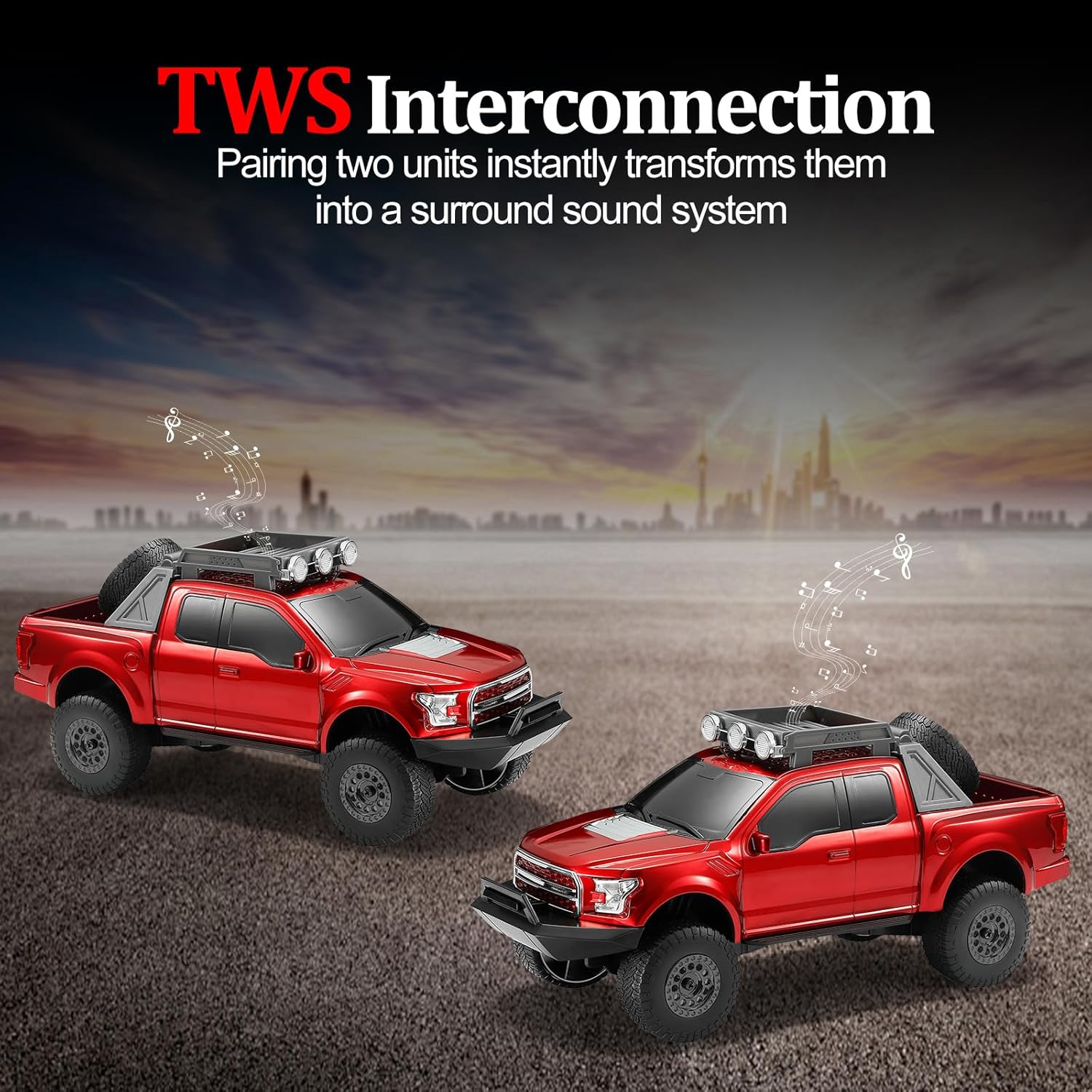
Figure 6.2: Two WS-589 speakers connected via TWS for an immersive stereo audio experience.
6.3 AUX Mode
To play audio via an AUX cable:
- Connect one end of a 3.5mm audio cable (not included) to the AUX port on the speaker.
- Connect the other end to the audio output of your device.
- The speaker should automatically switch to AUX mode. If not, press the Mode button (if available) to cycle through modes until AUX is selected.
6.4 TF Card Playback
To play music from a TF (MicroSD) card:
- Insert a TF card with audio files into the TF card slot on the speaker.
- The speaker will automatically detect the card and begin playback. If not, press the Mode button to select TF card mode.
6.5 USB Drive Playback
To play music from a USB flash drive:
- Insert a USB flash drive with audio files into the USB port on the speaker.
- The speaker will automatically detect the drive and begin playback. If not, press the Mode button to select USB mode.
6.6 Hands-Free Calling
When connected via Bluetooth to a smartphone, the built-in microphone allows for hands-free calls:
- When a call comes in, the speaker will ring. Press the Play/Pause button to answer the call.
- To end a call, press the Play/Pause button again.
- To reject an incoming call, press and hold the Play/Pause button.
6.7 LED Roof Lights
The speaker features LED lights on its roof. These lights typically activate automatically when the speaker is powered on and can cycle through various colors. Refer to the Quick Start Guide for specific controls related to the LED lights, if any.
Video 6.1: Demonstration of the WSTER WS-589 speaker, showcasing its design and the functionality of its LED roof lights.
7. Charging
When the battery is low, the speaker may emit an audible warning. Connect the speaker to a power source using the Type-C charging cable. The charging indicator will show the charging status and turn off or change color when fully charged.
8. Maintenance
- Cleaning: Use a soft, dry, lint-free cloth to clean the speaker's exterior. Do not use liquid cleaners or aerosols.
- Storage: Store the speaker in a cool, dry place away from direct sunlight and extreme temperatures when not in use for extended periods.
- Battery Care: To prolong battery life, avoid fully discharging the battery frequently. Charge the speaker regularly, even if not in use.
9. Troubleshooting
| Problem | Possible Cause | Solution |
|---|---|---|
| Speaker does not power on | Low battery; Power button not pressed correctly | Charge the speaker; Press and hold the Power button for a few seconds. |
| Cannot pair via Bluetooth | Speaker not in pairing mode; Device Bluetooth off; Speaker too far from device | Ensure speaker is in Bluetooth pairing mode; Turn on Bluetooth on your device; Move speaker closer to device (within 10 meters). |
| No sound | Volume too low; Incorrect mode selected; Device not playing audio | Increase speaker and device volume; Ensure correct input mode (Bluetooth, AUX, TF, USB) is selected; Check if audio is playing on the connected device. |
| TWS pairing fails | Speakers already connected to a device; Speakers too far apart | Disconnect both speakers from any Bluetooth devices; Ensure speakers are close to each other during TWS pairing. |
10. Specifications
| Feature | Specification |
|---|---|
| Brand | WSTER |
| Model Number | WS-589 |
| Speaker Maximum Output Power | 8 Watts |
| Frequency Response | 18 KHz |
| Connectivity Technology | Bluetooth |
| Audio Output Mode | Stereo |
| Mounting Type | Tabletop Mount |
| Enclosure Material | Acrylonitrile Butadiene Styrene (ABS) |
| Additional Features | Built-in Microphone, LED Light, Portable, TWS |
| Item Dimensions (D x W x H) | 13.1"D x 5.24"W x 5.71"H |
| Item Weight | 918.8 Grams |
| Number of Batteries | 1 Nonstandard Battery (included) |
11. Warranty and Support
For warranty information and customer support, please refer to the Quick Start Guide included in your package or contact the retailer where the product was purchased. Keep your proof of purchase for warranty claims.
