
1. Introduction
This manual provides essential information for setting up, operating, maintaining, and troubleshooting your new HP OmniDesk Desktop PC M02-0224. Please read this manual thoroughly before using your computer to ensure proper functionality and to maximize its lifespan. This desktop is designed for seamless performance and enhanced productivity, suitable for both business and student use.
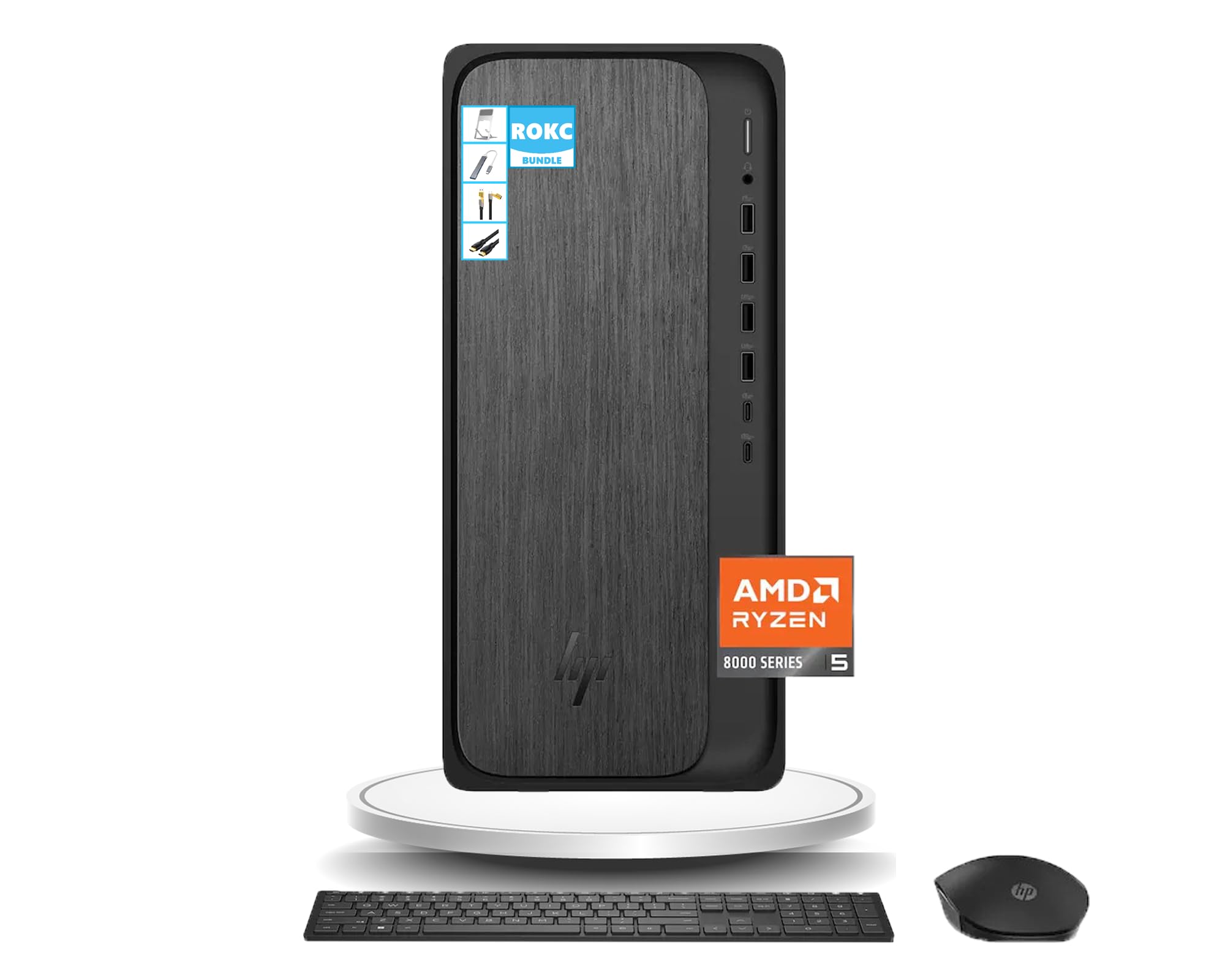
Figure 1: HP OmniDesk Desktop PC M02-0224
The HP OmniDesk Desktop PC M02-0224 is equipped with an AMD Ryzen 5 8500G processor, 16GB DDR5 RAM, and a 1TB SSD, providing robust performance for various tasks. Integrated AMD Radeon 740M Graphics ensure smooth visual experiences. Connectivity options include Wi-Fi 6, Bluetooth, and a comprehensive selection of USB, HDMI, and DisplayPort connections.
2. What's in the Box
Carefully unpack all components and ensure the following items are present:
- HP OmniDesk Desktop PC M02-0224
- HP Black Wireless Keyboard
- HP Black Wireless Mouse
- 280W 80 Plus Platinum Certified Power Supply
- Setup Instructions
- ROKC Multifunctional Folding Universal Holder
- ROKC 65W Mecha 4-IN-1 Data Cable
- ROKC USB/Type-C 4-IN-1 HUB
- ROKC HDMI Cable

Figure 2: Main components included in the box.

Figure 3: ROKC Exclusive Accessories Bundle.
3. Setup Instructions
- Placement: Place the HP OmniDesk Desktop PC on a stable, flat surface with adequate ventilation. Ensure no vents are blocked.
- Connect Monitor: Connect your monitor to the desktop using the provided HDMI cable or a DisplayPort cable (not included). The desktop supports 1 x HDMI and 1 x DisplayPort.
- Connect Peripherals: Connect the wireless keyboard and mouse using their respective USB receivers to any available USB-A ports. Connect any other desired peripherals (e.g., printer, external storage) to the appropriate ports.
- Power Connection: Connect the power supply cable to the desktop's power input and then to a grounded electrical outlet.
- Network Connection: For wired internet, connect an Ethernet cable to the RJ-45 port. For wireless internet, the desktop features built-in Wi-Fi 6.
- Power On: Press the power button on the front of the desktop. The system will boot up, and Windows 11 will guide you through the initial setup process.
4. Operating Instructions
4.1 Power On/Off
- To Power On: Press the power button located on the front panel.
- To Shut Down: Click the Start button in Windows 11, then select Power > Shut down.
- To Restart: Click the Start button, then select Power > Restart.
- To Sleep: Click the Start button, then select Power > Sleep.
4.2 Windows 11 Basics
Your HP OmniDesk PC comes with Windows 11 pre-installed. Familiarize yourself with the new interface, including the centered Start menu, redesigned taskbar, and Snap Layouts for efficient multitasking.
4.3 Using the ROKC Accessories
- Multifunctional Folding Universal Holder: Adjust the holder to your desired angle for optimal viewing of tablets or smartphones.
- 65W Mecha 4-IN-1 Data Cable & USB/Type-C 4-IN-1 HUB: Use these for versatile connectivity and charging of various devices. Refer to the accessory's specific instructions for detailed usage.
- ROKC HDMI Cable: Connect this cable between your desktop and a compatible display for high-definition video and audio output.
5. Connectivity & Ports
The HP OmniDesk Desktop PC offers a wide range of ports for connecting peripherals and external devices:

Figure 4: Front and Rear Port Layout.
5.1 Front Ports
- 1 x Headphone/Microphone Combo Jack
- 2 x USB Type-A 5Gbps ports
- 2 x USB Type-A 10Gbps ports
- 1 x USB Type-C 5Gbps port
- 1 x USB Type-C 10Gbps port
5.2 Rear Ports
- 4 x USB 2.0 Type-A ports
- 1 x RJ-45 Ethernet port
- 1 x HDMI Out port
- 1 x DisplayPort 1.4
5.3 Wireless Connectivity
- Wi-Fi 6: For high-speed wireless internet connection.
- Bluetooth: For connecting wireless peripherals like headphones or speakers.
6. Specifications
Detailed technical specifications for your HP OmniDesk Desktop PC M02-0224:

Figure 5: Product dimensions.
| Feature | Specification |
|---|---|
| Processor | AMD Ryzen 5 8500G (Up to 5 GHz) |
| RAM | 16GB DDR5 SDRAM |
| Storage | 1TB SSD |
| Graphics | AMD Radeon 740M Graphics (Integrated) |
| Operating System | Windows 11 |
| Wireless Connectivity | Wi-Fi 6, Bluetooth |
| Dimensions (H x W x D) | 13.27 x 6.1 x 12.4 inches |
| Weight | 12.72 lbs |
| Color | Gray Wood |
| Power Supply | 280W 80 Plus Platinum Certified |
7. Maintenance
Regular maintenance helps ensure the longevity and optimal performance of your HP OmniDesk Desktop PC:
- Keep it Clean: Regularly clean the exterior of the desktop with a soft, dry cloth. Use compressed air to clear dust from vents and ports to prevent overheating.
- Software Updates: Keep your Windows 11 operating system and all drivers updated to the latest versions. This ensures security and performance improvements.
- Antivirus Protection: Install and regularly update antivirus software to protect against malware and viruses.
- Data Backup: Periodically back up important files to an external drive or cloud storage to prevent data loss.
- Proper Shutdown: Always shut down the computer properly through the operating system rather than simply unplugging it.
8. Troubleshooting
If you encounter issues with your HP OmniDesk Desktop PC, try the following troubleshooting steps:
- No Power: Ensure the power cable is securely connected to both the desktop and the electrical outlet. Check if the outlet is functional.
- No Display: Verify that the monitor is powered on and correctly connected to the desktop. Try a different video cable or monitor if available.
- Peripheral Not Working: Ensure USB devices are properly plugged into the correct ports. Try connecting them to a different USB port. For wireless devices, check battery levels and ensure receivers are correctly installed.
- Slow Performance: Close unnecessary applications. Check for background updates or scans. Ensure sufficient free space on the SSD.
- Internet Connectivity Issues: For Wi-Fi, check your router and modem. For wired connection, ensure the Ethernet cable is securely connected and your network is active.
- System Freezes: If the system becomes unresponsive, press and hold the power button for 10 seconds to force a shutdown, then restart the PC.
If these steps do not resolve the issue, please refer to the HP support website or contact customer service for further assistance.
9. Warranty and Support
Your HP OmniDesk Desktop PC M02-0224 comes with a standard manufacturer's warranty. For specific warranty terms and conditions, please refer to the documentation included with your product or visit the official HP support website. Keep your proof of purchase for warranty claims.
For technical support, driver downloads, and additional resources, please visit the official HP support website. You can typically find contact information for customer service on the HP website or in your product's documentation.


