
1. Introduction
Thank you for choosing the UPERFECT 18.5-inch 120Hz Portable Gaming Monitor. This monitor is designed to provide a high-performance visual experience with its 120Hz refresh rate, Full HD IPS non-glare panel, and 100% sRGB color gamut. Its versatile connectivity, integrated stand, and VESA compatibility make it suitable for various applications, from gaming to professional work. This manual provides essential information for setting up, operating, and maintaining your monitor.
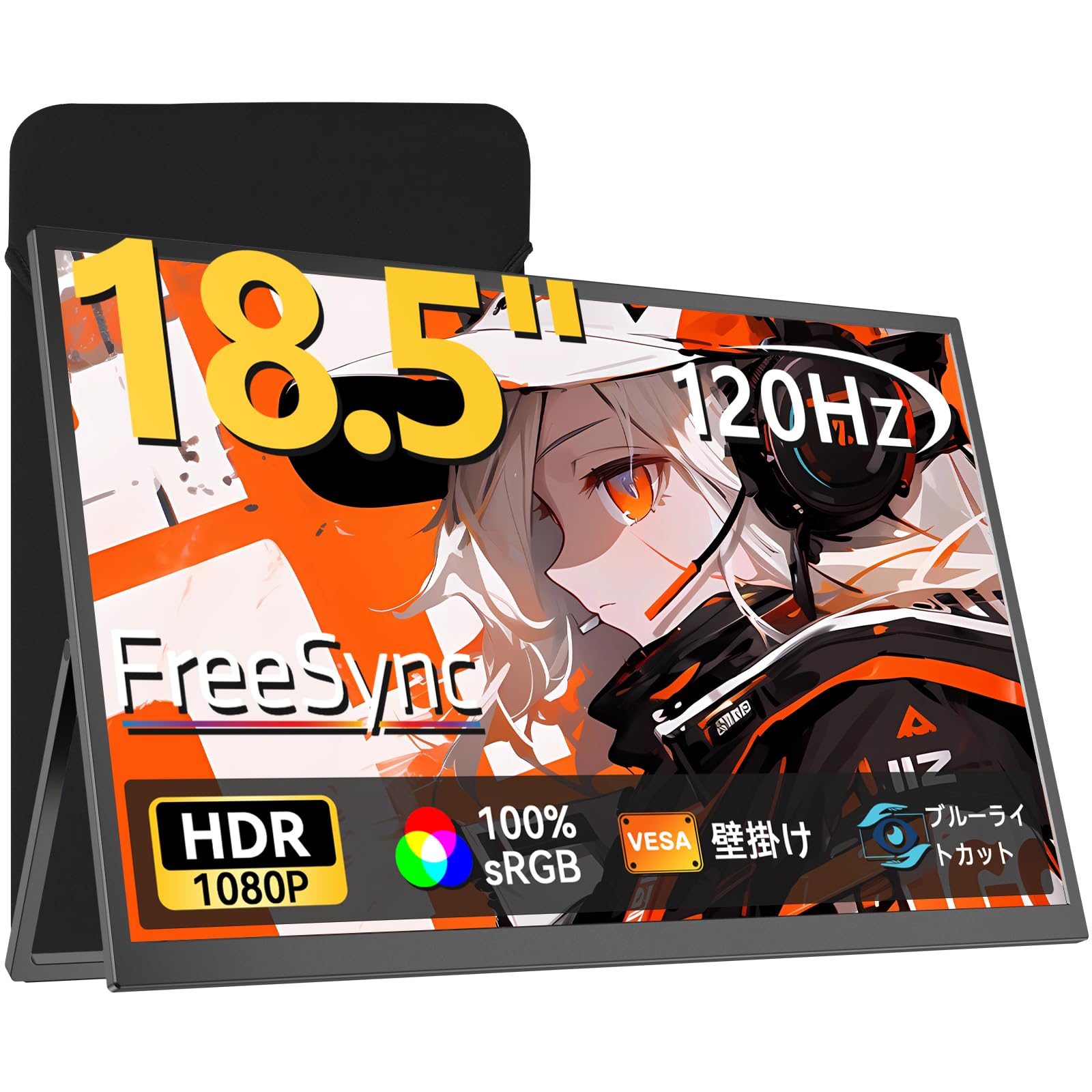
The UPERFECT 18.5-inch Portable Gaming Monitor.
2. What's in the Box
Please check the contents of your package to ensure all items are present:
- 1 x UPERFECT 18.5-inch Portable Monitor
- 1 x Mini HDMI 4K Cable
- 2 x Type-C Cables
- 1 x PD 30W Power Adapter
- 1 x Protective Case
- 1 x Japanese Instruction Manual (This document serves as the English version)

All items included in the package.
Unboxing Video
This video demonstrates the unboxing process and shows the included accessories.
3. Product Overview
Familiarize yourself with the monitor's physical features, ports, and controls.
Ports and Controls

Detailed view of the monitor's ports and control buttons.
- USB Type-C Ports (x2): For power, video, audio, and data transmission with compatible devices.
- Mini HDMI Port: For video and audio input from various devices.
- Earphone Jack: For connecting headphones or external speakers.
- Menu & Confirmation Button: Navigates and confirms selections in the On-Screen Display (OSD) menu.
- '+' / '-' Buttons: Adjusts settings or navigates menu options.
- Power / Return Button: Powers the monitor on/off or returns to the previous menu.
Integrated Stand and VESA Mount
The monitor features an integrated stand for flexible viewing angles (0° to 180°). It also supports VESA mounting (75x75mm) for use with monitor arms.

The monitor can be mounted on a VESA-compatible arm for ergonomic setups.
4. Setup
Follow these steps to connect your UPERFECT portable monitor to various devices.
Connecting via USB-C (Single Cable Solution)
For modern laptops and smartphones with full-featured USB-C ports (supporting DisplayPort Alt Mode and power delivery), a single USB-C cable can transmit video, audio, power, and data simultaneously.
- Connect one end of the provided USB-C cable to a full-featured USB-C port on your device.
- Connect the other end of the USB-C cable to either of the USB Type-C ports on the monitor.
- If your device cannot provide sufficient power, connect the PD 30W power adapter to the other USB Type-C port on the monitor.

Connecting the monitor to a laptop using a single USB-C cable.
Connecting via Mini HDMI
For devices like gaming consoles (PS5, Nintendo Switch, Xbox) or older PCs, use the Mini HDMI port for video and audio, and a USB-C cable for power.
- Connect one end of the provided Mini HDMI cable to your device's HDMI output.
- Connect the other end of the Mini HDMI cable to the Mini HDMI port on the monitor.
- Connect the PD 30W power adapter to one of the USB Type-C ports on the monitor using a USB-C cable to provide power.

Gaming setup with the portable monitor connected to a Nintendo Switch.
Multi-Device Compatibility
The monitor supports a wide range of devices including smartphones, laptops, PCs, Nintendo Switch, PS5, mice, and keyboards.

The monitor supports various devices for extended display functionality.
5. Operating Instructions
This section details how to navigate the On-Screen Display (OSD) menu and adjust various settings.
OSD Menu Navigation
Use the control buttons on the side of the monitor to access and navigate the OSD menu.
- Press the Menu/Confirmation button to open the OSD menu.
- Use the '+' and '-' buttons to navigate through menu options.
- Press the Menu/Confirmation button to select an option or enter a sub-menu.
- Press the Power/Return button to go back to the previous menu or exit the OSD.
Display Settings
Adjust settings such as brightness, contrast, color temperature, and aspect ratio to optimize your viewing experience.
This video demonstrates adjusting display settings like brightness, contrast, color temperature, and aspect ratio via the OSD menu.
- Brightness & Contrast: Adjust these to suit your environment and content.
- Color Temperature: Choose from presets (Warm, Cool, User) or customize RGB values for desired color balance.
- Aspect Ratio: Select between Wide (16:9) or other options to match your content.
- HDR Mode: Enable or disable HDR for enhanced dynamic range with compatible content.
- FreeSync: Enable FreeSync for smoother gaming by synchronizing the monitor's refresh rate with your GPU's frame rate.
- Low Blue Light: Activate this mode to reduce blue light emission, which can help reduce eye strain during prolonged use.
Orientation
The monitor supports both horizontal and vertical orientations. You can switch between them to optimize for programming, document work, or video editing.

The monitor can be used in both horizontal and vertical modes for various tasks.
6. Maintenance
Proper care ensures the longevity and optimal performance of your monitor.
- Cleaning: Use a soft, lint-free cloth to gently wipe the screen. For stubborn marks, slightly dampen the cloth with water or a screen-cleaning solution. Avoid harsh chemicals or abrasive materials.
- Storage: When not in use, store the monitor in its protective case to prevent scratches and damage, especially during transport.
- Handling: Always handle the monitor with care. Avoid applying excessive pressure to the screen or dropping the device.
- Ventilation: Ensure proper airflow around the monitor to prevent overheating. Do not block the ventilation holes.

The included protective case helps keep the monitor safe during travel.
7. Troubleshooting
If you encounter issues with your monitor, refer to the following common problems and solutions.
- No Signal:
- Ensure all cables (USB-C or HDMI) are securely connected to both the monitor and the source device.
- Verify that the source device is powered on and outputting a signal.
- Check if the correct input source is selected in the monitor's OSD menu.
- If using USB-C, ensure your device's USB-C port supports DisplayPort Alt Mode.
- No Power:
- Ensure the power adapter is correctly connected to the monitor and a working power outlet.
- If powered via USB-C from a device, ensure the device has sufficient power and its USB-C port supports power delivery.
- Flickering Screen:
- Check cable connections for looseness.
- Try a different cable or port.
- Ensure your graphics driver is up to date.
- Disable FreeSync in the OSD menu if the issue persists.

The monitor features anti-flicker technology for a stable display.
- Poor Image Quality (Blurry/Distorted):
- Ensure the display resolution and refresh rate are correctly set on your source device.
- Adjust brightness, contrast, and sharpness settings in the OSD menu.
- Reset display settings to factory defaults via the OSD menu.
- No Audio:
- Check the volume level on both the monitor and the source device.
- Ensure the audio output on your source device is set to the monitor.
- If using external speakers or headphones, ensure they are properly connected to the monitor's earphone jack.
8. Specifications
| Feature | Specification |
|---|---|
| Brand | UPERFECT |
| Model Number | M185T08 |
| Screen Size | 18.5 inches |
| Resolution | FHD 1080p (1920 x 1080) |
| Aspect Ratio | 16:9 |
| Screen Surface | Non-glare |
| Refresh Rate | 120 Hz |
| Response Time | 2 ms |
| Color | Black |
| Special Features | Eye Care, Flicker-Free, Blue Light Filter, Portable, High Dynamic Range |
| Item Dimensions (D x W x H) | 21 x 38 x 49 cm |
9. Warranty and Support
UPERFECT is committed to providing high-quality products and excellent customer service.
- Quality Assurance: Products undergo rigorous inspection to ensure no dead pixels or bright spots upon shipment.
- 90-Day Trial: Enjoy a 90-day trial period. If you are not satisfied, a full refund is available.
- Dedicated Support: A dedicated support team is available to assist you with any inquiries or issues.
- Free Accessories: Genuine cables and adapters are provided free of charge for life.
- 1-Year Warranty: The product comes with a 1-year warranty.
- PSE Certified: This product is PSE certified, ensuring safety and compliance.
For any questions regarding product use or initial defects within the warranty period, please contact us through your order history. We are dedicated to providing the best possible support.

UPERFECT customer support is available to assist you.


