
Introduction
This manual provides essential information for setting up, operating, maintaining, and troubleshooting your VIZIO V4K50S-0810 50-inch V-Series 4K HDR Smart TV. Please read these instructions carefully to ensure proper use and to maximize your viewing experience.
Setup
1. Unpacking and Placement
Carefully remove the TV from its packaging. It is recommended to have two people for this process. Place the TV on a stable, flat surface or prepare for wall mounting.
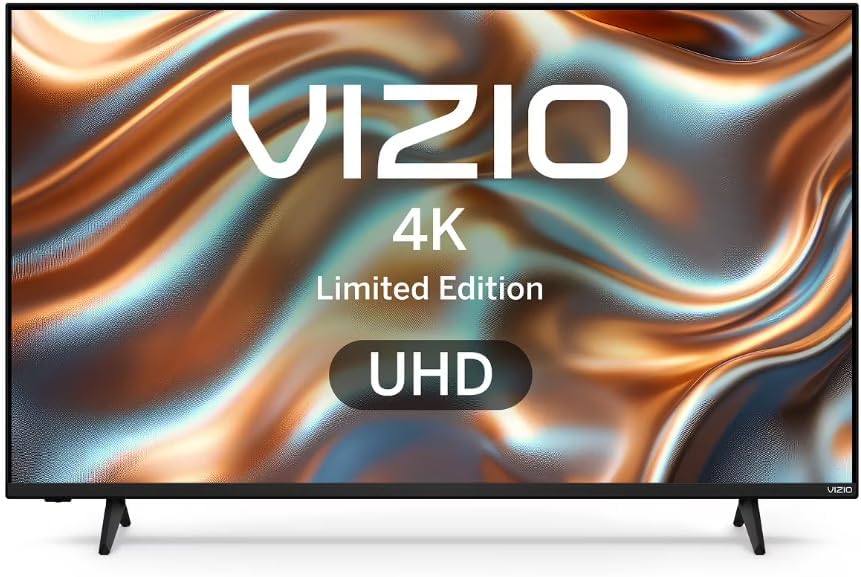
Image: Front view of the VIZIO V4K50S-0810 TV, illustrating its design with the included stand.
2. Stand Installation (Optional)
If you are not wall-mounting, attach the included stands to the bottom of the TV. Align the stands with the designated slots and secure them using the provided screws. Ensure all screws are tightened securely. A power drill may be helpful for easier screw insertion.
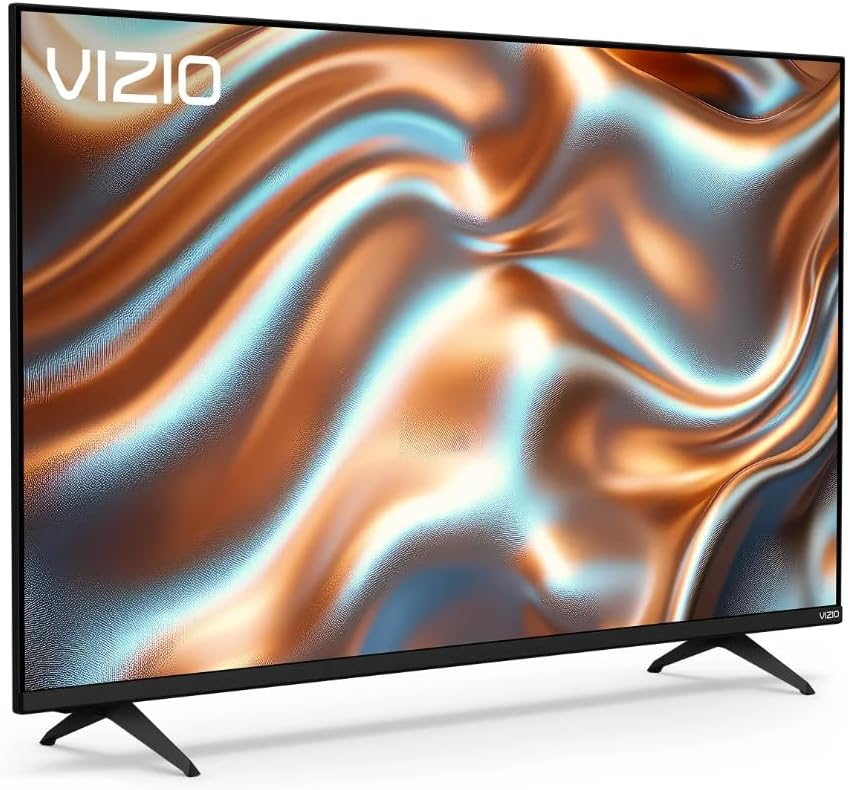
Image: Angled view of the VIZIO V4K50S-0810 TV, showing the attached stands and overall profile.
3. Wall Mounting (Optional)
For wall mounting, use a VESA-compatible wall mount (200 x 200 mm standard) sold separately. Follow the instructions provided with your wall mount. Ensure the wall can support the weight of the TV and the mount.
4. Connecting Devices
Connect your external devices (e.g., cable box, Blu-ray player, gaming console) to the TV's HDMI ports. This TV features 3 HDMI ports. You can also connect USB devices to the single USB 3.0 port.
- HDMI: For high-definition video and audio.
- USB: For media playback or connecting compatible accessories.
- Bluetooth: For wireless audio devices or accessories.
- Wi-Fi: For internet connectivity (Dual-Band WiFi 6 supported).
5. Power On and Initial Setup
Plug the power cord into an electrical outlet. Press the power button on the remote control or on the TV. Follow the on-screen instructions to complete the initial setup, including language selection, network connection, and channel scanning. A VIZIO Account is required for full Smart TV functionality and product updates.
The included remote control is essential for navigating the TV's menus and features.
Operating Instructions
1. Basic Controls
- Power: Turn the TV on or off.
- Volume: Adjust the audio level.
- Input: Select the desired input source (HDMI 1, HDMI 2, etc.).
- Navigation: Use the directional pad and OK button on the remote to navigate menus.
2. Smart TV Features (SmartCast OS)
Your VIZIO Smart TV runs on the SmartCast OS, providing instant access to a variety of built-in applications and streaming services. Use the remote control to browse and launch apps.
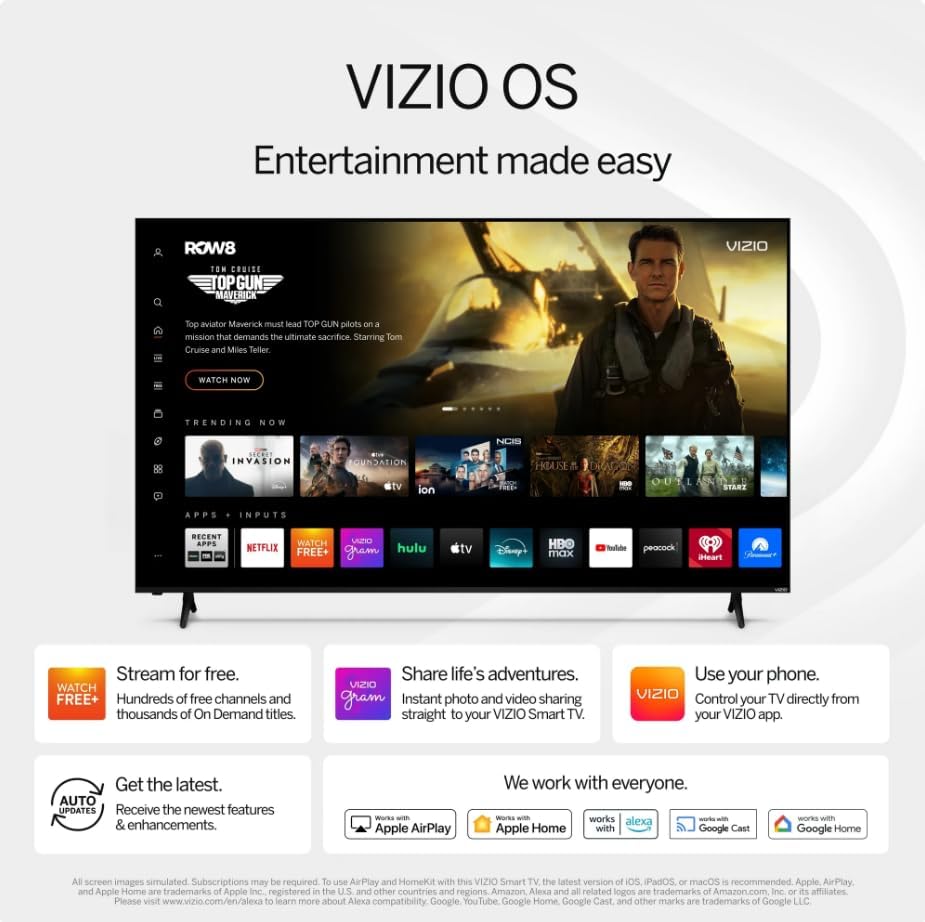
Image: The VIZIO SmartCast OS interface, displaying available applications and content for easy access.
- Built-in Apps: Access popular streaming platforms directly from your TV.
- Chromecast Built-in: Cast content from your compatible mobile devices or computer to the TV.
- VIZIO Voice Remote: Use voice commands to navigate, search for content, and adjust settings.
3. Picture and Audio Settings
Access the TV's settings menu to customize picture and audio preferences.
- Picture Quality: Enjoy 4K Ultra HD resolution with Dolby Vision HDR/HDR10+ for enhanced color, contrast, and detail. Adjust brightness, contrast, color, and sharpness to your preference.
- Audio: The TV features built-in 2.0 channel speakers. Adjust volume and sound modes (e.g., Standard, Music, Movie) through the audio settings.
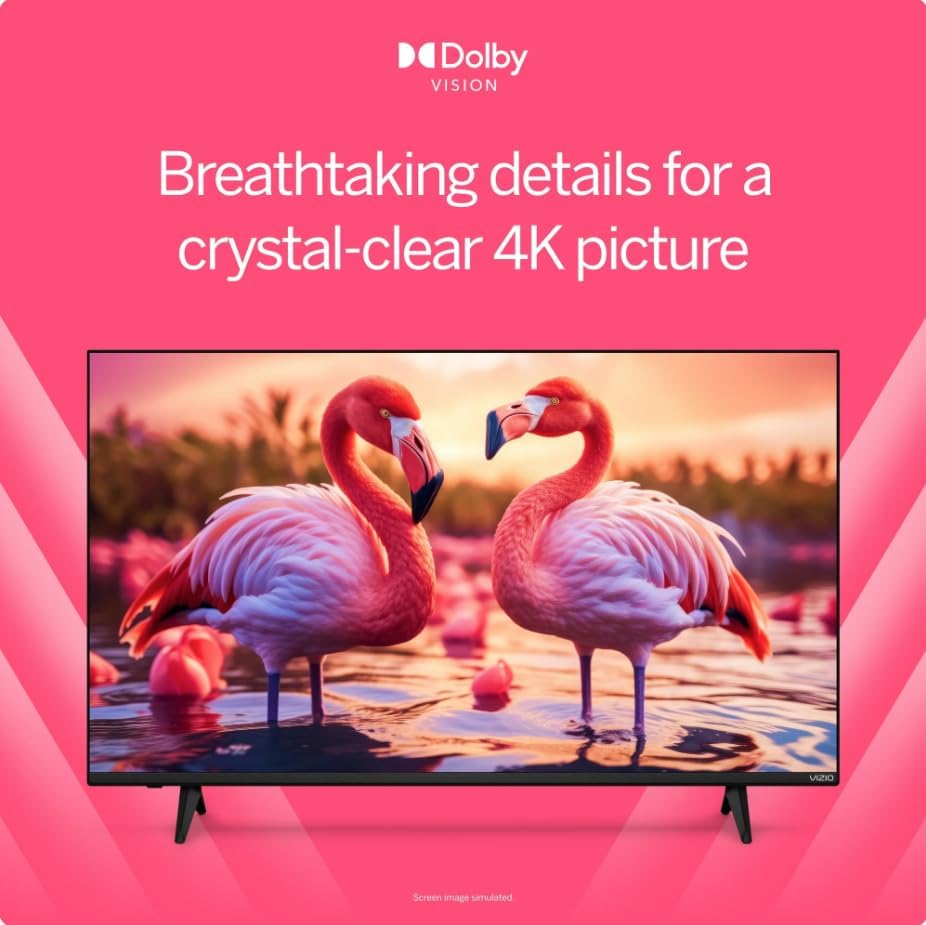
Image: A visual comparison demonstrating the enhanced detail and color provided by Dolby Vision HDR technology.
4. Gaming Optimization
This TV is optimized for gaming with features designed to provide a smoother experience.
- Auto Low Latency Mode (ALLM): Automatically switches to a low-latency mode when a game console is detected, reducing input lag.
- Variable Refresh Rate (VRR): Synchronizes the TV's refresh rate with the game console's frame rate to minimize screen tearing and stuttering.

Image: A scene from a video game, highlighting how Dolby Vision HDR enhances in-game color and realism.
Maintenance
1. Cleaning the TV
- Screen: Gently wipe the screen with a soft, dry, lint-free cloth. For stubborn marks, lightly dampen the cloth with water or a screen-cleaning solution specifically designed for electronics. Do not spray liquid directly onto the screen.
- Body: Wipe the TV's frame and back panel with a soft, dry cloth. Avoid using abrasive cleaners or solvents.
2. Software Updates
Your VIZIO Smart TV may receive periodic software updates to improve performance and add new features. Ensure your TV is connected to the internet via Wi-Fi for automatic updates. A VIZIO Account is necessary to receive these updates.
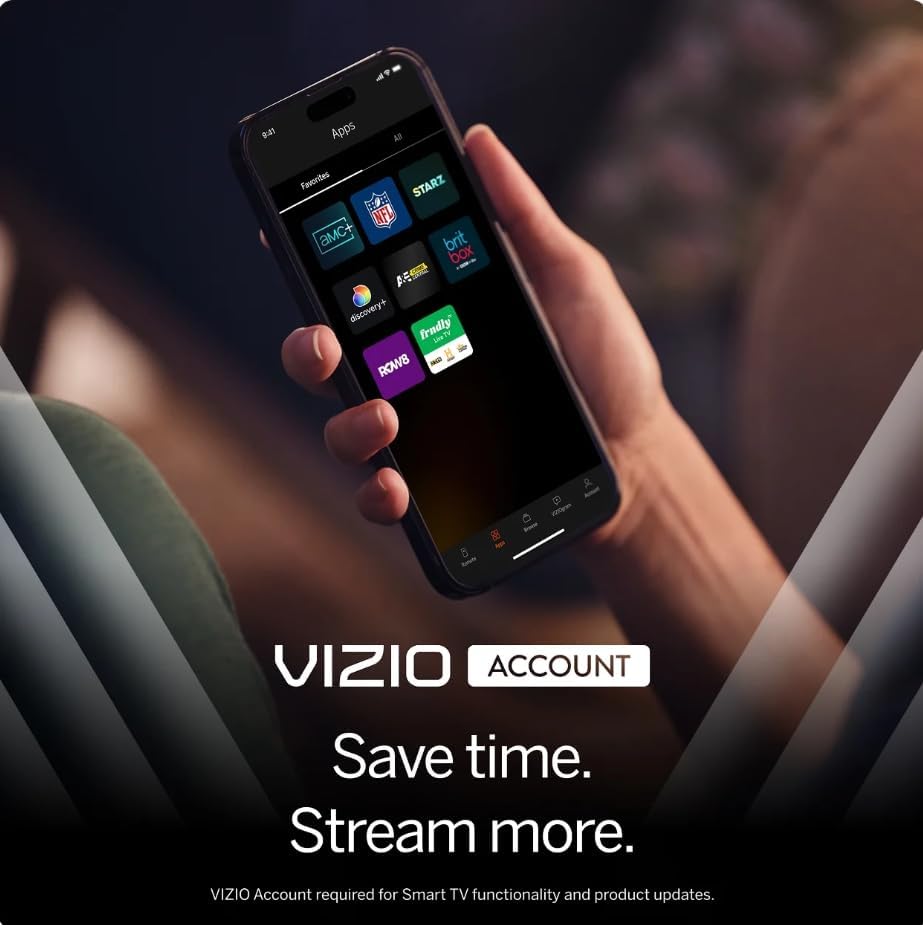
Image: A smartphone screen displaying the VIZIO Account interface, which is used for managing smart TV features and updates.
Troubleshooting
If you encounter issues with your TV, refer to the following common solutions:
- No Power: Ensure the power cord is securely plugged into both the TV and a working electrical outlet. Try a different outlet.
- No Picture/Sound: Verify the correct input source is selected. Check all cable connections (HDMI, etc.) are secure. Restart connected devices.
- Remote Not Responding: Replace the batteries in the remote control. Ensure there are no obstructions between the remote and the TV's IR sensor.
- Network Connection Issues: Check your Wi-Fi router and internet connection. Restart both the TV and your router. Ensure your Wi-Fi password is entered correctly.
- Smart TV Features Not Working: Confirm your TV is connected to the internet. Ensure you have created and logged into your VIZIO Account, as it is required for full Smart TV functionality and app access.
- Cracked Screen/Physical Damage: If the TV has physical damage, contact customer support for assistance.
For more detailed troubleshooting or persistent issues, please refer to the VIZIO support website or contact customer service.
Specifications
| Feature | Detail |
|---|---|
| Model Name | V4K50S-0810 |
| Screen Size | 50 Inches |
| Display Technology | 4K UHD LED |
| Resolution | 3840 x 2160 (4K) |
| Refresh Rate | 60 Hz |
| HDR Format Supported | Dolby Vision, HDR10+ |
| Operating System | SmartCast OS |
| Connectivity Technology | Bluetooth, Wi-Fi (Dual-Band WiFi 6) |
| HDMI Ports | 3 |
| USB Ports | 1 (USB 3.0) |
| Special Features | Chromecast Built-in, VIZIO Voice Remote, ALLM, VRR |
| Mounting Type | Table Mount, Wall Mount (VESA 200 x 200 mm) |
| Included Components | Remote Control |
Warranty Information
This VIZIO V4K50S-0810 TV comes with a 90-day limited warranty. Please retain your proof of purchase for warranty claims. For specific terms and conditions, refer to the warranty documentation provided with your product or visit the official VIZIO support website.
Customer Support
For further assistance, technical support, or to access additional resources, please visit the official VIZIO support website. You can find FAQs, updated manuals, and contact information for customer service there.
Online Support: support.vizio.com


