
1. Introduction
The ACECONN Sword Pro+ is a high-performance streaming smart TV box designed to deliver an immersive entertainment experience. Running on the Android 11 operating system, it supports 4K Ultra HD resolution at 60 frames per second with HDR10+ for crystal-clear visuals. Equipped with dual-band Wi-Fi (2.4G/5G) and 2GB RAM with 16GB storage, it ensures fast and stable streaming. The included voice remote with backlight offers convenient control. This manual provides essential information for setting up, operating, and maintaining your device.
2. Package Contents
Verify that all items listed below are included in your package:
- SWORD Pro+ TV Box ×1
- Remote Control ×1
- HDMI Cable ×1
- Power Adapter ×1
- User Manual ×1
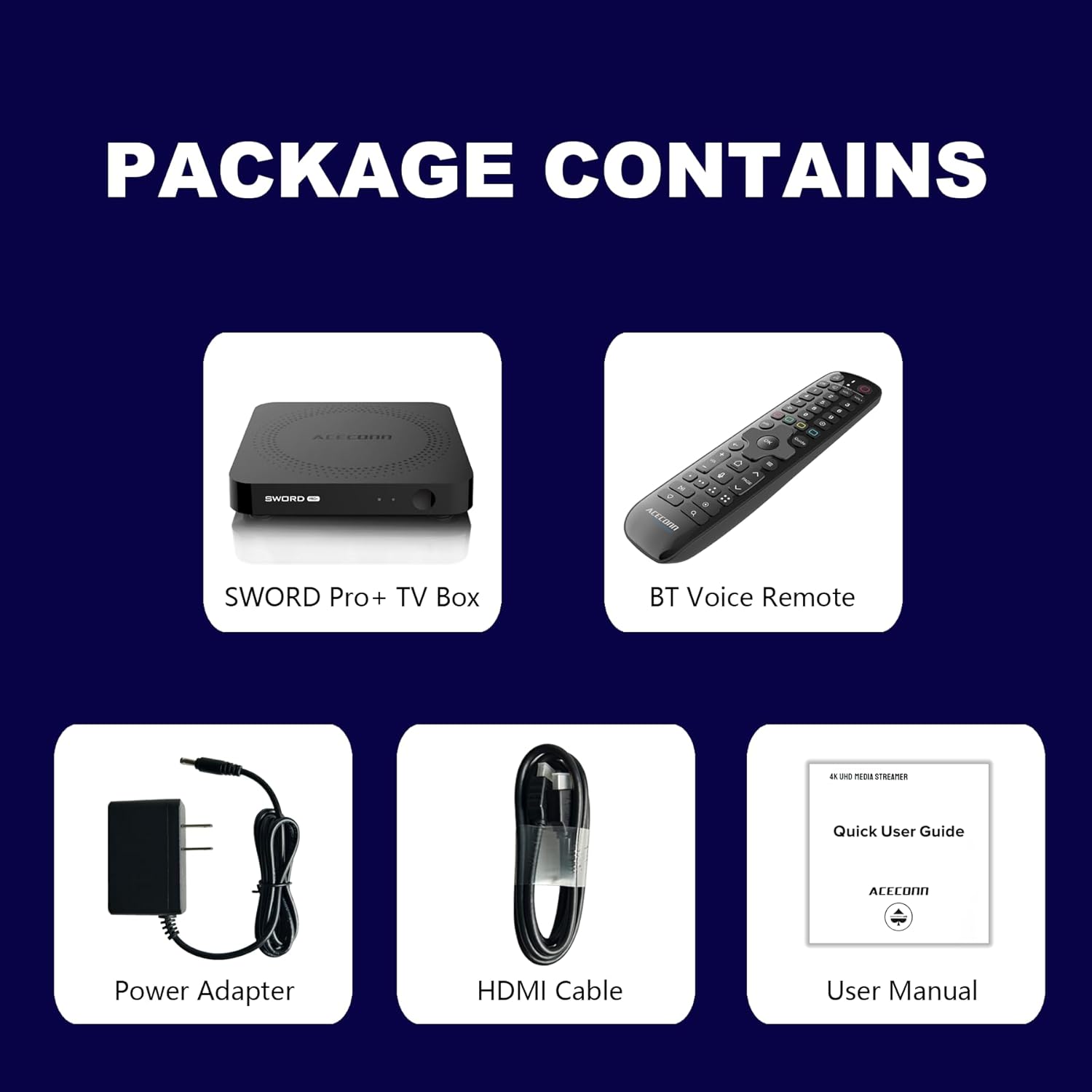
Figure 2.1: Package Contents. This image displays the SWORD Pro+ TV Box, BT Voice Remote, Power Adapter, HDMI Cable, and a Quick User Guide (User Manual).
3. Product Overview
3.1 Device Layout

Figure 3.1: Front and Rear Views of the SWORD Pro+ TV Box. The front features an IR receiver and power indicator. The side includes USB 2.0, USB 3.0, and a MicroSD card slot. The rear panel provides AV, Ethernet, HDMI, Optical audio, DC power input, and a 'Find Remote' button.
3.2 Dimensions
The ACECONN Sword Pro+ TV Box has compact dimensions for easy placement.
- Length: 4.4 inches (11 cm)
- Width: 4.4 inches (11 cm)
- Height: 0.8 inches (2 cm)

Figure 3.2: Device Dimensions. This image illustrates the length, width, and height of the SWORD Pro+ TV Box.
4. Remote Control Description
The included Bluetooth voice remote control features a backlight for ease of use in various lighting conditions. Familiarize yourself with the buttons and their functions:

Figure 4.1: Remote Control Layout. This diagram labels all buttons on the remote, including TV Power On/Off, STB Power On/Off, OK key for TV, TV Source, Number Keys, Mouse, Options, Color Keys, Information, Open TV Guide, Navigation (Up/Down/Left/Right), Confirm/Select, Exit, Menu, Home, Volume +/-, Page Up/Down, Channel Up/Down, Voice Assistant, Hot Keys, Play/Pause, Record, Setup Favorite, and Search.
- TV Power On/Off: Controls your television's power.
- STB Power On/Off: Controls the TV Box power.
- OK key for TV / TV Source: Selects options or changes TV input.
- Number Keys (0-9): For direct input of numbers.
- Mouse: Activates/deactivates mouse pointer mode.
- Options: Accesses additional options within applications.
- Color Keys: Functionality varies by application.
- Info: Displays information about current content.
- Guide: Opens the TV program guide.
- Navigation (Up/Down/Left/Right): Moves cursor or selection.
- OK (Center): Confirms selection.
- Exit: Returns to the previous screen or exits an application.
- Menu: Opens the context menu.
- Home: Returns to the main home screen.
- Volume +/-: Adjusts audio volume.
- Page Up/Down: Scrolls through pages.
- Voice Assistant: Activates voice control for commands and search.
- Play/Pause: Controls media playback.
- Record: Initiates recording (if supported by application/service).
- Setup Favorite: Configures favorite channels or apps.
- Search: Opens the search function.
5. Setup Guide
Follow these steps to set up your ACECONN Sword Pro+ TV Box:
- Connect to TV: Connect one end of the HDMI cable to the HDMI port on the TV Box and the other end to an available HDMI input on your television. Note the HDMI input number (e.g., HDMI 1, HDMI 2).
- Connect to Power: Plug the power adapter into the DC IN port on the TV Box, then plug the adapter into a wall outlet. The device should power on automatically, or you may need to press the power button on the remote.
- Select TV Input: Turn on your television and use its remote control to select the correct HDMI input source that the TV Box is connected to. You should see the ACECONN boot logo on your screen.
- Network Connection:
- Wi-Fi: Once the initial setup screen appears, navigate to the network settings. Select your Wi-Fi network from the list, enter the password, and connect. The device supports dual-band Wi-Fi (2.4G & 5G) for optimal performance.
- Ethernet: For a wired connection, connect an Ethernet cable from your router to the Ethernet port on the TV Box. The device will automatically detect and connect to the wired network.
- Initial System Setup: Follow the on-screen prompts to complete the initial setup, which may include language selection, time zone, and Google account login.
- Remote Control Pairing (if necessary): If the remote control is not responsive, ensure batteries are installed correctly. For Bluetooth remotes, you may need to pair it in the device's Bluetooth settings. Refer to the remote control section for specific pairing instructions if provided on-screen.

Figure 5.1: Dual-Band WiFi. The SWORD Pro+ supports both 2.4G and 5G WiFi for faster and more stable internet connectivity.
6. Operating Instructions
6.1 Basic Navigation
Use the directional pad (Up, Down, Left, Right) and the OK button on your remote control to navigate through the Android TV interface. The Home button will always return you to the main screen.
6.2 Using Voice Control
Press the Voice Assistant button on your remote control to activate the voice input feature. Speak clearly into the remote to search for content, open applications, or issue commands.

Figure 6.1: Smart Voice Control. This image demonstrates the voice control feature, allowing users to operate the device with spoken commands.
6.3 Accessing Applications
The TV Box comes with pre-installed applications, including the TVONAIR3 Streaming App. You can access more applications through the ACECONN exclusive app store or the Google Play Store. Navigate to the 'Apps' section on the home screen to view and manage your installed applications.
6.4 4K HDR Streaming
To enjoy 4K HDR content, ensure your television supports 4K resolution and HDR10+. Connect the TV Box to an HDMI 2.1 port on your TV for optimal performance. Content quality will also depend on your internet speed and the streaming service's offerings.
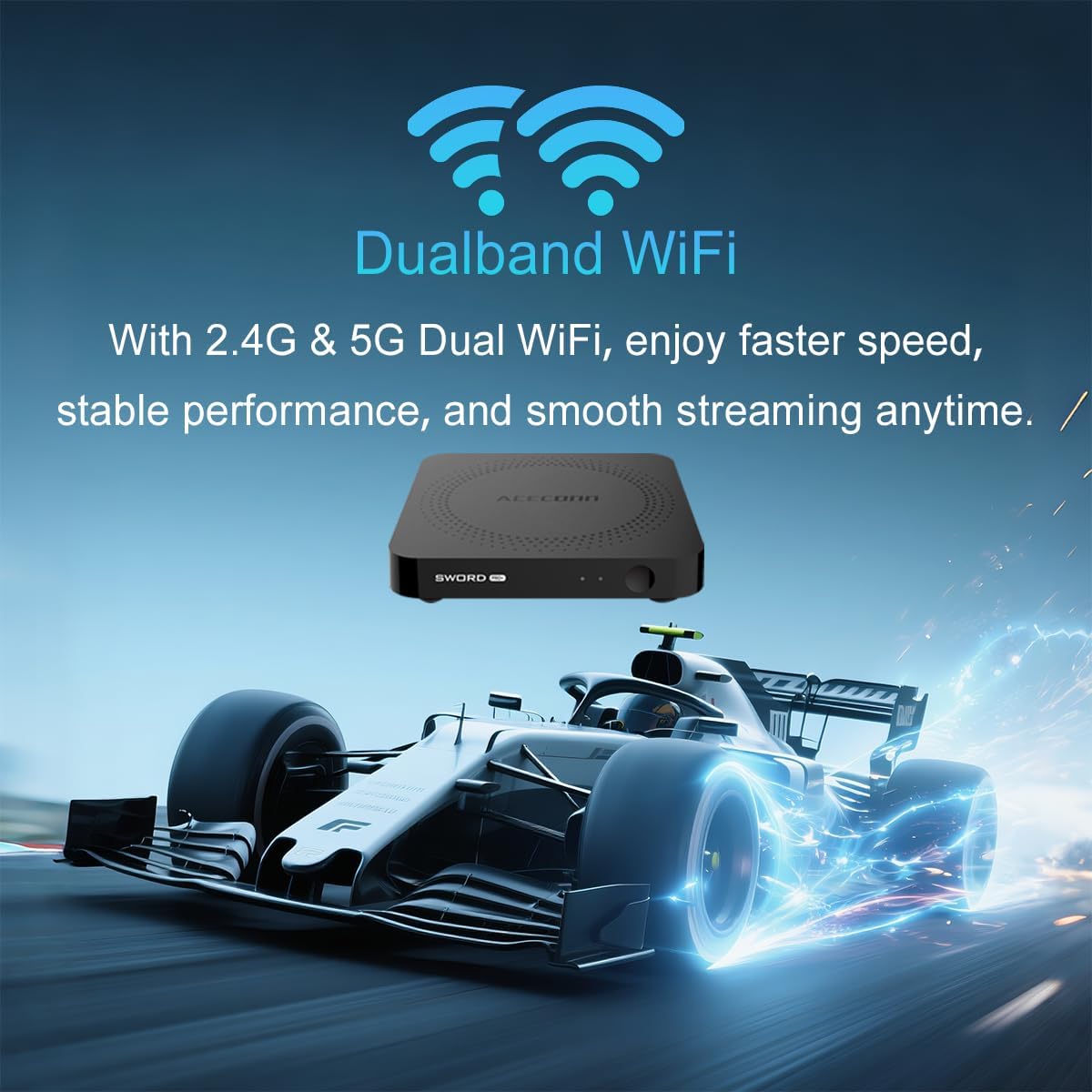
Figure 6.2: 4K HDR Support. The device supports 4K video streaming up to 3840x2160 at 60Hz, Dynamic HDR with frame-by-frame precision, and AV1 format decoding.
6.5 System Updates (OTA)
The ACECONN Sword Pro+ supports Over-The-Air (OTA) updates for both the system and applications. It is recommended to keep your device updated to ensure optimal performance and access to the latest features and security enhancements. You can check for updates in the device's settings menu.
7. Maintenance
Proper maintenance ensures the longevity and optimal performance of your TV Box:
- Cleaning: Use a soft, dry cloth to clean the exterior of the device. Avoid liquid cleaners or abrasive materials.
- Ventilation: Ensure the TV Box is placed in a well-ventilated area. Do not cover ventilation openings or place the device in an enclosed space that could restrict airflow.
- Software Updates: Regularly check for and install system and application updates to benefit from performance improvements and security patches.
- Environmental Conditions: Avoid exposing the device to extreme temperatures, direct sunlight, high humidity, or dusty environments.
- Power Cycle: If the device becomes unresponsive, disconnect the power adapter for a few seconds and then reconnect it to perform a power cycle.
8. Troubleshooting
If you encounter issues with your ACECONN Sword Pro+, refer to the following common problems and solutions:
| Problem | Possible Cause | Solution |
|---|---|---|
| Device does not power on. | Power adapter not connected or faulty. | Ensure the power adapter is securely connected to the device and a working power outlet. Try a different outlet. |
| No signal on TV screen. | Incorrect HDMI input selected or loose HDMI cable. | Verify the HDMI cable is securely connected to both the TV Box and the TV. Select the correct HDMI input on your TV using your TV's remote. |
| Remote control not working. | Low batteries, remote not paired, or IR sensor blocked. | Replace batteries. Ensure the remote is paired via Bluetooth (check device settings). Ensure no obstructions between remote and TV Box. |
| Buffering or slow streaming. | Weak Wi-Fi signal, slow internet speed, or network congestion. | Move the TV Box closer to your Wi-Fi router or use an Ethernet cable for a wired connection. Restart your router. Check your internet service provider's speed. |
| Applications crashing or freezing. | App specific issue, low memory, or outdated app. | Clear the cache of the problematic app (Settings > Apps). Update the app from the Play Store. Restart the TV Box. |
9. Specifications
Detailed technical specifications for the ACECONN Sword Pro+ TV Box:
- Model Name: SWORD PRO+
- Operating System: Android 11
- Processor: Quad-core ARM Cortex-A35 CPU
- GPU: G31TM MP2 GPU, OpenGL ES 3.2, Vulkan 1.1, OpenCL 2.0
- RAM: 2GB DDR3
- Internal Storage: 16GB eMMC
- Video Output: Up to 4Kx2K@60fps
- HDR Support: HDR10+/HLG
- Video Decoding: AV1, HEVC/H.265
- Connectivity:
- Dual-band Wi-Fi (2.4G/5G)
- Bluetooth
- Ethernet
- Ports: HDMI 2.1, USB 2.0, USB 3.0, MicroSD Card Slot, AV, Optical, DC IN
- Dimensions: 4.4 x 4.4 x 0.8 inches (11 x 11 x 2 cm)
- Weight: 1.1 pounds (approx. 0.5 kg)
- Supported Internet Services: Browser, Netflix, Skype, YouTube (and others via app stores)
- Controller Type: Remote Control, Voice Control

Figure 9.1: Key Features and Specifications. This image provides a visual summary of the device's capabilities, including Android 11, 4K 60fps, AV1 codec, 2GB DDR3 RAM, 16GB storage, HDMI 2.1, and the included smart Universal BT Remote with voice command and backlight.
10. Warranty and Support
For warranty information, please refer to the documentation included with your purchase or visit the official ACECONN website. For technical support, product inquiries, or service, please contact ACECONN customer support through their official channels.