
BOMGE BM-07
BOMGE BM-07 Audio Mixer Instruction Manual
Comprehensive guide for setup, operation, and maintenance of your BOMGE BM-07 Audio Mixer.
Introduction
The BOMGE BM-07 is a versatile 7-channel audio mixer designed for recording, live streaming, and podcasting. It features digital USB and Bluetooth connectivity, echo and delay effects, and 48V phantom power. This manual provides detailed instructions to help you get the most out of your mixer.
Package Contents
Before you begin, please ensure all items are present in the package:
- 1x BOMGE BM-07 Audio Mixer
- 1x USB to Type-C Power Cable
- 1x Owner's Manual (this document)
Setup Guide
1. Powering the Mixer
The BM-07 mixer can be powered in three ways using the provided USB to Type-C cable:
- Power Bank: Connect the USB-C end to the mixer and the USB-A end to a power bank.
- Power Adapter: Connect the USB-C end to the mixer and the USB-A end to a standard USB power adapter (e.g., phone charger).
- Computer: Connect the USB-C end to the mixer and the USB-A end to a computer's USB port.

Image: The BOMGE BM-07 mixer showing its USB-C power input and three power source options: power bank, power adapter, and computer.
2. Connecting Input Devices
The BM-07 offers various input options for microphones, instruments, and other audio sources.
- Microphone/Line Inputs (Channels 1-5): Use XLR or 6.35mm (1/4 inch) jacks for microphones or line-level instruments like guitars.
- 48V Phantom Power: For condenser microphones, activate the 48V phantom power switch located near the XLR inputs for Channels 1-3.
- Stereo Line Inputs (Channels 6/7): Use the L/R 6.35mm or L/R RCA stereo inputs to connect devices such as CD players, keyboards, or computers.

Image: Detail of the mixer's input section, highlighting the XLR/6.35mm combo jacks and the 48V phantom power switches for individual channels.
3. Connecting Output Devices
Connect your monitoring or amplification systems to the mixer's outputs:
- Main Output: Use the L/R 6.35mm jacks to connect to active speakers, power amplifiers, or active sound systems.
- RCA Output: An additional L/R RCA output is available for connecting to other recording or playback devices.
- Headphone Monitor: Plug your headphones into the 3.5mm headphone jack for real-time audio monitoring.

Image: The mixer's headphone output, showing a 6.35mm cable connected for real-time monitoring.
4. Computer/Mobile Device Connection for Recording
The BM-07 features a built-in sound card for direct connection to computers, mobile phones, or tablets for recording.
- USB-B Connection: Connect the mixer's USB-B port to your computer using a compatible cable. Ensure the "PC" switch on the mixer is engaged for computer audio.
- Mobile Device Connection: For mobile phones or tablets, a USB to Phone OTG Adapter is required for data transfer.

Image: Visual guide for connecting the mixer to a computer or mobile device, illustrating the USB-B port and the PC/USB switch.
5. Bluetooth Pairing
To wirelessly stream music from a Bluetooth-enabled device:
- Ensure Bluetooth is enabled on your device (e.g., phone, tablet, computer).
- On the mixer, select the Bluetooth input mode. The display will show a Bluetooth icon.
- Search for "BM-07" in your device's Bluetooth settings and pair.
- Once connected, you can stream audio to the mixer. Bluetooth range is approximately 1.5 feet.

Image: The mixer's display indicating Bluetooth mode and a smartphone successfully paired with the BM-07.
Operating Instructions
Familiarize yourself with the mixer's controls for optimal audio mixing.

Image: A comprehensive labeled diagram of the BOMGE BM-07 mixer's control panel, indicating the function of each knob and button.
Channel Controls (Channels 1-5)
- GAIN Knob: Adjusts the input sensitivity for each channel. Use this to set the initial signal level.
- 2-Band EQ (HIGH/LOW): Controls the high and low frequencies for tone shaping. Turn clockwise to boost, counter-clockwise to cut.
- FX Knob: Sends a portion of the channel's signal to the internal effects processor.
- VOL Knob: Adjusts the output volume for each individual channel.
Master and Effect Controls
- DELAY/REPEAT Knob: Adjusts the parameters for the built-in delay and echo effects.
- EFF Knob: Controls the overall level of the effects sent to the main mix.
- MONITOR VOL Knob: Adjusts the volume for the headphone output.
- MAIN VOL Knob: Controls the overall output volume of the mixer.
- LED Peak Level Indicator: Provides visual feedback on the audio signal levels, helping to prevent clipping.
USB-A Interface for Playback/Recording
The USB-A port allows for direct playback of MP3 music from a USB stick or recording of the mixer's output to a USB stick.
- Playback: Insert a USB stick with MP3 files. Use the built-in controls (Play/Pause/Next/Previous) to manage playback.
- Recording: Insert a USB stick. Press the "REC" button to start recording the main mix to the USB stick.
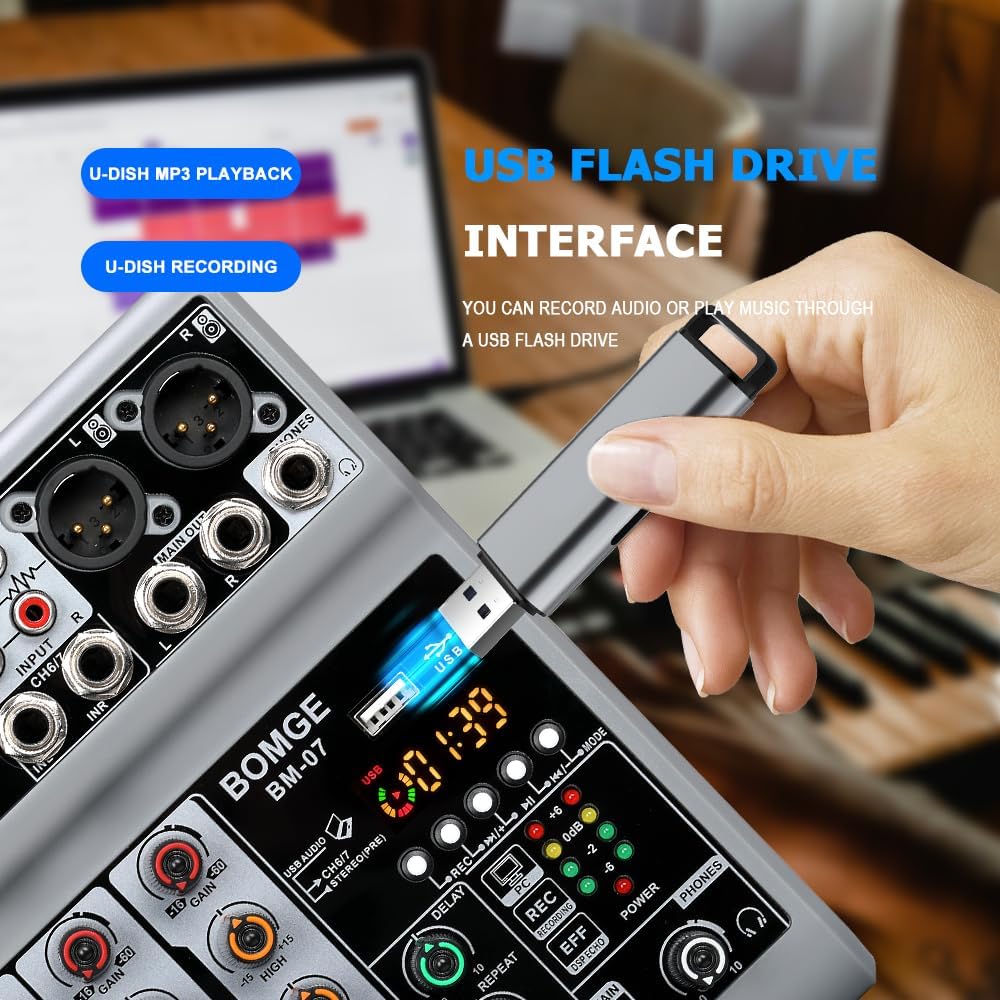
Image: The mixer's USB-A port with a flash drive connected, illustrating its function for both music playback and audio recording.
Important Note on Input Modes
The Bluetooth, USB (for computer/mobile), and 4/5 channel functions (referring to the stereo line inputs) are available as one of three options and cannot be used simultaneously. Select the desired input mode using the appropriate switch or button.
Official Product Video
Video: An official product video demonstrating the features and operation of the BOMGE BM-07 Audio Mixer. This video is 23 seconds long and provides a visual overview of the mixer's capabilities.
Maintenance
- Cleaning: Use a soft, dry cloth to clean the mixer's surface. Avoid using liquid cleaners or solvents, as they may damage the finish or internal components.
- Storage: Store the mixer in a cool, dry place away from direct sunlight and extreme temperatures.
- Handling: Avoid dropping the mixer or subjecting it to strong impacts.
Troubleshooting
- No Sound Output:
- Check all cable connections (inputs, outputs, power).
- Ensure the MAIN VOL knob is turned up.
- Verify individual channel VOL knobs are turned up.
- Confirm the correct input mode (USB, Bluetooth, Line) is selected.
- If using phantom power, ensure it is activated for condenser microphones.
- Distorted Sound:
- Reduce the GAIN knob for the input channel.
- Lower the individual channel VOL knob.
- Check the LED Peak Level Indicator; if it's consistently red, the signal is clipping.
- Ensure output devices (speakers, headphones) are not overdriven.
- Bluetooth Connection Issues:
- Ensure the mixer is in Bluetooth mode.
- Check that Bluetooth is enabled on your device and "BM-07" is selected.
- Move your device closer to the mixer (within 1.5 feet).
- Try unpairing and re-pairing the device.
- USB Recording/Playback Problems:
- Ensure the USB stick is properly formatted and contains compatible MP3 files for playback.
- Verify the USB stick has sufficient free space for recording.
- Confirm the correct USB mode (USB-A for stick, USB-B for computer) is selected.
- For mobile recording, ensure the OTG adapter is correctly connected and functioning.
Specifications
| Brand | BOMGE |
| Model | BM-07 |
| Number of Channels | 7 (5 Mic/Line, 2 Stereo Line/USB/Bluetooth) |
| Product Dimensions (D x W x H) | 1.8" x 5.9" x 7.4" (4.57cm x 14.99cm x 18.8cm) |
| Item Weight | 550 Grams |
| Connectivity Technology | Auxiliary, Bluetooth, USB |
| Power Source | Corded Electric (5V USB-C) |
| Frequency Response | 24 KHz |
| Output Connector Types | 6.35mm (1/4 inch), RCA, USB |
| Audio Input Types | Microphone, Computer, Musical Instruments, Electric Guitar, Mobile Phone |
| Phantom Power | +48V (on select XLR inputs) |
| Effects | Echo, Delay |
Warranty Information
The BOMGE BM-07 Audio Mixer comes with a 1-year warranty from the date of purchase. This warranty covers manufacturing defects and malfunctions under normal use. It does not cover damage caused by misuse, accidents, unauthorized modifications, or improper installation.
Please retain your proof of purchase for warranty claims.
Customer Support
For technical assistance, troubleshooting, or warranty inquiries, please contact BOMGE customer support through the retailer's platform or the official BOMGE website. Please have your product model (BM-07) and purchase details ready when contacting support.
You can visit the official BOMGE store on Amazon for more information: BOMGE Music Studio
Related documentsBM-07


Ask a question about this manual
Ask about setup, troubleshooting, compatibility, parts, safety, or missing instructions. Manuals+ will review the question and use this page’s manual context to help answer it.