
HUAKUA G3
HUAKUA G3 Smart Watch User Manual
Model: G3
Introduction
This manual provides detailed instructions for the setup, operation, and maintenance of your HUAKUA G3 Smart Watch. Please read this manual thoroughly to ensure proper use and to maximize the features of your device.

Image: Front view of the HUAKUA G3 Smart Watch, showcasing its 1.95-inch display and black silicone band.
What's in the Box
Upon opening your HUAKUA G3 Smart Watch package, you should find the following items:
- HUAKUA G3 Smart Watch
- Magnetic Charging Cable
- User Manual
Setup Guide
1. Charging the Smart Watch
Before initial use, fully charge your smart watch. Connect the magnetic charging cable to the charging points on the back of the watch and plug the USB end into a power adapter (not included) or a computer's USB port.
- Charging Time: Approximately 2.5 hours for a full charge.
- Battery Life: Up to 5 days with typical use, 30 days standby.

Image: Illustration of the smart watch charging process and battery life indicators (5 days normal use, 30 days standby, 2.5 hours charge time).
2. App Installation and Pairing
To unlock the full functionality of your HUAKUA G3 Smart Watch, download and install the companion app on your smartphone.
- Download the App: Search for "GloryFit" in your smartphone's app store (compatible with iPhone and Android phones).
- Create Account: Open the app and follow the on-screen instructions to create an account or log in.
- Pairing:
- Ensure Bluetooth is enabled on your smartphone.
- Open the GloryFit app, navigate to the "Device" section, and select "Add Device".
- The app will search for available devices. Select "HUAKUA G3" or the corresponding device name from the list.
- Confirm the pairing request on both your phone and the smart watch.
Once paired, the watch will synchronize data with the app, and you can customize settings and view detailed health and fitness data.
Operating Instructions
Basic Navigation
- Touchscreen: Swipe left, right, up, or down to navigate through menus and screens. Tap to select an option.
- Side Button: Press the side button to return to the home screen or to wake the display.
Bluetooth Calling and Notifications
After successful Bluetooth connection to your phone, you can manage calls and receive notifications directly on your watch.
- Making Calls: Access the dial pad or contacts from the watch interface to initiate a call.
- Answering Calls: When an incoming call is received, tap the green icon on the watch screen to answer.
- Notifications: Receive alerts for messages and app notifications. Customize which app notifications appear on your watch via the GloryFit app.
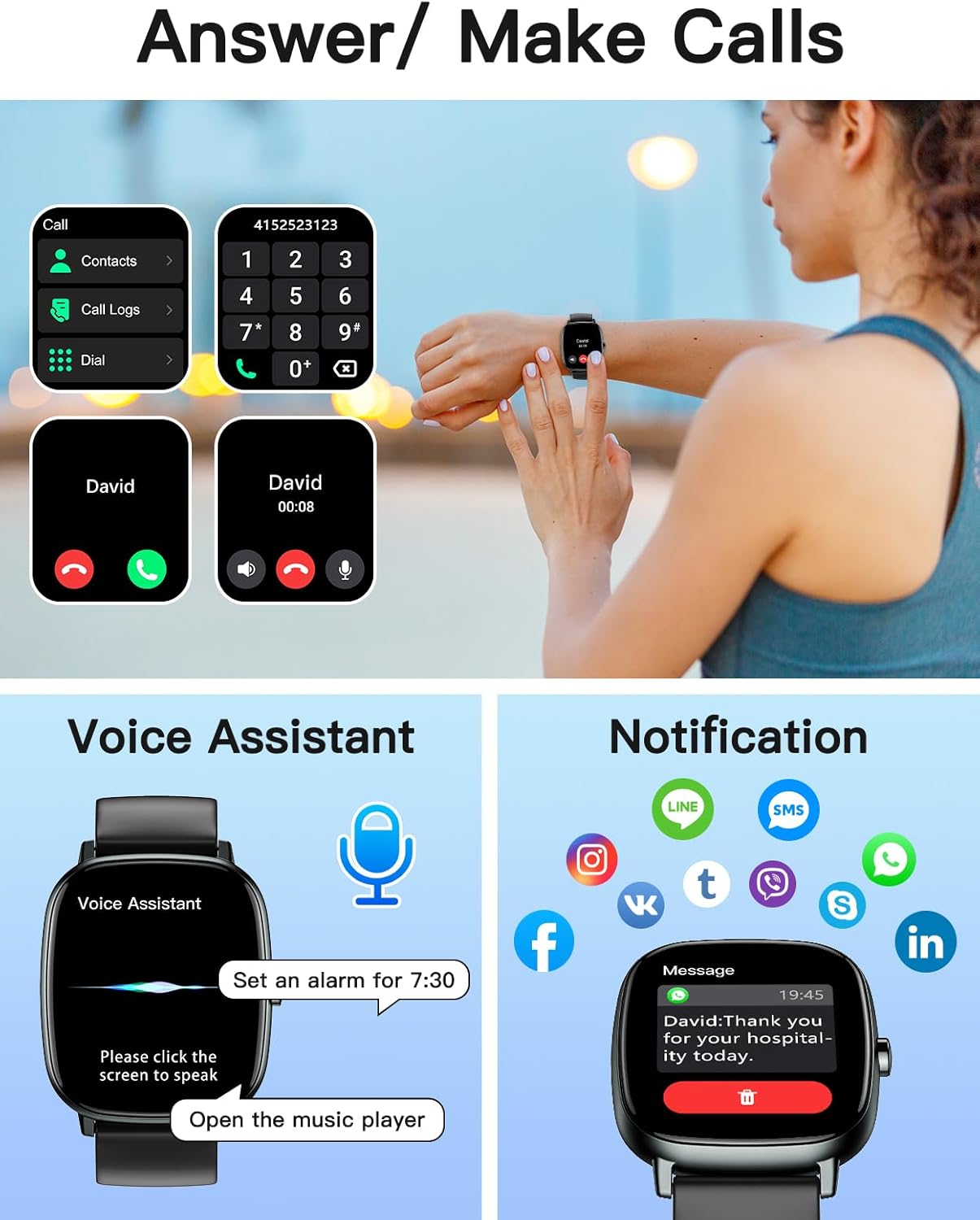
Image: Displays the smart watch interface for making/answering calls, using the voice assistant, and receiving app notifications.
GPS Tracking for Outdoor Activities
The built-in GPS allows for accurate tracking of outdoor activities without needing your phone.
- Activation: GPS is automatically activated when you select an outdoor workout mode (e.g., Running, Cycling, Hiking).
- Data: Tracks pace, distance, and routes.
- Review: Sync with the GloryFit app to view detailed street-level route maps and performance data.

Image: Demonstrates the smart watch tracking an outdoor run with GPS, showing movement path, steps, pace, and distance.
Sports Modes
The watch supports over 100 sports modes to track various physical activities.
- Selection: Navigate to the "Sports" menu on your watch to choose your desired activity.
- Tracking: Monitors calories burned, steps, distance, and other relevant metrics for each sport.
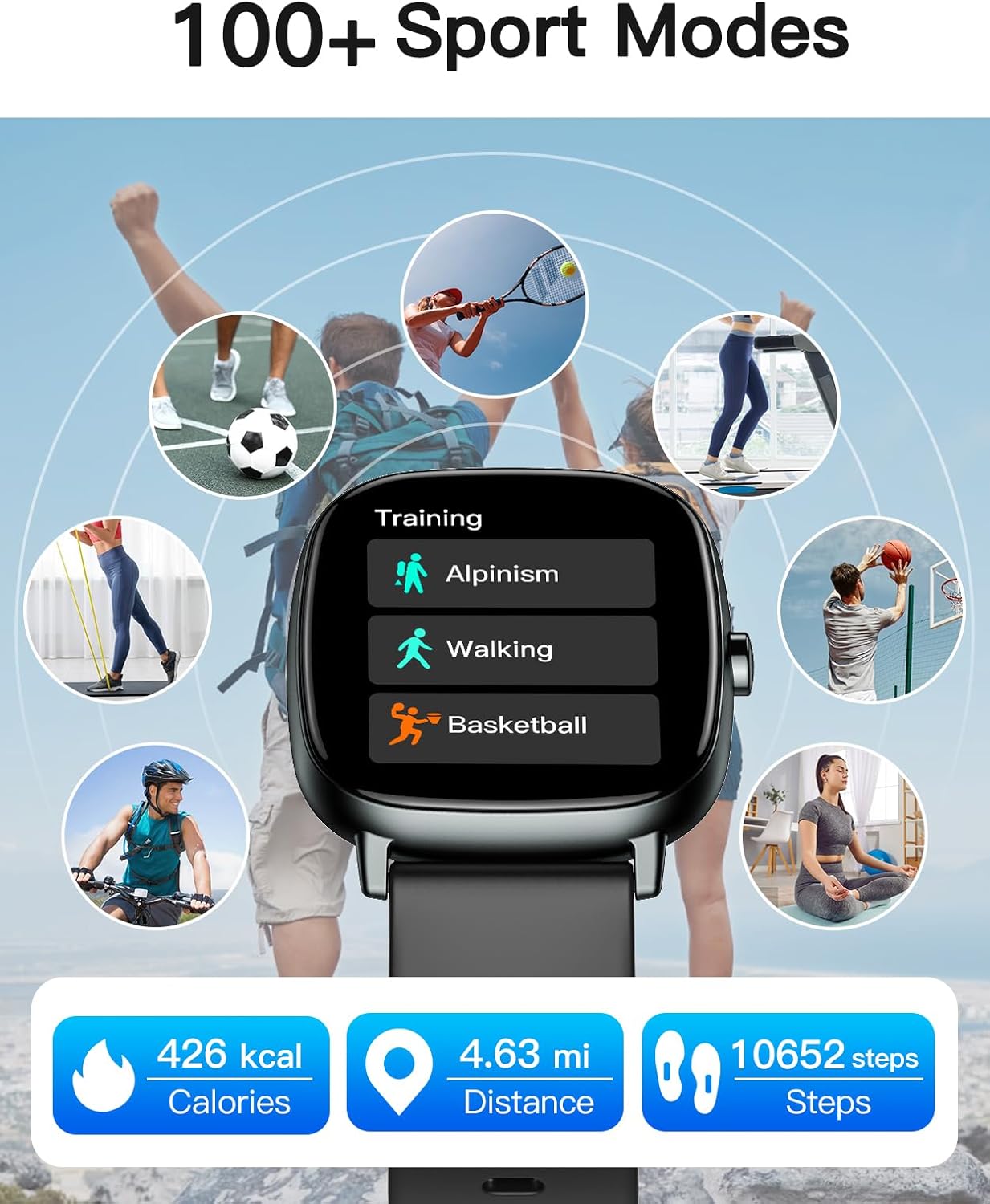
Image: Shows the smart watch interface listing various sport modes like Alpinism, Walking, and Basketball, along with tracked metrics.
Health Monitoring
The HUAKUA G3 Smart Watch provides continuous health monitoring features.
- Heart Rate Monitor: Continuously tracks your heart rate throughout the day. View real-time data on the watch or historical data in the app.
- Blood Oxygen Monitor: Measures your blood oxygen saturation levels (SpO2).
- Sleep Tracking: Automatically monitors your sleep patterns, including deep sleep, light sleep, REM, and awake times. Access detailed sleep analysis in the GloryFit app.

Image: Displays the smart watch showing heart rate (75 bpm) and blood oxygen (97%) readings.

Image: Illustrates the smart watch's sleep tracking feature, categorizing sleep into deep, light, awake, and REM stages.
Customization and Other Features
- Watch Faces: Choose from over 200 watch faces in the GloryFit app or upload your own photos for personalization.
- Music Control: Control music playback on your smartphone directly from the watch.
- Weather Forecast: View current weather conditions and forecasts.
- Alarms & Timers: Set alarms and use stopwatch/timer functions.
- Find Phone: Locate your paired smartphone by triggering an audible alert from the watch.
- Voice Assistant: Use the integrated voice assistant for quick commands.
- Sedentary Reminder: Receive alerts to move after periods of inactivity.

Image: Shows the smart watch interface with icons for various functions including weather, alarm clock, stopwatch, timer, menstrual period tracking, calculator, music control, camera remote, and sedentary reminder.
Maintenance
Cleaning Your Smart Watch
Regular cleaning helps maintain the watch's appearance and functionality.
- Wipe the screen and body with a soft, damp, lint-free cloth.
- For the silicone band, you can use mild soap and water, then rinse thoroughly and dry.
- Avoid using harsh chemicals, abrasive cleaners, or solvents.
Water Resistance
The HUAKUA G3 Smart Watch is IP68 waterproof, meaning it is resistant to dust and can withstand immersion in water up to 1.5 meters for 30 minutes.
- It is suitable for daily use, such as hand washing, rain, and showering.
- Not recommended for hot water, saunas, or diving.
- Avoid prolonged exposure to water or high-pressure water jets.

Image: Depicts the smart watch being splashed with water, illustrating its IP68 waterproof rating.
Battery Care
- Charge the watch regularly, avoiding complete discharge for extended periods.
- Store the watch in a cool, dry place when not in use.
Troubleshooting
If you encounter issues with your HUAKUA G3 Smart Watch, refer to the following common solutions:
| Problem | Solution |
|---|---|
| Watch does not turn on | Ensure the watch is fully charged. Connect it to the charger for at least 30 minutes. |
| Cannot pair with smartphone |
|
| Notifications not received |
|
| Inaccurate health data | Ensure the watch is worn snugly on your wrist, not too tight or too loose. Clean the sensor on the back of the watch. Note that health data is for reference and not for medical diagnosis. |
| GPS not tracking | Ensure you are in an open outdoor area with clear sky view. GPS only works in specific sports modes. |
Specifications
| Feature | Detail |
|---|---|
| Model Name | G3 |
| Brand | HUAKUA |
| Screen Size | 1.95 Inches |
| Display Type | LCD Touchscreen |
| Operating System | Compatible with iPhone and Android Phones |
| Connectivity Technology | Bluetooth, GPS |
| GPS | Built-in GPS |
| Waterproof Rating | IP68 (Water Resistance Depth: 10 Feet) |
| Battery Cell Composition | Lithium Polymer |
| Battery Charge Time | 2.5 Hours |
| Typical Use Battery Life | Up to 5 Days |
| Standby Time | Up to 30 Days |
| Band Material Type | Silicone |
| Case Material Type | Plastic |
| Item Weight | 40 Grams |
| Special Features | 100+ Sports Modes, Steps Tracker, Calories Counter, Distance Tracker, Bluetooth Calls, Message Notification, Heart Rate Monitor, Blood Oxygen Monitor, Sleep Tracker, Stopwatch, Timer, Remote Camera, Music Control, Weather Forecast, Calculator, Alarm Clocks, Sedentary Reminder, Voice Assistant |
Warranty Information
Your HUAKUA G3 Smart Watch comes with a manufacturer's warranty.
- Warranty Type: Limited Manufacturer Warranty
- Warranty Period: 5 Years
Please retain your proof of purchase for warranty claims. The warranty covers defects in materials and workmanship under normal use. It does not cover damage caused by misuse, accidents, unauthorized modifications, or normal wear and tear.
Customer Support
For further assistance, technical support, or warranty inquiries, please contact HUAKUA customer service.
- Refer to the contact information provided in your product packaging or on the official HUAKUA website.
- Online resources and FAQs may also be available on the manufacturer's support page.
Related documentsG3


Ask a question about this manual
Ask about setup, troubleshooting, compatibility, parts, safety, or missing instructions. Manuals+ will review the question and use this page’s manual context to help answer it.