
1. Introduction
This manual provides essential information for the safe and efficient use of your MSI PRO DP80 A14G Desktop Computer. Please read this manual thoroughly before operating the device and retain it for future reference.
1.1 Safety Information
- Ensure the computer is placed on a stable, level surface.
- Do not block ventilation openings. Maintain adequate space around the computer for proper airflow.
- Use only the power adapter and cables provided or approved by MSI.
- Avoid exposing the computer to extreme temperatures, humidity, or direct sunlight.
- Do not attempt to service the computer yourself. Refer all servicing to qualified personnel.
2. Package Contents
Verify that all items listed below are present in your product packaging:
- MSI PRO DP80 A14G A14TAG-028US Desktop Computer (Black)
- USB Keyboard
- USB Mouse
- Power Cable
- MSI 3 Year Limited Warranty Information
3. Product Overview
Familiarize yourself with the physical components and ports of your MSI PRO DP80 A14G desktop computer.
3.1 Front Panel

Image: Direct front view of the MSI PRO DP80 A14G desktop computer, highlighting the vertical textured panel with the MSI logo, power button, audio jacks, USB ports, and an SD card reader.
- Power Button: Used to turn the computer on or off.
- USB Ports: For connecting USB devices such as external drives, keyboards, or mice.
- Audio Jacks: For connecting headphones, microphones, or external speakers.
- SD Card Reader: For reading data from SD memory cards.

Image: Angled front view of the MSI PRO DP80 A14G desktop computer with the optical drive tray extended, illustrating the integrated optical drive for disc media.
3.2 Rear Panel

Image: Direct rear view of the MSI PRO DP80 A14G desktop computer, providing a clear view of all rear ports, including video outputs, USB ports, LAN ports, and audio jacks.
- Video Output Ports: Connect your monitor(s) here (e.g., HDMI, DisplayPort).
- USB Ports: Additional ports for connecting peripherals.
- LAN Ports: For wired network connections (2.5G and 1G).
- Audio Jacks: For connecting external audio systems.
- Power Connector: Connect the power cable here.
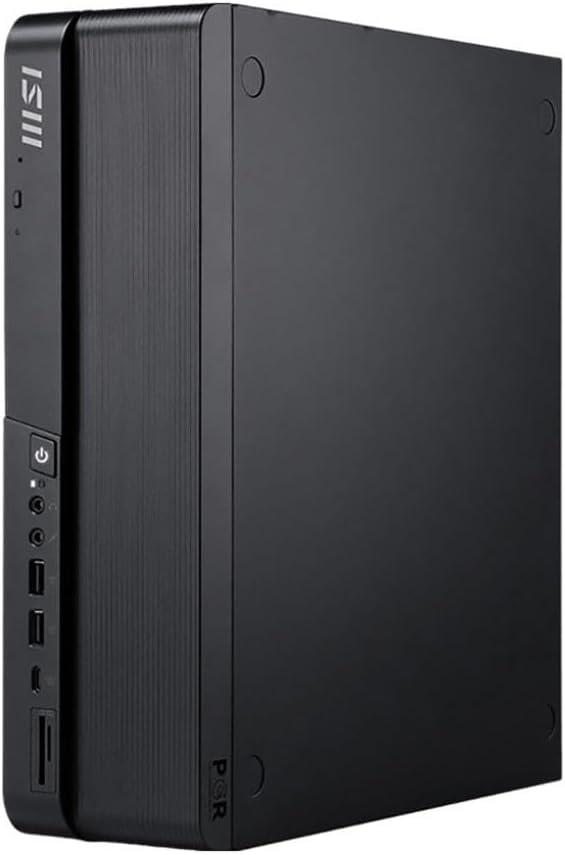
Image: Front-left angled view of the MSI PRO DP80 A14G desktop computer, showcasing its compact design and the textured front panel with the MSI logo and various ports.
4. Setup Instructions
Follow these steps to set up your MSI PRO DP80 A14G desktop computer.
4.1 Connecting Peripherals
- Connect Monitor: Connect your monitor to one of the video output ports on the rear panel using an appropriate cable (e.g., HDMI, DisplayPort).
- Connect Keyboard and Mouse: Plug the USB keyboard and mouse into any available USB ports on the front or rear panel.
- Connect Network (Optional): For a wired internet connection, connect an Ethernet cable from your router or modem to one of the LAN ports on the rear panel. For Wi-Fi, ensure antennas are connected if external, or proceed to software setup.
- Connect Audio (Optional): If using external speakers or a headset, connect them to the appropriate audio jacks.
4.2 Power Connection and Initial Boot
- Connect Power: Plug the power cable into the power connector on the rear of the computer, then plug the other end into a grounded electrical outlet.
- Power On: Press the power button on the front panel of the computer. The system will begin to boot up.
- Operating System Setup: Follow the on-screen instructions to complete the initial setup of Windows 11 Pro. This may include language selection, network configuration, and user account creation.
5. Operating Instructions
This section covers basic operation of your MSI PRO DP80 A14G desktop computer.
5.1 Windows 11 Pro Basics
Your computer comes pre-installed with Windows 11 Pro. For detailed instructions on using Windows 11, refer to Microsoft's official documentation or support resources.
- Start Menu: Access applications, settings, and power options.
- Taskbar: Manage open applications and system tray icons.
- File Explorer: Browse and manage files and folders.
5.2 Network Connectivity
- Wired Connection: If an Ethernet cable is connected, your computer should automatically connect to the network.
- Wi-Fi 6E: To connect to a wireless network, click the Wi-Fi icon in the taskbar, select your desired network, and enter the password if prompted.
5.3 Using USB Devices
Simply plug your USB devices (e.g., external hard drives, flash drives, printers) into any available USB port. Windows 11 Pro will typically install the necessary drivers automatically.
6. Maintenance
Regular maintenance helps ensure the longevity and optimal performance of your computer.
6.1 Cleaning
- Exterior: Use a soft, damp cloth to clean the exterior surfaces. Avoid harsh chemicals.
- Ventilation: Periodically check and gently clean dust from the ventilation grilles using compressed air. Ensure the computer is powered off and unplugged before cleaning.
6.2 Software Updates
- Windows Updates: Regularly check for and install Windows updates to ensure system stability and security. Go to Settings > Windows Update.
- Driver Updates: Keep your device drivers (especially graphics drivers) updated for optimal performance. Visit the MSI support website for the latest drivers for your model.
6.3 Data Backup
Regularly back up your important data to an external drive or cloud storage to prevent data loss.
7. Troubleshooting
This section addresses common issues you might encounter.
7.1 No Power
- Ensure the power cable is securely connected to both the computer and the electrical outlet.
- Verify the electrical outlet is functional by plugging in another device.
- Check the power supply switch on the rear of the computer (if present) is in the 'ON' position.
7.2 No Display on Monitor
- Ensure the monitor is powered on and the video cable is securely connected to both the computer and the monitor.
- Try connecting the monitor to a different video output port on the computer, if available.
- Test the monitor with another device to confirm it is working correctly.
7.3 Network Connectivity Issues
- Wired: Check if the Ethernet cable is properly connected. Restart your router/modem.
- Wi-Fi: Ensure Wi-Fi is enabled in Windows settings. Verify the Wi-Fi password. Restart your router.
7.4 Slow Performance
- Close unnecessary applications running in the background.
- Check for and install any pending Windows or driver updates.
- Run a system scan for malware or viruses.
- Ensure adequate free space on your primary storage drive.
8. Specifications
Detailed technical specifications for the MSI PRO DP80 A14G desktop computer.
| Feature | Specification |
|---|---|
| Model | PRO DP80 A14G |
| Operating System | Windows 11 Pro |
| Processor | Intel Core i5-14400F (2.5 GHz base, up to 4.7 GHz boost) |
| RAM | 16GB DDR5 |
| Storage | 1TB PCIe M.2 SSD |
| Graphics Card | NVIDIA GeForce RTX 3050 6GB (Dedicated) |
| Network Connectivity | Wi-Fi 6E, Dual LAN (2.5G + 1G) |
| USB Ports | 4x USB 2.0, 4x USB 3.0 (specific types/locations may vary) |
| Dimensions (LxWxH) | 21.6 x 14.7 x 8.6 inches |
| Item Weight | 7 pounds |
9. Warranty and Support
Your MSI PRO DP80 A14G Desktop Computer comes with a MSI 3 Year Limited Warranty. For detailed terms and conditions, please refer to the warranty information included in your package.
For technical support, driver downloads, or further assistance, please visit the official MSI support website:
When contacting support, please have your product model (PRO DP80 A14G) and serial number ready.