
Introduction
Thank you for choosing the OMOTON WK016 Wireless Bluetooth Keyboard. This keyboard offers versatile connectivity options, including 2.4 GHz wireless and Bluetooth, allowing seamless switching between up to three devices. Designed for comfort and efficiency, it features an ergonomic layout, silent scissor-switch keys, and a full-size AZERTY layout with a numeric keypad. This manual provides detailed instructions for setup, operation, maintenance, and troubleshooting to ensure optimal performance.

Image: The OMOTON WK016 keyboard connected to an iPad, MacBook, and desktop monitor, illustrating its multi-device capability.
Package Contents
- OMOTON WK016 Wireless Bluetooth Keyboard
- USB Charging Cable
- 2.4 GHz USB-A Receiver (stored in the keyboard's back compartment)
- User Manual
Product Overview
Familiarize yourself with the keyboard's components and features.

Image: Detailed diagram highlighting the various parts of the OMOTON WK016 keyboard, including the power switch, charging port, multimedia keys, 2.4 GHz receiver, and indicators.
- On/Off Switch: Located on the back, used to power the keyboard on or off.
- Charging Connector: USB-C port for recharging the keyboard.
- Multimedia Keys: 12 dedicated keys for quick access to functions like volume, playback, and brightness.
- 2.4 GHz Receiver: USB-A dongle for wireless connection, stored in a compartment on the back.
- Caps Lock Indicator: LED light indicating Caps Lock status.
- Rubber Anti-slip Pads: Located on the bottom for stability.
- Connection Channels: BT1, BT2, and 2.4G for multi-device pairing.
- Charging Indicator: LED light showing charging status.
- Numeric Keypad Indicator: LED light for numeric keypad status.
- Foldable Support: Adjustable feet on the back for ergonomic tilt.

Image: Rear view of the keyboard, illustrating the foldable support, anti-slip pads, and the storage location for the 2.4G receiver.
Setup
2.4 GHz Wireless Connection
- Locate the 2.4 GHz USB-A receiver in the compartment on the back of the keyboard.
- Plug the receiver into an available USB-A port on your computer.
- Turn on the keyboard using the On/Off switch.
- The keyboard should automatically connect to your device.
Bluetooth Connection (BT1 / BT2)

Image: Visual guide for pairing the keyboard via Bluetooth, showing the power switch, BT1/BT2 buttons, and device's Bluetooth settings.
- Turn on the keyboard: Locate the power switch on the back of the keyboard and slide it to the 'ON' position.
- Select a Bluetooth channel: Press and hold the BT1 key for 3 seconds until the blue LED indicator flashes, indicating pairing mode. To pair a second device, repeat this step with the BT2 key.
- Activate Bluetooth on your device: Go to your device's Bluetooth settings.
- Pair the keyboard: In the list of available devices, select "BT3.0 Keyboard" or "BT5.0 Keyboard" (depending on your device's Bluetooth version) to connect.
- Connection confirmation: Once successfully paired, the blue LED indicator on the keyboard will turn off.
The keyboard can be paired with up to three devices simultaneously (one via 2.4 GHz, two via Bluetooth). To switch between connected devices, simply press the corresponding connection key (BT1, BT2, or the 2.4G key if applicable).
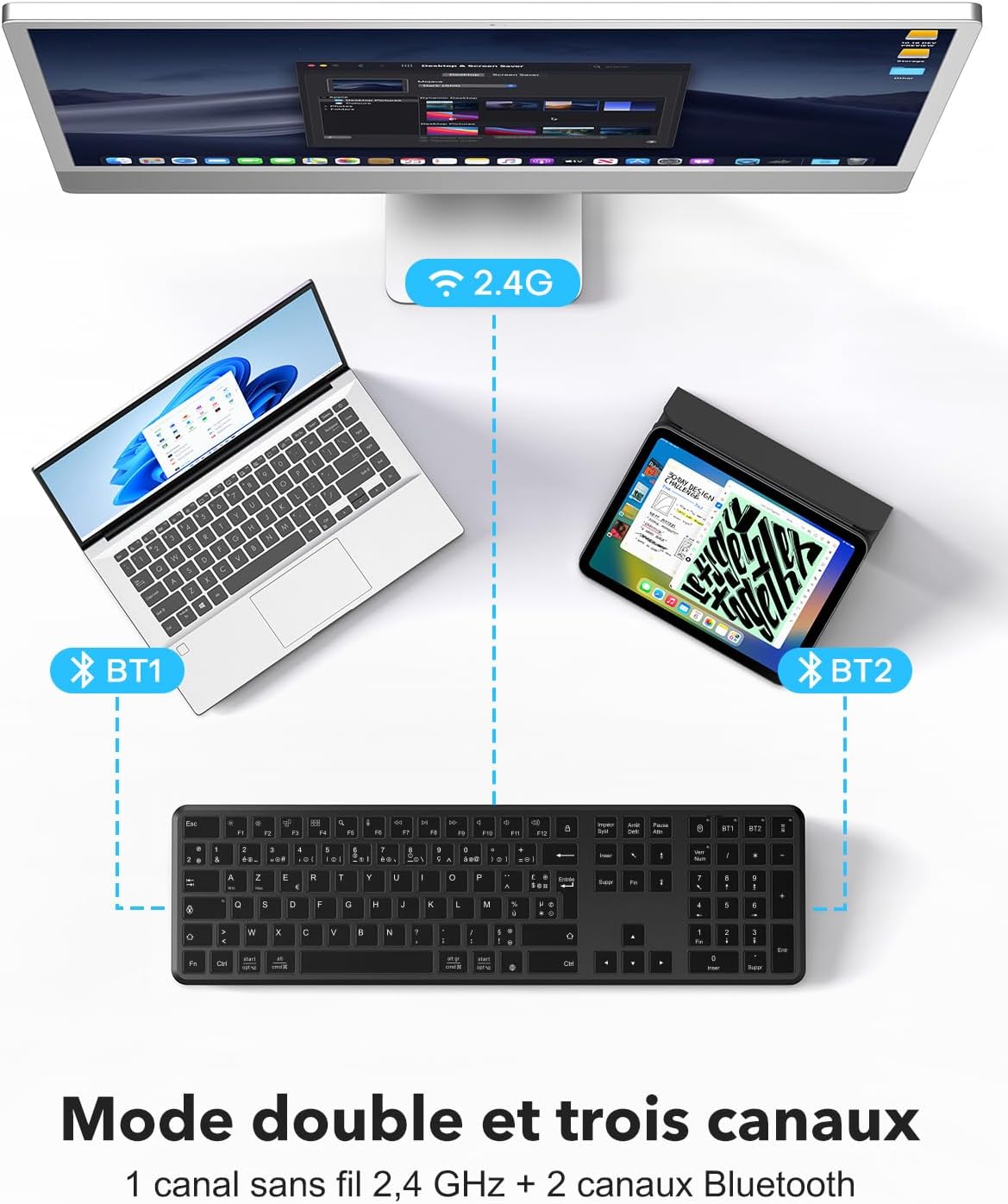
Image: Illustration of the keyboard's dual-mode and triple-channel connectivity, showing connections to a desktop (2.4G), laptop (BT1), and tablet (BT2).
Operating Instructions
Function Keys (F1-F12) and Multimedia Controls
The keyboard features 12 multimedia keys for enhanced productivity. These keys provide direct access to various functions without complex key combinations.

Image: Detailed view of the function keys (F1-F12) and their multimedia shortcuts, such as brightness control, mission control, search, dictation, and media playback controls.
- F1: Brightness Down
- F2: Brightness Up
- F3: Mission Control (macOS) / Task View (Windows)
- F4: Launchpad (macOS) / Search (Windows)
- F5: Search
- F6: Dictation
- F7: Previous Track
- F8: Play/Pause
- F9: Next Track
- F10: Mute
- F11: Volume Down
- F12: Volume Up
To use the standard F1-F12 functions, you may need to press the Fn key simultaneously with the desired F key, depending on your operating system settings.
Ergonomic Design
The keyboard features an ergonomic rear tilt and silent scissor-switch keys to reduce typing fatigue and provide a comfortable, quiet typing experience.

Image: Detailed illustration of the scissor-switch key mechanism, highlighting its quiet and comfortable operation.
Charging and Battery
The OMOTON WK016 keyboard is equipped with a built-in rechargeable lithium battery.

Image: The keyboard connected to a Type-C charging cable, showing that a charge time of less than 3 hours provides up to 150 hours of continuous use.
- Charging: Connect the provided USB charging cable to the keyboard's charging port and a USB power source. The charging indicator light will illuminate during charging.
- Charging Time: A full charge takes approximately 3 hours.
- Battery Life: A full charge provides up to 150 hours of continuous use.
- Low Power Warning: A power indicator light will notify you when the battery is low and requires recharging.
- Automatic Sleep Mode: To conserve energy, the keyboard automatically enters sleep mode after 10 minutes of inactivity. Press any key to instantly wake it up.
Compatibility
The OMOTON WK016 keyboard offers broad compatibility with various operating systems and devices.

Image: The keyboard in use with both Windows and Apple macOS systems, highlighting its dual-system compatibility.
- Operating Systems: Windows (11/10/8/7), macOS (iMac/MacBook Pro/Air/Mac Mini), iOS (partial support), Android (partial support).
- Compatible Devices: Laptops, smartphones, tablets (e.g., Samsung Galaxy Tab S7 FE 12.4").
- Layout: FR AZERTY layout. For optimal use, ensure your computer's language setting is set to French.
Maintenance
To ensure the longevity and optimal performance of your OMOTON WK016 keyboard, follow these maintenance guidelines:
- Cleaning: Use a soft, dry, lint-free cloth to wipe the keyboard surface. For stubborn dirt, slightly dampen the cloth with water or a mild cleaning solution. Avoid excessive moisture.
- Dust Removal: Use compressed air to remove dust and debris from between the keys.
- Storage: When not in use for extended periods, turn off the keyboard to conserve battery life. Store it in a cool, dry place away from direct sunlight and extreme temperatures.
- Avoid Liquids: Do not expose the keyboard to liquids. In case of accidental spills, immediately turn off the keyboard and allow it to dry completely before use.
- Handle with Care: Avoid dropping the keyboard or subjecting it to strong impacts.
Troubleshooting
If you encounter issues with your OMOTON WK016 keyboard, refer to the following common solutions:
- Keyboard not connecting via Bluetooth:
- Ensure the keyboard is turned on and fully charged.
- Make sure the correct Bluetooth channel (BT1 or BT2) is selected and in pairing mode (flashing blue LED).
- Verify that Bluetooth is enabled on your device and that the keyboard is selected from the list of available devices.
- Try unpairing and re-pairing the keyboard on your device.
- Restart your device and the keyboard.
- Keyboard not connecting via 2.4 GHz:
- Ensure the 2.4 GHz USB-A receiver is securely plugged into your device.
- Verify the keyboard is turned on.
- Try plugging the receiver into a different USB port.
- Ensure the keyboard is not in Bluetooth mode.
- Keys not responding or typing incorrectly:
- Check the battery level and recharge if necessary.
- Ensure the keyboard is properly connected to your device.
- Clean any debris from under the keys using compressed air.
- Verify your device's keyboard language settings match the AZERTY layout.
- Lag or delayed input:
- Ensure the keyboard is within the effective range of your device (typically up to 10 meters).
- Minimize interference from other wireless devices.
- Check the battery level.
- Keyboard enters sleep mode too quickly:
- The keyboard is designed to enter sleep mode after 10 minutes of inactivity to save power. This is normal behavior. Press any key to wake it up.
Specifications
| Brand | OMOTON |
| Model | WK016 |
| Connectivity Technology | Bluetooth, 2.4 GHz Wireless (USB-A) |
| Compatible Devices | Laptop, Smartphone, Tablet |
| Operating System Compatibility | Windows (7/8/10/11), macOS, iOS (partial), Android (partial) |
| Keyboard Layout | AZERTY (French Layout) |
| Number of Keys | 105 |
| Switch Type | Scissor-switch (Linear) |
| Special Features | Rechargeable, Silent, Multimedia Keys, Multi-device (3 channels) |
| Power Source | Battery Powered (Rechargeable Lithium Battery) |
| Charging Time | < 3 hours |
| Continuous Use Time | Up to 150 hours |
| Material | Plastic |
| Color | Black |
| Weight | 520g |
| Dimensions (L x W x H) | 439mm x 125mm x 21.5mm (approximate) |

Image: Diagram illustrating the physical dimensions and weight of the OMOTON WK016 keyboard.
Warranty and Support
OMOTON provides a 1-year warranty for this product, covering manufacturing defects from the date of purchase.
For technical support, warranty claims, or any questions regarding your OMOTON WK016 keyboard, please contact OMOTON customer service through the retailer where you purchased the product or visit the official OMOTON website for contact information.
Please retain your proof of purchase for warranty service.


