
1. Introduction
This manual provides essential information for the safe and efficient use of your HP 17.3 Inch FHD Business Laptop. Please read this guide thoroughly before operating your device to ensure optimal performance and longevity. This laptop is designed for business and everyday computing tasks, offering a large display, robust performance, and portability.
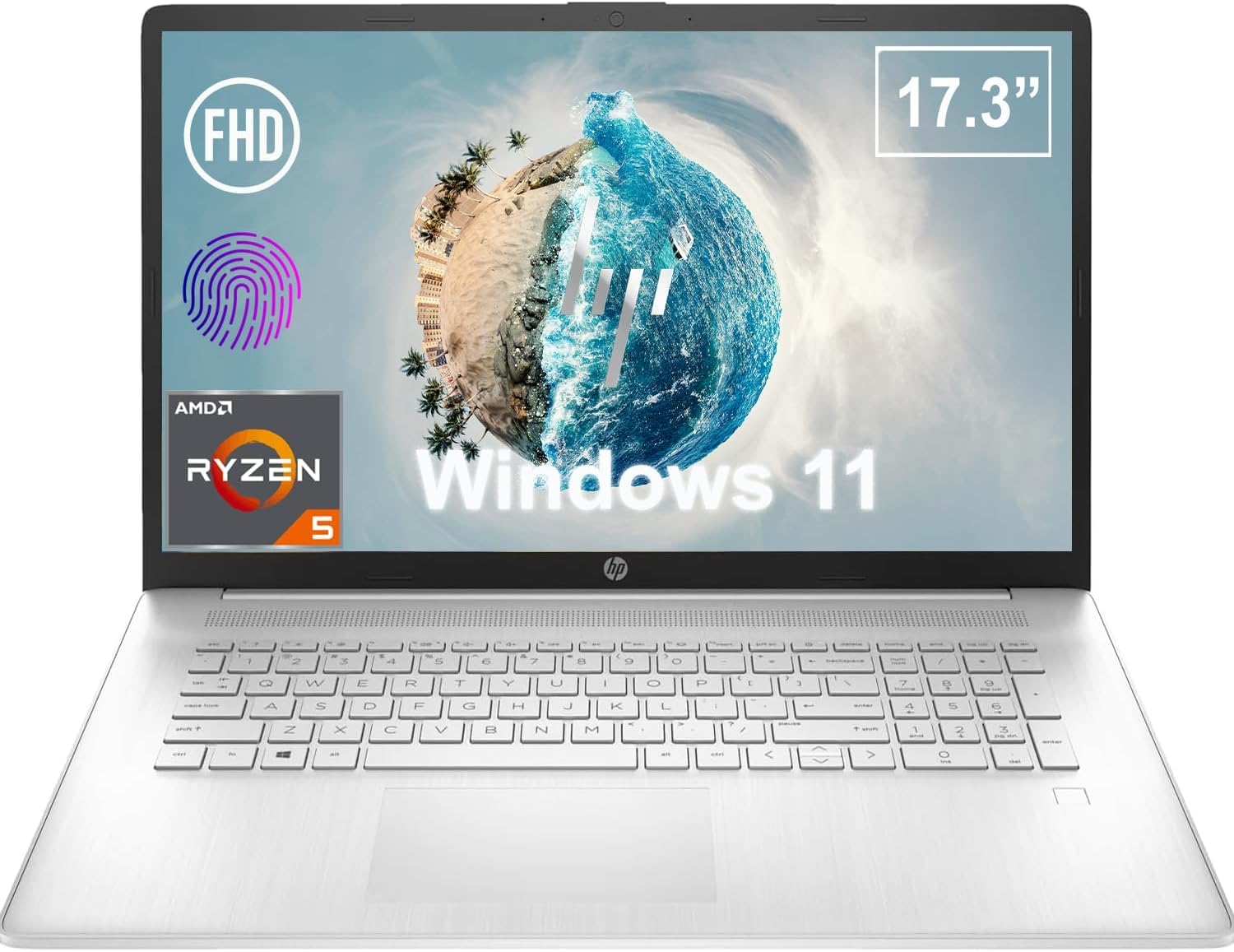
Figure 1.1: Front view of the HP 17.3 Inch FHD Business Laptop, showcasing the large display and keyboard.
2. Setup
2.1 Unboxing and Initial Inspection
Carefully remove all components from the packaging. Verify that the following items are present:
- HP 17.3 Inch FHD Business Laptop
- Power Adapter (45 W Smart AC Power Adapter)
- Documentation (this manual, warranty information)
Inspect the laptop and accessories for any signs of damage. If any items are missing or damaged, contact your retailer or HP support immediately.
2.2 Connecting the Power Adapter
Before first use, ensure the laptop is fully charged. Connect the power adapter to the AC smart pin port on the side of the laptop and then plug the adapter into a power outlet.
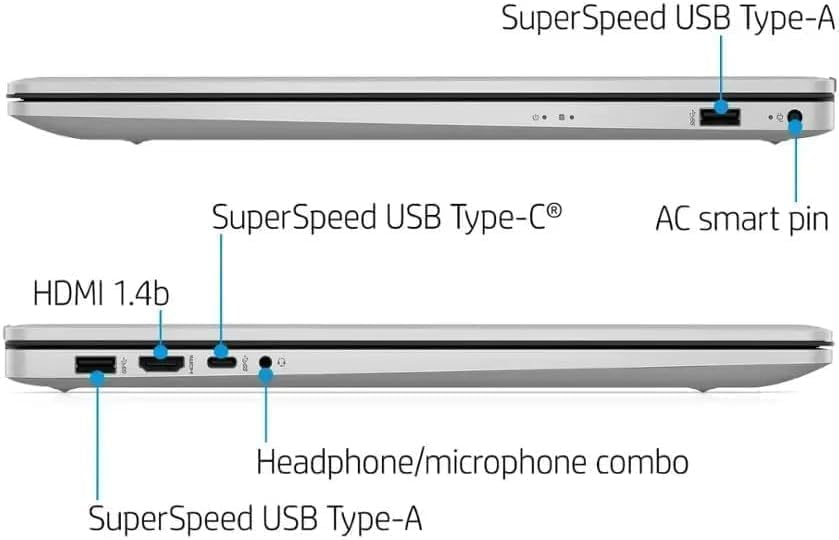
Figure 2.1: Side view illustrating the location of the AC smart pin and other ports.
2.3 Initial Power On and Windows Setup
Press the power button to turn on the laptop. Follow the on-screen instructions to complete the Windows 11 Home setup process. This includes setting up your user account, network connection, and initial preferences.
3. Operating the Laptop
3.1 Keyboard and Touchpad
The laptop features a full-size QWERTY keyboard with a 10-key number pad for efficient data entry. The integrated touchpad provides precise cursor control. Refer to the operating system's settings for customizing touchpad gestures and keyboard shortcuts.
3.2 Fingerprint Reader
For enhanced security and convenient login, utilize the integrated fingerprint reader. Set up your fingerprints through Windows Hello in the Windows 11 settings.
3.3 Webcam and Microphones
The HP True Vision 720p HD Camera and integrated dual array digital microphones are located at the top of the display. These are suitable for video conferencing and online communication.
3.4 Connectivity
- Wi-Fi: The laptop supports 802.11a/b/g/n/ac Wi-Fi for wireless internet access. Connect to available networks via the Windows network settings.
- Bluetooth: Bluetooth 5 allows for wireless connection to compatible devices such as headphones, mice, and keyboards. Enable and manage Bluetooth devices through Windows settings.
3.5 Ports and External Devices
The laptop is equipped with various ports for connecting external devices:
- 1 x USB Type-C (5Gbps, Data Only): For connecting USB-C compatible devices and data transfer.
- 2 x USB Type-A (5Gbps): For connecting standard USB devices like external drives, mice, or keyboards.
- 1 x HDMI 1.4b: For connecting to external displays or projectors.
- 1 x Headphone/Microphone Combo: For connecting a headset with a single 3.5mm jack.
- 1 x AC Smart Pin: For connecting the power adapter.

Figure 3.1: Open view of the laptop, highlighting the keyboard and touchpad area.
3.6 Battery Management
The laptop is powered by a 3-Cell, 41 Wh Li-ion battery, offering up to 8 hours and 30 minutes of video playback. Use the provided 45 W Smart AC Power Adapter for charging. HP Fast Charge technology allows for quicker charging times.
4. Maintenance
4.1 Cleaning the Laptop
To maintain the laptop's appearance and functionality:
- Use a soft, lint-free cloth dampened with water or a specialized screen cleaner for the display.
- For the keyboard and chassis, use a soft, dry cloth. Avoid harsh chemicals or abrasive materials.
- Ensure the laptop is powered off and unplugged before cleaning.
4.2 Software Updates
Regularly update your Windows operating system and drivers to ensure optimal performance, security, and compatibility. Windows Update can be accessed through the Settings menu.
4.3 Security Software
The laptop comes preloaded with McAfee LiveSafe for security. Ensure this software is active and updated to protect against viruses and other threats.
5. Troubleshooting
This section addresses common issues you might encounter with your HP laptop.
5.1 Power Issues
- Laptop does not turn on: Ensure the power adapter is securely connected to both the laptop and a working power outlet. Verify the battery is charged.
- Battery not charging: Check the power adapter and cable for damage. Try a different power outlet.
5.2 Display Issues
- No image on screen: Connect an external monitor to check if the issue is with the laptop's display. Restart the laptop.
- Flickering or distorted image: Update graphics drivers. Adjust display resolution and refresh rate in Windows settings.
5.3 Connectivity Issues
- Wi-Fi not connecting: Ensure Wi-Fi is enabled. Restart your router and the laptop. Check network settings for correct password and configuration.
- Bluetooth device not pairing: Ensure Bluetooth is enabled on both devices. Make sure the device is in pairing mode and within range.
For more complex issues, refer to the HP support website or contact customer service.
6. Specifications
| Feature | Detail |
|---|---|
| Brand | HP |
| Model Name | HP17 |
| Model Number | i5-1135G7 |
| Screen Size | 17.3 Inches |
| Display Type | IPS, Anti-Glare, LED |
| Resolution | 1920 x 1080 (FHD) |
| Refresh Rate | 60 Hz |
| Processor | AMD Ryzen 5 5500U (6 Cores, 12 Threads, up to 4.0 GHz Max Boost Clock) |
| Graphics | Integrated AMD Radeon Graphics |
| RAM Memory | 32 GB DDR4-3200 MHz (Max 64 GB) |
| Storage | 1 TB PCIe NVMe M.2 SSD |
| Operating System | Windows 11 Home, 64-bit, English |
| Wireless Connectivity | 802.11a/b/g/n/ac Wi-Fi, Bluetooth 5 |
| Ports | 1x USB Type-C (5Gbps), 2x USB Type-A (5Gbps), 1x HDMI 1.4b, 1x Headphone/Microphone Combo, 1x AC Smart Pin |
| Webcam | HP True Vision 720p HD Camera |
| Audio | Dual Speakers, Integrated Dual Array Digital Microphones |
| Battery | 3-Cell, 41 Wh Li-ion (Up to 8.5 hours video playback) |
| Power Adapter | 45 W Smart AC Power Adapter |
| Dimensions (W x D x H) | 40.07 x 25.78 x 2.06 cm (14.14"L x 9.31"W x 0.78"Th) |
| Weight | Starting at 2.07 kg |
| Special Features | Fingerprint Reader, Lightweight Design, HP Fast Charge |
7. Warranty & Support
7.1 Warranty Information
This HP laptop comes with a 1-year manufacturer's limited warranty. For detailed terms and conditions, please refer to the warranty documentation included with your product or visit the official HP support website.
7.2 Customer Support
If you encounter issues that cannot be resolved using the troubleshooting steps in this manual, please contact HP customer support. You can find contact information and additional resources on the official HP website:
- HP Support Website: support.hp.com
- HP Store: HP Store on Amazon


