
1. Introduction
This manual provides essential information for setting up, operating, maintaining, and troubleshooting your Fusion5 FWIN232 PRO N5 10.1-inch Windows 11 Professional Tablet PC. Please read this guide thoroughly to ensure optimal performance and longevity of your device.

Image: The Fusion5 FWIN232 PRO N5 tablet, showcasing its sleek design and display.
2. Getting Started (Setup)
2.1 Unboxing and Initial Inspection
- Carefully remove all components from the packaging.
- Verify that all included items are present: Fusion5 FWIN232 PRO N5 Tablet PC, 36W Fast Charger, and this Manual.
- Inspect the tablet for any physical damage. If damage is found, contact customer support immediately.
2.2 Charging the Tablet
- Connect the included 36W Type-C fast charger to the tablet's USB-C port.
- Plug the charger into a power outlet.
- Allow the tablet to charge fully before first use. The battery indicator on the screen will show charging status.
2.3 Powering On and Initial Windows 11 Setup
- Press and hold the Power button until the Fusion5 logo appears.
- Follow the on-screen instructions to complete the Windows 11 Professional setup process. This includes selecting your language, region, connecting to a Wi-Fi network, and creating a user account.
2.4 Warranty Registration
- Scan the QR code provided in the packaging or on the device to register your tablet. This activates your 2-year full warranty, including accidental damage cover.
Video: An overview of the Fusion5 Windows 11 Pro Tablet, highlighting its features and performance.
3. Operating Your Tablet
3.1 Physical Components
Familiarize yourself with the tablet's buttons and ports:
- Power Button: Located on the side, used to turn the tablet on/off or put it to sleep.
- Volume Buttons: Adjust audio output.
- Micro SD Slot: For expanding storage up to 512GB.
- Micro HDMI Port: Connect to external displays.
- USB 3.0 Port: For connecting USB-A devices.
- USB Type-C Port: For charging and connecting USB-C peripherals.
- Headphone Jack (3.5mm): For audio output to headphones or external speakers.
- Dual FHD Cameras: Front and rear cameras for video calls and photography.
- Dual Speakers: Integrated for audio output.
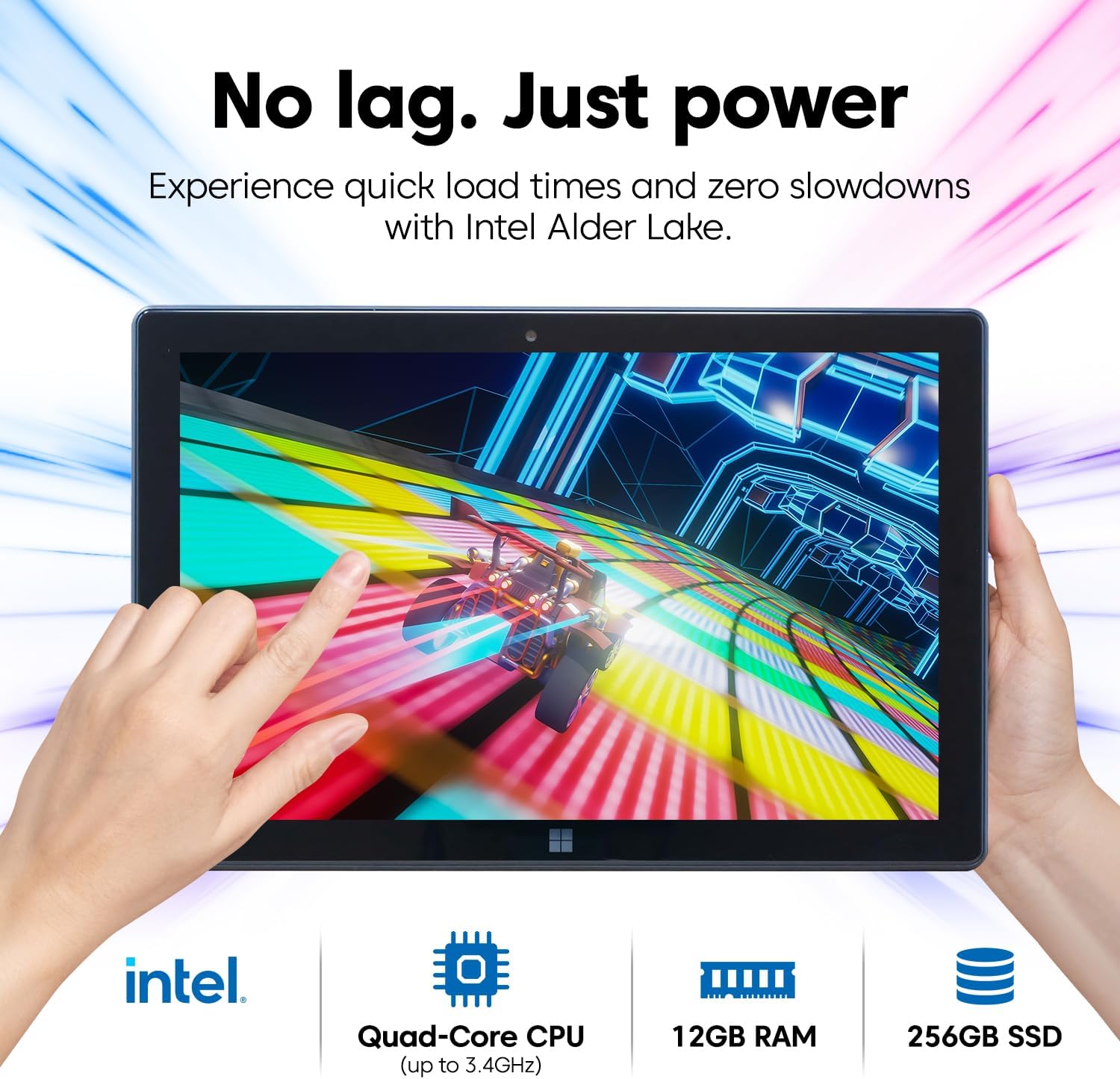
Image: Side view of the Fusion5 FWIN232 PRO N5 tablet, illustrating the location of various ports and buttons.
3.2 Touchscreen Usage
The 10.1-inch Full HD IPS touchscreen supports multi-touch gestures. Use taps, swipes, and pinch-to-zoom for navigation and interaction with applications.
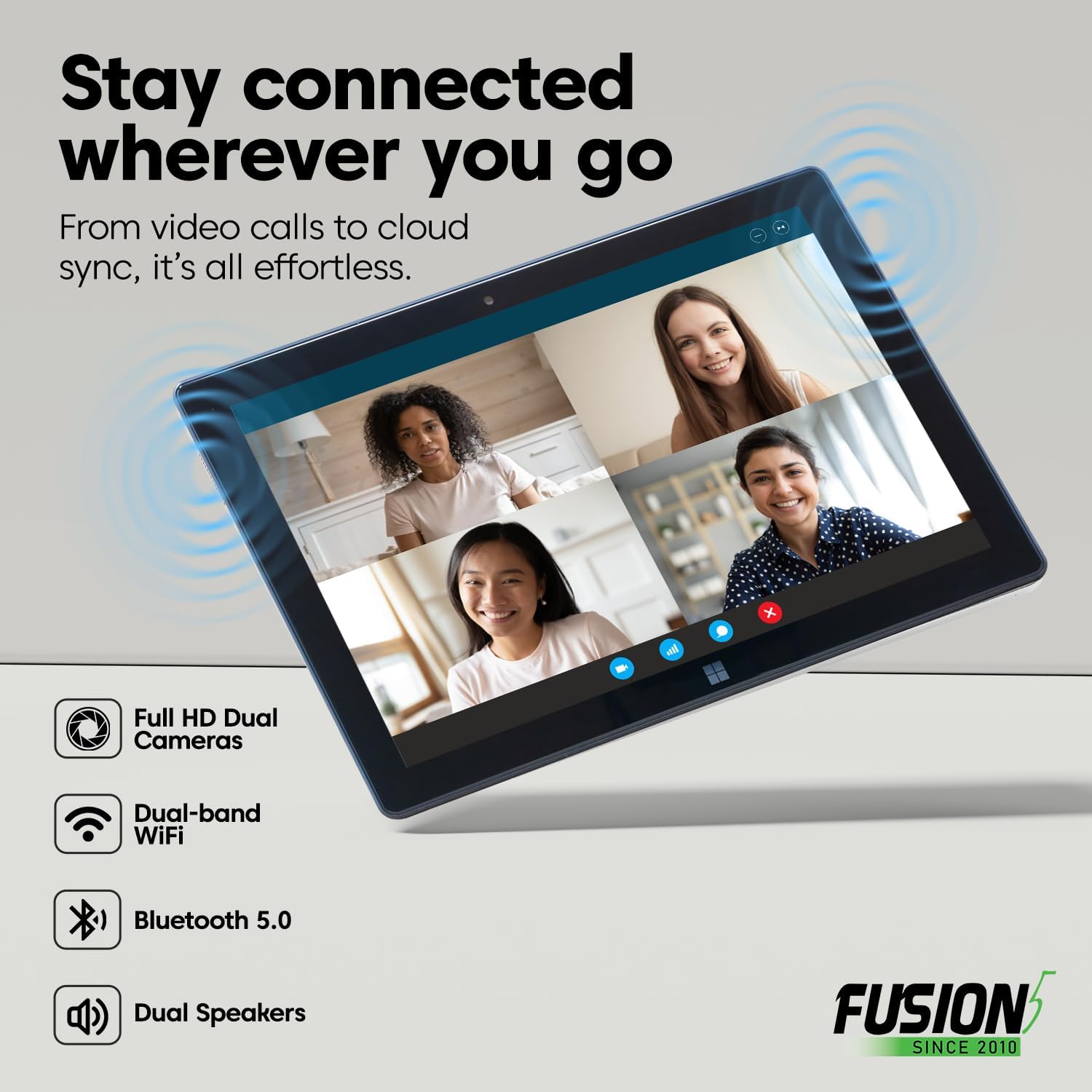
Image: A user interacting with the Fusion5 FWIN232 PRO N5 tablet's touchscreen display.
3.3 Connectivity
- Wi-Fi: Connect to 2.4GHz or 5GHz Wi-Fi networks for internet access. Navigate to Windows Settings > Network & Internet > Wi-Fi to manage connections.
- Bluetooth 5.0: Pair with Bluetooth-enabled devices such as keyboards, mice, and headphones. Go to Windows Settings > Bluetooth & devices to manage pairings.
- External Displays: Use the Micro HDMI port to connect your tablet to a monitor or TV.
- USB Devices: Connect USB-A and USB-C peripherals like flash drives, external hard drives, or docking stations.

Image: Diagram showing the various ports on the Fusion5 FWIN232 PRO N5 tablet, including USB-C, USB-A, and Micro HDMI.
3.4 Operating Modes
- Tablet Mode: Ideal for touch-based interaction, browsing, and media consumption.
- Laptop Mode: Connect an optional docking keyboard (sold separately) to transform your tablet into a laptop for typing and multitasking.

Image: The Fusion5 FWIN232 PRO N5 tablet connected to an external keyboard, demonstrating laptop mode functionality.
4. Maintenance and Care
4.1 Cleaning the Tablet
- Use a soft, lint-free cloth to clean the screen and body.
- For stubborn smudges, lightly dampen the cloth with water or a screen-cleaning solution.
- Avoid using harsh chemicals, abrasive materials, or excessive moisture.
4.2 Battery Care
- To prolong battery life, avoid extreme temperatures.
- Do not allow the battery to fully discharge frequently.
- Use only the original 36W Type-C fast charger provided with the tablet.
4.3 Software Updates
- Regularly check for and install Windows updates to ensure optimal performance, security, and access to the latest features.
- Go to Windows Settings > Windows Update to manage updates.
4.4 Storage Management
- Periodically review and delete unnecessary files to free up storage space.
- Utilize the MicroSD card slot for additional storage of media and documents.
- Consider cloud storage solutions like OneDrive for backup and access across devices.
5. Troubleshooting
If you encounter issues with your tablet, refer to the following common solutions:
5.1 Tablet Not Turning On
- Ensure the tablet is charged. Connect the charger and wait a few minutes before attempting to power on again.
- Press and hold the Power button for 10-15 seconds to perform a hard reset.
5.2 Wi-Fi Connectivity Issues
- Check if Wi-Fi is enabled in Windows Settings.
- Restart your Wi-Fi router and the tablet.
- Forget the network and reconnect.
- Ensure you are within range of the Wi-Fi signal.
5.3 Slow Performance
- Close unnecessary applications running in the background.
- Check for and install any pending Windows updates.
- Ensure sufficient free storage space.
- Restart the tablet.
5.4 Touchscreen Unresponsive
- Restart the tablet.
- Ensure the screen is clean and free of debris or moisture.
- If the issue persists, contact customer support.
6. Specifications
Key technical specifications for the Fusion5 FWIN232 PRO N5 Tablet PC:
| Feature | Detail |
|---|---|
| Model Name | FWIN232 PRO N5 |
| Operating System | Windows 11 Professional |
| Processor | Intel Alder Lake 13th Gen N100 Quad-Core CPU (up to 3.4 GHz) |
| Graphics | Intel UHD Graphics (Integrated) |
| RAM | 12 GB |
| Storage | 256 GB SSD |
| Expandable Storage | MicroSD card slot (up to 512 GB) |
| Screen Size | 10.1 inches |
| Display Resolution | 1920 x 1080 pixels (Full HD IPS) |
| Maximum Display Brightness | 500 nits |
| Connectivity | Dual-Band Wi-Fi (2.4GHz & 5GHz), Bluetooth 5.0 |
| Ports | USB-C, USB-A, Micro HDMI, 3.5mm Headphone Jack |
| Cameras | Dual FHD Cameras (Front & Rear 2MP) |
| Battery Capacity | 6000 mAh (Lithium Polymer) |
| Weight | 636 g (approx. 23 ounces) |
| Dimensions (L x W x Th) | 10.03" x 6.69" x 0.43" |

Image: A visual summary of the Fusion5 FWIN232 PRO N5 tablet's key specifications.
7. Warranty and Support
7.1 2-Year Full Warranty with Accidental Damage Cover
Your Fusion5 FWIN232 PRO N5 tablet comes with a comprehensive 24-month full warranty. This includes protection for up to two (2) accidental damage incidents, covering issues such as drops and liquid spills. To activate your coverage, please register your device by scanning the QR code provided with your product.

Image: Details of the 2-year full coverage and accidental screen damage protection for the Fusion5 tablet.
7.2 Customer Support
For technical assistance, warranty claims, or any other inquiries, please refer to the contact information provided during your warranty registration or visit the official Fusion5 support website. Scanning the QR code offers zero-contact support.

Image: Illustration emphasizing the tablet's assembly in the USA, highlighting quality and support.
