
1. Introduction
This manual provides detailed instructions for the setup, operation, maintenance, and troubleshooting of your CORBOBO LINGBAO K98 Pro Wireless Mechanical Gaming Keyboard and SM850 Wireless Gaming Mouse Combo. Please read this manual thoroughly before using the product to ensure optimal performance and longevity.
The LINGBAO K98 Pro keyboard features a 96% layout, tri-mode connectivity (Bluetooth 5.0, 2.4GHz wireless, USB-C wired), hot-swappable mechanical switches, a smart LCD display, and customizable RGB lighting. The SM850 mouse offers tri-mode connectivity, a high-precision PAW3311 optical sensor with up to 24000 DPI, and 6 programmable buttons.

Image 1.1: Overview of the LINGBAO K98 Pro Wireless Mechanical Gaming Keyboard and SM850 Wireless Gaming Mouse Combo.
2. Product Overview
2.1 LINGBAO K98 Pro Keyboard Features
- Hot-Swappable Switches: Supports 3/5-pin mechanical switches for easy customization without soldering. Features factory-lubed linear switches for smooth and responsive keystrokes.
- Triple-Mode Connectivity: Supports Bluetooth 5.0, 2.4GHz wireless, and USB-C wired connections for versatile use across multiple devices.
- Smart Display & Multi-Functional Knob: High-resolution LCD display shows real-time information (time, date, battery level, keyboard settings). The knob provides quick control over volume, RGB lighting, and other settings.
- RGB Backlighting: Features 16 RGB backlight effects with 16.8 million color options for personalized aesthetics.
- Gasket-Mount Design: Enhances typing feel and sound.
- N-Key Rollover: Ensures all key presses are registered accurately during rapid input.
- Macro Programmable: Allows for custom key assignments and macros.

Image 2.1: Close-up of the LINGBAO K98 Pro's smart digital display and multi-functional knob.
2.2 SM850 Mouse Features
- High-Precision PAW3311 Optical Sensor: Offers 6 adjustable DPI levels (1200/1600/2400/3200/6400/12000) customizable up to 24000 DPI via driver software.
- Programmable 6-Button Customization: All 6 buttons can be customized and support macro programming.
- Tri-Mode Connectivity: Supports Bluetooth 5.1, 2.4GHz wireless, and USB-C wired connections.
- Lightweight Design: Weighs approximately 55g for comfortable, extended use.
- High Tracking Speed & Acceleration: 300 IPS tracking speed and 35G acceleration for precise and rapid response.
- Adjustable Polling Rate: 125Hz to 1000Hz polling rate for quick operation response.
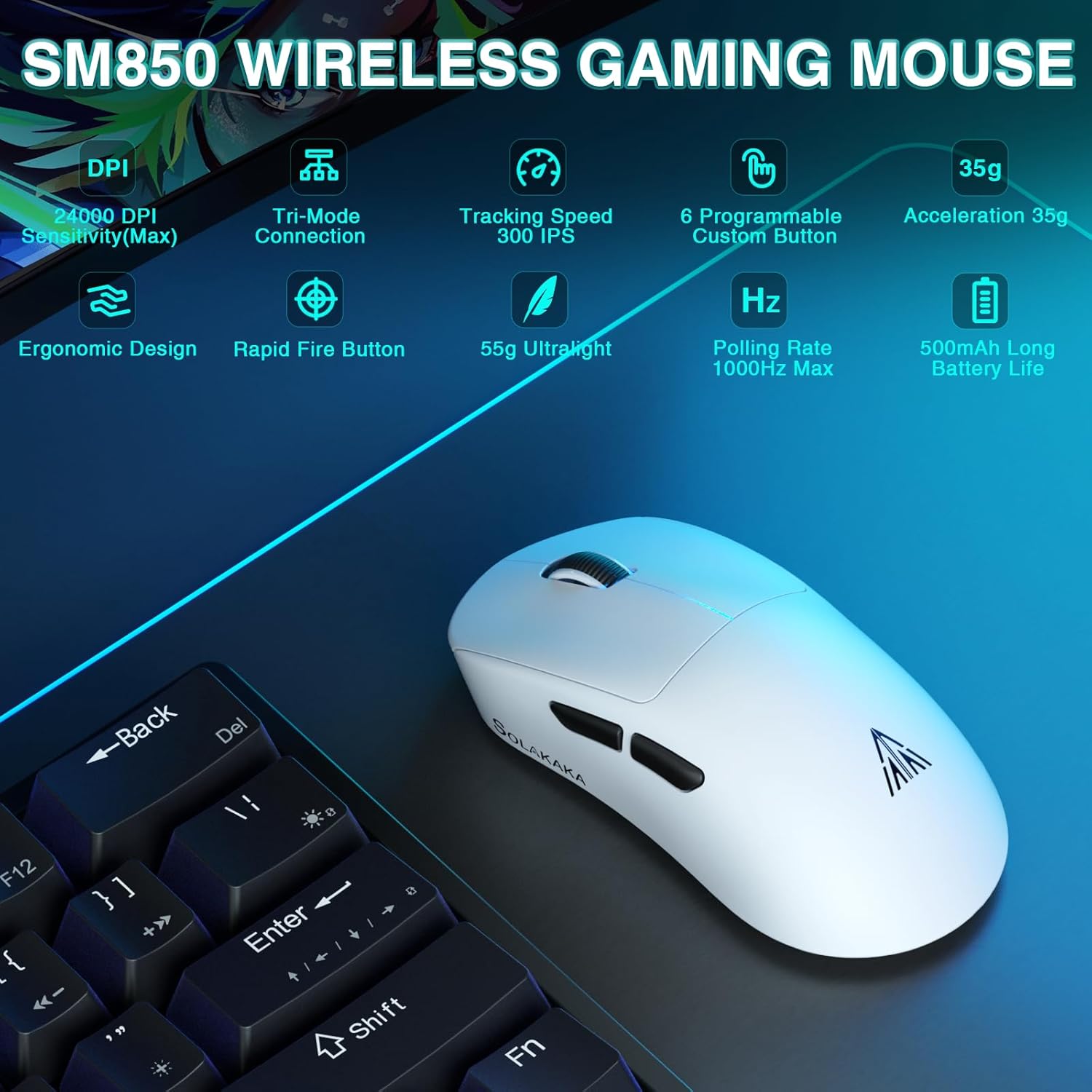
Image 2.2: Overview of the SM850 Wireless Gaming Mouse highlighting its features.
3. Setup
3.1 Keyboard Setup
- Wired Connection: Connect the keyboard to your computer using the provided USB-C cable. The keyboard will be recognized automatically.
- 2.4GHz Wireless Connection:
- Locate the 2.4GHz USB receiver (often stored in a compartment on the keyboard or mouse).
- Plug the USB receiver into an available USB port on your computer.
- Switch the keyboard's connection mode to 2.4GHz (refer to the keyboard's mode switch or function key combination). The keyboard should connect automatically.
- Bluetooth 5.0 Connection:
- Switch the keyboard's connection mode to Bluetooth (BT1, BT2, or BT3).
- On your computer or device, enable Bluetooth and search for new devices.
- Select "LINGBAO K98 Pro" from the list of available devices to pair.
- The keyboard supports connecting to up to 3 Bluetooth devices. Use specific function keys (e.g., FN+1, FN+2, FN+3) to switch between paired devices.
3.2 Mouse Setup
- Wired Connection: Connect the mouse to your computer using the provided USB-C cable. The mouse will be recognized automatically.
- 2.4GHz Wireless Connection:
- Ensure the 2.4GHz USB receiver is plugged into your computer.
- Switch the mouse's connection mode to 2.4GHz using the switch on the underside of the mouse. The mouse should connect automatically.
- Bluetooth 5.1 Connection:
- Switch the mouse's connection mode to Bluetooth using the switch on the underside of the mouse.
- On your computer or device, enable Bluetooth and search for new devices.
- Select "SM850 Mouse" from the list of available devices to pair.
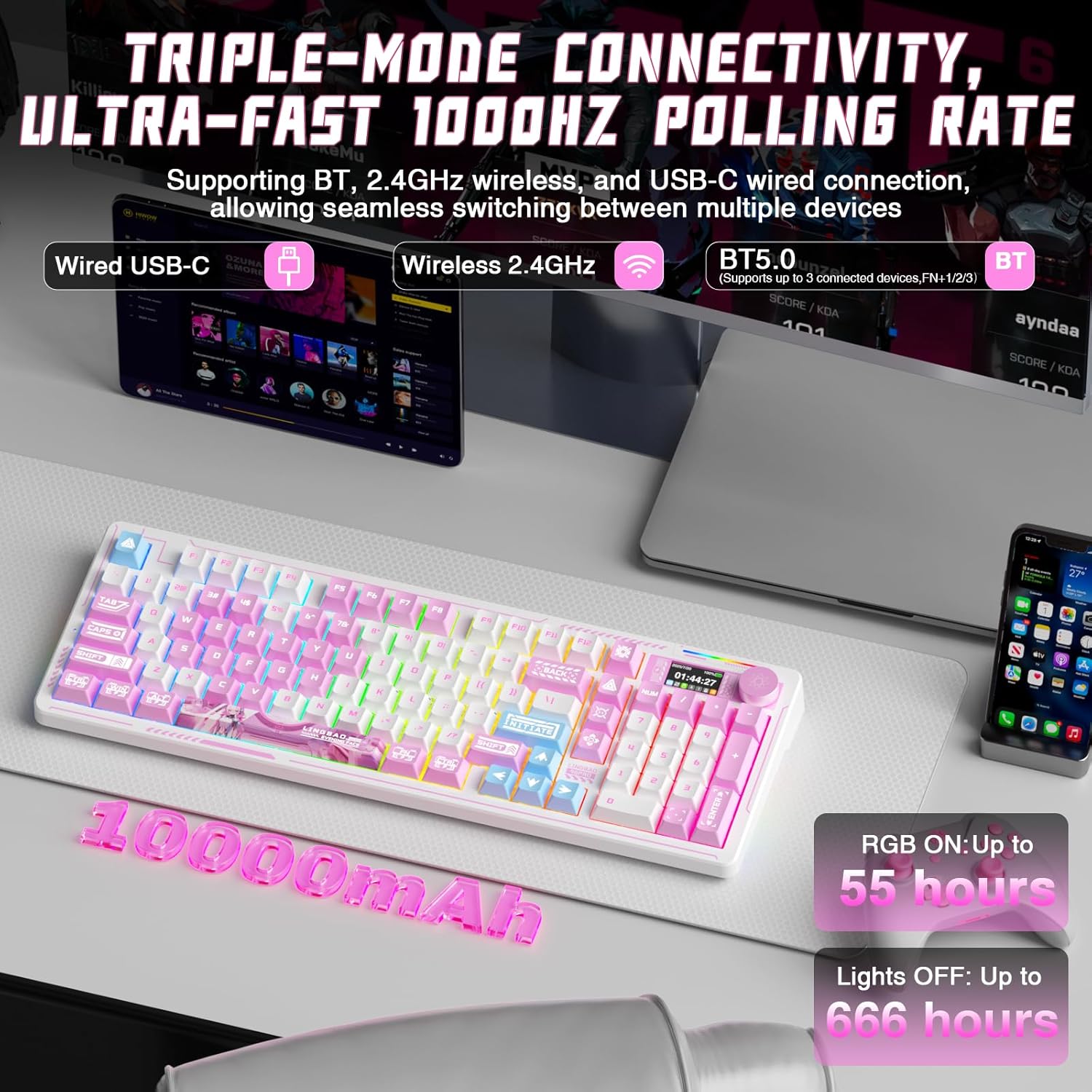
Image 3.1: Illustration of the triple-mode connectivity options for the keyboard and mouse.
4. Operating Instructions
4.1 Keyboard Operation
4.1.1 Smart Display and Multi-Functional Knob
- The LCD display shows time, date, battery level, and current keyboard settings.
- Knob Functionality:
- Rotate the knob to adjust volume (default).
- Press the knob to mute/unmute.
- Long press the FN+ knob to enter display settings. Rotate to select options (Config, Volume, Language, Connect, System, Brightness, Speed, Effect, Color). Press to confirm selection.
- Note: Time and date must be set via the driver software.
Image 4.1: Detailed view of the keyboard's smart display and knob functions for adjusting settings.
4.1.2 RGB Lighting Effects
- The keyboard offers 16 RGB backlight effects.
- Customize Backlight Effects:
- Once the screen is on, simply rotate the knob to "Effect" to browse 16 vibrant backlight effects.
- FN + Right Shift: Switch side lighting modes (Flowing Light / Aurora / Constant Brightness / Breathing Mode) and toggle the light effects on/off.
- FN + Left Shift: Switch RGB light strip modes (Flowing Light / Aurora / Constant Brightness / Breathing Mode) and turn off.

Image 4.2: Examples of the 16.8 million RGB lighting effects available on the LINGBAO K98 Pro keyboard.
4.1.3 Hot-Swappable Switches
- The keyboard supports both 3-pin and 5-pin mechanical switches.
- To replace switches, gently pull out the existing switch using a switch puller tool. Align the new switch's pins with the sockets and press firmly until it clicks into place.
- Ensure the keyboard is powered off or disconnected before replacing switches.
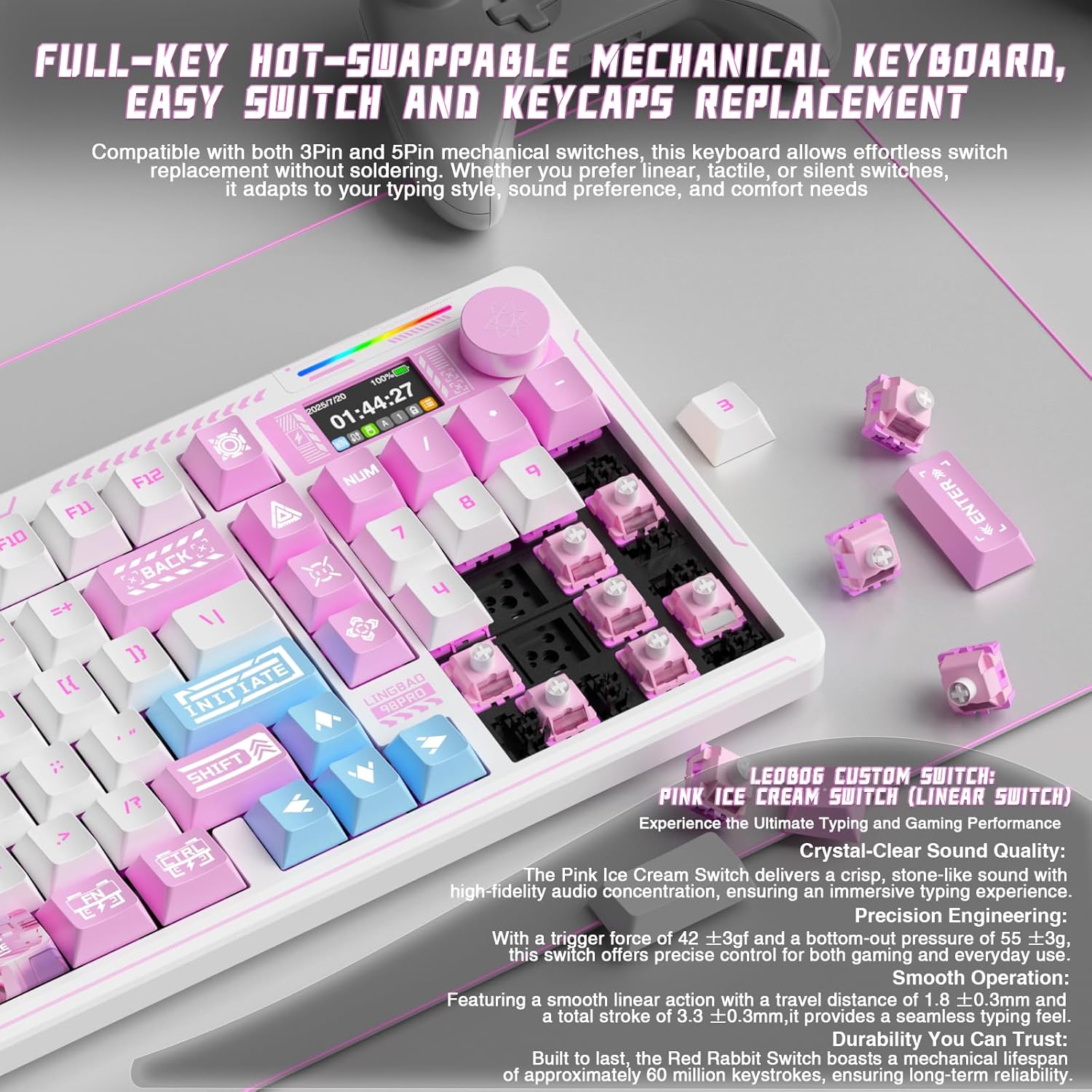
Image 4.3: Illustration of the hot-swappable switch feature on the LINGBAO K98 Pro keyboard.
4.2 Mouse Operation
4.2.1 DPI Adjustment
- The SM850 mouse has a dedicated DPI switching button (often located behind the scroll wheel).
- Press the DPI button to cycle through 6 preset DPI levels: 1200, 1600, 2400, 3200, 6400, and 12000.
- The current DPI level may be indicated by an LED color change or through the driver software.
- For advanced customization up to 24000 DPI, use the official driver software.

Image 4.4: Visual representation of the 6 adjustable DPI levels on the SM850 mouse.
4.2.2 Programmable Buttons
- The SM850 mouse features 6 programmable buttons: Left, Right, Scroll/Middle, Forward, Backwards, and DPI Switch.
- Use the official driver software to customize button functions, assign macros, and create custom shortcuts for gaming or office tasks.
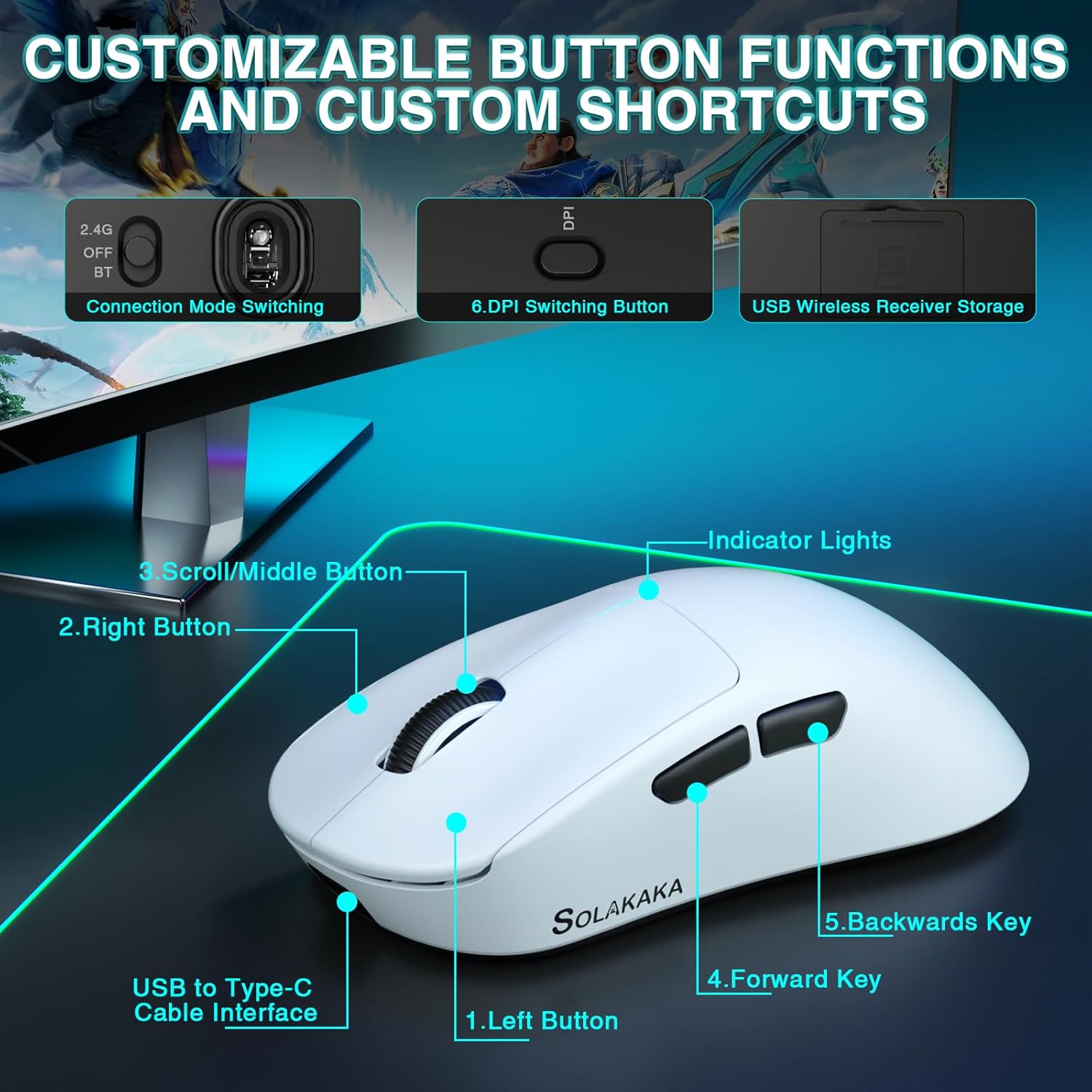
Image 4.5: Diagram illustrating the customizable button functions and layout of the SM850 mouse.
5. Maintenance
- Cleaning: Use a soft, dry cloth to wipe down the keyboard and mouse. For stubborn dirt, slightly dampen the cloth with water or a mild cleaning solution. Avoid harsh chemicals.
- Keycap and Switch Cleaning: For the keyboard, you can carefully remove keycaps using a keycap puller for deeper cleaning. Use compressed air to remove dust and debris from under the keycaps and switches.
- Battery Care: To prolong battery life, avoid fully discharging the devices frequently. Charge them when the battery level is low. If storing for an extended period, charge to about 50% and store in a cool, dry place.
- Storage: Store the keyboard and mouse in a clean, dry environment away from extreme temperatures and direct sunlight.
6. Troubleshooting
| Problem | Possible Cause | Solution |
|---|---|---|
| Device not connecting (Wireless) | Low battery, incorrect mode, receiver issue, interference. | Charge the device. Ensure correct mode (2.4GHz/BT) is selected. Re-plug the USB receiver. Move closer to the receiver/device. Try a different USB port. |
| Keys/Buttons not responding | Low battery, software glitch, physical obstruction, faulty switch/button. | Charge the device. Restart your computer. Check for debris under keycaps/buttons. If hot-swappable, try reseating the switch. |
| Lag or input delay | Wireless interference, distance, low battery, system performance. | Reduce distance to receiver/device. Ensure no strong interference sources nearby. Charge the device. Close unnecessary background applications. |
| RGB lighting not working | Lighting turned off, software issue, low battery. | Check keyboard lighting controls (FN key combinations, knob settings). Ensure driver software is updated. Charge the keyboard. |
| DPI not changing (Mouse) | DPI button not working, driver issue. | Ensure the DPI button is clean and functional. Reinstall or update the mouse driver software. |
7. Specifications
7.1 LINGBAO K98 Pro Keyboard
- Model: K98 Pro
- Connectivity: Tri-Mode (Bluetooth 5.0, 2.4GHz Wireless, USB-C Wired)
- Layout: 96% (101-Key)
- Switches: Hot-Swappable (3/5-pin compatible), Factory-lubed Linear Switches
- Mounting Style: Gasket-Mount
- Rollover: N-Key Rollover
- Display: Smart LCD Display (Time, Date, Battery, Settings)
- Knob: Multi-functional (Volume, RGB, Settings)
- Backlighting: RGB (16 effects, 16.8 million colors)
- Battery Capacity: 10000mAh (approx. 55 hours with RGB ON, 666 hours with lights OFF)
- Programmability: Macro Programmable
7.2 SM850 Mouse
- Model: SM850
- Connectivity: Tri-Mode (Bluetooth 5.1, 2.4GHz Wireless, USB-C Wired)
- Sensor: PAW3311 Optical Sensor
- DPI: 1200/1600/2400/3200/6400/12000 (Adjustable up to 24000 via driver)
- Tracking Speed: 300 IPS
- Acceleration: 35G
- Polling Rate: 125Hz - 1000Hz
- Buttons: 6 Programmable Buttons
- Weight: Approx. 55g (Ultralight)
- Battery Capacity: 500mAh
8. Warranty and Support
This product is covered by a standard manufacturer's warranty. Please refer to the product packaging or the CORBOBO official website for specific warranty terms and conditions.
For technical support, driver downloads, or further assistance, please visit the CORBOBO support page or contact customer service through the retailer where the product was purchased.