
Introduction
Welcome to the user manual for your Rapoo EV310M Wireless Vertical Mouse. This ergonomic mouse is designed for comfort and efficiency, featuring multi-mode wireless connectivity and adjustable DPI settings. Please read this manual carefully to ensure proper setup and optimal performance.
Package Contents
- Rapoo EV310M Wireless Vertical Mouse
- USB Receiver (stored inside the mouse)
- AA Battery (pre-installed or included)
- Quick Start Guide (this document)
Product Overview
Familiarize yourself with the components of your Rapoo EV310M mouse.
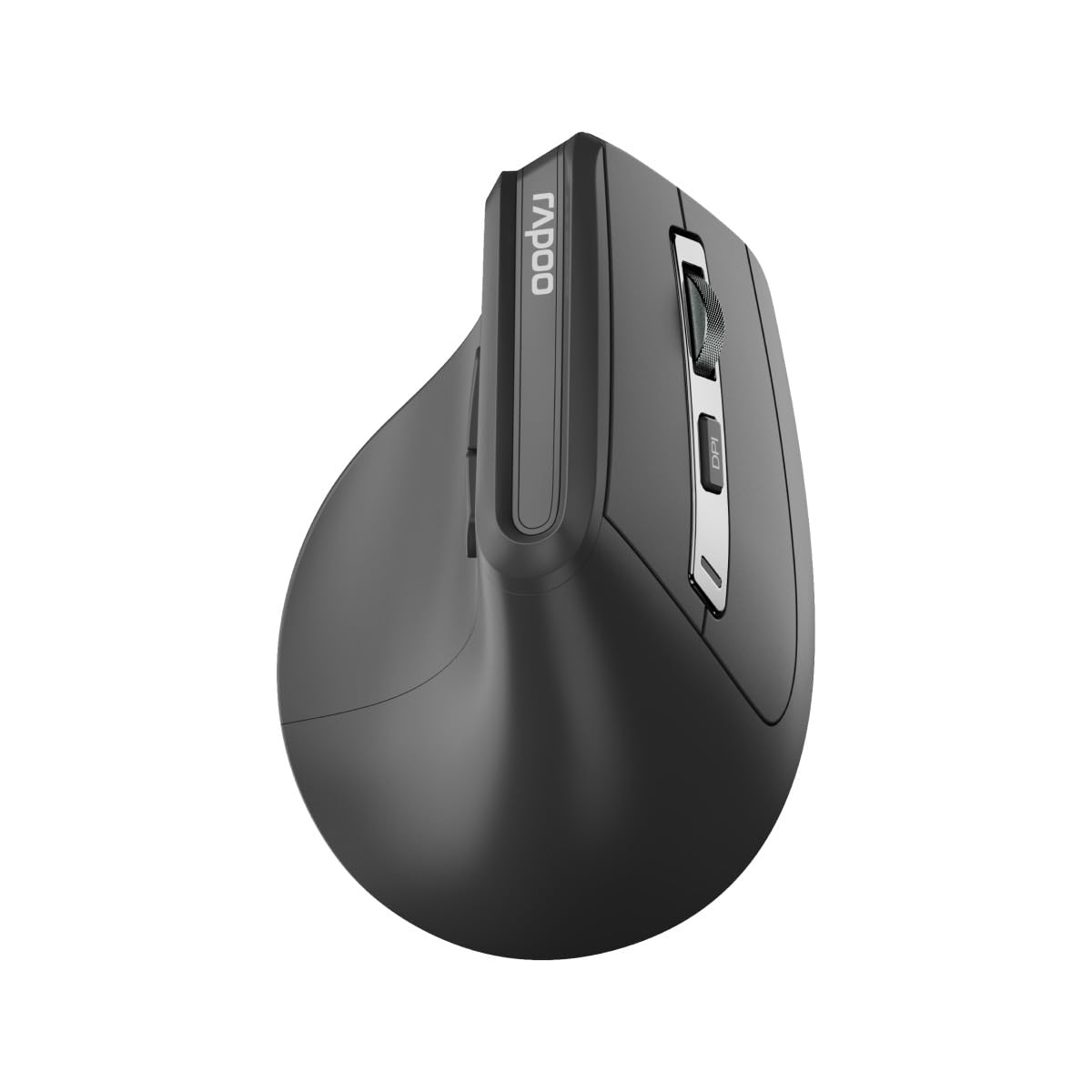
Image: Top view of the Rapoo EV310M Wireless Vertical Mouse, highlighting the scroll wheel and DPI button.
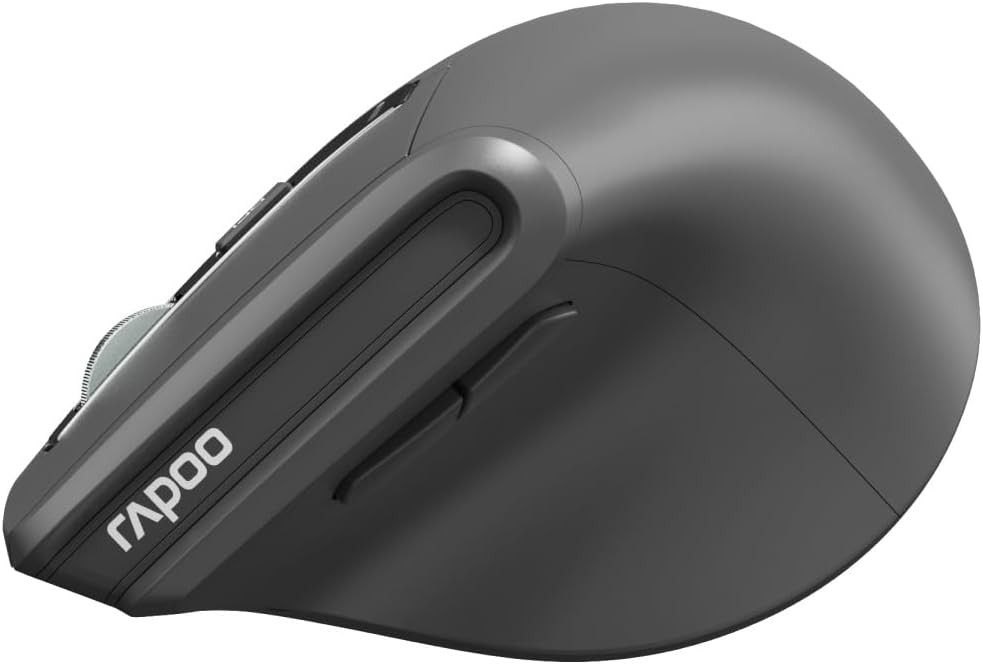
Image: Side view of the Rapoo EV310M Wireless Vertical Mouse, showing the forward and backward navigation buttons.
Button Functions
- Left Click Button: Standard left-click function.
- Right Click Button: Standard right-click function.
- Scroll Wheel: Scroll up/down, middle-click.
- DPI Button: Adjusts cursor sensitivity (DPI).
- Forward Button: Navigates forward in web browsers or file explorers.
- Backward Button: Navigates backward in web browsers or file explorers.
- Mode Switch Button/Indicator: Switches between 2.4GHz and Bluetooth modes.
Setup
1. Battery Installation
- Locate the battery compartment on the underside of the mouse.
- Open the battery compartment cover.
- Insert one AA battery, ensuring correct polarity (+/-).
- Close the battery compartment cover.
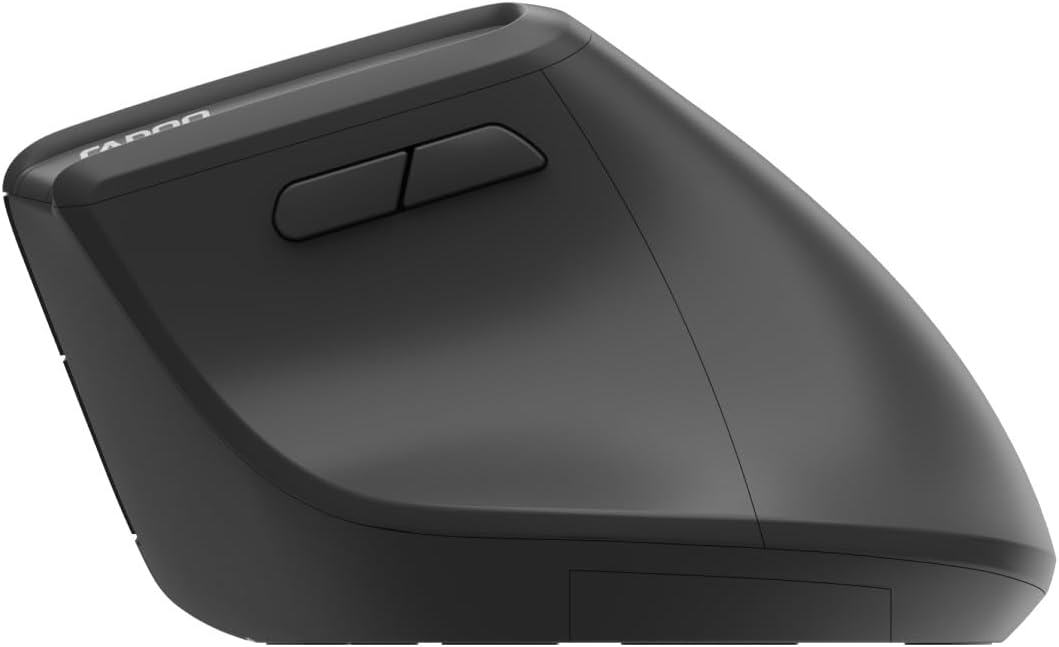
Image: Underside of the mouse, illustrating the battery compartment and the storage slot for the USB receiver.
2. Connecting Your Mouse
The Rapoo EV310M supports multi-mode wireless connection: 2.4 GHz via USB receiver and Bluetooth 3.0/5.0.
2.1. 2.4 GHz Wireless Connection
- Remove the USB receiver from its storage slot on the bottom of the mouse.
- Plug the USB receiver into an available USB port on your computer.
- Turn on the mouse using the power switch (usually on the bottom).
- The mouse should connect automatically. If not, press the mode switch button until the 2.4GHz indicator lights up.
2.2. Bluetooth Connection
- Turn on the mouse.
- Press the mode switch button to select a Bluetooth channel (e.g., Bluetooth 1 or Bluetooth 2). The indicator light for the selected Bluetooth channel will start blinking slowly.
- Press and hold the mode switch button for 3 seconds until the indicator light blinks rapidly. This indicates the mouse is in pairing mode.
- On your computer or device, open Bluetooth settings and search for new devices.
- Select "RAPOO EV310M" from the list of available devices to pair.
- Once paired, the indicator light will stop blinking and remain solid for a few seconds before turning off.
Operating Instructions
1. DPI Adjustment
The DPI (Dots Per Inch) button allows you to adjust the cursor speed and sensitivity.
- Press the DPI button located on the top of the mouse to cycle through available DPI settings (e.g., 800, 1200, 1600, 2400 DPI).
- Each press will change the sensitivity, allowing you to find your preferred cursor speed.
2. Switching Between Connected Devices
The EV310M mouse can be paired with up to three devices (one 2.4GHz and two Bluetooth devices).
- To switch between connected devices, simply press the mode switch button on the mouse.
- The indicator light will briefly show which channel (2.4G, BT1, BT2) is active.
Maintenance
Cleaning
To clean your mouse, use a soft, dry cloth. For stubborn dirt, slightly dampen the cloth with water or a mild cleaning solution. Avoid using harsh chemicals or abrasive materials.
Battery Replacement
When the mouse performance degrades or the indicator light signals low battery, replace the AA battery following the installation steps in the Setup section.
Troubleshooting
Mouse Not Responding
- Check Battery: Ensure the battery is correctly installed and has sufficient charge. Replace if necessary.
- Power Switch: Verify the mouse is turned on.
- USB Receiver: For 2.4GHz mode, ensure the USB receiver is securely plugged into a working USB port. Try a different port.
- Bluetooth Connection: For Bluetooth mode, ensure Bluetooth is enabled on your device and the mouse is correctly paired. Re-pair if needed.
- Distance: Ensure the mouse is within the effective operating range of your computer (typically 10 meters).
Cursor Movement is Erratic
- Surface: Use the mouse on a clean, non-reflective surface. A mouse pad is recommended.
- DPI Setting: Adjust the DPI setting to a lower value if the cursor is too fast or jumpy.
- Sensor Cleanliness: Check the optical sensor on the bottom of the mouse for any obstructions or dirt. Clean gently with a soft cloth.
Specifications
| Feature | Detail |
|---|---|
| Brand | RAPOO |
| Model Number | EV310M |
| Connectivity Technology | Bluetooth (3.0, 5.0), 2.4 GHz Wireless |
| DPI Sensitivity | Adjustable 800-2400 DPI |
| Number of Buttons | 6 |
| Hand Orientation | Right-handed |
| Power Source | Battery Powered (1x AA) |
| Battery Life | Up to 9 months |
| Operating System Compatibility | PC, Linux, Mac |
| Item Weight | 100 grams |
| Color | Black |
Warranty and Support
For warranty information or technical support, please refer to the official RAPOO website or contact your local dealer. Keep your purchase receipt for warranty claims.


