1. Introduction
The Redragon M619 RGB Gaming Mouse is designed for precision and customization, offering a responsive gaming experience with its high DPI sensor, programmable buttons, and dynamic RGB backlighting. This manual provides instructions for setting up, operating, and maintaining your M619 gaming mouse.
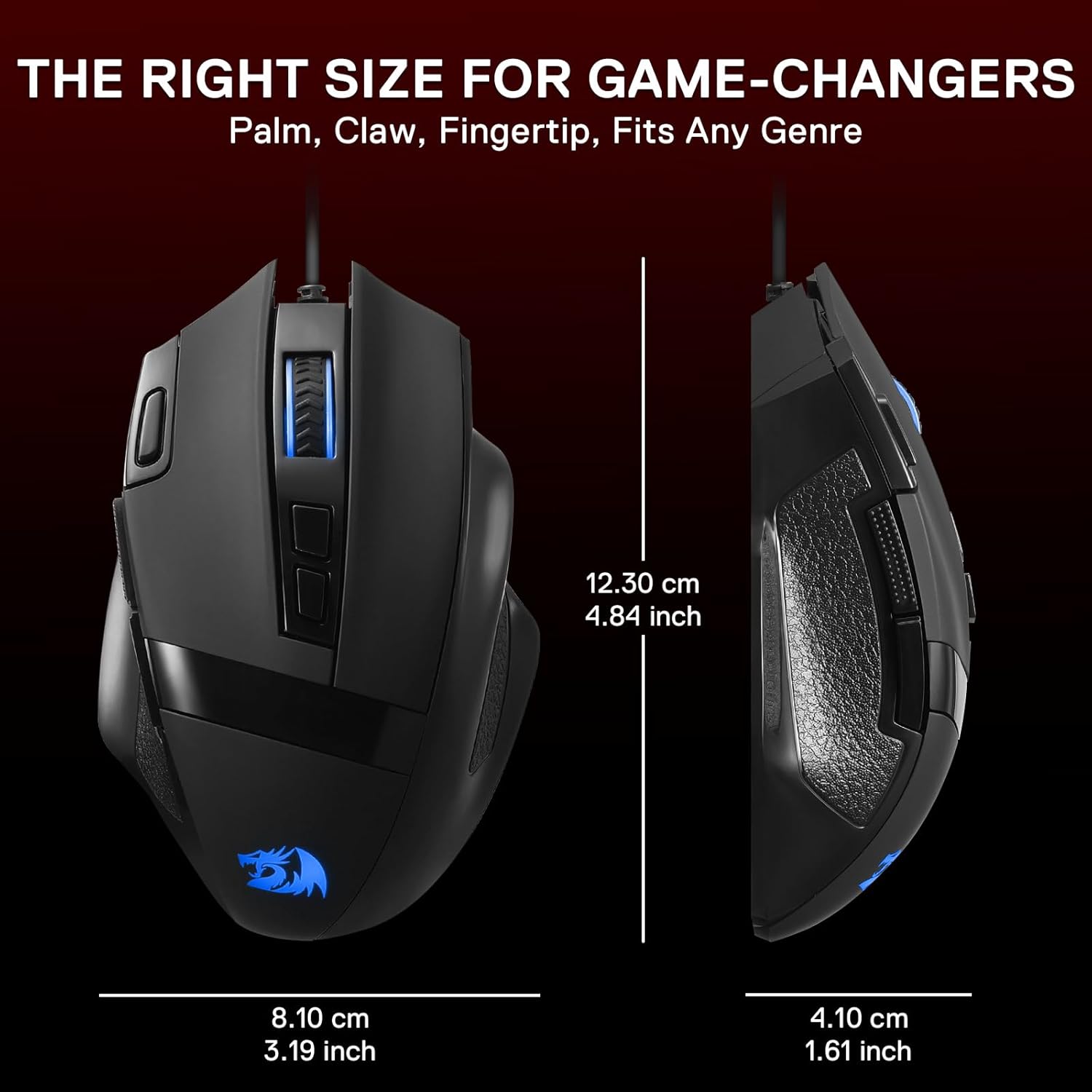
Image: The Redragon M619 mouse demonstrating its ergonomic design, fitting comfortably in a user's hand.
2. Package Contents
- Redragon M619 RGB Gaming Mouse
- User Manual (this document)
3. Setup Guide
- Connect the Mouse: Plug the USB connector of the Redragon M619 mouse into an available USB port on your computer.
- Driver Installation: Your operating system should automatically detect and install the necessary drivers.
- Software Installation (Optional but Recommended): For full customization of DPI, button assignments, and RGB lighting, download the official Redragon M619 software from the Redragon official website.

Image: The Redragon M619 RGB Gaming Mouse, showing its wired USB connection ready for use.
4. Operating Instructions
4.1. DPI Adjustment
The M619 mouse features 5 default DPI levels for quick sensitivity adjustments. These can be cycled through using the dedicated DPI buttons located behind the scroll wheel.
- Default DPI Levels: 400 / 800 / 1600 / 2400 / 3200
- Custom DPI: Using the Redragon software, you can customize DPI settings from 50 to 12800 DPI.

Image: Illustration of the 5 adjustable DPI levels (400, 800, 1600, 2400, 3200) and polling rates (125Hz, 250Hz, 500Hz, 1000Hz) for the Redragon M619 mouse.
4.2. Programmable Buttons
The mouse is equipped with 8 programmable buttons, allowing for custom keybinds and macros. This includes a dedicated "Fire Key" for rapid actions.
- Total Buttons: 8 (Left Click, Right Click, Scroll Wheel Click, 2 Side Buttons, 2 DPI Buttons, Fire Key)
- Customization: All 8 buttons can be reassigned using the Redragon software to suit your gaming or work needs.

Image: The Redragon M619 mouse with a visual indicator pointing to the rapid fire button, useful for quick actions in games.
4.3. RGB Backlighting
The M619 features dynamic RGB backlighting with 5 distinct lighting effects and over 16.8 million color combinations.
- Default Modes: Breathing, Rainbow, Full Lighting, Flash, Off.
- Customization: Lighting effects and colors can be fully adjusted via the Redragon software.

Image: The Redragon M619 mouse showcasing its RGB lighting with different effects, including Breathing, Rainbow, Full Lighting, Flash, and Off modes.
5. Software Customization
The Redragon M619 software provides advanced customization options for your mouse. It allows you to:
- Adjust DPI settings from 50 to 12800.
- Reassign functions to all 8 programmable buttons.
- Create and manage macros.
- Customize RGB lighting effects and colors.
- Save multiple profiles for different applications or games.
Please visit the official Redragon website to download the latest software for the M619 model.

Image: A screenshot of the Redragon M619 software interface, showing options for lighting, button customization, DPI, and macros.
6. Maintenance
To ensure the longevity and optimal performance of your Redragon M619 mouse, follow these maintenance guidelines:
- Cleaning: Use a soft, dry cloth to wipe the mouse surface. For stubborn dirt, slightly dampen the cloth with water. Avoid harsh chemicals or abrasive materials.
- Sensor Care: Keep the optical sensor on the underside of the mouse clean and free from dust or debris to ensure accurate tracking.
- Cable Management: Avoid sharp bends or excessive pulling on the USB cable to prevent damage.
- Storage: Store the mouse in a clean, dry environment when not in use.
7. Troubleshooting
| Problem | Solution |
|---|---|
| Mouse is not responding. |
|
| DPI/Sensitivity issues. |
|
| Buttons are not working or feel mushy. |
|
| RGB lighting is not working or incorrect. |
|
8. Specifications
| Feature | Detail |
|---|---|
| Model Number | M619 |
| Connectivity | Wired USB |
| DPI Range | 50 - 12800 (Software Adjustable) |
| Default DPI Levels | 400 / 800 / 1600 / 2400 / 3200 |
| Programmable Buttons | 8 |
| Backlighting | RGB with 5 modes (16.8 million colors) |
| Switch Durability | Over 10 million clicks |
| Sensor Type | Optical |
| Item Weight | 5.6 ounces (approx. 158.7 grams) |
| Dimensions (L x W x H) | Approx. 4.84 x 3.19 x 1.61 inches (12.30 x 8.10 x 4.10 cm) |
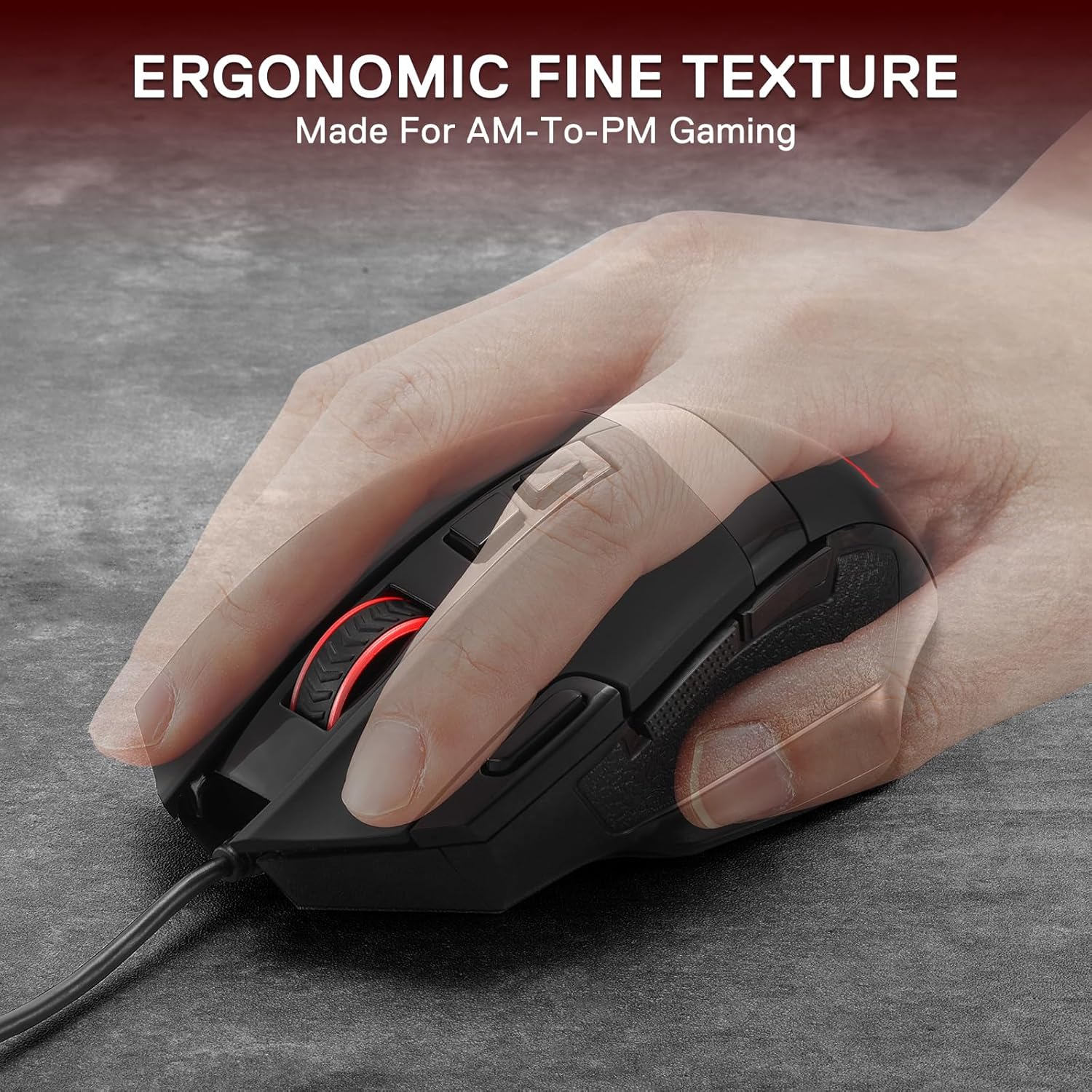
Image: The Redragon M619 mouse highlighting its durable mechanical switches, rated for over 10 million clicks, and precision tracking.

Image: Diagram showing the dimensions of the Redragon M619 mouse: 12.30 cm (4.84 inches) length, 8.10 cm (3.19 inches) width, and 4.10 cm (1.61 inches) height.
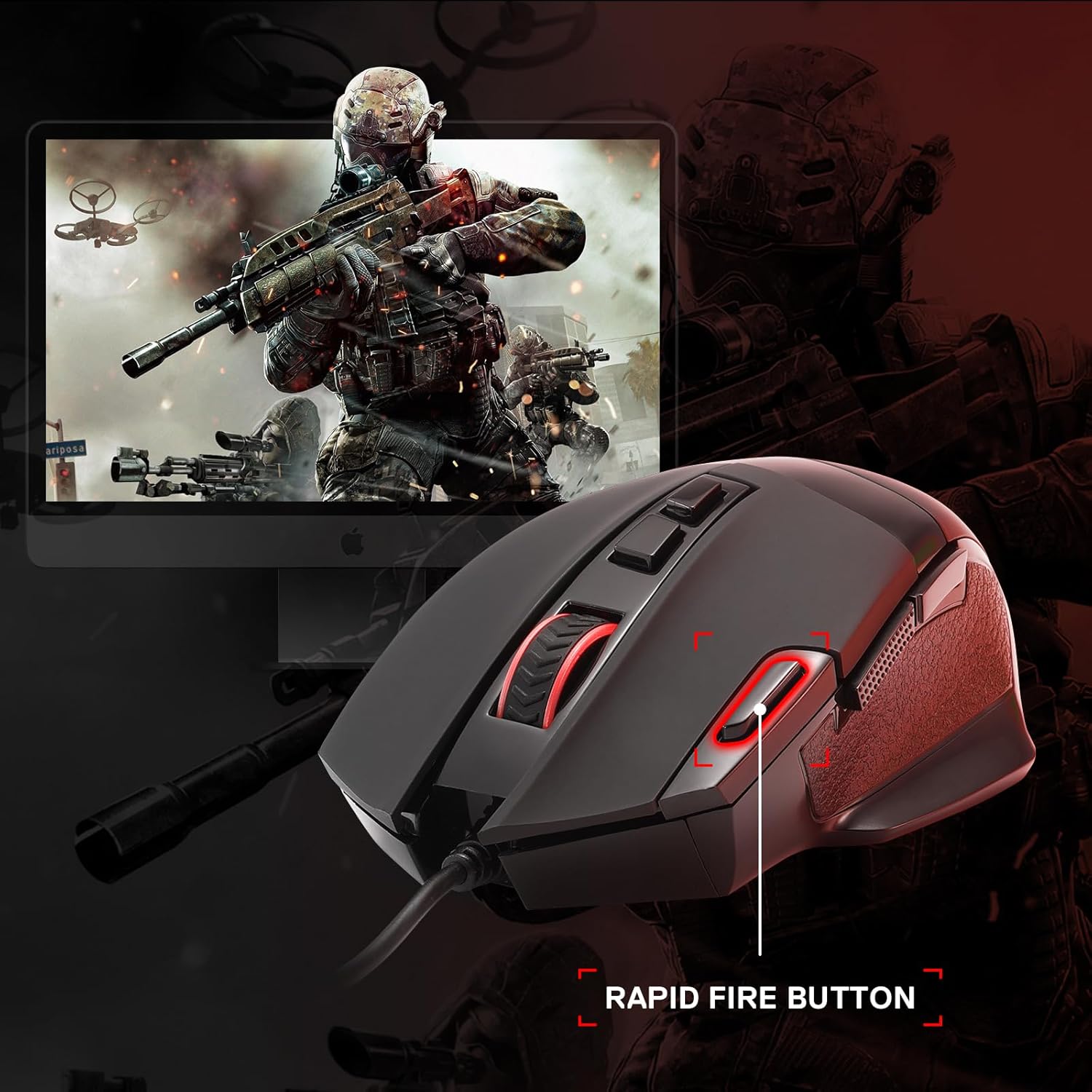
Image: Underside view of the Redragon M619 mouse, highlighting the gaming optical sensor with specifications: 12800 DPI Max, 120 IPS, and 25G ACC.
9. Warranty and Support
Redragon products typically come with a manufacturer's warranty. For specific warranty details, please refer to the warranty card included with your product or visit the official Redragon website.
For technical support, troubleshooting assistance, or warranty claims, please contact Redragon customer service through their official website or the contact information provided in your product packaging.
Official Redragon Website: www.redragonzone.com