
VIOFO A329S
VIOFO A329S 4K 60FPS Front Dash Cam User Manual
Model: A329S 1CH
Introduction
Thank you for choosing the VIOFO A329S 4K 60FPS Front Dash Cam. This manual provides detailed instructions for the installation, operation, and maintenance of your device. Please read it carefully before use to ensure proper functionality and to maximize your dash cam's performance.

Image: Front view of the VIOFO A329S Dash Cam.
What's in the Box
Verify that all the following items are included in your package:
- 1x VIOFO A329S Front Dash Cam with GPS Mount
- 1x CPL (Circular Polarizing Lens)
- 1x Car Charger (3.5m)
- 1x Type-C Data Cable
- 1x Trim Removal Tool
- 2x Windshield Static Sticker
- 1x Mount Sticky Pad
- 1x User Manual

Image: Diagram showing the VIOFO A329S Dash Cam and its included components, such as the car charger, Type-C data cable, CPL, trim removal tool, static stickers, and user manual.
Setup
1. Memory Card Installation
The A329S supports microSD cards up to 512GB and external SSDs up to 4TB. For optimal performance and durability, we recommend using VIOFO industrial high endurance microSD cards. Ensure the card is inserted correctly into the designated slot until it clicks.
Note: microSD card and SSD storage are not included and must be purchased separately.

Image: Close-up of the VIOFO A329S dash cam showing a microSD card being inserted into its slot.
2. Dash Cam Installation and Cable Connection
Mount the dash cam on your windshield using the provided static sticker and sticky pad. Ensure it does not obstruct your view. Connect the Type-C power cable from the dash cam to the car charger, then plug the car charger into your vehicle's 12V power outlet.
Important: Do not use a mobile phone charger or cable to power the dash cam, as this may cause damage or malfunction.

Image: A diagram illustrating the installation of the VIOFO A329S dash cam on the windshield and the proper routing of the power cable to the car charger.
3. Initial Power On
Once connected to power, the dash cam will automatically turn on and begin recording when your vehicle starts. The screen will display the live view. If the device does not power on, check the power connection and your vehicle's 12V outlet.
Operating Instructions
1. 4K 60FPS Front Recording
The VIOFO A329S captures video at 4K resolution at 60 frames per second (FPS) for the front camera, providing clear and smooth footage. This high frame rate helps in capturing details like license plates even at higher driving speeds.
Note: 4K 60fps recording is not available when HDR is enabled.

Image: A visual comparison demonstrating the clarity of license plate capture at 4K 60FPS versus 30FPS.
Video: A demonstration of 4K 60FPS video quality on the VIOFO A329S dash cam, showcasing its ability to capture clear details.
2. Advanced STARVIS 2 Sensor and HDR
The A329S features a STARVIS 2 IMX678 image sensor, which enhances clarity and detail, reduces noise in low-light conditions, and minimizes motion blur. The HDR (High Dynamic Range) feature balances extremely bright and dark areas in the footage, ensuring accurate license plate capture in various lighting conditions.

Image: A visual comparison illustrating the improved low-light performance and reduced noise with the STARVIS 2 sensor.

Image: A visual comparison showing the enhanced detail and balanced exposure when HDR is active versus inactive.
3. Parking Modes
The A329S offers various parking modes to protect your vehicle when parked. These modes require the optional HK4/HK6 Hardwire Kit (sold separately) to prevent battery drain.
- Impact Detection Power Saving Parking Mode: The camera enters a low-power standby state when the vehicle is off. It instantly starts recording upon detecting a collision.
- Hybrid Parking Recording: Combines time-lapse (1fps) or low bitrate recording with impact detection. The camera switches to impact detection recording based on cut-off time or voltage.
- Normal Parking Mode: Features Super Night Vision, Low Bitrate Recording, and Auto Event Detection for continuous monitoring.

Image: The VIOFO A329S dash cam monitoring a parked car, illustrating the Impact Detection Parking Mode.
Video: A demonstration of motion and impact parking mode testing at night, showing the dash cam's recording capabilities in low-light conditions.
4. Wi-Fi 6 App Control
The A329S integrates Wi-Fi 6 technology, enabling faster connection speeds (up to 30MB/s in the 5GHz band). Use the VIOFO app on your smartphone to preview, download, and share videos quickly. A one-minute 4K video can be downloaded in under 10 seconds.

Image: A smartphone screen displaying a video download in progress from the VIOFO A329S dash cam, highlighting the speed of Wi-Fi 6.
5. Smart Voice Control
Operate your dash cam hands-free using voice commands. You can start/stop recording, take photos, and turn Wi-Fi on/off. The device also provides clear voice notifications for setting changes and memory card errors, allowing you to stay focused on driving.

Image: A driver interacting with the VIOFO A329S dash cam using voice commands, with on-screen prompts for actions like 'Take photo' and 'Turn on Wi-Fi'.
6. Comprehensive GPS Functionality
The built-in GPS module supports four global navigation satellite systems (GPS, BeiDou, Galileo, and GLONASS). This provides accurate location, speed, and time data, which can be viewed when playing back videos on the VIOFO App or the VIOFO PC player.

Image: A laptop screen showing a map with a vehicle's route and GPS data, demonstrating the VIOFO A329S dash cam's tracking capabilities.
7. CPL (Circular Polarizing Lens)
The included CPL attaches to the front lens of the dash cam. It helps reduce reflections and glare from the windshield and road surfaces, improving image quality and contrast, especially in bright conditions.
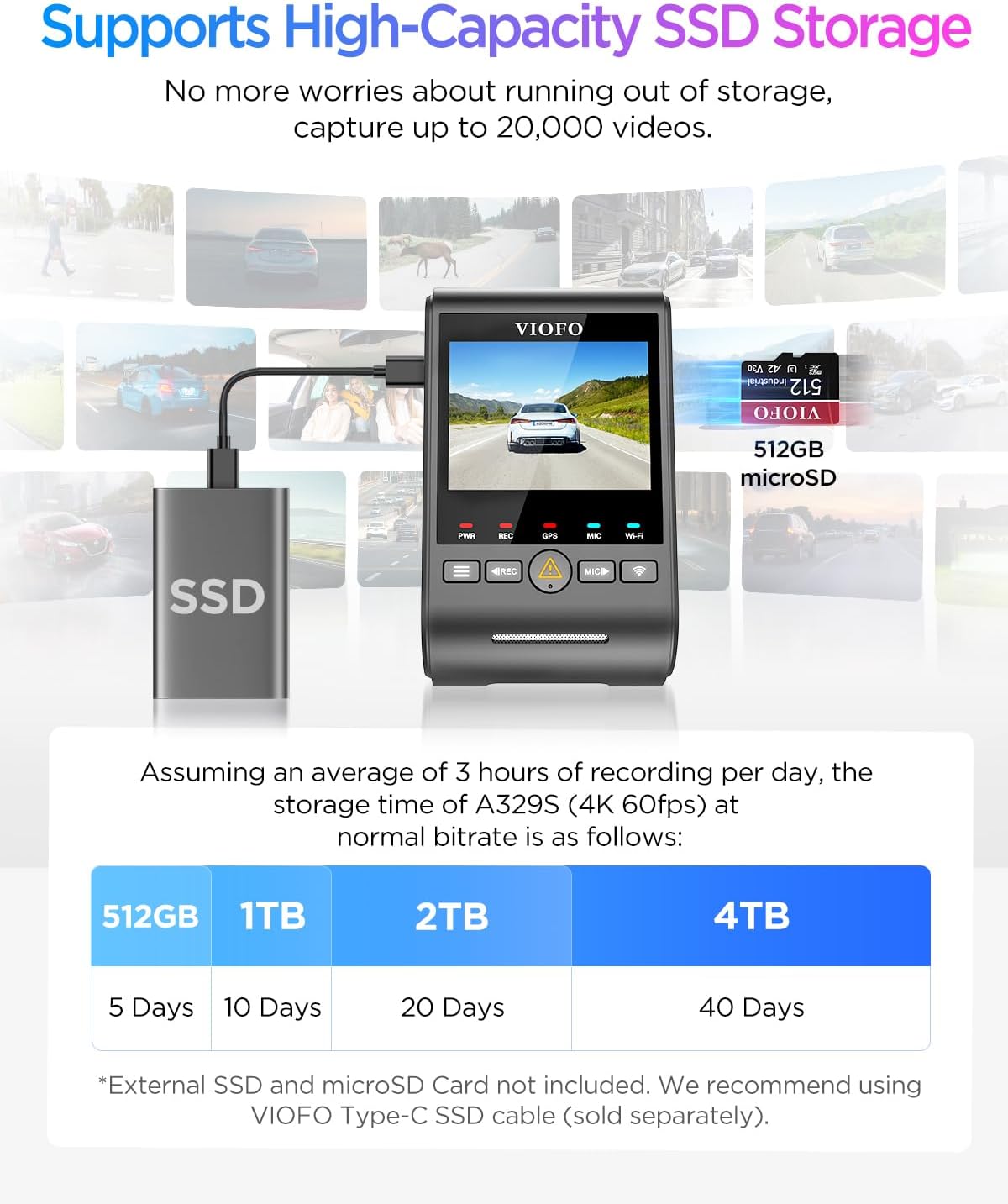
Image: The VIOFO A329S dash cam with the Circular Polarizing Lens (CPL) attached to the front lens.
8. External SSD Support
The A329S supports external SSDs up to 4TB, allowing for extended recording times (over 3 weeks of footage). This is ideal for long trips or situations requiring extensive storage without constant overwriting. We recommend using the optional VIOFO Type-C SSD cable.

Image: A diagram illustrating the VIOFO A329S dash cam connected to an external SSD, with a table showing recording durations for different SSD capacities.
Maintenance
1. Firmware Updates
Regularly check for and install firmware updates to ensure optimal performance and access to new features. Firmware can be updated wirelessly via the VIOFO app using Wi-Fi 6, or by downloading the firmware file to your memory card and inserting it into the dash cam.
Video: Instructions on how to wirelessly update your VIOFO dashcam's firmware via the mobile application.
2. Memory Card Management
Format your microSD card regularly (e.g., once a month) within the dash cam's settings to maintain optimal recording performance and prevent data corruption. Back up any important footage before formatting.
Troubleshooting
- Dash Cam not powering on: Check the power connection to the car charger and ensure the car charger is securely plugged into the vehicle's 12V outlet. Test the outlet with another device if possible.
- Recording issues (e.g., freezing, corrupted files): Ensure you are using a high-endurance microSD card. Format the card regularly. If issues persist, try a different compatible microSD card.
- Wi-Fi connection problems: Ensure Wi-Fi is enabled on the dash cam and your smartphone. Try restarting both devices. Make sure you are connecting to the correct VIOFO Wi-Fi network.
- GPS not working: Ensure the GPS mount is correctly attached and has a clear view of the sky. Verify GPS settings in the dash cam menu.
- Voice control not responding: Check the voice control settings in the menu. Ensure the environment is not excessively noisy.
Specifications
| Feature | Detail |
|---|---|
| Brand | VIOFO |
| Model Name | A329S 1CH |
| Video Capture Resolution | 4K 60FPS (Front) |
| Image Sensor | STARVIS 2 IMX678 |
| Connectivity Technology | Wi-Fi 6 (Dual Band), Type-C |
| Special Features | App Control, Built-In GPS, Voice Control, HDR |
| Field Of View | 170 degrees |
| Screen Size | 2.4 inches |
| Memory Storage Capacity | Supports up to 512GB microSD, 4TB External SSD |
| Mounting Type | Windshield Mount |
| Color | Black |
| Item Dimensions (D x W x H) | 1.7"D x 2.4"W x 3.9"H |
Warranty and Support
The VIOFO A329S comes with an 18-month warranty, with an option for a 6-month registered extended warranty. Lifetime technical support is also provided.
For technical assistance or warranty claims, please contact VIOFO support:
- Email: support@viofo.com
- Phone (US): +1 323 505 9898
Related documentsA329S


Ask a question about this manual
Ask about setup, troubleshooting, compatibility, parts, safety, or missing instructions. Manuals+ will review the question and use this page’s manual context to help answer it.