
1. Introduction
This manual provides instructions for the Redragon K761 Wireless Gasket Gaming Keyboard. It covers product features, setup, operation, maintenance, and troubleshooting to ensure optimal use of your device.

Image 1.1: The Redragon K761 keyboard showcasing its gasket design, custom switches, LCD smart screen, 5-layer noise dampener, round PBT keycaps, and 4000mAh battery.
2. Package Contents
Verify that all items are present in the package:
- Redragon K761 Wireless Gasket Gaming Keyboard
- USB-C Cable
- Keycap/Switch Puller
- Spare Switches
- User Manual (this document)

Image 2.1: Detail view of the keyboard's underside, highlighting the 2.4G dongle storage and adjustable 2-level feet.
3. Setup
3.1 Connectivity Modes
The Redragon K761 supports three connection modes:
- USB-C Wired Mode: Connect the keyboard directly to your computer using the provided USB-C cable. This mode also charges the keyboard.
- 2.4GHz Wireless Mode: Insert the 2.4Ghz USB dongle into an available USB port on your computer. The keyboard will automatically connect.
- Bluetooth (BT 3.0/5.0) Mode:
- Turn on the keyboard and switch to Bluetooth mode.
- On your device (PC, laptop, tablet), search for Bluetooth devices.
- Select "Redragon K761" from the list to pair.
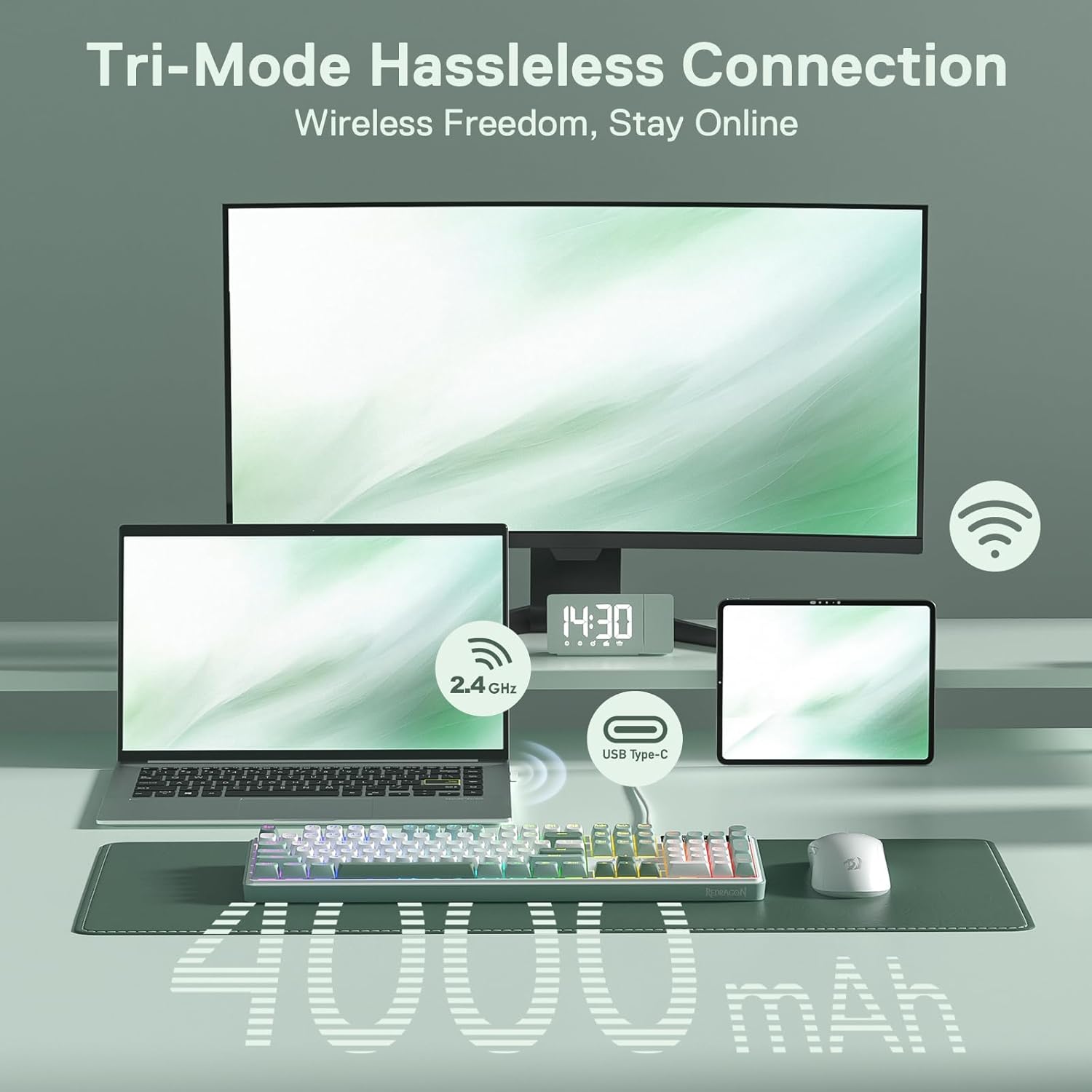
Image 3.1: Illustration of the keyboard's tri-mode connection capabilities, showing wired, 2.4GHz wireless, and Bluetooth connections to various devices.
3.2 Initial Charging
For optimal performance, fully charge the keyboard before first use. Connect the USB-C cable to the keyboard and a power source. The 4000mAh battery provides long-lasting use.
Video 3.1: An unboxing and showcasing video of the Redragon K761 keyboard, demonstrating its physical appearance and initial setup.
4. Operating Instructions
4.1 Smart Info-Island Screen
The 1.26-inch TFT screen displays essential information such as connection mode, battery level, and typing status. It also supports customized GIF images.

Image 4.1: The 1.26" TFT LCD Smart Screen showing home screen, GIF/image display, RGB modes & colors, RGB speed & brightness, and Win/Mac system indicators.
4.2 ONE-Knob Control
The multi-function knob allows for easy control of various settings:
- Rotate: Adjust backlight brightness or media volume.
- Press: Play/pause media or switch backlight modes.
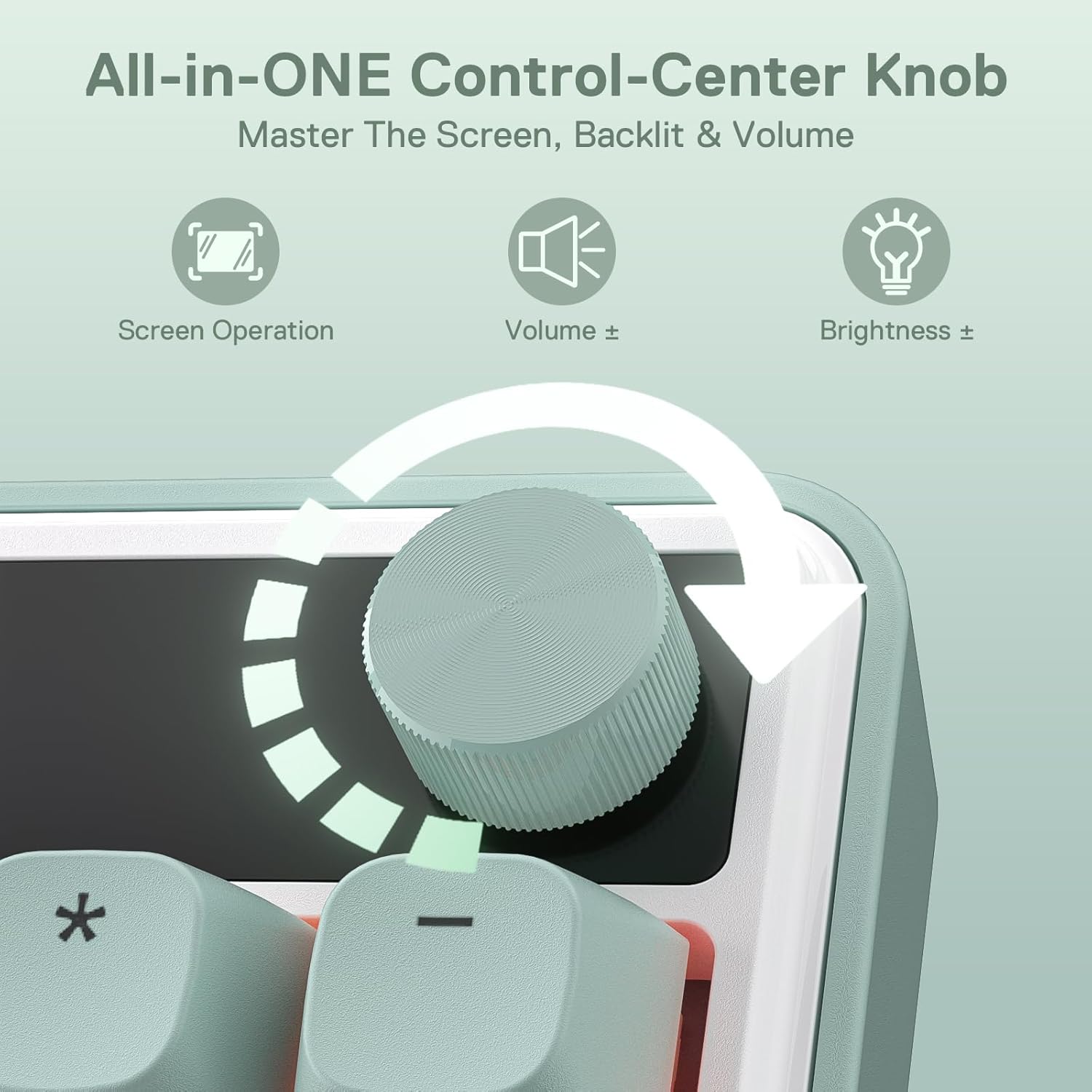
Image 4.2: The all-in-one control knob, illustrating its functions for screen operation, volume adjustment, and backlight brightness control.
4.3 Backlight Adjustment
The keyboard features 18 backlight modes. Adjust brightness and speed using the following key combinations:
- FN + ▲ / ▼: Adjust backlight brightness.
- FN + ◀ / ▶: Adjust backlight speed.

Image 4.3: The Redragon Pro Software interface, demonstrating options for GIF settings, macro editing, key redefinition, and RGB backlight customization.
4.4 Pro Software
Download the dedicated software from the Redragon website (redragonshop.com) to customize RGB lighting, create macros, redefine keybindings, and manage GIF displays on the info screen. The on-screen time will automatically synchronize with your PC's system time upon the software's initial launch.
5. Maintenance
5.1 Cleaning
To clean your keyboard, power it off and disconnect it. Use a soft, dry cloth to wipe the surface. For deeper cleaning, use a can of compressed air to remove dust and debris from between the keycaps. Avoid using liquid cleaners directly on the keyboard.
5.2 Keycap and Switch Replacement
The Redragon K761 features hot-swappable sockets, allowing for easy replacement of switches. Use the provided keycap/switch puller to carefully remove keycaps and switches. Ensure replacement switches are compatible (3/5 pins).

Image 5.1: Detail of the custom linear switches and hot-swap sockets, indicating compatibility with both 3-pin and 5-pin switches.
6. Troubleshooting
If you encounter issues with your Redragon K761 keyboard, refer to the following common problems and solutions:
| Problem | Possible Solution |
|---|---|
| Keyboard not responding (Wired) | Ensure the USB-C cable is securely connected to both the keyboard and the computer. Try a different USB port or cable. |
| Keyboard not responding (2.4GHz Wireless) | Ensure the 2.4GHz dongle is properly inserted into a USB port. Check keyboard battery level. Re-pair the dongle if necessary (refer to specific pairing instructions in the full manual if available). |
| Keyboard not responding (Bluetooth) | Ensure Bluetooth is enabled on your device and the keyboard is in Bluetooth mode. Check battery level. Re-pair the keyboard via your device's Bluetooth settings. |
| Backlight not working or dim | Adjust brightness using FN + ▲ / ▼. Ensure the keyboard is charged. Check software settings if applicable. |
| Specific keys not working | Carefully remove the keycap and switch using the puller. Inspect for debris or damage. Replace the switch if faulty. |
| Info screen not displaying correctly | Ensure the keyboard is powered on and connected. If using the software, verify settings. A firmware update might be available. |
7. Specifications
Key technical specifications for the Redragon K761 Wireless Gasket Gaming Keyboard:
- Brand: Redragon
- Model Number: K761
- Model Name: Wyvern
- Number of Keys: 104
- Keyboard Layout: QWERTY
- Connectivity Technology: 2.4Ghz Wireless, Bluetooth (BT 3.0/5.0), USB-C Wired
- Switch Type: Custom Linear (Mint Mambo Switch)
- Mechanical Keyboard Switch Model: Redragon Custom Switch
- Special Features: 104 Keys Gasket Design, 3-Mode Tech, Custom Mambo Switch, 1.26'' TFT Info Display & Knob, Knob Control, 5-Layer Noise Dampening
- Keyboard Backlighting: RGB
- Compatible Devices: PC, Laptop, Tablet
- Material: Acrylonitrile Butadiene Styrene, Polybutylene Terephthalate
- Item Weight: 0.88 Kilograms
- Water Resistance Level: Water Resistant
- Power Source: Wired (for charging and wired mode)
8. Warranty and Support
8.1 Warranty Information
The Redragon K761 Wireless Gasket Gaming Keyboard comes with a 1-year warranty from the date of purchase. This warranty covers manufacturing defects and malfunctions under normal use. Please retain your proof of purchase for warranty claims.
8.2 Customer Support
For technical assistance, troubleshooting, or warranty inquiries, please visit the official Redragon website or contact their customer support:
- Website: www.redragonshop.com
- Refer to the website for contact details and support resources.


