
OBZ OY-20-US
OBZ OY-20-US Handheld USB Wired 1D/2D Barcode Scanner
Instruction Manual
Introduction
Thank you for choosing the OBZ OY-20-US Handheld USB Wired 1D/2D Barcode Scanner. This device is designed for efficient and accurate scanning of various barcode types, enhancing productivity in diverse environments such as retail, inventory management, and libraries. This manual provides essential information for setting up, operating, and maintaining your scanner.
Product Features
- Powerful & Versatile Scanning: Equipped with a 32-bit high-performance decoding chip for fast and accurate reading of both 1D and 2D codes, including partially incomplete or illegible ones.
- Multiple Scanning Modes: Supports Manual, Continuous, and Automatic Induction Scanning modes to suit different operational needs.
- Plug-and-Play USB Connectivity: Easy setup with no driver installation required, compatible with Android, Windows, and Linux systems.
- Broad Barcode Support:
- 2D Barcodes: QR Code, Data Matrix, PDF-417, etc.
- 1D Barcodes: Code 128, EAN-8, EAN-13, UPC-A, UPC-E, ISBN, ISSN, Code 11, Code 39, Code 93, Code 32, Interleave 2 of 5, Matrix 2 of 5, Industrial 2 of 5, Codebar, MSI Plessey.
- Data Editing Capabilities: Supports adding prefixes and suffixes to scanned data.
- Multi-language Keyboard Support: Enhances usability across different regions.
- Rugged & Ergonomic Design: Features a comfortable ergonomic shape with a shock-absorbing TPU rubber casing, designed to withstand drops of up to 1.5 meters (5 feet) to hard surfaces, ensuring durability.
- Eco-Friendly Materials: Constructed with certified eco-friendly materials for safety and sustainability.
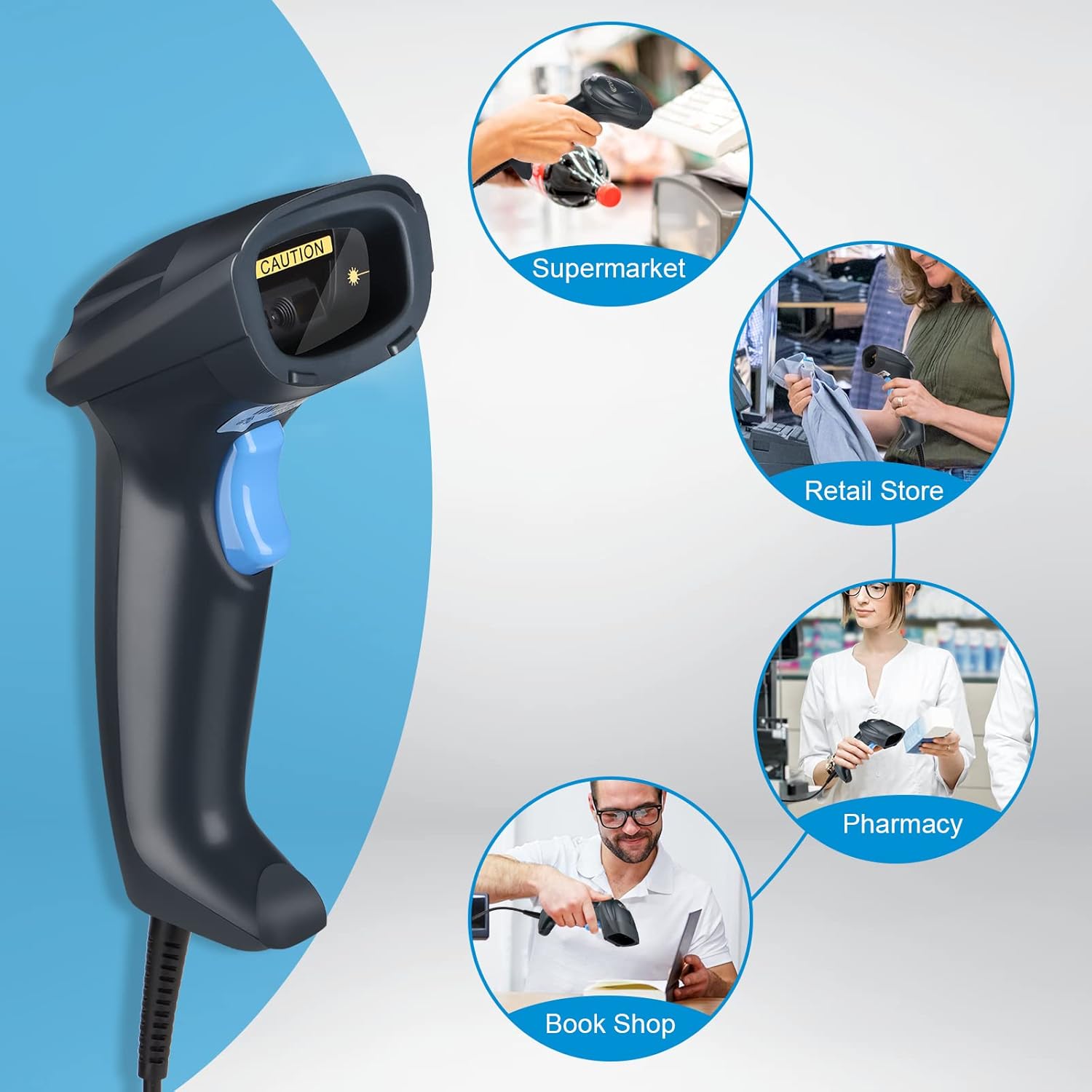
Image: The OBZ Handheld Barcode Scanner in various usage environments, highlighting its versatility.

Image: Illustration of the scanner's robust design, capable of withstanding drops from a height of 1.5 meters.
Package Contents
Upon opening the package, please verify that all components are present and in good condition:
- OBZ OY-20-US Handheld Barcode Scanner
- USB Cable (attached)
- Instruction Manual (this document)
Video: An unboxing and initial setup demonstration of the OBZ Barcode Scanner, showing how to connect it and scan various barcodes from physical items and screens.
Setup
1. USB Connection (Plug & Play)
- Locate the USB cable attached to the barcode scanner.
- Insert the USB-A connector of the cable into an available USB port on your computer (PC, Laptop), POS system, or compatible Android/Linux device.
- The scanner will automatically install necessary drivers (if required by the operating system) and be ready for use. No additional software installation is typically needed.
- A successful connection is usually indicated by a short beep and/or an LED indicator on the scanner.

Image: The scanner's USB cable being plugged into a laptop, illustrating its plug-and-play compatibility with various operating systems.
Operating Instructions
1. Basic Scanning
- Point the scanner's window at the barcode you wish to scan.
- Press the trigger button (blue button) to activate the scanning beam.
- Ensure the scanning beam covers the entire barcode. A successful scan is indicated by a beep and the data appearing on your connected device.
2. Scanning Modes
The scanner supports three operational modes:
- Manual Mode: Press the trigger for each scan. Ideal for precise, controlled scanning.
- Continuous Mode: The scanning beam remains active, continuously scanning barcodes without needing to press the trigger each time. Useful for high-volume scanning.
- Automatic Induction Scanning: The scanner automatically detects a barcode within its field of view and scans it without manual trigger activation.
Refer to the included quick setup guide or the manufacturer's website for instructions on how to switch between these modes, typically by scanning specific configuration barcodes.
3. 1D/2D/QR Code Scanning
The OBZ OY-20-US scanner is capable of reading a wide range of 1D and 2D barcodes from both printed labels and digital screens.

Image: The scanner demonstrating its ability to read both 1D and 2D QR codes from digital displays and physical products.
4. Scanning Challenging Barcodes
The advanced decoding capability allows for scanning of various challenging barcode conditions:
- Reflective Barcodes: Adjust the scanning angle to minimize glare.
- Distorted Barcodes: Try scanning from different distances and angles.
- Damaged or Blurred Barcodes: The scanner's powerful decoding chip can often read these, but multiple attempts or slight angle adjustments may be necessary.
- Colorful Barcodes: The scanner is designed to handle various color contrasts.
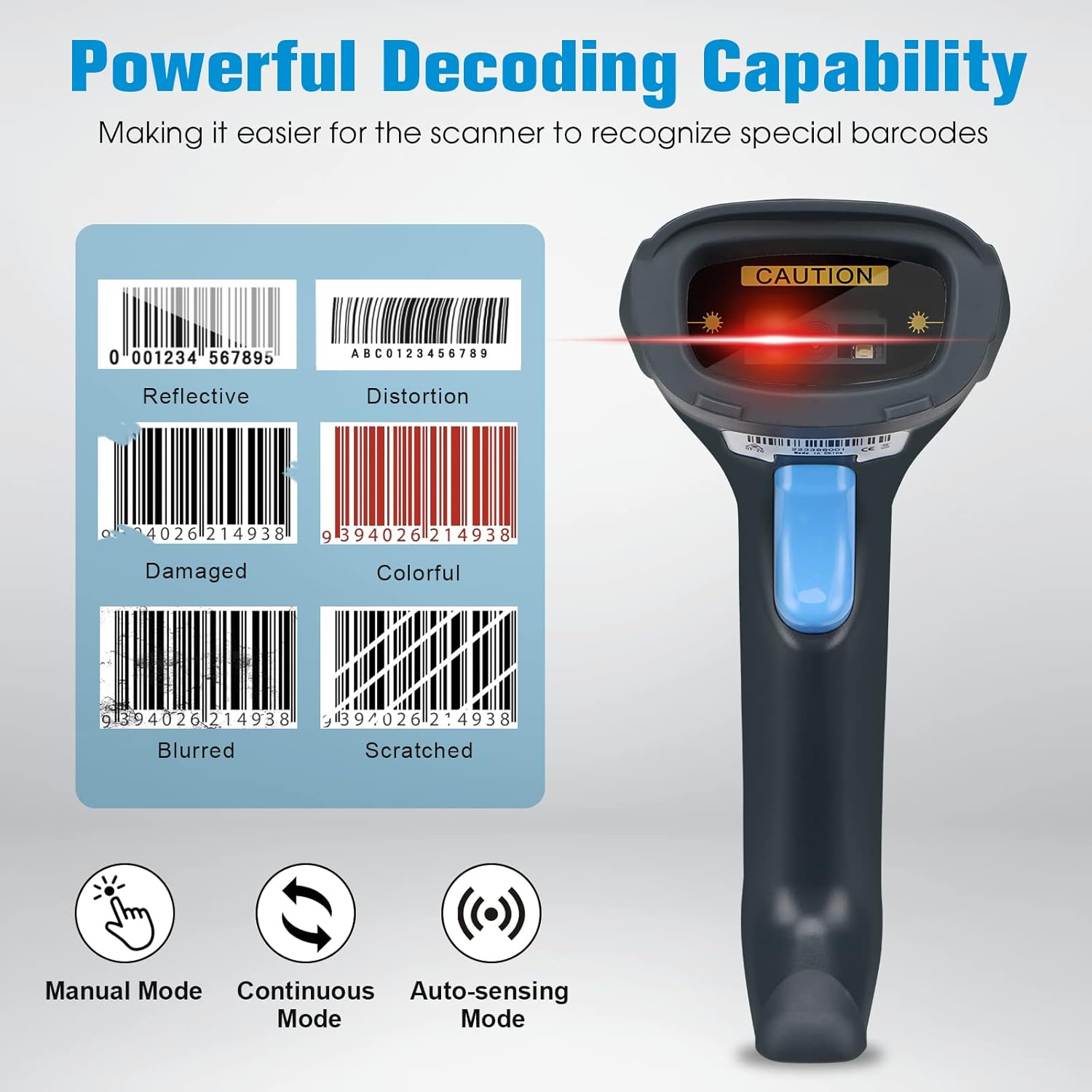
Image: Visual representation of the scanner's ability to decode various types of challenging barcodes, including those that are reflective, distorted, damaged, colorful, blurred, or scratched.
5. Data Editing (Prefix/Suffix)
The scanner supports advanced data editing functions, such as adding custom prefixes or suffixes to scanned data. This feature is configurable by scanning specific setup barcodes found in the comprehensive user guide (not included in this basic manual). This allows for seamless integration with various software systems that require specific data formats.
6. Multi-language Keyboard Support
The scanner supports multiple keyboard layouts, ensuring compatibility with different regional settings. This feature is configurable by scanning specific setup barcodes found in the comprehensive user guide.
Maintenance
- Cleaning: Regularly clean the scanner's window with a soft, lint-free cloth. For stubborn dirt, slightly dampen the cloth with water or a mild, non-abrasive cleaner. Avoid harsh chemicals.
- Storage: Store the scanner in a cool, dry place away from direct sunlight and extreme temperatures.
- Cable Care: Avoid bending or twisting the USB cable excessively to prevent internal damage.
- Drop Protection: While designed to be rugged, avoid unnecessary drops or impacts to prolong the scanner's lifespan.
Troubleshooting
| Problem | Possible Cause | Solution |
|---|---|---|
| Scanner does not power on. | USB cable not properly connected or faulty USB port. | Ensure the USB cable is securely plugged into both the scanner and the host device. Try a different USB port or host device. |
| Scanner does not read barcodes. | Incorrect scanning angle, dirty scanner window, unsupported barcode type, or scanner in an incorrect mode. | Adjust scanning angle and distance. Clean the scanner window. Verify the barcode type is supported. Ensure the scanner is in the correct operating mode (e.g., Manual, Continuous). |
| Scanned data is incorrect or incomplete. | Partially damaged barcode, incorrect data editing settings, or host device input issues. | Try scanning the barcode multiple times from different angles. Check data editing settings (prefixes/suffixes) if configured. Ensure the host device's input method is correctly set. |
| Scanner is slow or unresponsive. | Host device performance issues or excessive background processes. | Restart the host device. Close unnecessary applications. Ensure the USB connection is stable. |
Specifications
| Feature | Detail |
|---|---|
| Model Number | OY-20-US |
| Connectivity Technology | USB Cable, USB-HID |
| Compatible Devices | PC, POS, Tablet (Windows, Android, Linux systems) |
| Supported Barcodes (1D) | Code 128, EAN-8, EAN-13, UPC-A, UPC-E, ISBN, ISSN, Code 11, Code 39, Code 93, Code 32, Interleave 2 of 5, Matrix 2 of 5, Industrial 2 of 5, Codebar, MSI Plessey |
| Supported Barcodes (2D) | QR Code, Data Matrix, PDF-417 |
| Scanning Modes | Manual, Continuous, Automatic Induction |
| Item Weight | 3.95 ounces |
| Package Dimensions | 8.07 x 3.94 x 3.15 inches |
| Power Source | Corded Electric, USB Cable |
| Manufacturer | OBZ |
Warranty and Support
OBZ is committed to providing reliable products and customer satisfaction. This product undergoes rigorous pre-shipment aging tests to ensure stable, long-term performance.
For any questions, technical support, or warranty inquiries, please contact OBZ customer service through the retailer where the product was purchased or refer to the official OBZ website for contact information.
Related documentsOY-20-US


Ask a question about this manual
Ask about setup, troubleshooting, compatibility, parts, safety, or missing instructions. Manuals+ will review the question and use this page’s manual context to help answer it.