
1. Introduction
The SilverStone RM4A is a 4U rackmount server chassis designed for professional users requiring high performance and reliability. This chassis offers extensive liquid cooling compatibility and flexible expansion options, making it suitable for diverse and demanding server applications. This manual provides essential information for the proper installation, operation, and maintenance of your RM4A chassis.
2. Safety Information
- Always disconnect the power supply from the wall outlet before performing any installation, maintenance, or troubleshooting procedures.
- Wear an anti-static wrist strap when handling internal components to prevent electrostatic discharge (ESD) damage.
- Ensure proper grounding of the chassis and all connected components.
- Do not operate the chassis in environments with excessive dust, humidity, or extreme temperatures.
- Refer to the manuals of your motherboard, power supply, and other components for specific installation instructions and safety guidelines.
- Handle sharp edges and components with care to avoid injury.
3. Package Contents
Verify that all components are present in your package:
- SilverStone RM4A 4U Rackmount Server Chassis
- Accessory kit (screws, standoffs, cable ties, etc.)
- User Manual (this document)
4. Key Features
- Supports up to SSI-EEB motherboards (12" x 13"), SSI-CEB (12" x 10.5"), and E-ATX (12" x 13").
- Accommodates 360mm liquid cooling radiators and two 80mm rear fans for enhanced heat dissipation.
- Features eight standard-size PCI/PCIe expansion slots.
- Includes a unique card retention bracket to secure graphics and expansion cards.
- Equipped with a convenient USB Type-C interface and two USB 3.0 ports on the front panel.
- Supports hard drive mounting on the expansion card retainer.
- Compatible with PS2 (ATX) and Mini Redundant power supplies.
5. Setup and Installation
5.1 Chassis Overview
Familiarize yourself with the external and internal layout of the RM4A chassis.

Figure 5.1: Front view of the RM4A chassis, showing the perforated front panel and handles.

Figure 5.2: Rear view of the RM4A chassis, showing expansion slots, fan mounts, and PSU cutout.

Figure 5.3: Internal layout of the RM4A chassis, illustrating component placement such as motherboard, fans, and expansion cards.
5.2 Motherboard Installation
The RM4A supports SSI-EEB, SSI-CEB, and E-ATX motherboards. Install the necessary standoffs for your motherboard form factor before securing the motherboard with screws.

Figure 5.4: Motherboard compatibility and layout within the chassis.
5.3 Expansion Card Installation
The chassis provides eight full-height expansion slots. Remove the slot covers, insert your PCI/PCIe cards, and secure them using the provided screws and the expansion card retention bracket.
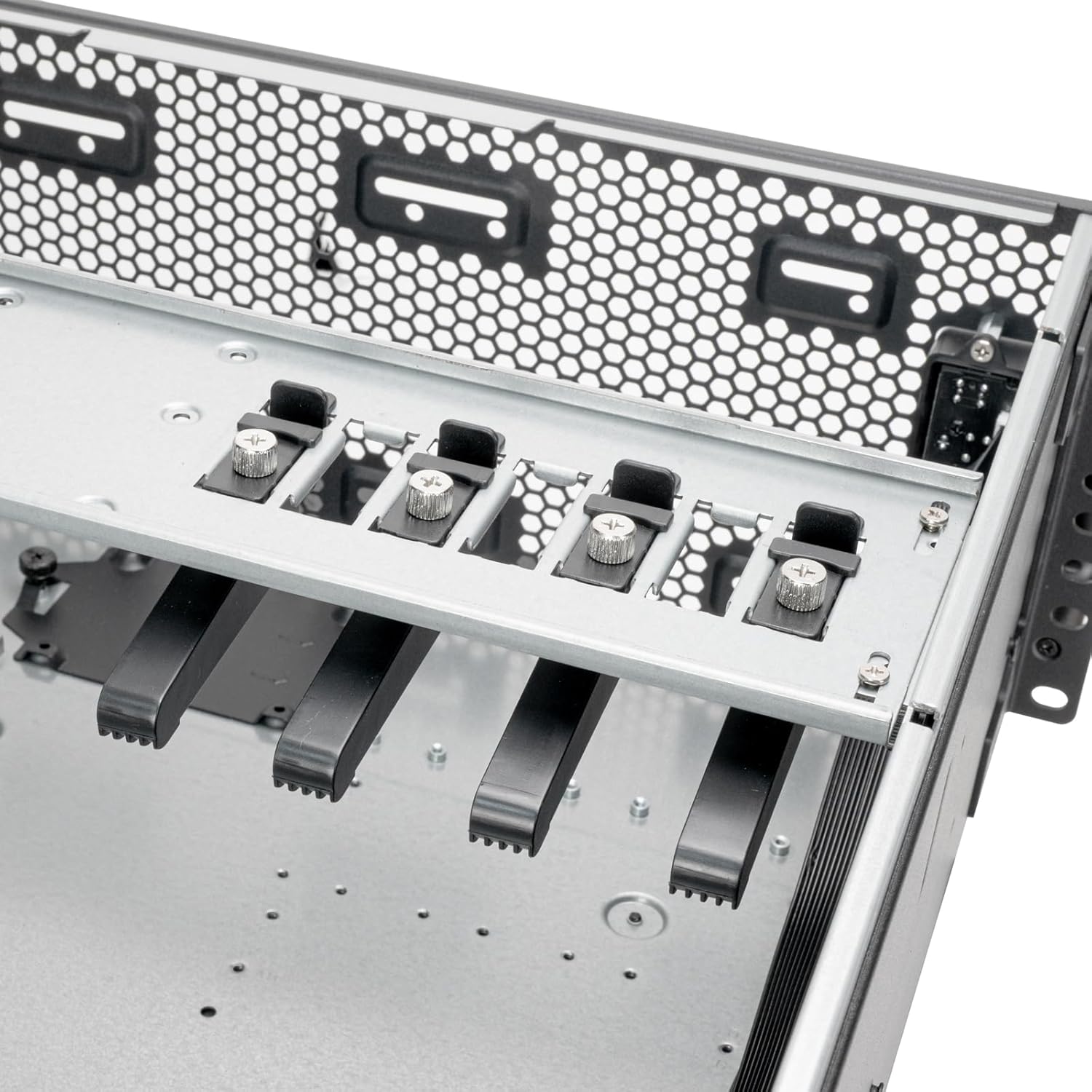
Figure 5.5: Expansion card retention bracket for securing PCI/PCIe cards.
5.4 Storage Device Installation
The RM4A supports 2.5" SSDs and 3.5" HDDs. Mount 2.5" SSDs in the designated trays and 3.5" HDDs on the expansion card retainer if applicable.

Figure 5.6: Storage mounting locations, including SSD trays and HDD mounting on the expansion card retainer.
5.5 Cooling System Installation
Install up to a 360mm liquid cooling radiator at the front and two 80mm fans at the rear for optimal airflow. Ensure fans are oriented correctly for intake and exhaust.

Figure 5.7: Cooling system support for 360mm radiators and 80mm rear fans.
5.6 Power Supply Unit (PSU) Installation
Install your PS2 (ATX) or Mini Redundant power supply into the designated bay at the rear of the chassis. Secure it with screws.

Figure 5.8: Power supply mounting area.
5.7 Front Panel Connections
Connect the front panel cables (USB Type-C, USB 3.0, Power, Reset, LED indicators) to the corresponding headers on your motherboard. Refer to your motherboard manual for header locations.

Figure 5.9: Front panel I/O, including USB Type-C, USB 3.0 ports, and power/reset buttons.
6. Operating Instructions
After completing all hardware installations and connections, connect the power cable to the PSU and a wall outlet. Press the power button on the front panel to turn on the system. The LED indicators will illuminate to show system status.
- Power On/Off: Press the power button to turn the system on or off. A short press typically initiates a soft shutdown, while a long press forces a power off.
- System Reset: Use the reset button for a system restart if needed.
- USB Ports: Utilize the front USB Type-C and USB 3.0 ports for connecting peripherals and external storage devices.
7. Maintenance
Regular maintenance helps ensure the longevity and optimal performance of your RM4A chassis and its components.
- Dust Cleaning: Periodically clean dust from the chassis interior, fan filters, and cooling fins using compressed air or a soft brush. Dust accumulation can impede airflow and lead to overheating.
- Cable Management: Ensure internal cables are neatly routed and secured to prevent obstruction of airflow and potential damage.
- Fan Inspection: Check fans for proper operation and clean any dust buildup on blades. Replace noisy or malfunctioning fans.
- Component Checks: Occasionally inspect all installed components for secure connections and proper seating.
8. Troubleshooting
If you encounter issues with your RM4A chassis, consider the following basic troubleshooting steps:
- No Power:
- Verify that the power cable is securely connected to both the PSU and the wall outlet.
- Ensure the PSU switch is in the 'ON' position.
- Check all power connections from the PSU to the motherboard and components.
- System Not Booting:
- Confirm that the CPU, RAM, and graphics card (if applicable) are properly seated.
- Check all motherboard power connectors (24-pin ATX, 8-pin EPS).
- Ensure front panel power switch cable is correctly connected to the motherboard.
- Overheating:
- Ensure all fans are spinning and free of obstructions.
- Clean any dust buildup from fans and radiator fins.
- Verify proper thermal paste application on the CPU cooler.
- USB Ports Not Functioning:
- Check the internal USB header connections from the front panel to the motherboard.
- Ensure motherboard USB drivers are installed.
9. Specifications
| Brand | SilverStone |
| Model Number | RM4A |
| Form Factor | 4U Rackmount |
| Material | Metal |
| Color | Black |
| Dimensions (Size) | 4U x 17" x 24" |
| Motherboard Support | SSI-EEB, SSI-CEB, E-ATX |
| Expansion Slots | 8 x PCI/PCIe |
| Cooling Support | Front: 360mm radiator; Rear: 2 x 80mm fans |
| Front I/O Ports | 1 x USB Type-C, 2 x USB 3.0, Power On/Off, System Reset, LED Status Indicators |
| Power Supply Support | PS2 (ATX) / Mini Redundant |
| UPC | 844761029500 |
10. Warranty & Support
10.1 Warranty Information
The SilverStone RM4A chassis comes with a 1 Year Manufacturer Warranty. Please retain your proof of purchase for warranty claims. The warranty covers defects in materials and workmanship under normal use. It does not cover damage caused by misuse, accident, modification, or unauthorized repair.
10.2 Technical Support
For technical assistance, troubleshooting, or further inquiries, please visit the official SilverStone website or contact their customer support. You can find more information and resources at the SilverStone Store on Amazon or their official corporate website.


