
1. Introduction
Thank you for choosing the UPERFECT 18.5 Inch 120Hz Portable Monitor. This manual provides essential information for the safe and efficient use of your new portable display. Please read these instructions carefully before operating the device and retain them for future reference.
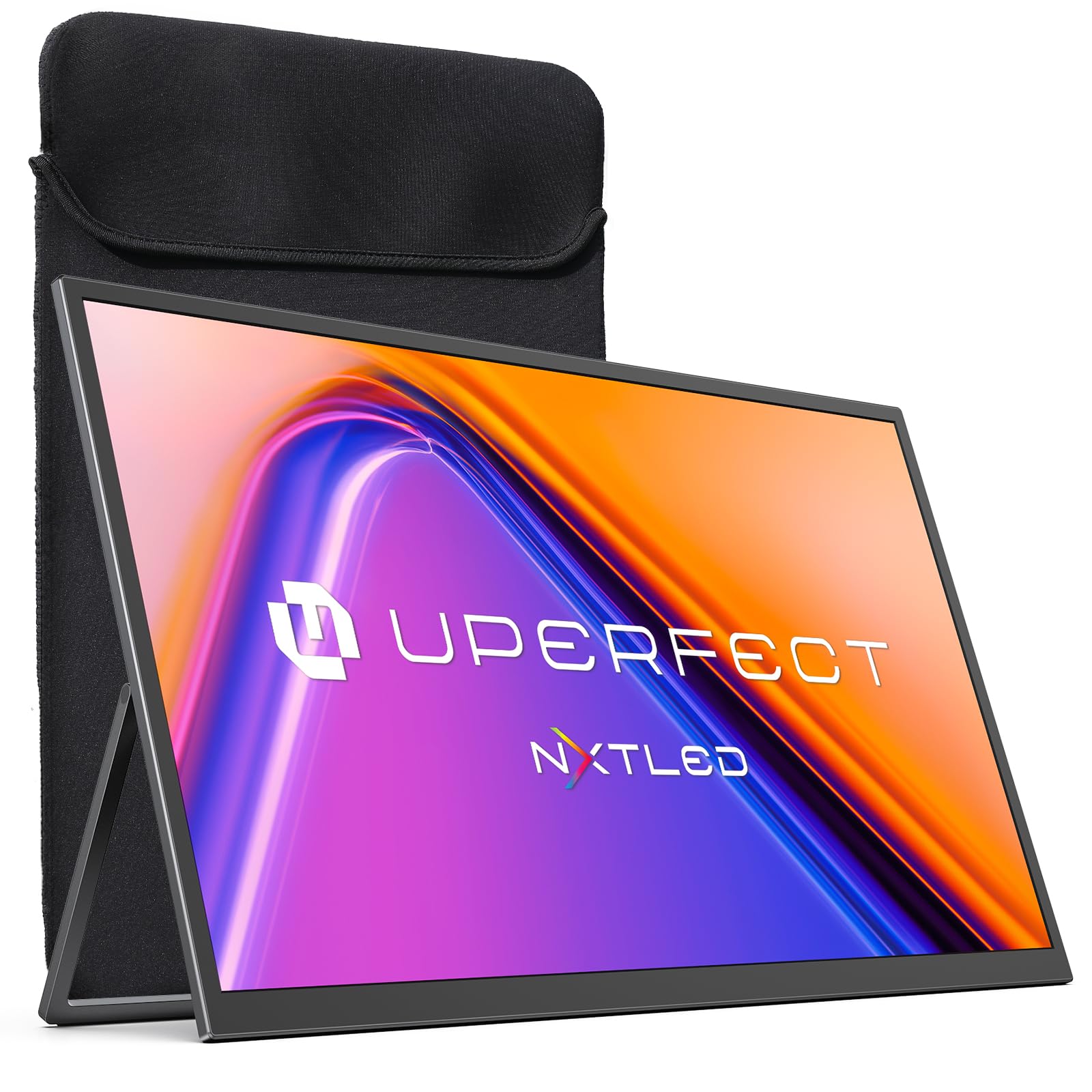
Image 1.1: UPERFECT 18.5 Inch 120Hz Portable Monitor. This image displays the monitor from a front-angle view, showcasing its slim design and screen.
2. Safety Information
- Do not expose the monitor to rain, moisture, or extreme temperatures.
- Avoid placing the monitor near heat sources or in direct sunlight.
- Use only the power adapter and cables provided or recommended by UPERFECT.
- Do not attempt to disassemble or repair the monitor yourself. Refer all servicing to qualified personnel.
- Keep the monitor away from strong magnetic fields.
- Clean the screen with a soft, lint-free cloth. Avoid using abrasive cleaners or solvents.
3. Package Contents
Please check the package contents upon unboxing. If any items are missing or damaged, contact UPERFECT customer support.
- UPERFECT 18.5 Inch 120Hz Portable Monitor
- Protective Case/Stand
- USB-C to USB-C Cable
- Mini HDMI to HDMI Cable
- USB-A to USB-C Power Cable
- Power Adapter
- User Manual

Image 3.1: Monitor and accessories. This image shows the portable monitor alongside its protective case, USB-C, Mini HDMI, and power cables.
4. Monitor Features
The UPERFECT 18.5 Inch 120Hz Portable Monitor is designed for versatility and high performance, offering a range of features for various applications.
- 18.5-inch Full HD (1920x1080) Display: Provides a large, clear viewing area.
- 120Hz Refresh Rate: Ensures smooth visuals, ideal for gaming and fast-paced content.
- Matte Screen: Reduces glare and reflections for comfortable viewing.
- USB-C and Mini HDMI Connectivity: Offers broad compatibility with various devices.
- Metal Case: Durable and premium build quality.
- VESA Compatible: Allows for flexible mounting options (75x75mm).
- NxtLED™ Technology: Advanced display technology for enhanced color and reduced flicker.
- TrueSight Care™: Hardware-level low blue light and 145% sRGB gamut for eye comfort and accurate colors.
- Omni Visible™: Improved sunlight readability with 300% better glare reduction.
- 178° Wide Viewing Angle: Consistent image quality from various perspectives.
- 1ms MPRT & FreeSync: Reduces motion blur and screen tearing for a fluid experience.
- 600 Lux Brightness & 2000:1 Contrast Ratio: Delivers vibrant and detailed images.

Image 4.1: NxtLED™ Display Revolution. This diagram illustrates the layers of NxtLED technology, including backlight innovation, optical matrix, soft light film, and glass, designed for enhanced display performance.

Image 4.2: Eye Comfort Features. This image highlights the monitor's Paper-Like, Flicker-Free, and Fatigue-Free attributes, showing a user comfortably working with the display.

Image 4.3: TrueSight Care™ for Eye Health and Color Accuracy. This image demonstrates the monitor's low blue light and accurate color reproduction capabilities, showing a split screen comparison of image editing.

Image 4.4: Omni Visible™ Sunlight Readability. This image illustrates the monitor's enhanced visibility in bright light conditions, showcasing a vertical monitor display next to a standard monitor.

Image 4.5: 178° Wide Viewing Angle. This image demonstrates the monitor's wide viewing angles, showing three monitors displaying the same content from different perspectives.

Image 4.6: Performance Features. This image highlights key performance specifications such as 120Hz refresh rate, 145% sRGB, HDR, 1ms MPRT, FreeSync, 8-bit color, 600 Lux brightness, and 2000:1 contrast ratio.
5. Setup
5.1 Connecting to a Device
The monitor supports both USB-C and Mini HDMI connections for video input and power.
- USB-C Connection: For devices with a full-featured USB-C port (supporting DisplayPort Alternate Mode and power delivery), connect the monitor using the provided USB-C to USB-C cable. This single cable can transmit video, audio, and power.
- Mini HDMI Connection: For devices with an HDMI output, use the provided Mini HDMI to HDMI cable for video and audio. In this setup, the monitor will require external power via the USB-C power port using the USB-A to USB-C power cable and power adapter.
5.2 Powering On
After connecting the monitor to your device and ensuring power is supplied (either via USB-C or external power adapter), the monitor should automatically detect the input and power on. If not, press the power button located on the side of the monitor.
5.3 VESA Mounting
The monitor features VESA 75x75mm mounting holes, allowing it to be attached to compatible monitor arms or wall mounts. Ensure the mount can support the weight of the monitor and follow the mount manufacturer's instructions for installation.

Image 5.1: VESA Mounting Option. This image shows the rear of the monitor, highlighting the 75x75mm VESA mounting holes for bracket installation.
6. Operating the Monitor
6.1 On-Screen Display (OSD) Menu
The OSD menu allows you to adjust various display settings. Typically, buttons on the side or back of the monitor are used to navigate the menu. Refer to the physical buttons on your monitor for specific controls (e.g., Menu, Up, Down, Exit/Enter).
6.2 Input Source Selection
The monitor can automatically detect the active input source. If it does not, or if you wish to switch between connected devices, access the OSD menu and select the desired input source (e.g., USB-C, HDMI).
6.3 Display Settings
Within the OSD menu, you can adjust settings such as:
- Brightness/Contrast: Adjust the overall luminance and difference between light and dark areas.
- Color Settings: Modify color temperature, hue, and saturation.
- Aspect Ratio: Choose between 16:9, 4:3, or other available options.
- Refresh Rate: Confirm or set the desired refresh rate (up to 120Hz).
- HDR Mode: Enable or disable High Dynamic Range for compatible content.
- Low Blue Light: Adjust settings to reduce blue light emission for eye comfort.
7. Maintenance
7.1 Cleaning the Screen
To clean the screen, gently wipe it with a soft, lint-free cloth. For stubborn marks, lightly dampen the cloth with water or a screen-specific cleaning solution. Never spray liquid directly onto the screen.
7.2 General Care
- Avoid touching the screen with sharp objects.
- When transporting the monitor, use the provided protective case to prevent scratches and damage.
- Store the monitor in a cool, dry place when not in use.
8. Troubleshooting
If you encounter issues with your monitor, refer to the following common problems and solutions:
- No Signal / Black Screen:
- Ensure all cables (USB-C, HDMI, power) are securely connected.
- Verify the input source selected in the OSD menu matches your connection.
- If using HDMI, ensure the monitor is receiving adequate power from the external adapter.
- Try disconnecting and reconnecting the video cable.
- Test with a different cable or device if possible.
- Flickering or Unstable Image:
- Check cable connections.
- Ensure the refresh rate setting on your device and monitor are compatible.
- Reduce the display resolution if the issue persists.
- Automatic Source Connection Issues:
- Some devices may require manual input selection via the OSD menu.
- If using USB-C, ensure your device's USB-C port supports DisplayPort Alternate Mode and power delivery.
- Try disconnecting and reconnecting the USB-C cable if the monitor fails to detect the signal automatically.
- No Sound:
- Check the volume settings on both the monitor and your connected device.
- Ensure the audio output on your device is set to the monitor.
9. Specifications
| Feature | Specification |
|---|---|
| Brand | UPERFECT |
| Model | B0G143NVPX |
| Screen Size | 18.5 inches |
| Resolution | FHD 1920 x 1080p |
| Aspect Ratio | 16:9 |
| Screen Surface | Matte |
| Refresh Rate | 120 hertz |
| Display Type | LCD |
| Item Dimensions (D x W x H) | 9.45"D x 15.35"W x 0.39"H |
| Connectivity Technology | HDMI, USB Type C |
| Hardware Connectivity | Mini HDMI, USB Type C |
| Additional Features | Anti Glare Screen, Portable, VESA Compatible |
9.1 Energy Information
For detailed energy consumption data and product information sheet, please refer to the EPREL database.
Image 9.1: EU Energy Label. This label indicates the energy efficiency class and power consumption of the UPERFECT monitor. (Note: The image URL provided for the energy label is identical to the main product image URL in the source data.)
EPREL Database Link: https://eprel.ec.europa.eu/qr/1524708
10. Warranty and Support
UPERFECT products come with a standard manufacturer's warranty. Please refer to the warranty card included in your package or visit the official UPERFECT website for detailed warranty terms and conditions.
For technical support, troubleshooting assistance, or warranty claims, please contact UPERFECT customer service. You can typically find contact information on the UPERFECT website or through your purchase platform.
Supplier Address: evamaster Consulting GmbH, Bettinastr. 30, 60325 Frankfurt am Main, DE


