
Introduction
This manual provides essential information for setting up, operating, maintaining, and troubleshooting your Dell Precision 3470 14" Mobile Workstation. Please read this guide thoroughly to ensure optimal performance and longevity of your device.
Setup
1. Unpacking and Initial Inspection
Carefully remove your Dell Precision 3470 from its packaging. Ensure all components, including the 130W Dell Power Adapter, are present and undamaged. Inspect the laptop for any physical damage before proceeding.
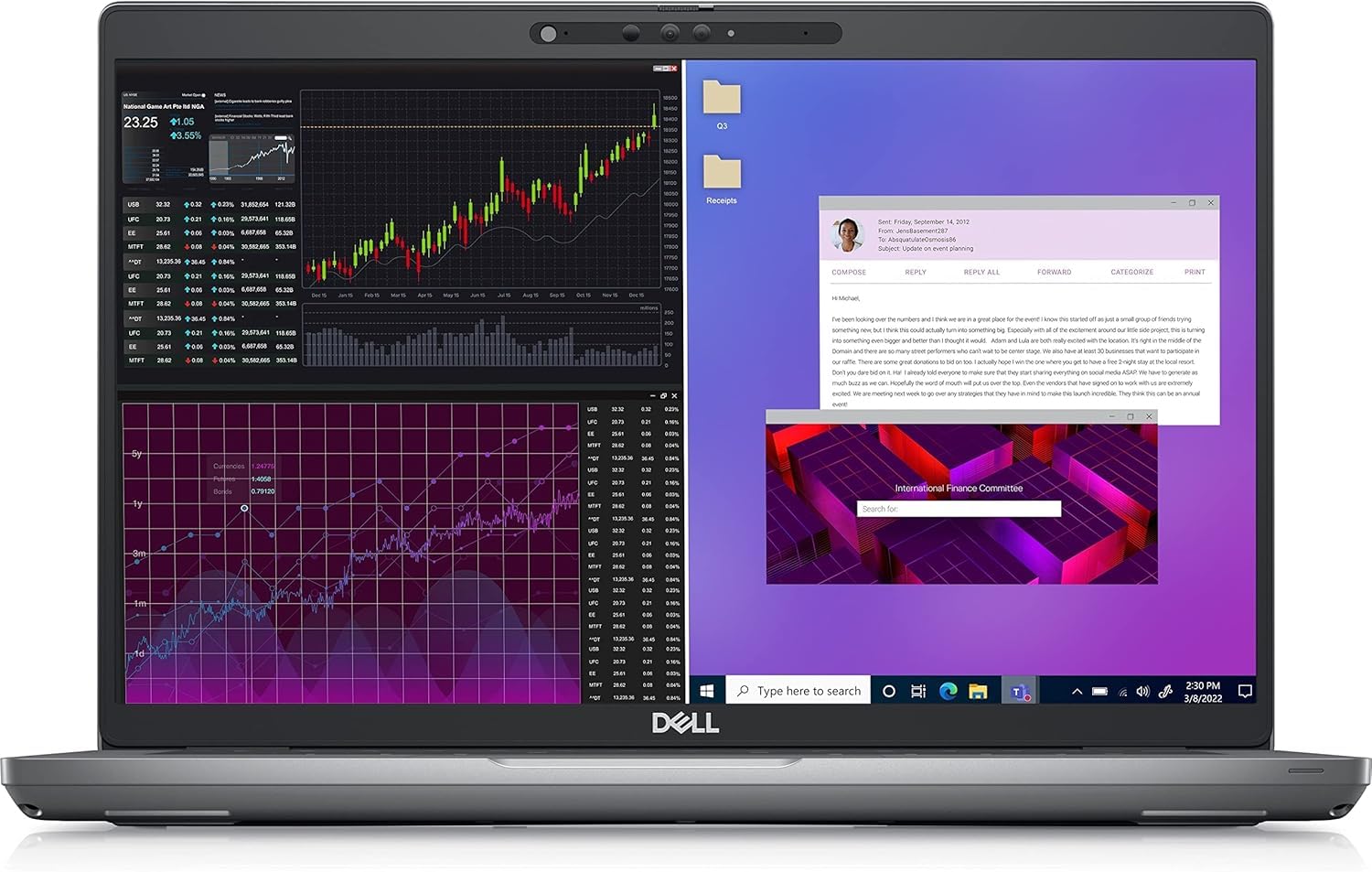
Figure 1: Top view of the Dell Precision 3470 Mobile Workstation.
2. Connecting the Power Adapter
Connect the 130W Dell Power Adapter to the USB Type-C power input port on your workstation. Plug the other end of the adapter into a power outlet. The battery will begin charging automatically.
3. Initial Boot and Operating System Setup
Press the power button to turn on your workstation. Follow the on-screen instructions to complete the initial setup of Windows 11 Pro. This includes setting up your user account, network connection, and basic preferences.
4. Connecting Peripherals
Your workstation supports various peripherals. Utilize the available ports:
- USB 3.2 Gen 1 ports: For connecting standard USB devices.
- Thunderbolt 4 ports with DisplayPort Alt Mode/USB4/Power Delivery: For high-speed data transfer, external displays, and power delivery.
- HDMI 2.0 port: For connecting external displays.
- RJ45 Ethernet port: For wired network connection.
- microSD-card slot: For memory cards.

Figure 2: Left side ports including Thunderbolt 4.

Figure 3: Right side ports including USB, HDMI, and Ethernet.
Operating Your Workstation
Using the Touch Display and Keyboard
The Dell Precision 3470 features a 14-inch FHD (1920 x 1080) 300-Nit IPS Touch Display. You can interact with the system using touch gestures or the integrated backlit keyboard and touchpad. The keyboard's backlighting can be adjusted for comfortable use in various lighting conditions.

Figure 4: Dell Precision 3470 with its display and keyboard.
Managing External Displays
To connect external displays, use the HDMI 2.0 port or the Thunderbolt 4 ports. Windows 11 Pro allows you to configure multiple displays for extended desktop or mirrored modes. Access display settings by right-clicking on the desktop and selecting "Display settings". Ensure that the scaling and resolution settings for each monitor are correctly configured to avoid magnification issues when moving windows between screens. The recommended scaling is typically 100% for optimal clarity across different display sizes.
Wireless Connectivity
Your workstation is equipped with Intel WiFi 6 AX 201 and Bluetooth 5 for wireless connectivity. Connect to Wi-Fi networks and pair Bluetooth devices through the Windows settings menu.
Maintenance
Cleaning Your Workstation
Regularly clean the screen with a soft, lint-free cloth and a screen-safe cleaning solution. Use a soft brush or compressed air to remove dust from the keyboard and ventilation grilles. Avoid using harsh chemicals or abrasive materials.
Software Updates
Keep your Windows 11 Pro operating system and drivers updated to ensure optimal performance and security. You can check for updates through the Windows Update settings.
Battery Care
To prolong battery life, avoid extreme temperatures and fully discharging the battery frequently. The 4-Cell 64Whr battery is designed for mobile use.
Troubleshooting
Display Scaling Issues with External Monitors
If applications or text appear magnified or incorrectly sized when moved between your laptop screen and an external monitor, adjust the display scaling settings. Right-click on the desktop, select "Display settings", then choose the affected monitor. Under "Scale & layout", ensure the "Scale" percentage is set to the recommended value (often 100%) for that specific display. This helps maintain consistent sizing across different resolutions.
No Power
Ensure the power adapter is securely connected to both the workstation and a working power outlet. Check the power adapter for any damage. If the battery is completely drained, it may take a few minutes for the system to respond after connecting power.
Wireless Connectivity Problems
Verify that Wi-Fi and Bluetooth are enabled in Windows settings. Restart your router or modem if experiencing Wi-Fi issues. For Bluetooth, ensure devices are in pairing mode and within range.
Specifications
| Feature | Detail |
|---|---|
| Model Name | Precision 3470 |
| Processor | 12th Gen Intel Core i7-1270P (12-Core, 4.80GHz Max Turbo) |
| RAM | 32GB DDR5 (Max 64GB) |
| Storage | 512GB PCIe SSD |
| Graphics | NVIDIA T550 4GB GDDR6 Dedicated Video |
| Display | 14 inch FHD (1920 x 1080) 300-Nit IPS Touch Display |
| Operating System | Windows 11 Pro |
| Ports | 1x RJ45 Ethernet, 2x USB 3.2 Gen 1 (1 with PowerShare), 2x Thunderbolt 4 (with DisplayPort Alt Mode/USB4/Power Delivery), 1x HDMI 2.0, 1x microSD-card slot, USB Type-C power input, 1x wedge-shaped lock slot |
| Wireless | Intel WiFi 6 AX 201, Bluetooth 5 |
| Battery | 4-Cell 64Whr |
| Dimensions (L x W x Thickness) | 12.65"L x 0.92"W x 8.35"Th |
Warranty Information
This Dell Precision 3470 Mobile Workstation includes a 1-year limited warranty from Dell. For detailed terms and conditions, please refer to the official Dell warranty documentation or visit the Dell support website.
Support
For further assistance, technical support, or to download the latest drivers and software, please visit the official Dell support website. You can also find contact information for customer service there.
Dell Support Website: www.dell.com/support


