
1. Introduction
This manual provides essential information for the proper setup, operation, and maintenance of your UPERFECT 18.5" NxtLED Portable Monitor. Please read this manual thoroughly before using the device to ensure optimal performance and longevity.
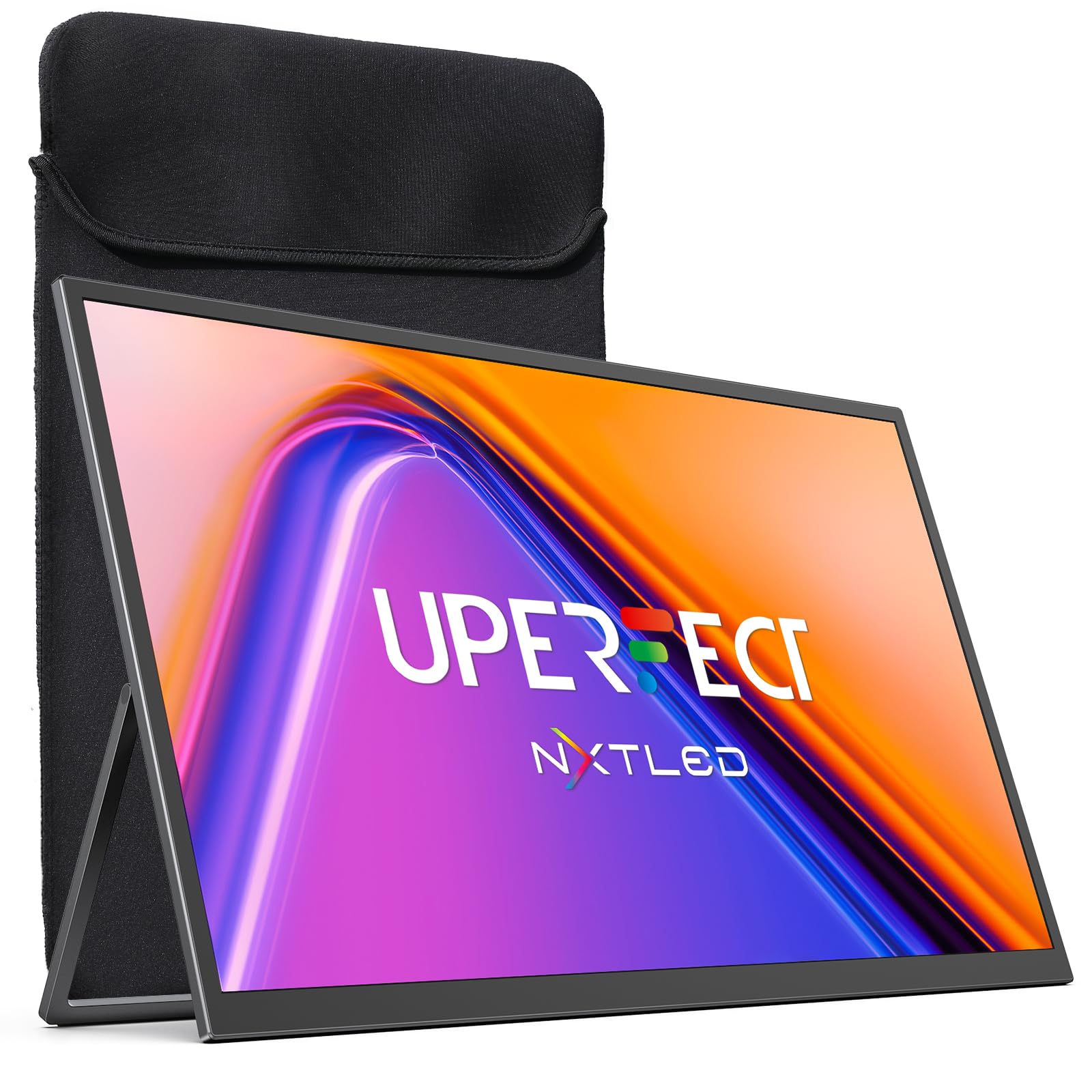
Figure 1: UPERFECT 18.5" NxtLED Portable Monitor
2. What is NxtLED™?
NxtLED™ is UPERFECT’s proprietary display system designed to optimize light at its source. It integrates several advanced technologies to deliver a superior visual experience:
- Omni Visible Visibility: Ensures clear and consistent visuals across different lighting conditions and viewing angles.
- Color-True Accuracy: Provides precise and vibrant color reproduction.
- Neutral White Calibration: Maintains a balanced white point for natural colors.
- Low Blue Light Control: Reduces harmful blue light emissions for enhanced visual comfort.
- Flicker-Free DC Dimming: Eliminates screen flicker for stable and comfortable viewing, even during extended use.
This technology aims to achieve near OLED-level color performance with enhanced visual comfort, making it ideal for creative work, entertainment, and extended use.

Figure 2: Diagram illustrating NxtLED™ display technology layers.
3. Setup
3.1. Package Contents
Verify that all items are present in the package:
- UPERFECT 18.5" NxtLED Portable Monitor
- USB-C to USB-C Cable (for power and display)
- Mini HDMI to HDMI Cable (for display)
- Power Adapter
- Protective Sleeve
- VESA Mount Screws
- User Manual (this document)
3.2. Physical Setup
The monitor features a built-in kickstand for flexible positioning. Simply extend the stand from the back of the monitor to achieve your desired viewing angle. For alternative mounting options, the monitor is VESA mountable (75x75mm design).
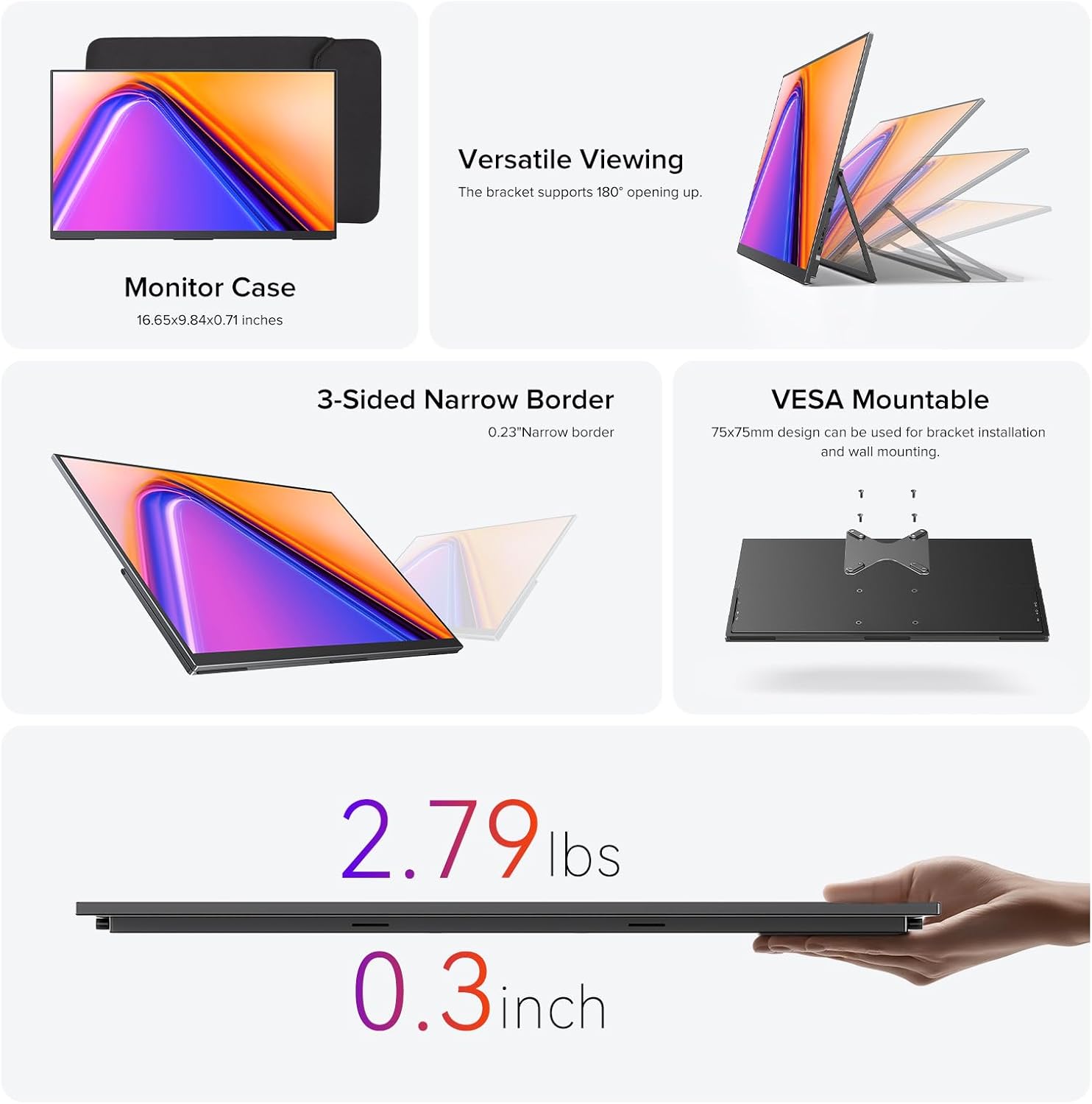
Figure 3: Monitor utilizing its built-in stand.
3.3. Connecting to Devices
The monitor offers versatile connectivity options:
- USB Type-C: Use the provided USB-C to USB-C cable for a single-cable solution for both power and video transmission with compatible devices (e.g., laptops, smartphones with DisplayPort Alternate Mode).
- Mini HDMI: Connect to devices like PCs, game consoles, or other HDMI-enabled devices using the Mini HDMI to HDMI cable. An additional USB-C cable may be required for power.
- Power: If using Mini HDMI or if your USB-C device does not provide sufficient power, connect the monitor to the power adapter using a USB-C cable.
Ensure cables are securely connected to the correct ports on both the monitor and your source device.
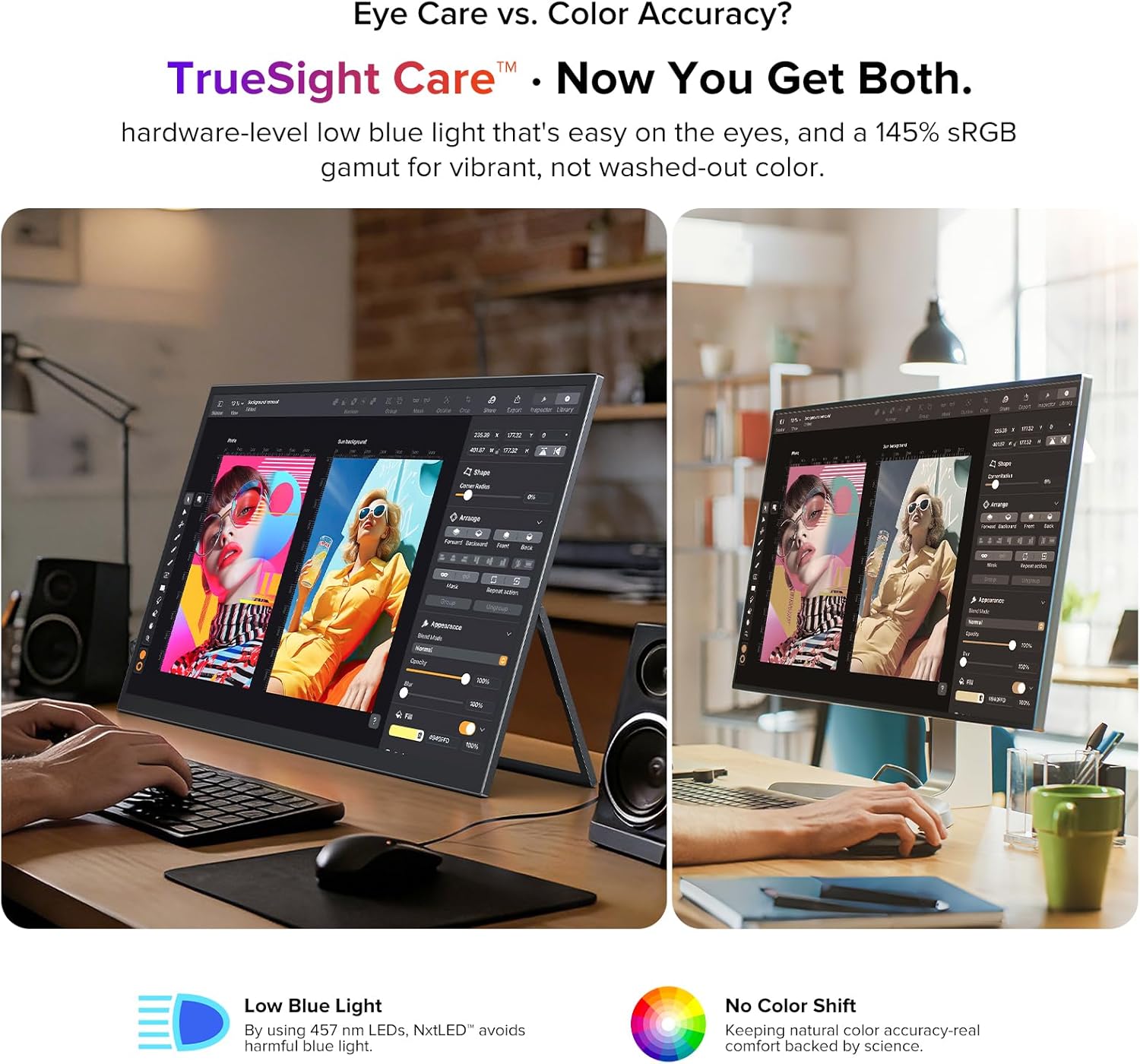
Figure 4: Monitor connected to a laptop for extended display.
4. Operating Instructions
4.1. Power On/Off
Locate the power button on the side of the monitor. Press and hold for a few seconds to power on or off. A short press may activate or deactivate the display.
4.2. On-Screen Display (OSD) Menu
The monitor features a scroll button and a return button for navigating the OSD menu. Use the scroll button to move through options and adjust values, and the return button to go back or confirm selections.
4.3. Display Settings
Within the OSD menu, you can adjust various display settings:
- Brightness/Contrast: Adjust the display's luminance and contrast levels.
- Color Temperature: Select from preset color temperatures or customize.
- Picture Mode: Choose from various modes optimized for different content (e.g., Standard, Game, Movie, Text).
- Aspect Ratio: Select between 16:9 or other available aspect ratios.
- Input Source: Manually select the input source (USB-C, Mini HDMI).
- Eye Care Features: Activate or adjust Low Blue Light and Flicker-Free settings for reduced eye strain.
4.4. Audio Output
The monitor includes a 3.5mm audio jack for connecting headphones or external speakers. Audio output can also be controlled via the OSD menu.
5. Key Features
5.1. Eye Care Display
The NxtLED™ display incorporates Omni Visible technology, DC dimming, and low blue light control to minimize eye fatigue. It provides soft, evenly balanced light and a neutral white color temperature, ensuring comfortable viewing during extended use.

Figure 5: Display with features for reduced eye strain.
5.2. Color Accuracy
With 145% sRGB color gamut and TrueSight Care, the monitor delivers vivid and accurate colors. It maintains precise color reproduction across various environments, preventing color washout or tonal shifts.

Figure 6: Monitor demonstrating color accuracy and low blue light.
5.3. Anti-Glare Matte Screen
The advanced anti-glare matte display, powered by NxtLED Omni Visible technology, significantly reduces reflections. This diffuse reflection layer transforms direct light into soft, balanced visibility, improving clarity in bright environments, including outdoor settings.

Figure 7: Monitor used in a bright environment, showcasing glare reduction.
5.4. 178° Wide Viewing Angle
Optical Matrix light distribution ensures a true 178° ultra-wide viewing angle. This means images remain bright, color-accurate, and distortion-free from almost any position, facilitating shared viewing experiences.

Figure 8: Multiple viewers enjoying a clear picture from various angles.
5.5. High Performance
The monitor features a 120Hz refresh rate, 1ms response time, and FreeSync support, providing smooth visuals for gaming and fast-paced content. It also supports HDR for enhanced dynamic range.

Figure 9: Visual representation of the monitor's high-performance features.
5.6. Portability and Design
Weighing 2.2 pounds and with a thickness of 0.3 inches, this monitor is designed for portability. It features a 3-sided narrow border for an immersive viewing experience and is VESA mountable for flexible setup options.

Figure 10: Design elements highlighting portability and mounting options.
6. Maintenance
6.1. Cleaning the Screen
To clean the screen, gently wipe it with a soft, lint-free cloth. For stubborn marks, lightly dampen the cloth with water or a screen-safe cleaning solution. Avoid using harsh chemicals, abrasive materials, or spraying liquid directly onto the screen.
6.2. General Care
- Avoid placing heavy objects on the monitor.
- Keep the monitor away from direct sunlight, heat sources, and excessive moisture.
- When transporting, use the provided protective sleeve to prevent scratches and damage.
7. Troubleshooting
7.1. No Display/Signal
- Ensure the monitor is powered on and the power indicator light is active.
- Check all cable connections (USB-C, Mini HDMI) between the monitor and the source device. Ensure they are secure.
- Verify that the correct input source is selected in the OSD menu.
- If using Mini HDMI, ensure the monitor is receiving adequate power from the power adapter.
- Test with a different cable or source device if possible to rule out faulty components.
7.2. Flickering Screen
- Ensure the power supply is stable.
- Check cable connections for looseness or damage.
- Adjust the refresh rate settings on your source device.
- Verify that Flicker-Free DC Dimming is enabled in the OSD menu.
7.3. No Audio
- Check the volume settings on both the monitor (via OSD) and your source device.
- Ensure headphones or external speakers are properly connected to the 3.5mm audio jack.
- Verify that the audio output is correctly configured on your source device.
8. Specifications
| Feature | Specification |
|---|---|
| Brand | UPERFECT |
| Model Number | NxtLED One Plus |
| Screen Size | 18.5 Inches |
| Resolution | FHD 1080p (1920x1080 Pixels) |
| Refresh Rate | 120 Hz |
| Response Time | 1 Milliseconds |
| Display Type | NxtLED |
| Aspect Ratio | 16:9 |
| Screen Finish | Matte (Anti-Glare) |
| Contrast Ratio | 2000:1 |
| Brightness | 600 Lux |
| Color Gamut | 145% sRGB |
| Viewing Angle | 178 Degrees |
| Connectivity | 2x USB Type-C, 1x Mini HDMI, 1x 3.5mm Audio Jack |
| Additional Features | Anti Glare Screen, Blue Light Filter, Eye Care, Flicker-Free, FreeSync |
| Item Weight | 2.2 Pounds |
| Power Consumption | 15 Watts |
9. Warranty and Support
9.1. Warranty Information
The UPERFECT 18.5" NxtLED Portable Monitor comes with a 2-Year Warranty from the date of purchase. This warranty covers manufacturing defects and malfunctions under normal use. Please retain your proof of purchase for warranty claims.
9.2. Customer Support
For technical assistance, troubleshooting, or warranty inquiries, please visit the official UPERFECT website or contact their customer support team. Refer to the contact information provided on the product packaging or the official brand store for the most up-to-date support details.
You can visit the UPERFECT Store on Amazon for more information and resources.


