
1. Introduction
The Brook Wingman P5 is a versatile controller converter designed to enhance your gaming experience by allowing a wide range of wired and wireless controllers to be used on PlayStation 5 (PS5), PlayStation 4 (PS4), and PC (X-Input). This device supports features such as vibration feedback, six-axis motion control, and customizable Turbo, Macro, and Remap functions via the Converter Center software. This manual provides essential instructions for setup, operation, and maintenance to ensure optimal performance.
2. Package Contents
- Wingman P5 Converter ×1
- Brook Keychain ×1
- Type-A to Type-C Cable ×1
- Quick Guide ×1
3. Setup Instructions
Follow these steps to connect your Brook Wingman P5 converter and controller to your console or PC.
3.1 Connecting the Converter
Insert the Wingman P5 converter into an available USB port on your PS5, PS4, or PC. For PS5, it is recommended to use the included Type-A to Type-C adapter cable to connect the converter to the front USB-C port to prevent potential overheating issues that may occur when using rear ports due to ventilation holes.

Figure 1: The Brook Wingman P5 Controller Converter. A white USB dongle with a black accent, designed to connect various controllers to gaming consoles and PCs.

Figure 2: The Brook Wingman P5 converter plugged into a PlayStation 5 console, with a black wireless controller nearby, illustrating its use for connecting controllers to the console.

Figure 3: The Brook Wingman P5 converter connected to the front USB-C port of a PlayStation 5 console using a USB-A to USB-C adapter cable, demonstrating flexible connection options.
3.2 Connecting Your Controller
Once the Wingman P5 is connected to your console or PC, connect your desired wired or wireless controller to the converter. The converter supports a wide range of controllers, including Xbox, PS4, PS5, and Switch Pro controllers. For wireless controllers, follow the pairing instructions specific to your controller and the Wingman P5.
Video 1: Brook Gaming Wingman P5 Overview. An introductory video showcasing the Brook Wingman P5 converter, its components, and how it connects to various gaming consoles and controllers.
4. Operating Instructions
4.1 Controller Compatibility
The Wingman P5 offers extensive compatibility with over 100 controllers, both official and third-party. This includes controllers from Xbox, PlayStation, and Nintendo Switch Pro. For a detailed and updated list of compatible controllers, please refer to the official Brook website.

Figure 4: An array of various game controllers from different platforms (Xbox, PlayStation, Switch Pro) displayed above a gaming setup, highlighting the wide compatibility of the Brook Wingman P5 converter.
4.2 Manual Mode Switching
In cases where your controller does not respond or connect automatically, you can manually switch modes. Press and hold the PS button + Up on your controller simultaneously. This action will instantly switch the converter to the appropriate console mode (e.g., PS5 mode).
4.3 Resetting Settings
To restore the converter to its factory settings, press and hold the Create + Options + PS buttons on your controller simultaneously. This will reset any custom Turbo, Remap, or Macro settings.
Video 2: Wingman P5 Manual Mode Introduction. This video demonstrates how to manually switch modes on the Brook Wingman P5 converter and how to perform a factory reset, useful for troubleshooting or tournament settings.
4.4 Turbo, Macro, and Remap Functions
The Wingman P5 supports advanced customization features including Turbo, Macro, and Remap functions. These can be configured using the Brook Converter Center software on your PC. This software allows you to:
- Assign Turbo functions for rapid button presses.
- Create complex Macros for executing multiple commands with a single button.
- Remap buttons to suit your preferred control layout.
After resetting the converter, you will need to re-sync your previously saved profiles from the Converter Center software to restore your custom settings.

Figure 5: A computer monitor displaying the 'Brook Converter Center' software logo, indicating the software used for customizing controller settings like Turbo, Macro, and Remap.
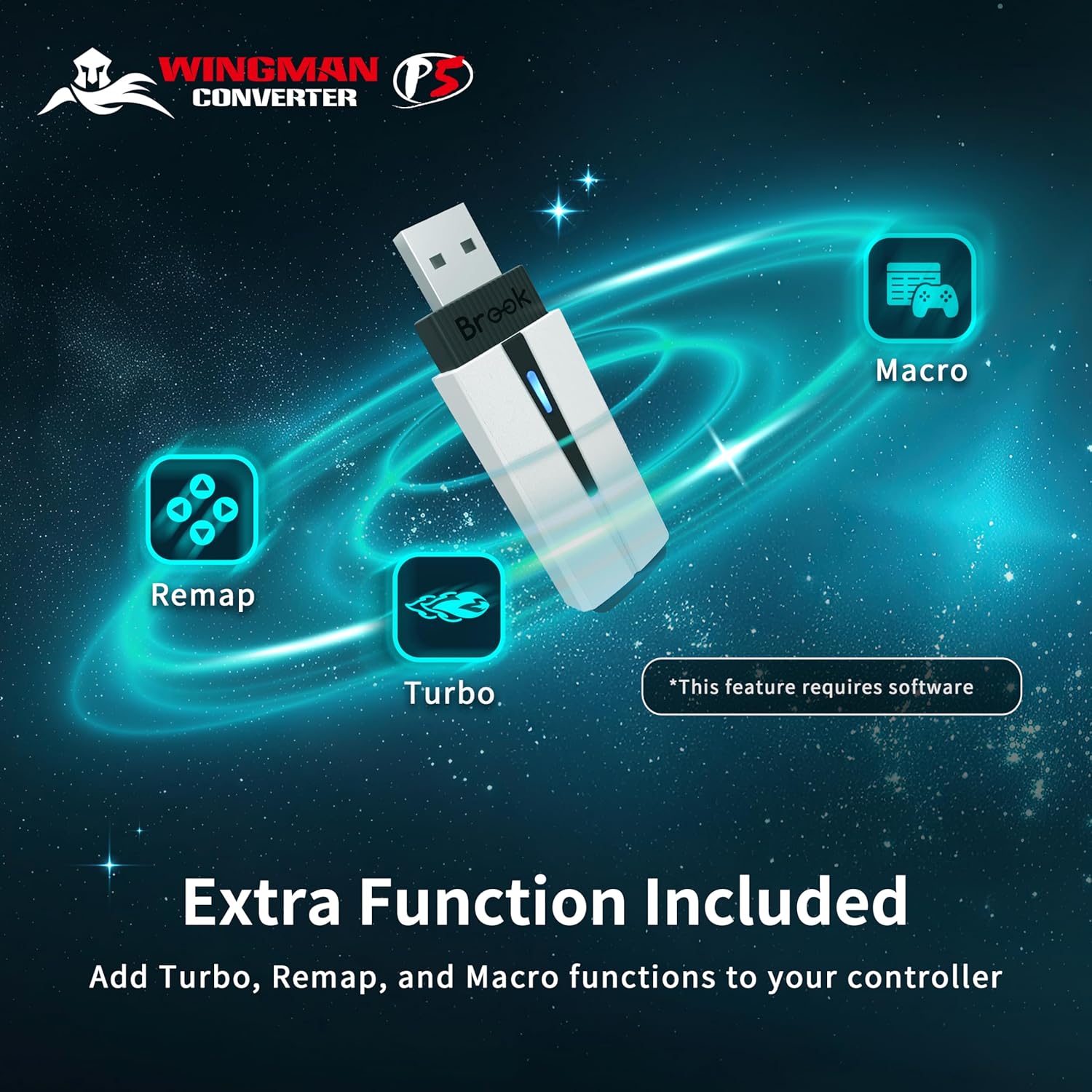
Figure 6: An image showing the Brook Wingman P5 converter alongside icons representing Turbo, Remap, and Macro functions, emphasizing the customizable features available through the software.
4.5 Immersive Features
The Wingman P5 supports immersive features such as vibration feedback and six-axis motion sensing, provided your connected controller also supports these functionalities. These features enhance gameplay in various genres, including racing, action, shooters, and precision-based games.

Figure 7: A person's hands holding a game controller, with glowing lines emanating from it, symbolizing the immersive vibration and six-axis motion sensing features supported by the converter.
5. Specifications
| Brand | Brook |
| Model Number | P5 |
| Compatible Devices | Gaming Console, PC, PlayStation 5, PlayStation 4 |
| Connector Type | USB Type A |
| Color | Black and White |
| Item Dimensions (L x W x H) | 3.03 x 0.84 x 0.43 inches |
| Item Weight | 11 Grams |
| Number of Ports | 1 |
| Power Plug Type | Type A - 2 pin (North American) |
6. Troubleshooting
- Controller Not Responding: If your controller does not respond after connecting, try manually switching modes using the PS button + Up combination.
- Performance Issues: If you experience unexpected behavior or lag, especially with custom settings, try resetting the converter to factory settings using Create + Options + PS. Then, re-sync your preferred profile via the Brook Converter Center software.
- Overheating: Ensure the converter is plugged into a well-ventilated port. For PS5, use the front USB-C port with the provided adapter cable to avoid issues related to rear port ventilation.
- Software Issues: Ensure you have the latest version of the Brook Converter Center software installed on your PC. Visit the official Brook website for updates and further support.
7. Maintenance
- Keep the converter clean and free from dust. Use a soft, dry cloth for cleaning.
- Avoid exposing the device to extreme temperatures, humidity, or direct sunlight.
- Do not attempt to disassemble or modify the converter, as this will void the warranty.
- Store the converter in a safe place when not in use to prevent physical damage.
8. Warranty and Support
The Brook Wingman P5 Converter comes with a 1-year warranty. For warranty claims, technical support, or to download the latest firmware and Converter Center software, please visit the official Brook website or contact Brook Gaming US customer service.
Official Brook Website: www.brookaccessory.com


