
UGREEN HDMI KVM Switch (Model 75246) User Manual
Share One HDMI Monitor and Four USB 3.0 Devices Between Two Computers
1. Introduction
1.1 Product Overview
The UGREEN HDMI KVM Switch allows two computers to share a single HDMI monitor, a keyboard, a mouse, and up to four additional USB 3.0 devices. This device is designed to streamline your workspace by eliminating the need for multiple peripherals for each computer, enhancing productivity and reducing cable clutter.
1.2 Key Features
- 2 Computers, 1 Monitor: Seamlessly switch between two host computers using one HDMI display.
- 4 USB 3.0 Ports: Share USB flash drives, printers, hard drives, webcams, and other USB devices with data transfer speeds up to 5Gbps. Includes 3 USB-A and 1 USB-C port.
- Ultra HD 4K Resolution: Supports resolutions up to 4K@60Hz, backward compatible with 4K@30Hz, 1080P@240Hz, and lower resolutions. Supports HDMI 2.0, HDCP2.2/1.4, 3D, and HDR.
- Two Switching Methods: Switch between computers using the button on the KVM switch or the included desktop controller.
- Wide Compatibility: Driver-free operation for Windows, macOS, and Linux systems. Compatible with various HDMI source devices like PCs, Laptops, PS5/4/3, Xbox One, and TV Boxes.
2. Package Contents
Please check the package for the following items:
- 1 x UGREEN HDMI KVM Switch
- 2 x USB-A to USB-A Cables (1.5m)
- 1 x Desktop Controller (1.5m)
- 1 x User Manual

Figure 2.1: Contents of the UGREEN HDMI KVM Switch package, including the KVM switch unit, two USB-A cables, a desktop controller, and the user manual.
3. Product Diagram
Familiarize yourself with the ports and indicators on your UGREEN HDMI KVM Switch:
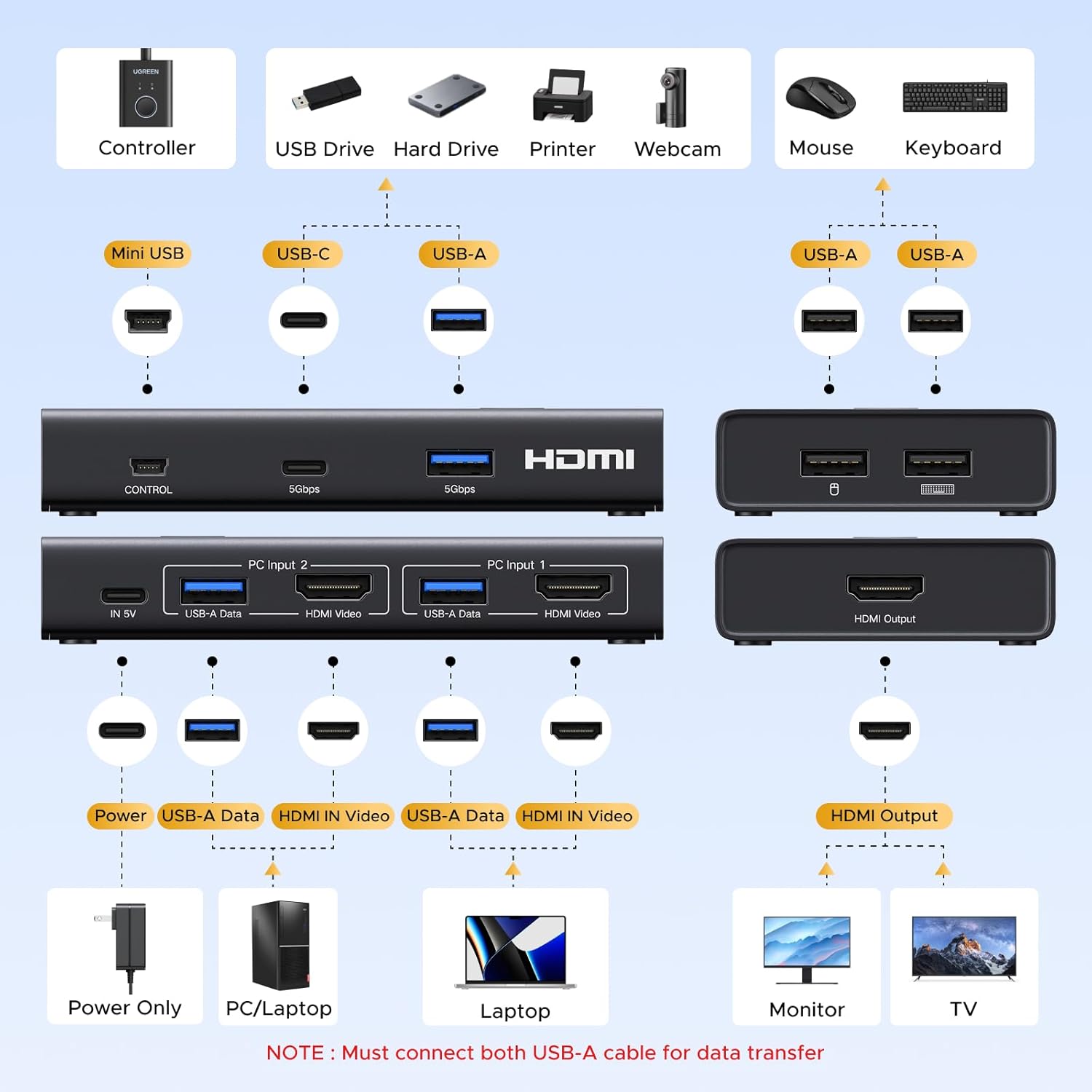
Figure 3.1: Detailed diagram of the UGREEN HDMI KVM Switch showing all input/output ports and their functions. This includes USB-A and USB-C ports for peripherals, HDMI inputs for PCs, HDMI output for the monitor, and a power input.
3.1 Front Panel
- USB-C Port: For connecting USB-C peripherals.
- USB-A Ports (x3): For connecting USB-A peripherals like keyboard, mouse, USB drives, etc.
- HDMI Output: Connects to your HDMI monitor or display.
- Control Port: Connects to the wired desktop controller.
3.2 Rear Panel
- IN 5V Port: USB-C port for power supply (power adapter not included).
- PC Input 1 (USB-A Data & HDMI Video): Connects to Computer 1.
- PC Input 2 (USB-A Data & HDMI Video): Connects to Computer 2.
4. Setup Instructions
4.1 Before You Begin
- Ensure you have all necessary cables: 2 HDMI cables (not included), 2 USB-A to USB-A cables (included), and a USB-C power cable with a 5V power adapter (not included).
- Power off all computers and your monitor before making connections.
4.2 Connection Steps
- Connect Monitor: Plug one end of an HDMI cable into the HDMI Output port on the KVM switch and the other end into your monitor's HDMI input.
- Connect Computer 1:
- Connect one HDMI cable from your Computer 1's HDMI output to the HDMI Video port under 'PC Input 1' on the KVM switch.
- Connect one USB-A to USB-A cable from your Computer 1's USB-A port to the USB-A Data port under 'PC Input 1' on the KVM switch.
- Connect Computer 2:
- Connect one HDMI cable from your Computer 2's HDMI output to the HDMI Video port under 'PC Input 2' on the KVM switch.
- Connect one USB-A to USB-A cable from your Computer 2's USB-A port to the USB-A Data port under 'PC Input 2' on the KVM switch.
- Connect USB Peripherals: Plug your keyboard, mouse, and other USB devices into the available USB 3.0 ports (USB-A and USB-C) on the front panel of the KVM switch.
- Connect Desktop Controller: Plug the desktop controller cable into the Control Port on the front panel of the KVM switch.
- Connect Power: Connect a USB-C power cable (and 5V power adapter) to the IN 5V port on the rear panel of the KVM switch. This is essential for stable operation, especially with power-hungry USB devices.
- Power On: Power on your monitor, then power on your computers.
Video 4.1: An official UGREEN video demonstrating the connection process for the HDMI KVM Switch, showing how to connect two PCs, a monitor, and USB peripherals.

Figure 4.2: An example setup showing two computers connected to the UGREEN HDMI KVM Switch, sharing a single monitor, keyboard, and mouse. Note the connections for both HDMI video and USB data from each PC.
5. Operating Instructions
5.1 Switching Between Computers
The UGREEN HDMI KVM Switch offers two convenient methods to switch between your connected computers:
- Button on the KVM Switch: Press the physical button located on the top of the KVM switch unit to toggle between Computer 1 and Computer 2.
- Desktop Controller: Press the button on the wired desktop controller. This allows you to place the KVM switch out of sight while keeping the switching function easily accessible on your desk. An LED indicator on the controller shows which computer is currently active.

Figure 5.1: Illustration of the two methods for switching between computers: directly pressing the button on the KVM switch unit, or using the wired remote desktop controller for convenience.
5.2 Important Notes on Operation
- Resolution Consistency: For optimal display, ensure that the resolution settings of both input devices (computers) and the output device (monitor) are consistent.
- No Hotkey Switching: This KVM switch does not support hotkey switching via keyboard commands. Switching must be done using the physical button on the unit or the desktop controller.
- No EDID Emulation: The KVM switch does not feature EDID emulation. This means your computers may detect a monitor disconnection and reconnection when switching, potentially causing display rearrangement or brief signal loss.
6. Maintenance
To ensure the longevity and optimal performance of your UGREEN HDMI KVM Switch, follow these simple maintenance guidelines:
- Keep Clean: Regularly wipe the device with a soft, dry cloth to remove dust. Avoid using liquid cleaners or abrasive materials.
- Avoid Liquids: Do not expose the KVM switch to water or other liquids. If liquid spills on the device, disconnect power immediately and allow it to dry completely before reuse.
- Proper Ventilation: Ensure the device is placed in a well-ventilated area to prevent overheating.
- Handle with Care: Avoid dropping the device or subjecting it to strong impacts.
7. Troubleshooting
If you encounter issues with your UGREEN HDMI KVM Switch, please refer to the following troubleshooting tips:
- No Display on Monitor:
- Ensure all HDMI cables are securely connected between the KVM switch, computers, and monitor.
- Verify that the KVM switch is powered via the 5V USB-C port.
- Check if the correct input source is selected on your monitor.
- Ensure the resolution settings on both computers are compatible with your monitor and the KVM switch (up to 4K@60Hz). Try lowering the resolution temporarily.
- Test HDMI cables directly between the computer and monitor to rule out cable issues.
- USB Devices (Keyboard/Mouse/USB Drive) Not Working:
- Ensure the USB-A to USB-A data cables are securely connected from both computers to the KVM switch. Both HDMI and USB data cables are required for each PC.
- Confirm the KVM switch is connected to a power source. Some USB devices require more power.
- Try connecting the USB device directly to the computer to confirm it functions.
- If using a laptop with only USB-C ports, ensure you are using a USB-C to USB-A OTG adapter with the included USB-A cable for connection to the KVM switch.
- Avoid connecting the KVM switch through a docking station, as this configuration is not supported and may cause instability.
- Flickering or Unstable Display:
- Ensure all HDMI cables are of good quality and meet the specifications for 4K@60Hz (e.g., HDMI 2.0 certified).
- Verify that the KVM switch is receiving adequate power.
- Check for consistent resolution settings across all connected devices.
- Switching Lag:
- A brief delay (a few seconds) during switching is normal as the system re-establishes connections.
- Ensure all cables are securely connected.
8. Specifications
| Feature | Specification |
|---|---|
| Model | 75246 |
| Brand | UGREEN |
| Connector Type | HDMI, USB-A, USB-C |
| Video Resolution | Up to 4K@60Hz (backward compatible) |
| HDMI Standard | HDMI 2.0, HDCP2.2/1.4, 3D, HDR |
| USB Ports | 3 x USB 3.0 Type-A, 1 x USB 3.0 Type-C |
| USB Data Transfer Speed | Up to 5Gbps |
| Switching Method | Button on device, Wired Desktop Controller |
| Operating Voltage | 5V DC |
| Wattage | 10 Watts |
| Compatible Systems | Windows, macOS, Linux |
| Material | Acrylonitrile Butadiene Styrene (ABS) |
| Item Dimensions (L x W x H) | 4.49 x 2.48 x 0.75 inches |
| Color | Black |
9. Safety Information
- Do not disassemble or modify the device.
- Keep the device away from heat sources, direct sunlight, and extreme temperatures.
- Avoid using the device in environments with high humidity or dust.
- Use only the specified power supply (5V DC) to prevent damage.
- Keep out of reach of children.
10. Warranty and Support
UGREEN products come with a standard warranty. For specific warranty terms and conditions, please refer to the warranty card included with your product or visit the official UGREEN website. If you encounter any issues or have questions regarding your UGREEN HDMI KVM Switch, please contact UGREEN customer support for assistance.
UGREEN Official Website: www.ugreen.com


