
Introduction
This manual provides detailed instructions for the installation, operation, and maintenance of your Leadfan 10.1-inch Car Stereo. This unit is designed to upgrade your Nissan Sentra (2013-2019) with advanced features like Wireless CarPlay, Android Auto, GPS Navigation, Bluetooth, FM Radio, Wi-Fi connectivity, Steering Wheel Control (SWC) support, and backup camera compatibility.
Important Compatibility Notes:
- This car radio does not support original cars with J.B.L/Bo-se premium audio systems or large factory navigation screens.
- Not compatible with B17 models.
- All necessary cable harnesses and the mounting rack are included for plug-and-play installation. If you are unsure about compatibility, please consult the seller with a picture of your center console.
Package Contents
Verify that all items are present in the package:
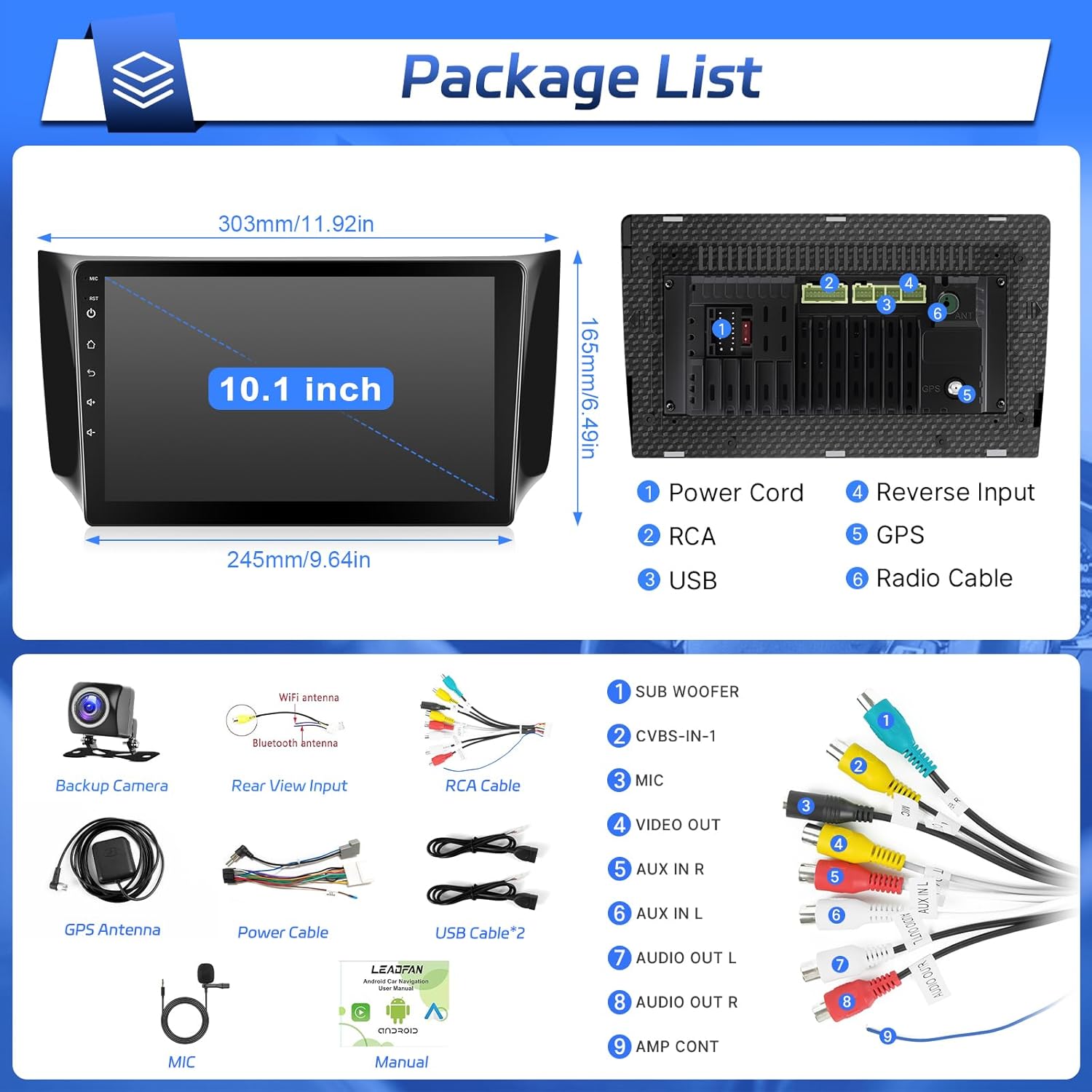
- Leadfan 10.1-inch Car Stereo Unit
- Backup Camera
- Full Set of Wiring Harnesses (Power Cord, RCA Cable, USB Cables x2, Radio Cable)
- GPS Antenna
- MIC (Microphone)
- User Manual

This image illustrates the physical dimensions of the 10.1-inch head unit and details the components included in the package, such as the backup camera, various wiring harnesses (power, RCA, USB, radio), GPS antenna, and microphone.
Product Overview
The Leadfan 10.1-inch Car Stereo is an advanced infotainment system designed to upgrade your Nissan Sentra (2013-2019). It features a responsive touchscreen and a powerful 4-core processor with 2GB RAM and 32GB ROM for smooth operation.
Key Features:
- 10.1-inch IPS Touchscreen (1280x720 resolution)
- Android 12 Operating System
- Wireless CarPlay & Android Auto
- GPS Navigation (Online/Offline Maps)
- Bluetooth for Hands-free Calling and Music Streaming
- Wi-Fi Connectivity (2.4G/5G)
- FM Radio Receiver with EQ Settings
- Mirror Link Function (for iPhone and Android)
- Steering Wheel Control (SWC) Support
- Backup Camera Input
- Split Screen Functionality

This image displays the Leadfan 10.1-inch car stereo seamlessly integrated into the dashboard of a Nissan Sentra, highlighting its large touchscreen interface.
Setup and Installation
The Leadfan car stereo is designed for plug-and-play installation in compatible Nissan Sentra models (2013-2019). Ensure your vehicle does not have a J.B.L/Bo-se premium audio system or a large factory navigation screen, and is not a B17 model.
Pre-Installation Checklist:
- Confirm vehicle compatibility (Nissan Sentra 2013-2019, no premium audio/large Navi, not B17).
- Gather all included components as listed in the "Package Contents" section.
- Turn off the vehicle and disconnect the negative terminal of the car battery to prevent electrical shorts.
Installation Steps:
- Remove Factory Radio: Carefully remove the existing factory radio and trim panels. Refer to your vehicle's service manual for specific instructions on panel removal.
- Connect Wiring Harness: Connect the provided wiring harness to the vehicle's factory harness. Ensure all connections are secure.
- Connect Antennas: Connect the GPS antenna and radio antenna to the corresponding ports on the new head unit. Position the GPS antenna in a location with a clear view of the sky (e.g., on the dashboard).
- Connect Backup Camera (Optional): If installing the backup camera, route the camera cable from the rear of the vehicle to the head unit. Connect the camera's power wire to the vehicle's reverse light positive and the video signal cable to the "Reverse Input" on the head unit. Important: The reversing input must be plugged in even if the reversing camera is not used for Bluetooth and WiFi functionality.
- Connect USB Cables and Microphone: Connect the USB cables and external microphone to the head unit. Route the microphone to a suitable location for clear voice pickup.
- Test Connections: Before fully reassembling the dashboard, temporarily reconnect the car battery and power on the unit to test basic functions (power, audio, touch screen, radio, GPS signal, backup camera).
- Secure Head Unit: Mount the Leadfan car stereo into the dashboard opening using the provided brackets.
- Reassemble Dashboard: Reinstall all trim panels and secure them properly.
- Final Check: Reconnect the car battery and perform a full test of all functions.

This image provides a detailed view of the rear connections on the Leadfan car stereo, illustrating where to connect the power cord, USB cables, RCA cables, GPS antenna, and the reverse camera input.
Operating Instructions
1. Power On/Off
Press and hold the power button (usually located on the front panel or a soft button on the screen) to turn the unit on or off. A short press typically mutes/unmutes the audio.
2. Touchscreen Navigation
The 10.1-inch IPS touchscreen is highly responsive. Swipe left or right to navigate between home screens. Tap icons to open applications or access settings.
This video demonstrates the basic functionalities of the Leadfan car stereo, including how to access and tune the FM radio, and adjust equalizer settings for audio customization.
3. Wireless CarPlay & Android Auto
Connect your smartphone wirelessly for seamless integration of navigation, music, calls, and messages.
- For iPhone (Wireless CarPlay):
- Ensure Bluetooth is enabled on your iPhone.
- On the car stereo, go to the "X-Car" or "CarPlay/AA" application.
- Pair your iPhone with the car stereo via Bluetooth. The device name will typically be "CarBT".
- Confirm the pairing on both devices. Once connected, CarPlay will launch automatically.
- For Android (Wireless Android Auto):
- Ensure Bluetooth is enabled on your Android phone.
- On the car stereo, go to the "X-Car" or "CarPlay/AA" application.
- Pair your Android phone with the car stereo via Bluetooth.
- Confirm the pairing. Android Auto will launch automatically.
This video tutorial guides users through the steps to connect an iPhone to the Leadfan car stereo using wireless CarPlay, including Bluetooth pairing and launching the CarPlay interface.
This video tutorial illustrates the steps to connect an Android phone to the Leadfan car stereo using wireless Android Auto, covering Bluetooth pairing and accessing the Android Auto interface.
4. Mirror Link Function
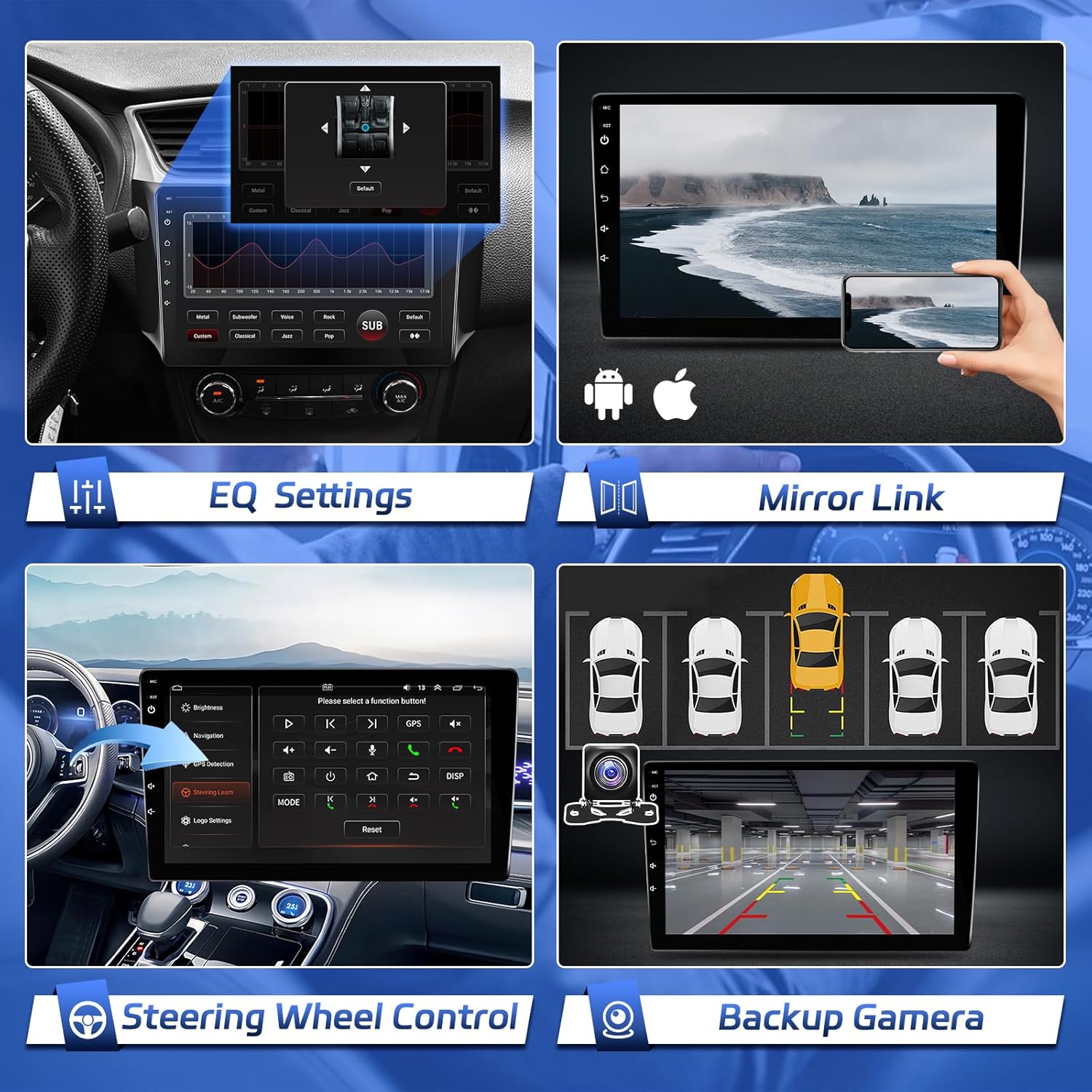
Mirror Link allows you to display your smartphone screen directly on the car stereo. This function supports both iPhone and Android devices.
- For iPhone (Wireless Mirrorlink):
- Enable Personal Hotspot on your iPhone.
- On the car stereo, go to "Settings" > "Network & Internet" > "Wi-Fi" and connect to your iPhone's hotspot.
- Open the "Wireless Mirroring" app on the car stereo and select "iPhone".
- On your iPhone, open Control Center and tap "Screen Mirroring", then select the car stereo device.
- For Android (Wireless Mirrorlink):
- Enable Mobile Hotspot on your Android phone.
- On the car stereo, go to "Settings" > "Network & Internet" > "Wi-Fi" and connect to your Android phone's hotspot.
- Open the "Wireless Mirroring" app on the car stereo and select "Android".
- Follow the on-screen instructions to download and open the required app on your Android phone, then initiate screen projection.
This video tutorial demonstrates how to connect an iPhone and an Android phone to the Leadfan car stereo using wireless Mirrorlink, including enabling personal/mobile hotspot, connecting to Wi-Fi, and initiating screen mirroring/projection.
5. GPS Navigation
The unit supports both online and offline GPS navigation. Pre-installed maps are available, and you can download additional maps from the Play Store when connected to Wi-Fi.
To use navigation, tap the "Navi" icon on the home screen. You can input destinations, view real-time traffic (with internet connection), and optimize routes.
This image illustrates the GPS navigation feature on the car stereo, showing a map interface and indicating the unit's ability to connect to Wi-Fi for online services and map updates.
6. FM Radio
Access the FM radio by tapping the "Radio" icon. You can scan for stations, save presets, and enjoy various radio programs.
7. EQ Settings
Customize your audio experience using the built-in Equalizer. Tap the "Sound Effects" icon to access various preset modes (Rock, Pop, Jazz, Classical) or create your own custom sound profile.

This image shows the equalizer settings screen of the car stereo, allowing users to select from predefined sound modes or manually adjust frequency bands for personalized audio output.
8. Steering Wheel Controls (SWC)
The unit supports your vehicle's existing steering wheel controls. After installation, you may need to configure the SWC settings in the unit's menu to map the buttons correctly. This allows you to adjust volume, change tracks, and answer calls without taking your hands off the wheel.
9. Backup Camera
When properly installed, the backup camera automatically displays the rear view on the screen when the vehicle is shifted into reverse gear, enhancing safety during parking and maneuvering.

This image shows the interface for configuring steering wheel controls, where users can assign functions to their vehicle's steering wheel buttons, and also displays the live feed from the backup camera with parking guidelines.
10. Split Screen Function
The split-screen mode allows you to run two applications simultaneously, such as navigation and music, for enhanced multitasking.
This image illustrates the split-screen feature of the car stereo, allowing two applications, such as YouTube and a local music player, to be displayed and operated concurrently on the 10.1-inch screen.
Connectivity
Bluetooth
The unit features Bluetooth for hands-free calling and wireless audio streaming. Pair your phone via Bluetooth settings on the unit to access these features.

This image demonstrates the built-in Bluetooth functionality, showing the car stereo's interface for making calls and a smartphone interacting with a voice assistant for hands-free operation.
Wi-Fi
Connect the unit to a Wi-Fi hotspot (e.g., from your smartphone) to access online features like real-time traffic updates, app downloads from the Play Store, and online streaming services.
Specifications
| Feature | Detail |
|---|---|
| Model Name | Leadfan 10.1-inch Car Stereo |
| Applicable Car Models | Nissan Sentra 2013-2019 |
| Operating System | Android 12 |
| Processor | 4-Core |
| RAM | 2GB |
| ROM | 32GB |
| Screen Size | 10.1 Inches |
| Display Resolution | 1280x720 (IPS) |
| Connectivity Technology | Bluetooth, USB, Wi-Fi (2.4G/5G) |
| Special Features | Wireless CarPlay, Android Auto, Touchscreen, GPS Navigation, FM Radio, Mirror Link, SWC, Backup Camera Support, Split Screen |
| Item Weight | 2.93 pounds |
| Product Dimensions | 2 x 2 x 2 inches (Unit dimensions, actual screen size is 10.1 inches) |
Troubleshooting
If you encounter issues with your Leadfan car stereo, refer to the following common solutions:
- No Power:
- Check all power connections to ensure they are secure.
- Verify the vehicle's fuse for the radio is intact.
- Ensure the car battery is properly connected and charged.
- No Sound:
- Check speaker wire connections.
- Ensure the volume is not muted or set too low.
- Verify EQ settings are not causing issues.
- CarPlay/Android Auto Not Connecting:
- Ensure Bluetooth is enabled on both your phone and the car stereo.
- Delete previous pairings and try reconnecting.
- Restart both your phone and the car stereo.
- For wireless connections, ensure Wi-Fi is also enabled on your phone and the car stereo is connected to your phone's hotspot if required for Mirror Link.
- GPS Signal Issues:
- Ensure the GPS antenna is properly connected and placed in a location with a clear view of the sky.
- Check GPS settings in the unit's menu.
- Steering Wheel Controls Not Working:
- Access the "Steering Learn" settings in the unit's menu and reconfigure the buttons.
- Ensure the SWC wiring is correctly connected.
- Backup Camera Not Displaying:
- Check the video input connection for the backup camera.
- Ensure the camera's power wire is correctly connected to the reverse light.
- Verify that the reversing input cable on the head unit is plugged in.
Maintenance
- Screen Cleaning: Use a soft, lint-free cloth to gently wipe the touchscreen. For stubborn smudges, slightly dampen the cloth with water or a screen-safe cleaner. Avoid harsh chemicals.
- Software Updates: Periodically check for software updates from Leadfan to ensure optimal performance and access to new features. Updates can usually be performed via Wi-Fi.
- General Care: Avoid exposing the unit to extreme temperatures, direct sunlight for prolonged periods, or excessive moisture.
Warranty and Support
For warranty information, please refer to the documentation provided with your purchase or contact Leadfan customer support directly. Keep your proof of purchase for warranty claims.
If you require further assistance or encounter issues not covered in this manual, please contact Leadfan customer support. You can often find contact information on the manufacturer's website or through the retailer where you purchased the product.
If you are unable to connect to the radio, you can always seek online help. Ask "Leadfan".


