
1. Introduction
This manual provides detailed instructions for the installation, operation, and maintenance of your AWESAFE Android 13 Car Radio Stereo. Please read this manual thoroughly before using the product to ensure proper functionality and safety. This unit integrates advanced features such as Wireless CarPlay, Android Auto, 5G WiFi, GPS Navigation, FM Radio, Bluetooth, a high-definition display, DSP sound system, and support for a backup camera.
2. Applicable Car Models
This AWESAFE Car Radio Stereo is designed for specific vehicle models and years. Please verify your vehicle's compatibility before installation.
- For Chevy Silverado 1500 (2007-2013)
- For Chevy Silverado 2500HD (2007-2013)
- For Chevy Silverado 3500HD (2007-2013)
- For Chevrolet Avalanche (2007-2011)
- For Chevrolet Express Van (2008-2011)
- For Chevrolet Impala (2006-2012)
- For GMC Acadia (2007-2012)
- For GMC Savana (2008-2013)
- For GMC Sierra (2007-2011)
- For GMC Yukon (2007-2013)
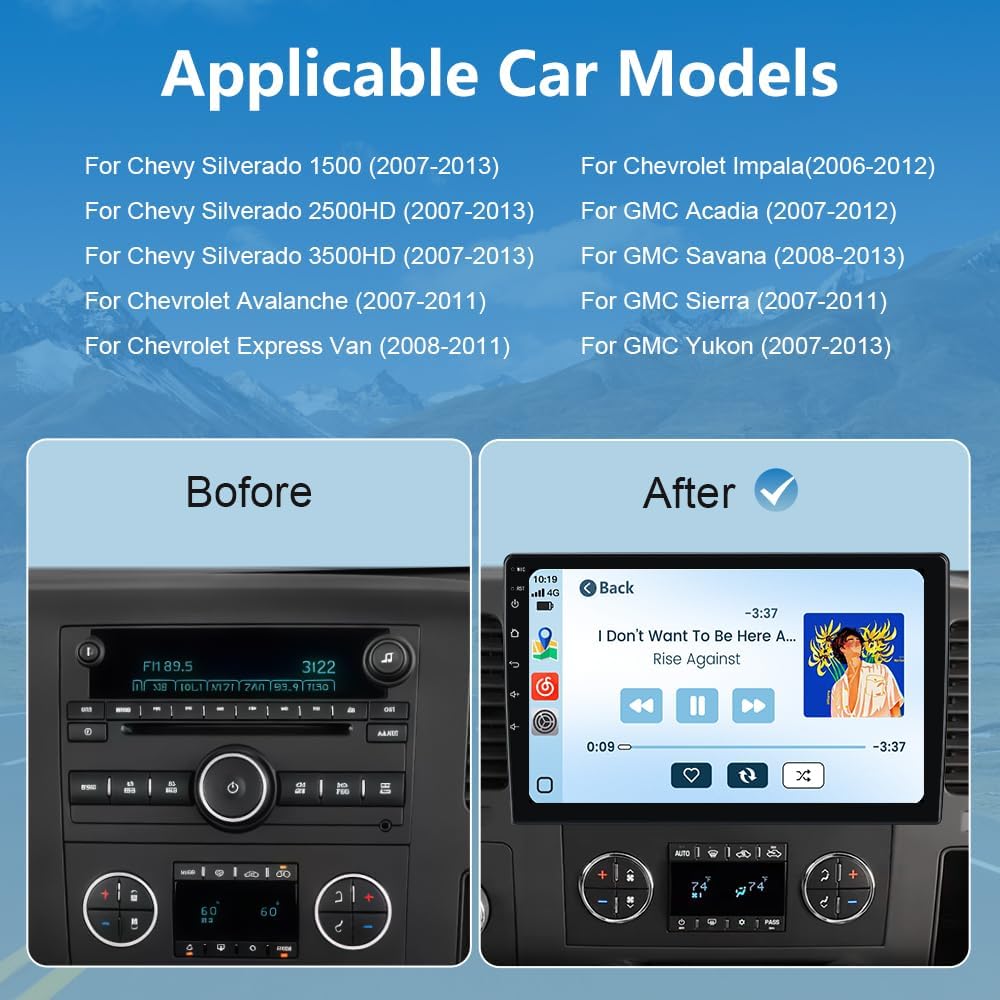
Figure 2.1: Compatible vehicle models and a visual comparison of the dashboard before and after installation.
3. Product Features
3.1 Wireless CarPlay & Android Auto
Effortlessly connect your smartphone via Bluetooth to project its contents onto the car radio's large screen. Whether using CarPlay or Android Auto, you can access essential phone features, including making calls, navigation, playing music, and managing apps. Enjoy sharing 1080P videos and high-definition pictures while on the go.

Figure 3.1: Wireless CarPlay and Android Auto interface on the car stereo.
Video 3.1: Instructions on how to connect Wireless CarPlay to the car stereo. This video demonstrates the steps to pair your iPhone via Bluetooth and Wi-Fi to enable CarPlay functionality, allowing access to navigation, music, and other apps.
Video 3.2: Instructions on how to connect Wireless Android Auto to the car stereo. This video guides users through the process of pairing an Android phone via Bluetooth and Wi-Fi to activate Android Auto, providing access to maps, music, and communication features.
3.2 5G WiFi & GPS Navigation
The unit supports a fast and reliable 5G WiFi network, enabling online maps and services. This is ideal for streaming music, downloading maps, and accessing online content without interruption, enhancing your driving experience. High-speed connectivity ensures real-time navigation updates, helping you avoid traffic and reach your destination efficiently.
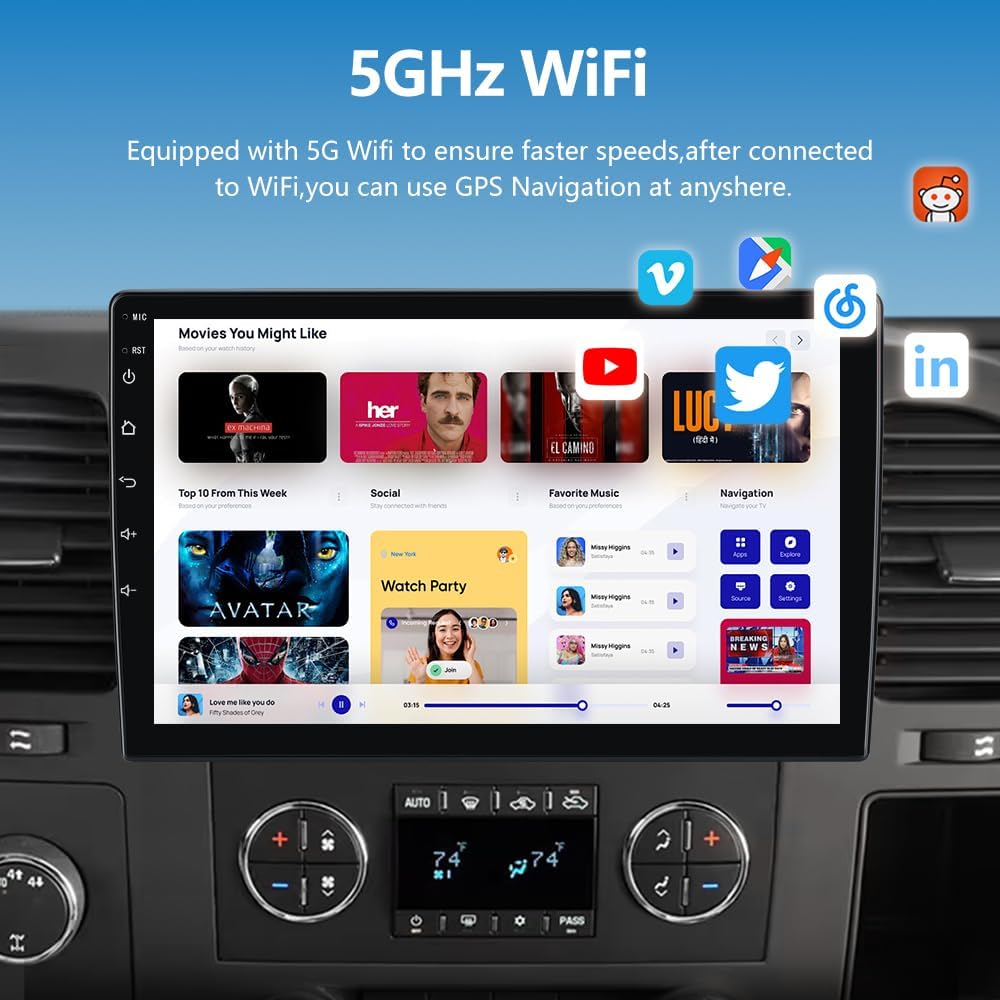
Figure 3.2: The car stereo displaying various online applications and content, powered by 5G WiFi.
3.3 Ultra HD 1280*720 Display
The 1280*720 resolution screen provides stunning clarity and suitable brightness, ensuring visibility even under direct sunlight. This significant upgrade over standard screens keeps maps, videos, and other content sharp and vivid.

Figure 3.3: High-definition display showcasing vibrant colors and sharp details.
3.4 DSP Sound System
The built-in Equalizer (EQ) allows you to fine-tune the audio settings for a more immersive and personalized listening experience.

Figure 3.4: DSP sound system interface for audio customization.
3.5 FM Radio & Bluetooth
Enjoy the built-in FM Radio to listen to real-time traffic, news broadcasts, and weather forecasts. The integrated Bluetooth offers faster transfer speeds, allowing quick pairing with your smartphone for phonebook synchronization, hands-free calls, and music playback.

Figure 3.5: FM/AM Radio interface with frequency selection.
3.6 Split Screen Functionality
The split-screen feature allows you to run and display two applications simultaneously. For example, you can view navigation maps on one side while controlling music playback on the other.

Figure 3.6: Split-screen mode displaying navigation and music simultaneously.
3.7 Retained Steering Wheel Control (SWC) Function
The unit supports your original steering wheel controls, allowing for convenient operation of the car radio without taking your hands off the wheel. This includes functions like volume adjustment, track skipping, and answering calls.

Figure 3.7: Steering wheel control interface for seamless operation.
3.8 Backup Camera Support
This car radio supports a backup camera. When you shift into reverse gear, the reverse line will automatically appear on the screen, providing an ideal upgrade for safer reversing and parking maneuvers.

Figure 3.8: Backup camera view with parking assistance lines.
4. What's Included (Packing List)
Please check the contents of your package against the list below to ensure all components are present.

Figure 4.1: Complete packing list of the AWESAFE Car Radio Stereo.
- 10-inch Screen Unit
- Power Cable
- RCA Cable
- Reversing Line
- Crowbar
- Screwdriver
- USB Cable (single)
- Frame
- USB Cable *2 (additional)
- Back Video-in Cable
- Microphone
- Speaker
- CanBus
5. Setup and Installation
Installation of the AWESAFE Car Radio Stereo requires technical knowledge. It is recommended to have the unit installed by a professional. Ensure the vehicle's power is disconnected before beginning installation.
5.1 Wiring Diagram
Refer to the following wiring diagram for proper connection of all components. Incorrect wiring can damage the unit or vehicle's electrical system.

Figure 5.1: Comprehensive wiring diagram for the car stereo system.
- Power Cable: Connect to the vehicle's power supply (12V ACC, B+, GND).
- RCA Cable: For audio/video input and output connections (e.g., external amplifier, subwoofer, auxiliary input).
- CanBus Cable: Connect for integration with vehicle's existing systems (e.g., steering wheel controls, vehicle information display).
- USB Cables: Connect external USB devices for media playback or smartphone connectivity.
- Rear Camera Input Cable: Connect the backup camera for automatic display when reversing.
- Radio Antenna: Connect the vehicle's radio antenna for FM/AM reception.
- GPS Antenna: Mount in a location with a clear view of the sky for optimal GPS signal reception.
- Microphone: Connect the external microphone for clear hands-free calling.
6. Operating Instructions
Once installed, power on the unit. The Android operating system will boot up. Navigate the interface using the touchscreen. Key operations include:
- Home Screen: Access all installed applications and widgets.
- Navigation: Use pre-installed or downloaded GPS applications for route guidance.
- Media Playback: Play music or videos from USB, Bluetooth, or streaming apps.
- Bluetooth Calls: Pair your phone to make and receive hands-free calls.
- Settings: Adjust display, sound, network, and system preferences.
- Wireless CarPlay/Android Auto: Follow the connection steps in Section 3.1 to enable smartphone integration.
7. Maintenance
To ensure the longevity and optimal performance of your car radio stereo, follow these maintenance guidelines:
- Cleaning: Use a soft, dry cloth to clean the screen and exterior. Avoid abrasive cleaners or solvents.
- Software Updates: Periodically check for and install software updates to ensure system stability and access to new features.
- Environmental Conditions: Avoid exposing the unit to extreme temperatures, direct sunlight for prolonged periods, or excessive moisture.
- Cable Connections: Ensure all cables are securely connected and free from damage.
8. Troubleshooting
If you encounter issues with your car radio stereo, refer to the following common troubleshooting steps:
- No Power: Check all power cable connections. Ensure the vehicle's ignition is on. Verify fuses.
- No Sound: Check speaker connections. Verify volume settings and mute status. Ensure the correct audio source is selected.
- GPS Signal Loss: Ensure the GPS antenna is properly installed and has a clear view of the sky.
- Bluetooth/WiFi Connection Issues: Ensure Bluetooth/WiFi is enabled on both the unit and your smartphone. Try restarting both devices.
- Touchscreen Unresponsive: Try restarting the unit. If the issue persists, a factory reset might be necessary (note: this will erase all user data).
- CarPlay/Android Auto Not Connecting: Verify Bluetooth and WiFi connections. Ensure the Zlink5 app is running on the head unit. Check for any pending updates for your phone's operating system or the CarPlay/Android Auto app.
If these steps do not resolve the issue, please contact customer support.
9. Specifications
Below are the technical specifications for the AWESAFE Android 13 Car Radio Stereo.
| Feature | Specification |
|---|---|
| Brand | AWESAFE |
| Vehicle Service Type | Car |
| Screen Size | 10 Inches |
| Map Type | North America, Worldwide |
| Operating System | Android |
| Touch Screen Type | Capacitive |
| Display Type | LCD, LED |
| Human Interface Input | Touchscreen |
| Control Method | Push Button, Touch, Voice |
| Batteries Included | No |
| Compatible with Vehicle Type | Car |
| Supported Satellite Navigation System | GPS |
| Manufacturer | AWESAFE |
| ASIN | B0FXLZ5BR5 |
10. Warranty and Support
AWESAFE is committed to providing quality products and customer satisfaction. For any technical assistance, warranty claims, or product-related inquiries, please contact our customer support team.
Customer Support Email: us.support@awesafeinc.com
Please have your product model and purchase details ready when contacting support for faster service.


