
Introduction
This manual provides detailed instructions for the setup, operation, and maintenance of your Oilsky M305 MP3 Player. Please read this manual thoroughly before using the device to ensure optimal performance and longevity.

Image: Overview of the Oilsky M305 MP3 Player's key features.
1. Setup Guide
1.1 Unboxing and Package Contents
Carefully unpack your Oilsky M305 MP3 Player and verify all components are present.

Image: Contents of the Oilsky M305 MP3 Player box.
The package should contain:
- 1x Oilsky M305 Music Player
- 1x 128GB TF Card (pre-installed or separate)
- 1x USB Cable (for charging and data transfer)
- 1x Wired Earphones
- 1x Protective Film
- 1x Protective Case
- 1x User Manual
1.2 Charging the Device
Before first use, fully charge the device. Connect the provided USB cable to the player's charging port and to a USB power adapter (not included) or a computer's USB port. The charging indicator will show the charging status.
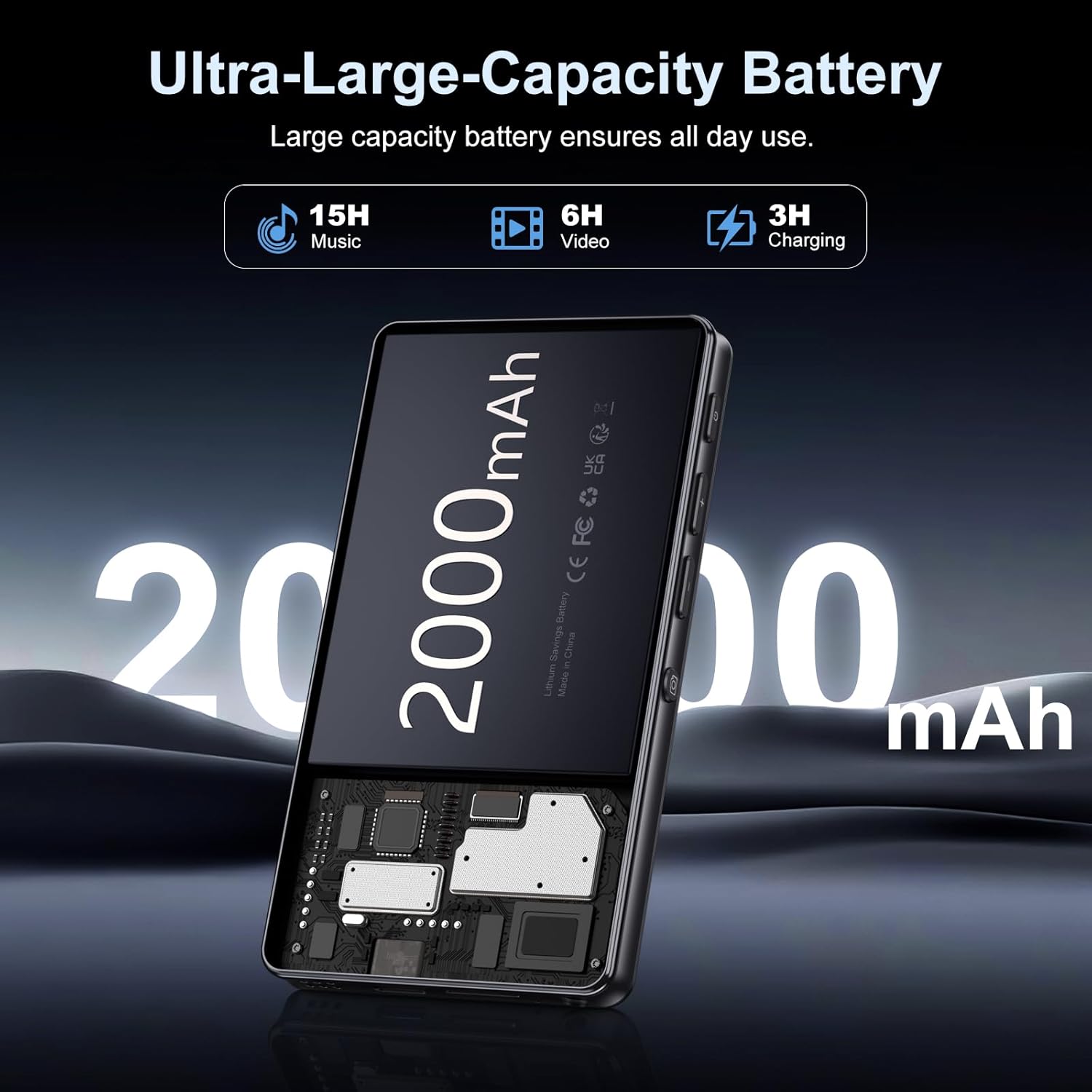
Image: Illustration of the 2000mAh battery and its charging/usage capabilities.
The 2000mAh battery provides approximately 15 hours of music playback and 6 hours of video playback on a full charge, which takes about 3 hours.
1.3 Power On/Off
- To Power On: Press and hold the power button located on the side of the device until the screen lights up.
- To Power Off: Press and hold the power button, then select 'Power Off' from the options that appear on the screen.
1.4 Initial Setup
Upon first power-on, follow the on-screen prompts to:
- Select your preferred language.
- Connect to a Wi-Fi network for internet access and app downloads.
- Set up date and time.
2. Operating Instructions
2.1 Basic Navigation (Touchscreen)
The Oilsky M305 features a 4.02-inch HD touchscreen for intuitive control. Use gestures similar to a smartphone:
- Tap: To select an item or open an app.
- Swipe: To scroll through lists or switch between screens.
- Pinch-to-zoom: In supported applications like image galleries.

Image: The 4.02-inch HD touchscreen in use, displaying video content.
2.2 Music Playback
The device supports various music formats including MP3, WAV, APE, FLAC, and AAC. You can play music through the built-in speaker or connected headphones/Bluetooth devices.

Image: Music playback interface showing supported audio formats.
- Accessing Music: Open the pre-installed music player app or any downloaded streaming service (e.g., Spotify, Audible).
- Creating Playlists: Use the music player app to organize your songs into custom playlists.
- Equalizer: Adjust audio settings via the built-in equalizer for a personalized listening experience.

Image: Features for music management, including playlist creation and equalizer settings.
2.3 Video Playback
The device supports various video formats including AVI, MKV, MP4, MPG, and MOV. Videos can be viewed on the 4.02-inch HD screen.

Image: Supported video and music formats for the device.
2.4 Camera Usage
The M305 is equipped with a 13MP rear camera and a 5MP front camera for capturing photos and videos.
- Taking Photos: Open the Camera app, frame your shot, and tap the shutter button.
- Recording Videos: Switch to video mode in the Camera app and tap the record button to start/stop.

Image: Illustration of the 5MP front and 13MP rear cameras.
2.5 Connectivity (Bluetooth & Wi-Fi)
The device features dual-band Wi-Fi for fast internet access and Bluetooth 5.0 for stable wireless connections.
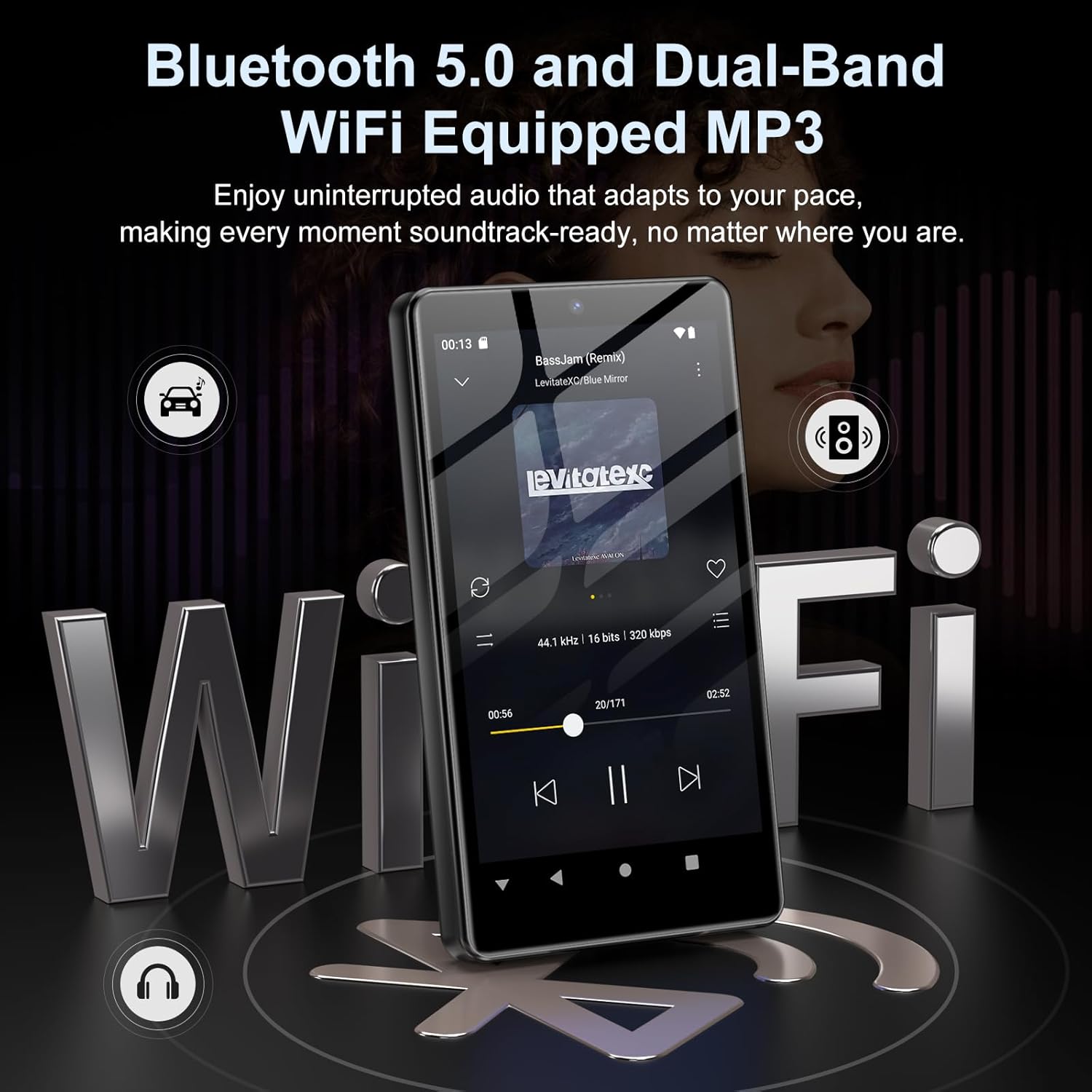
Image: Visual representation of Bluetooth and Wi-Fi connectivity.
- Wi-Fi: Go to Settings > Network & internet > Wi-Fi to connect to available networks.
- Bluetooth: Go to Settings > Connected devices > Bluetooth to pair with headphones, speakers, or other Bluetooth-enabled devices.
2.6 Storage Management
The M305 comes with 32GB of internal ROM and includes a 128GB TF card, supporting external storage expansion up to 1TB.

Image: Storage capacity details including internal ROM and TF card expansion.
- Viewing Storage: Navigate to Settings > Storage to see internal and external storage usage.
- Transferring Files: Connect the device to a computer using the USB cable to transfer music, videos, and photos.
2.7 App Installation (Google Play Store)
Running on Android 13.0, the device allows you to install and uninstall applications from the Google Play Store.
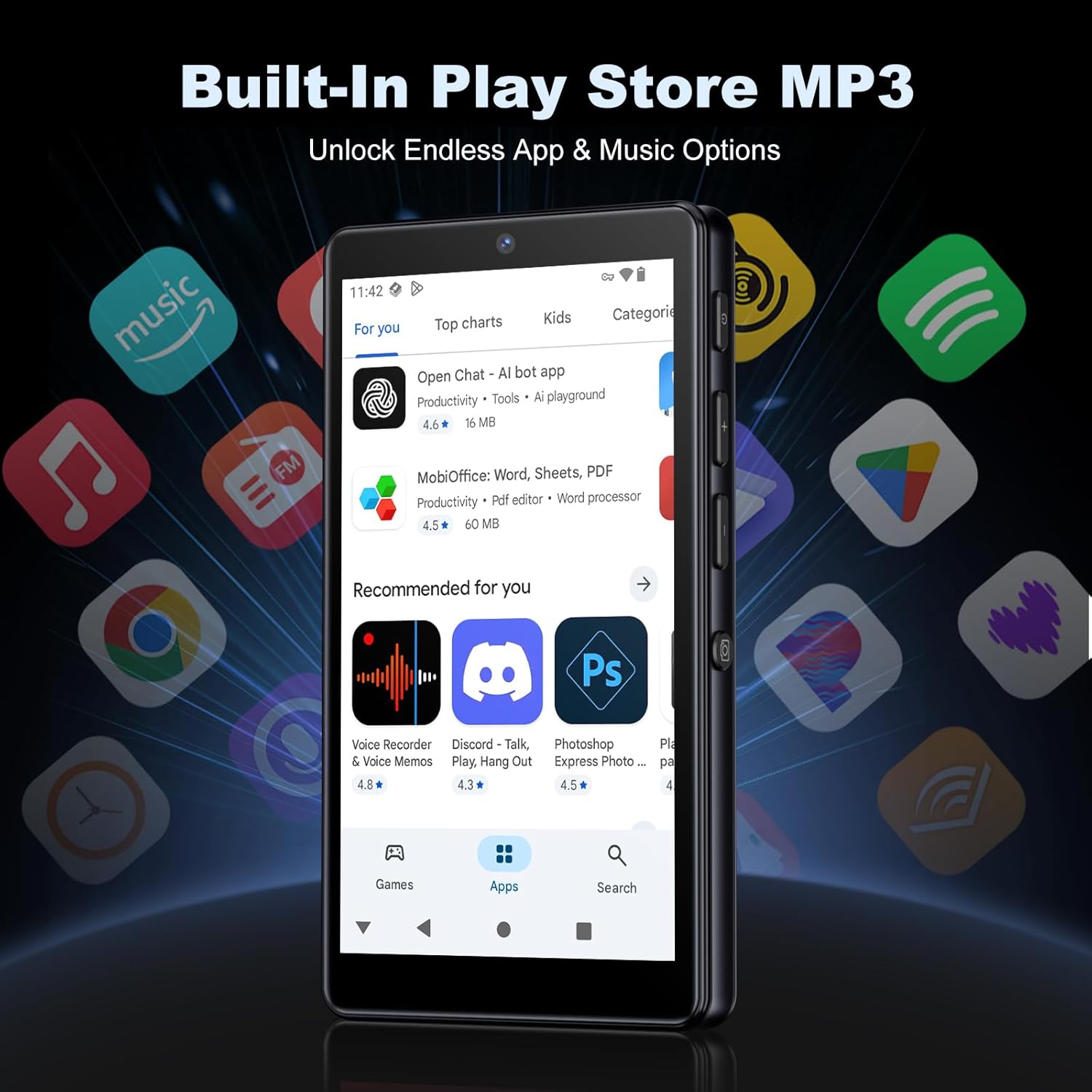
Image: The Google Play Store interface on the device.
- Installing Apps: Open the Play Store app, search for your desired application, and tap 'Install'.
- Uninstalling Apps: Go to Settings > Apps, select the app, and tap 'Uninstall'.
3. Maintenance
3.1 Cleaning
To clean the device, use a soft, dry, lint-free cloth. Avoid using abrasive cleaners, solvents, or aerosol sprays, which may damage the screen or finish.
3.2 Battery Care
- Avoid exposing the device to extreme temperatures.
- Do not allow the battery to fully discharge frequently.
- Use only the provided USB cable for charging.
3.3 Software Updates
Periodically check for software updates to ensure your device has the latest features and security patches. Go to Settings > System > System update.
4. Troubleshooting
4.1 Device Not Turning On
- Ensure the battery is charged. Connect the device to a charger for at least 30 minutes.
- Try a forced restart by holding the power button for 10-15 seconds.
4.2 Connectivity Issues (Wi-Fi/Bluetooth)
- Wi-Fi: Check if the Wi-Fi network is active and you have entered the correct password. Try restarting your router.
- Bluetooth: Ensure the device you are trying to connect to is in pairing mode and within range. Try turning Bluetooth off and on again on both devices.
4.3 Apps Crashing or Freezing
- Close and reopen the app.
- Clear the app's cache: Settings > Apps > [App Name] > Storage & cache > Clear cache.
- If the issue persists, try uninstalling and reinstalling the app.
4.4 Poor Audio Quality
- Check your earphones or Bluetooth speaker connection.
- Ensure the audio file is not corrupted.
- Adjust the equalizer settings in your music player.
5. Specifications
| Feature | Detail |
|---|---|
| Brand | Oilsky |
| Model Number | M305 |
| Operating System | Android 13.0 |
| Processor | MTK 8-core |
| RAM | 4GB |
| Internal Storage (ROM) | 32GB |
| External Storage | 128GB TF Card included, expandable up to 1TB |
| Screen Size | 4.02 inches HD Touchscreen |
| Rear Camera | 13MP |
| Front Camera | 5MP |
| Bluetooth | Bluetooth 5.0 |
| Wi-Fi | Dual-band Wi-Fi |
| Battery Capacity | 2000mAh Lithium-polymer |
| Music Playback Time | Up to 15 hours |
| Video Playback Time | Up to 6 hours |
| Charging Time | Approx. 3 hours |
| Supported Audio Formats | MP3, WAV, APE, FLAC, AAC, etc. |
| Supported Video Formats | AVI, MKV, MP4, MPG, MOV, etc. |
| Supported Image Formats | JPEG, BMP, GIF, PNG, etc. |
6. Warranty Information
The Oilsky M305 MP3 Player comes with a manufacturer's warranty. Please refer to the warranty card included in your package or contact Oilsky customer support for specific terms and conditions. Keep your proof of purchase for warranty claims.
7. Customer Support
If you encounter any issues not covered in this manual or require further assistance, please contact Oilsky customer support. Contact details can typically be found on the official Oilsky website or on the warranty card.


