
1. Introduction
The EPOMAKER TH87 is a versatile 87-key Tenkeyless (TKL) mechanical keyboard designed for various computing environments. It features tri-mode connectivity (Wired USB-C, 2.4GHz Wireless, and Bluetooth), hot-swappable switches, PBT keycaps, and customizable RGB backlighting. This manual provides detailed instructions for setting up, operating, maintaining, and troubleshooting your keyboard.
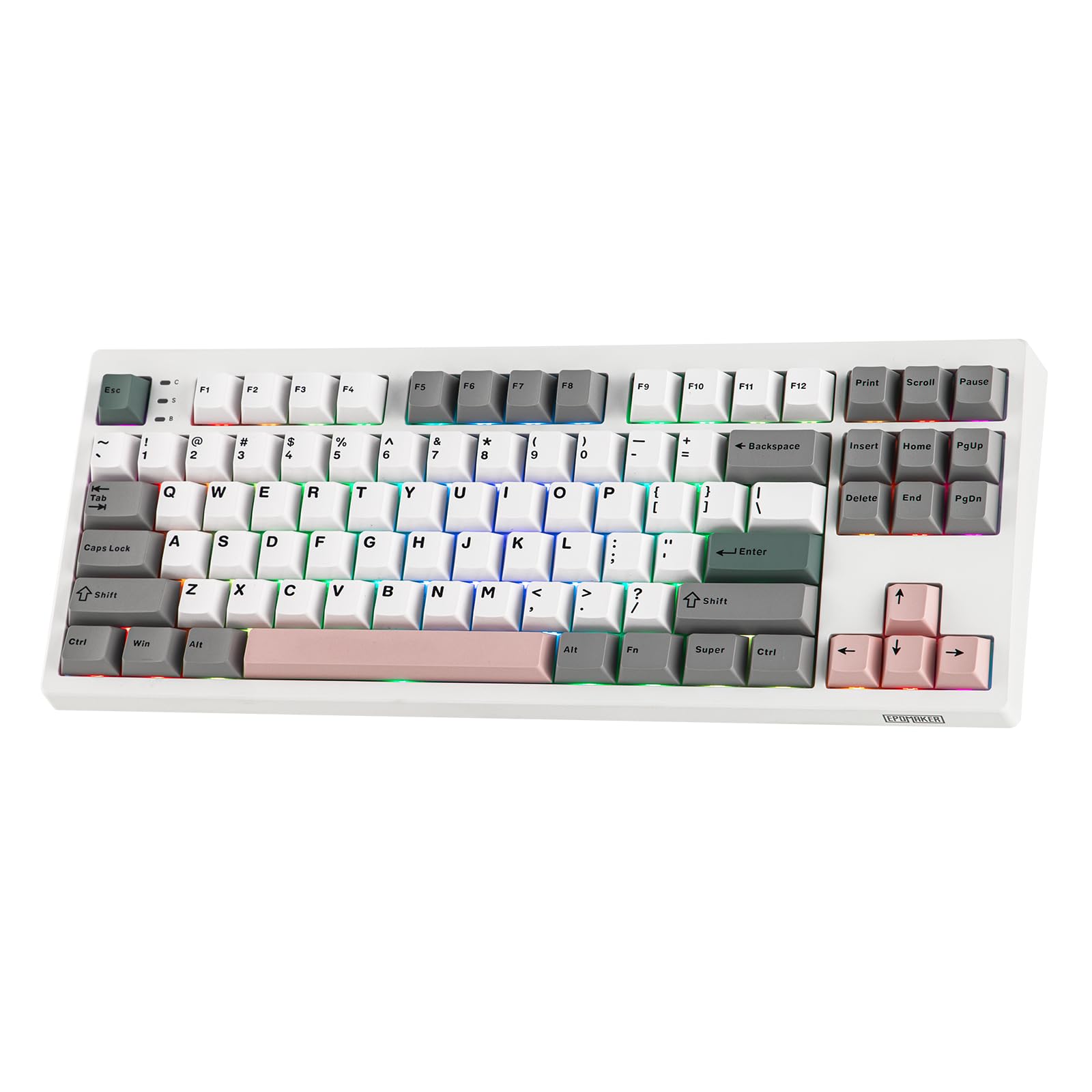
Figure 1: EPOMAKER TH87 Wireless Mechanical Keyboard
2. Package Contents
Ensure all items are present in your package:
- TH87 Wireless Gaming Keyboard
- USB A-to-C Cable
- Extra Switches (for customization)
- Wireless 2.4Ghz Receiver (stored under the side kick-stand)
- 2-in-1 Switch-and-Keycap Puller
- User Manual (this document)
Video 1: EPOMAKER TH87 Unboxing & Overview & Typing Video. This video demonstrates the unboxing process and provides a general overview of the keyboard's features and typing experience.
3. Setup
Follow these steps to set up your EPOMAKER TH87 keyboard:
3.1. Wired Connection
- Locate the USB-C port on the keyboard.
- Connect the provided USB A-to-C cable to the keyboard and your computer.
- Ensure the mode switch on the keyboard is set to 'USB'.
3.2. 2.4GHz Wireless Connection
- Locate the 2.4GHz wireless receiver, typically stored in a compartment under the side kick-stand of the keyboard.
- Plug the receiver into an available USB port on your computer.
- Set the mode switch on the keyboard to '2.4G'. The keyboard should automatically connect.
3.3. Bluetooth Connection
- Set the mode switch on the keyboard to 'BT'.
- On your device (PC, Mac, Tablet, Phone), open Bluetooth settings.
- Search for new devices and select 'EPOMAKER TH87' to pair.
- The keyboard supports multiple Bluetooth profiles; refer to the full user manual for specific pairing instructions for each profile.
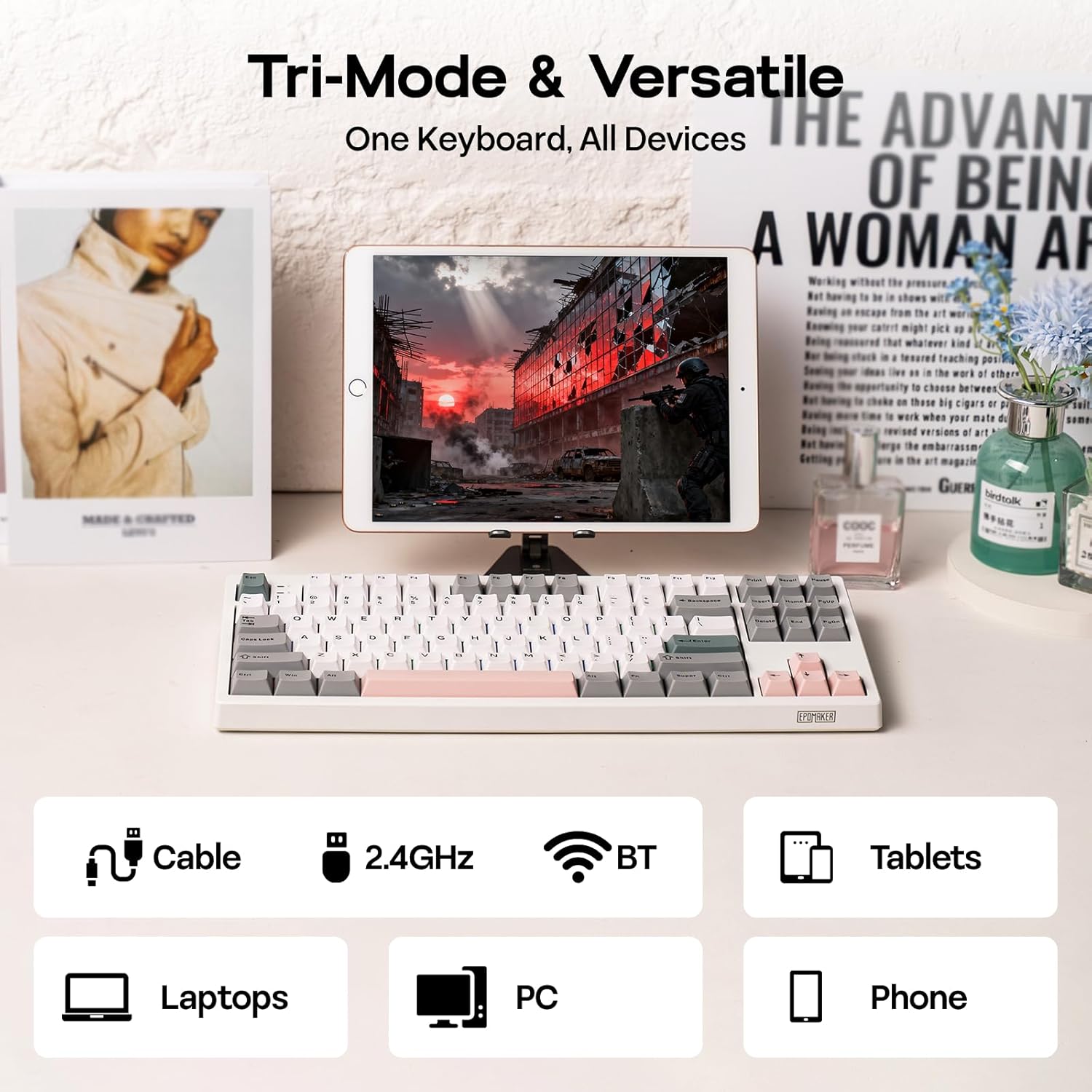
Figure 2: Tri-Mode Connectivity Options
4. Operating Instructions
4.1. Basic Functions
The TH87 features a standard 87-key TKL layout. All keys function as labeled in their default state.
4.2. Function Keys (Fn Combinations)
The keyboard includes an 'Fn' key to access secondary functions printed on certain keycaps. Common combinations include:
- Fn + F1-F12: Multimedia controls, volume adjustment, etc.
- Fn + Arrow Keys: Adjust RGB lighting effects (brightness, speed, direction).
- Fn + Win: Lock/Unlock Windows key.
- Fn + Enter: Check battery status.
4.3. OS Mode Switching
Use the dedicated switch on the keyboard to toggle between Mac and Windows compatibility modes.
5. Customization
The EPOMAKER TH87 offers extensive customization through its web-based driver software.
5.1. Web-Based Driver
The custom driver allows you to:
- Remap individual keys.
- Record and assign macros for complex key sequences.
- Adjust RGB lighting effects, colors, brightness, and speed.
- Configure advanced key functions like SOCD (Simultaneous Opposite Cardinal Directions) and Mod Tap.
Access the driver online via the official EPOMAKER website or the QR code provided in the brand card.
Video 2: How to Use TH87 Online Web Driver. This video guides you through connecting your keyboard to the web driver and customizing key functions, macros, and lighting settings.
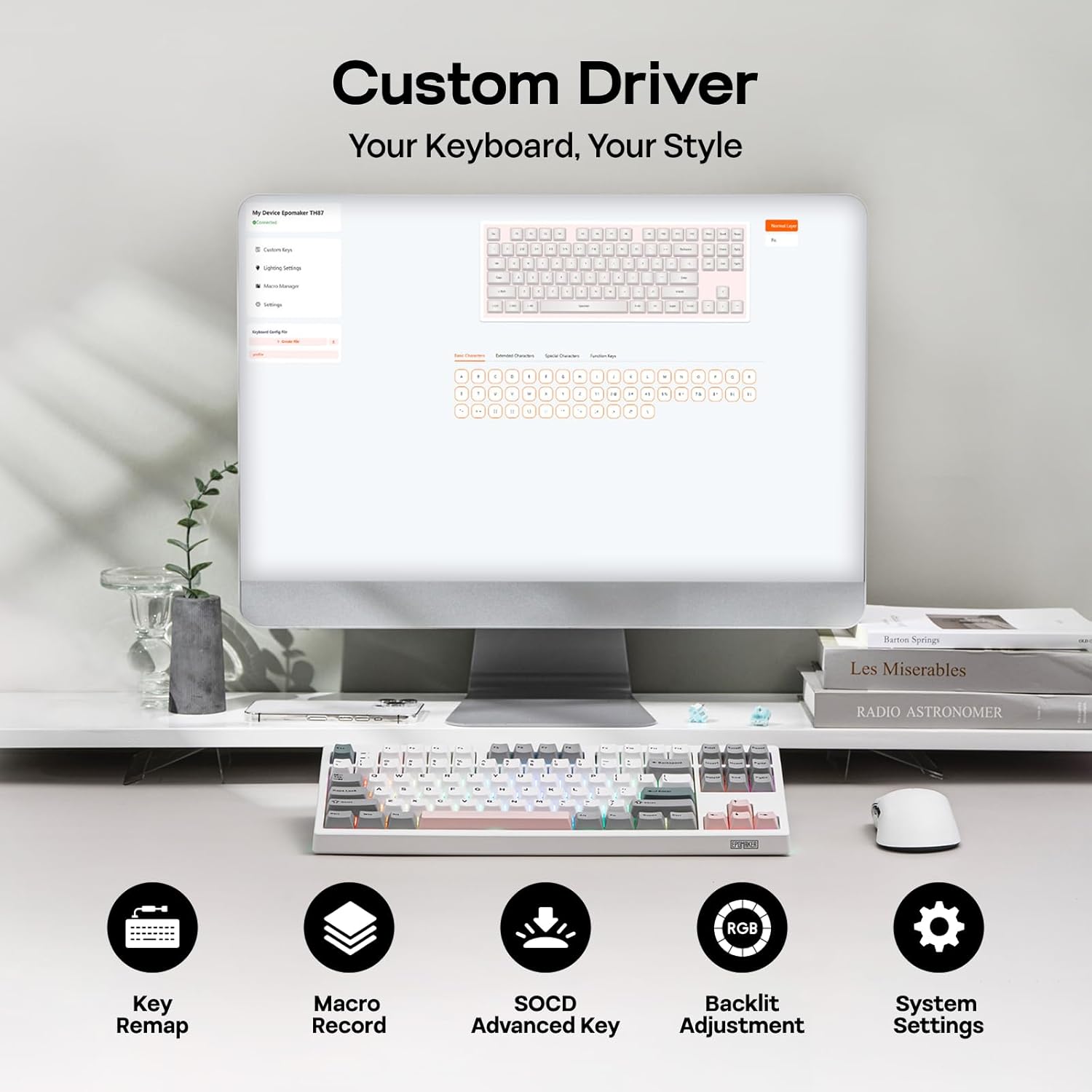
Figure 3: Custom Driver Interface
5.2. Hot-Swappable Switches
The TH87 features a hot-swappable PCB, allowing you to change mechanical switches without soldering. It is compatible with 3-pin and 5-pin switches.
To replace a switch:
- Use the provided keycap puller to remove the keycap.
- Use the provided switch puller to gently remove the switch from the PCB.
- Align the pins of the new switch with the holes on the PCB and press firmly until it clicks into place.
- Replace the keycap.
The keyboard comes with pre-lubed EPOMAKER Sea Salt Silent V2 switches (Linear, 45±5gf Trigger Force, 51±5gf Bottom-Out Force, 1.8±0.4mm Pre-Travel, 3.5±0.4mm Total Travel).

Figure 4: Hot-Swappable Switches and Sea Salt Silent V2 Specifications
Video 3: EPOMAKER TH87 Typing with Creamy Jade/Sea Salt Silent Switch. This video demonstrates the sound profile of the included switches.
5.3. RGB Backlighting
The TH87 features per-key RGB backlighting with various effects. You can adjust the saturation, brightness, and speed of the lighting through the Fn key combinations or the custom driver software.
6. Battery Information
The keyboard is equipped with a 10000mAh battery, providing extended usage times:
- Up to 45 hours of continuous use with RGB backlight at brightest setting.
- Up to 200 hours of continuous use with RGB backlight off.
To charge the keyboard, connect it via the USB-C cable to a computer or a compatible USB power adapter. The keyboard charges when plugged in. Always use a computer USB port for charging. Using a power adapter directly may cause battery damage.
7. Maintenance
Proper maintenance ensures the longevity and performance of your keyboard:
- Cleaning: Regularly clean keycaps and the keyboard surface with a soft, dry cloth. For deeper cleaning, remove keycaps using the provided puller and use compressed air to clear debris.
- Storage: Store the keyboard in a cool, dry place away from direct sunlight and extreme temperatures.
- Handling: Avoid dropping the keyboard or exposing it to liquids.
8. Troubleshooting
If you encounter issues with your keyboard, refer to the following common solutions:
- Keyboard not responding: Ensure the keyboard is charged and the correct connectivity mode (Wired, 2.4G, BT) is selected. Try reconnecting the cable or re-pairing the wireless connection.
- Keys not registering: Check if the switches are properly seated. If a specific key is not working, try replacing its switch with one of the extra switches provided.
- RGB lighting not working/incorrect: Verify lighting settings in the custom driver or cycle through effects using Fn key combinations. Ensure the keyboard is sufficiently charged.
- Connectivity issues: For 2.4GHz, ensure the dongle is securely plugged in and close to the keyboard. For Bluetooth, ensure your device's Bluetooth is enabled and the keyboard is paired correctly. Avoid interference from other wireless devices.
- Software issues: If the custom driver is not detecting the keyboard, ensure it is connected via USB-C and the mode switch is set to 'USB'.
9. Specifications
| Feature | Detail |
|---|---|
| Brand | EPOMAKER |
| Model Number | TH87 |
| Keyboard Description | TKL Layout Mechanical Keyboard |
| Number of Keys | 87 |
| Connectivity Technology | 2.4Ghz Wireless, BT, USB A-to-C Wired |
| Power Source | Battery Powered (10000mAh) |
| Keyboard Backlighting | RGB |
| Switch Type | Linear (EPOMAKER Sea Salt Silent Switch) |
| Special Features | Backlit, Ergonomic, Hot-Swappable, Programmable Keys, Rechargeable |
| Product Dimensions | 14.43"L x 5.59"W x 1.63"H |
| Material | Plastic |
| Compatible Devices | Gaming Console, Laptop, PC, Projector, Tablet |

Figure 5: Technical Specifications and Layout
10. Warranty and Support
The EPOMAKER TH87 Wireless Mechanical Keyboard comes with a 1 Year Warranty from the date of purchase.
For technical support, warranty claims, or any inquiries, please contact EPOMAKER customer service:
- Email: support@epomaker.com
- Official Website: www.epomaker.com
Please have your purchase receipt and product model number (TH87) ready when contacting support.


