
1. Setup Guide
1.1 Unboxing and Initial Inspection
Carefully remove your new HP laptop and its accessories from the packaging. Ensure all components are present:
- HP 14-inch HD Student Business Laptop
- Power Adapter (Charger)
Inspect the laptop for any physical damage. If you find any, contact your retailer immediately.

Image: The HP 14-inch HD Student Business Laptop, showcasing its sleek design and Willow Green color.
1.2 Powering On and Initial Configuration
- Connect the power adapter to the laptop's charging port and then to a power outlet.
- Open the laptop lid. The power button is typically located on the keyboard deck or side. Press it to turn on the laptop.
- Follow the on-screen instructions to complete the Windows 11 initial setup. This includes selecting your region, language, connecting to a Wi-Fi network, and creating a user account.
1.3 Windows 11 Home in S Mode
Your laptop comes with Windows 11 Home in S Mode, which is designed for security and performance by exclusively running apps from the Microsoft Store. If you need to install apps from outside the Microsoft Store, you can switch out of S Mode.
To switch out of S Mode:
- Go to Settings > System > Activation.
- In the 'Switch to Windows 11 Home' or 'Switch to Windows 11 Pro' section, select Go to the Store.
- On the 'Switch out of S Mode' (or similar) page that appears in the Microsoft Store, click the Get button.
- After you see a confirmation message, you'll be able to install apps from outside the Microsoft Store. This process is irreversible.
1.4 Activating Office 365
Your laptop includes a one-year subscription to Office 365. To activate it:
- Ensure your laptop is connected to the internet.
- Open any Office application (e.g., Word, Excel).
- Follow the on-screen prompts to sign in with your Microsoft account or create a new one to activate your subscription.
2. Operating Instructions
2.1 Basic Usage
- Keyboard: Use the full-size keyboard for typing. Function keys (F1-F12) often have secondary actions (e.g., volume, brightness) accessible by pressing the 'Fn' key simultaneously.
- Touchpad: The integrated touchpad supports multi-touch gestures for navigation, scrolling, and zooming.
2.2 Connectivity
Your HP laptop offers various ports and wireless options for connecting peripherals and networks.
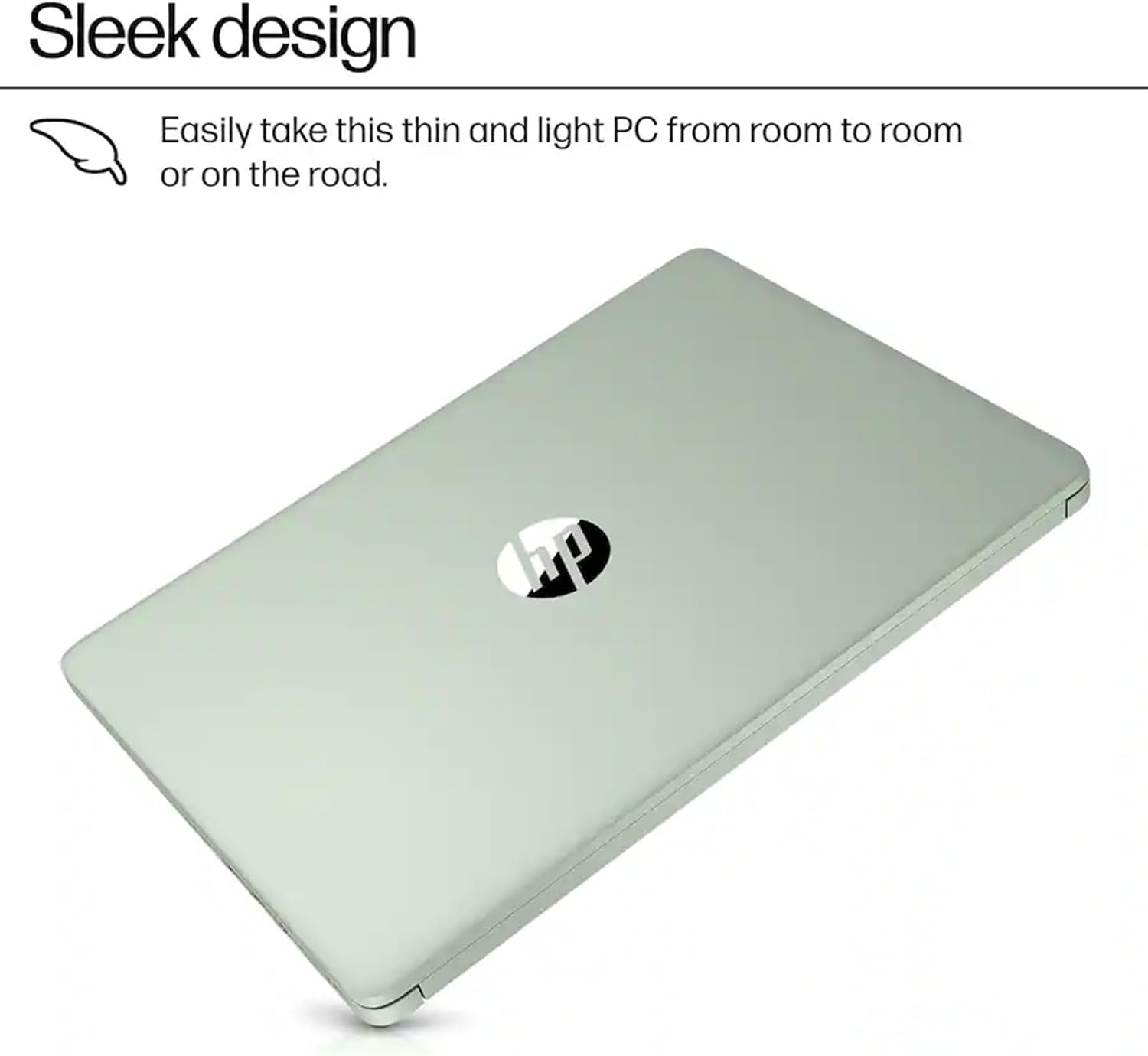
Image: Side view of the HP laptop illustrating the multi-format SD media card reader, headphone/microphone combo jack, USB Type-C, USB Type-A ports, HDMI 1.4b, and AC Smart pin.
- USB Ports: Connect USB devices such as external drives, mice, or keyboards to the 1 x USB-C 3.1 port or the 2 x USB-A 3.0 ports.
- HDMI: Use the HDMI 1.4 port to connect to external displays or projectors.
- Headphone/Microphone Combo Jack: Connect headphones, external speakers, or a headset.
- MicroSD Slot: Insert a microSD card for additional storage or data transfer.
- Wi-Fi: Connect to wireless networks using the integrated Wi-Fi 5 (802.11ac).
- Bluetooth: Pair Bluetooth-enabled devices like headphones, speakers, or smartphones.
2.3 Charging and Battery Management
The laptop features HP Fast Charge technology, allowing you to charge the battery from 0% to 50% in approximately 45 minutes when the system is off or in standby mode. For optimal battery life, avoid frequently draining the battery completely and store the laptop in a cool, dry place.
2.4 Display and Graphics
The 14-inch HD (1366 x 768) BrightView display provides clear visuals. The integrated Intel UHD Graphics handles everyday tasks, streaming, and light productivity.

Image: The HP laptop screen showing the Microsoft Copilot interface, highlighting its software capabilities.
3. Maintenance and Care
3.1 Cleaning Your Laptop
- Screen: Use a soft, lint-free cloth slightly dampened with water or a screen cleaner. Do not spray cleaner directly onto the screen.
- Keyboard and Chassis: Use a soft, dry cloth. For stubborn dirt, a slightly damp cloth with mild soap solution can be used, ensuring no liquid enters openings.
- Ports: Keep ports free of dust and debris. Use compressed air if necessary, holding the can upright.
3.2 Battery Care
- Avoid exposing the laptop to extreme temperatures.
- For long-term storage, charge the battery to about 50% and power off the device.
- Regularly use and recharge the battery to maintain its health.
3.3 Software Updates
Regularly check for and install Windows updates to ensure your system has the latest security patches and performance improvements. You can find updates in Settings > Windows Update.
4. Troubleshooting
4.1 Power Issues
- Laptop won't turn on: Ensure the power adapter is securely connected to both the laptop and a working power outlet. Try a different outlet. If the battery is completely drained, it may take a few minutes of charging before the laptop can power on.
- Battery not charging: Verify the power adapter is functioning correctly. Check the charging port for any obstructions.
4.2 Performance Issues
- Slow performance: Close unnecessary applications running in the background. Check your storage usage (128GB UFS) and free up space if it's nearly full. Ensure Windows is updated.
- Applications freezing: Try closing the unresponsive application via Task Manager (Ctrl+Shift+Esc). If the entire system is frozen, perform a hard shutdown by holding the power button for several seconds.
4.3 Connectivity Problems
- Wi-Fi not connecting: Restart your router and modem. On the laptop, turn Wi-Fi off and then on again. Ensure you are selecting the correct network and entering the correct password.
- Bluetooth device not pairing: Ensure the Bluetooth device is in pairing mode and within range. On the laptop, go to Settings > Bluetooth & devices and ensure Bluetooth is enabled.
4.4 Windows 11 S Mode Issues
If you are unable to install certain applications, remember that Windows 11 Home in S Mode only allows apps from the Microsoft Store. Refer to Section 1.3 for instructions on how to switch out of S Mode if you require broader application compatibility.
5. Specifications
Below are the key technical specifications for the HP 14-inch HD Student Business Laptop:
| Feature | Specification |
|---|---|
| Brand | HP |
| Model Name | HP |
| Screen Size | 14 Inches |
| Native Resolution | 1366 x 768 pixels (HD) |
| Display Type | LED, BrightView |
| Processor | Intel Celeron N150 (Quad-Core, up to 3.6 GHz) |
| Graphics | Intel UHD Graphics (Integrated) |
| RAM | 8 GB DDR4 SDRAM |
| Storage | 128 GB UFS (SSD) |
| Operating System | Windows 11 Home in S Mode |
| USB Ports | 1 x USB-C 3.1, 2 x USB-A 3.0 |
| Video Output | 1 x HDMI 1.4 |
| Audio | Headphone/microphone combo jack, HD Audio |
| Wireless Connectivity | Wi-Fi 5 (802.11ac), Bluetooth |
| Special Features | Webcam, Memory Card Slot (MicroSD), HP Fast Charge |
| Dimensions (L x W x Th) | 12.76" x 8.86" x 0.71" |
| Color | Willow Green |
6. Warranty and Support
6.1 Product Warranty
Your HP laptop is covered by a limited warranty. The specific terms and duration of the warranty may vary by region and retailer. Please refer to the warranty documentation included with your product or visit the official HP website for detailed information.
6.2 Technical Support
For technical assistance, troubleshooting beyond this manual, or warranty claims, please contact HP Customer Support. You can typically find support contact information, including phone numbers and online resources, on the official HP support website:
- Visit support.hp.com
- Have your product's serial number and model number ready when contacting support.
