
Introduction
The Carpuride W702 Plus is a 7-inch waterproof touchscreen display designed for motorcycles, integrating features such as wireless CarPlay, Android Auto, a 1080p dual dash camera, and an Android 14 operating system. This manual provides essential information for installation, operation, and maintenance of your device.
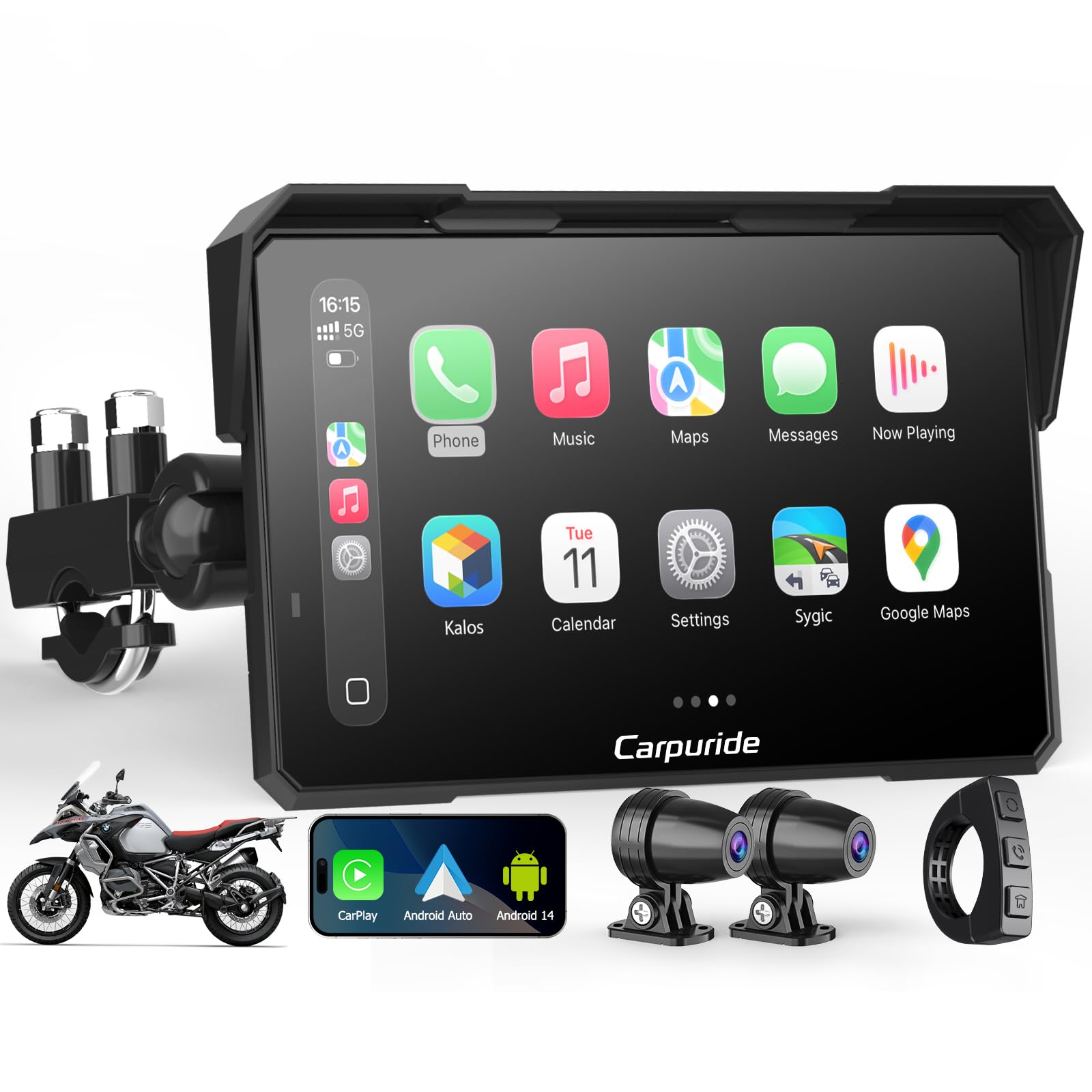
Image: The Carpuride W702 Plus display mounted on a motorcycle, showing its user interface.
What's in the Box
Verify that all components are present before proceeding with installation.
- 1 x Motorcycle CarPlay Screen (Carpuride W702 Plus)
- 1 x Power Cable
- 2 x Cameras (Front and Rear)
- 1 x Wired Controller
- 1 x U-Shaped Bracket
- 1 x User Manual
- 1 x 64GB TF Card
- 1 x Sunshade

Image: All components included in the Carpuride W702 Plus package.
Specifications
| Model Name | W702 Plus |
| Screen Size | 7 Inches (1024x600 HD IPS) |
| Operating System | Android 14 (4+64GB) |
| Cameras | 1080p 30FPS 140° Wide-angle Front and Rear |
| Waterproof Rating | IP67 |
| Connectivity | Wireless CarPlay, Android Auto, Bluetooth, Wi-Fi, Hotspot |
| Memory Storage | 64 GB (TF Card included) |
| Operating Temperature | -20°C to 80°C (-4°F to 158°F) |
| Control Method | App, Touch, Voice (Siri/Google) |
Setup and Installation
1. Mounting the Brackets
The device fits 7/8"–1-1/4" handlebars. Use the U-shaped bracket for secure mounting.
- Attach the mount to the handlebar using a Phillips screwdriver.
- Clamp the connecting rod to the mount.
- Insert the device and adjust its position as desired. Tighten the adjustment ring to secure it.

Image: Visual guide for bracket installation.
2. Wiring Installation
Proper wiring is crucial for device functionality. Professional installation is recommended if you are unsure.
- Connect the black wire (Ground) to the motorcycle battery negative terminal.
- Connect the red wire (ACC) to an ACC power supply.
- Connect the yellow wire (B+) to the motorcycle battery positive terminal.
- Important: Do not connect the yellow and red wires together.
- Connect the Front Camera, Rear Camera, and Wired Controller cables to their respective ports on the Motorcycle CarPlay screen.

Image: Wiring diagram for connecting the device to the motorcycle's power and accessories.
Note on Type-C Port: The Type-C port is for software debugging only and does not support power supply. If powering via Type-C, the input voltage must not exceed 5V. Direct power from the battery is recommended.
Operating Instructions
Powering On/Off
- The device will automatically sleep when the motorcycle is turned off.
- It will automatically shut down after 4 hours to protect the battery.
Wireless CarPlay and Android Auto
Connect your smartphone wirelessly to access navigation, calls, and music.
For Apple CarPlay:
- Open CarPlay on the device.
- On your iPhone (iOS 6 or above), search for the device's Bluetooth name (e.g., "carpuride-xxxx") and pair.
- Click "Allow" and "Use CarPlay" on your iPhone.
- Ensure Siri voice control is enabled on your iPhone.

Image: Connection process for Apple CarPlay.
For Android Auto:
- Open Android Auto on the device.
- On your Android phone (Android 11 or above, supporting 5GHz Wi-Fi), find connected devices.
- Add a new device (e.g., "carpuride-xxxx") and click "Pair".
- Ensure the Android Auto app is updated to the latest version.

Image: Connection process for Android Auto.
Note: The built-in Android system is memory-intensive and may cause a slow startup. Please wait patiently. If connection issues occur on Android 16, update the SuperLink app on both your phone and the device.
BT Audio Connectivity
Connect your phone to a Bluetooth-enabled headset or helmet for calls and music.
- Connect your phone to your headset or helmet via Bluetooth.
- Connect your phone wirelessly to the W702 Plus via Bluetooth.
- Enter CarPlay or Android Auto to play audio or make calls through your BT headset or helmet.
Note: Ensure your Bluetooth headset or helmet has microphones for phone calls and voice controls. Not compatible with HarmonyOS operating system phones.

Image: Steps for Bluetooth audio connection.
Navigation Modes
The W702 Plus offers three navigation options:
- CarPlay/Android Auto Mirroring: Use apps like Google Maps, Apple Maps, or Waze from your phone with real-time traffic.
- Independent Online Navigation: Connect to a hotspot or Wi-Fi to download apps like Rever, Kurviger, or Calimoto for live updates.
- Offline Navigation: Download maps in advance and use the built-in GPS for accurate navigation in areas with weak signals.

Image: Overview of available GPS navigation options.
Motorcycle DVR with Dual Cameras
The device includes 1080p front and rear cameras for recording your rides.
- Records in HD 1080P at 30FPS with a 140° wide-angle view.
- Supports split-screen display for simultaneous front and rear views.
- Features loop recording: when the 64GB TF card is full, older videos are automatically deleted to continue recording.

Image: Dual camera recording and split-screen display.
Wired Controller Functions
The wired controller provides quick access to key functions without touching the screen.
- Cycle button:
- Short press: Switches between front and rear camera views.
- Long press: Takes photos.
- Phone button:
- Short press: Answers an incoming call. Press again to hang up.
- Long press: Rejects an incoming call (Note: Android phones do not support rejecting calls via this button).
- Home button/Lock button:
- Short press: Returns to the main interface.
- Long press (3 seconds): Locks the screen.

Image: Functions of the wired controller.
Light Sensing Design
The device features an automatic brightness adjustment based on ambient light conditions, enhancing visibility and eye comfort.

Image: Automatic screen brightness adjustment.
Tire Pressure Settings
The device supports four different tire pressure settings. Select the appropriate setting based on your motorcycle model.

Image: Tire pressure monitoring interface.
Android System & Google Play
The W702 Plus features an integrated Android 14 system with 4GB RAM and 64GB storage. Connect to Wi-Fi or a hotspot to download applications from Google Play, such as YouTube or Amazon Music.

Image: Google Play Store interface on the device.
Compatibility Notes
- CarPlay: Requires iPhone iOS 6 or above with CarPlay system and Siri voice system enabled.
- Android Auto: Requires an Android phone running Android 11 or above, supporting 5GHz Wi-Fi, and with the Android Auto app updated to the latest version.
- Known Incompatibilities: Not perfectly compatible with Samsung Note and S series phones. Not compatible with HarmonyOS operating system phones.

Image: Compatibility requirements and incompatible phone models.
Maintenance
- Waterproof Design: The device has an IP67 waterproof rating, ensuring reliable performance in various weather conditions, including heavy rain.
- Temperature Range: Operates flawlessly in temperatures from -20°C to 80°C (-4°F to 158°F).
- Anti-Theft: Features a thief-proof detachable bracket for security.
- Screen Care: The 7-inch HD IPS rotatable touch screen is designed for clear visuals. Portrait mode offers an extended navigation view, while landscape mode is suitable for multimedia.

Image: Device performance in various weather conditions.
Troubleshooting
- Slow Startup: The integrated Android system is memory-intensive, which may result in a slower startup time. Please wait patiently for the device to load.
- Android 16 Connection Issues: If you experience connection problems with Android 16, ensure that the SuperLink app on both your phone and the device is updated to the latest version for improved compatibility.
- Type-C Port Power: The Type-C port is for debugging only and does not support power supply. Do not attempt to power the device via this port with voltage exceeding 5V. Direct battery connection is recommended.
Warranty and Support
The Carpuride W702 Plus comes with a 1-year warranty from the date of purchase. For technical support or warranty claims, please refer to the contact information provided in the included user manual or visit the official Carpuride website.
Product Videos
Watch the official product video for a visual guide on the Carpuride W702 Plus in action.
Video: Carpuride Moto Carplay Cycling Trip. This video demonstrates the Carpuride W702 Plus in use during a motorcycle ride, showcasing its display and navigation features.


