
1. Introduction
This manual provides comprehensive instructions for the installation, operation, and maintenance of your MOOKAKA 16.8" Android 13 Car Radio. Please read this manual thoroughly before using the product to ensure proper function and safety. This unit is designed specifically for Toyota Land Cruiser Prado 120 models manufactured between 2002 and 2009.
2. Product Overview
The MOOKAKA 16.8" Android 13 Car Radio is an advanced multimedia system designed to upgrade your vehicle's entertainment and navigation capabilities. Key features include:
- Android 13 Operating System: Provides a modern, intuitive user interface and access to a wide range of applications.
- 16.8-inch IPS Touch Screen: Offers a large, clear display with responsive touch control.
- Wireless CarPlay & Android Auto: Seamlessly integrates with your smartphone for navigation, calls, messages, and music.
- Built-in DSP (Digital Sound Processor): Features a 16-segment EQ and Roma 32107 sound effect chip for customizable audio experiences, including ultra-low/high/mid/bass frequency division.
- GPS Navigation: Supports online and offline maps (Apple Maps, Google, Waze) with strong satellite reception (GPS + GLONASS).
- Wi-Fi & Bluetooth 5.1: Built-in Wi-Fi module for internet access via phone hotspot and Bluetooth for hands-free calls, phone book download, and music streaming.
- Non-destructive Installation: Designed for plug-and-play integration with the original car screen cable, maintaining factory rear camera or 360 camera functionality.

Figure 2.1: Various views of the MOOKAKA 16.8" Android 13 Car Radio unit.
3. Package Contents
Please verify that all items are present in the package:
- MOOKAKA 16.8" Android 13 Car Radio Head Unit
- All Required Cables
- Installation Tool
- User Manual (this document)
4. Setup & Installation
The MOOKAKA 16.8" Android 13 Car Radio is designed for non-destructive, plug-and-play installation in Toyota Land Cruiser Prado 120 models (2002-2009). No modifications are typically required, and the unit directly docks with the original car screen cable.
- Preparation: Ensure the vehicle's ignition is off and the battery is disconnected before beginning installation.
- Removal of Original Unit: Carefully remove the existing car stereo and associated trim panels. Refer to your vehicle's specific service manual for detailed instructions on panel removal.
- Connecting Cables: Connect the provided cables from the new head unit to the vehicle's wiring harness. Ensure all connections are secure. The unit is designed to retain original factory rear camera or 360 camera functionality.
- Mounting the New Unit: Position the new 16.8" head unit into the dashboard opening. Secure it using the appropriate mounting brackets and screws.
- Reassembly: Reattach all trim panels and reconnect the vehicle's battery.
- Initial Power-Up: Turn on the vehicle's ignition and power on the head unit. Follow any on-screen prompts for initial setup.

Figure 4.1: Demonstrating the installation process of the head unit.
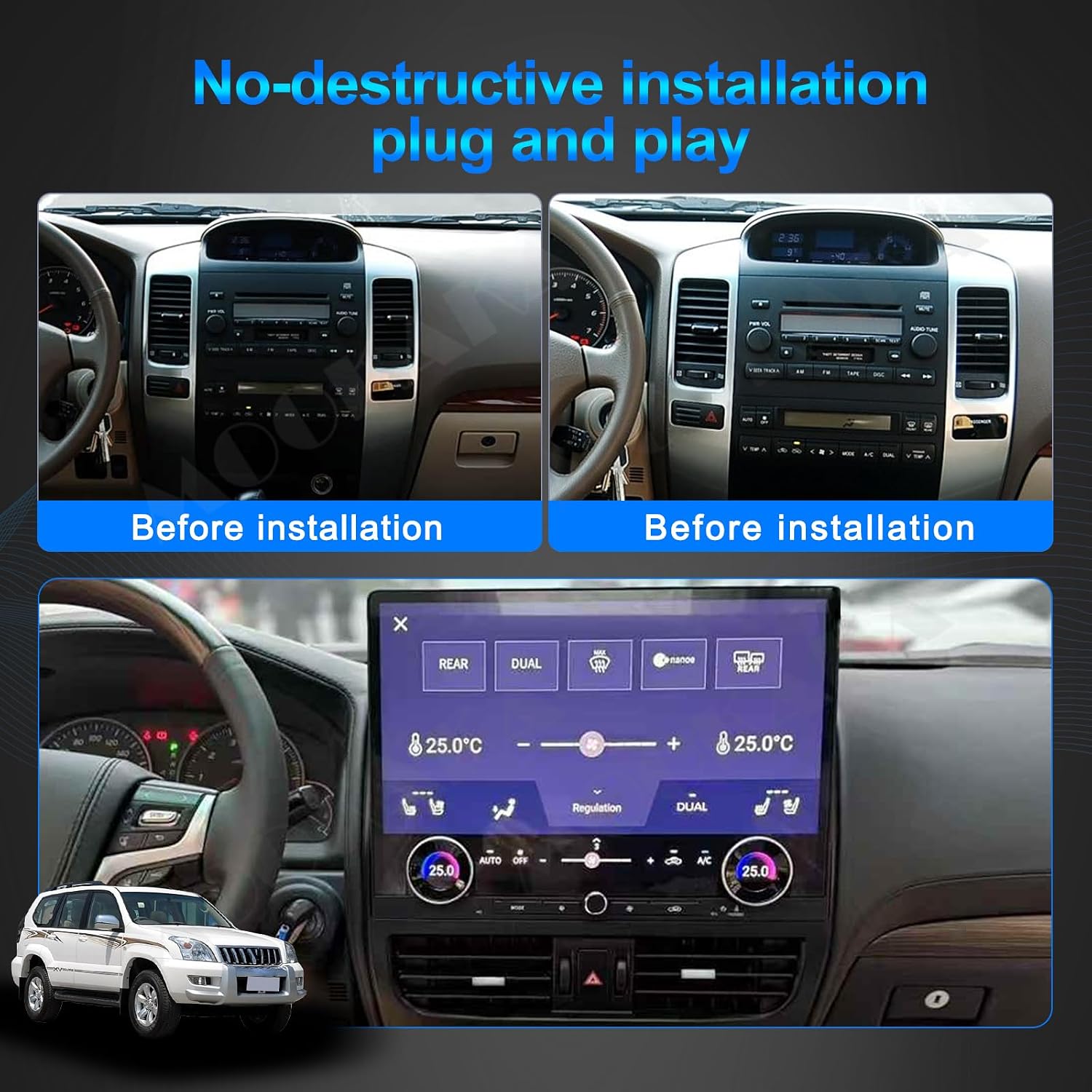
Figure 4.2: Visual comparison of the dashboard before and after the new head unit installation.
If you encounter any difficulties during installation, please contact MOOKAKA technical support for assistance.
5. Operating Instructions
The Android 13 interface is designed for intuitive use. Navigate through menus and applications using the responsive touch screen.
5.1 Basic Navigation
- Home Screen: Access frequently used apps and widgets.
- App Drawer: Swipe up or tap the app icon to view all installed applications.
- Settings: Access system configurations, network settings, display options, and more.

Figure 5.1: Main screen interface with climate control integration.
5.2 Wireless CarPlay & Android Auto
Connect your iPhone or Android device wirelessly to access navigation, communication, and entertainment features safely while driving.
- Pairing: Ensure Bluetooth is enabled on your phone and the head unit. Follow the on-screen instructions to pair your device.
- Activation: Once paired, select the CarPlay or Android Auto icon on the head unit to launch the interface.

Figure 5.2: Wireless CarPlay in operation.
5.3 GPS Navigation
Utilize the built-in GPS for accurate navigation. The system supports various mapping applications.
- Online Maps: Connect to Wi-Fi or a 4G network (if supported) to use real-time traffic and updated map data.
- Offline Maps: Download maps for use without an internet connection.

Figure 5.3: GPS Navigation feature.
5.4 Wi-Fi & Bluetooth Connectivity
Connect to the internet and other devices.
- Wi-Fi: Enable Wi-Fi in settings and connect to a mobile hotspot to access online content and download apps.
- Bluetooth 5.1: Pair your phone for hands-free calling and audio streaming.
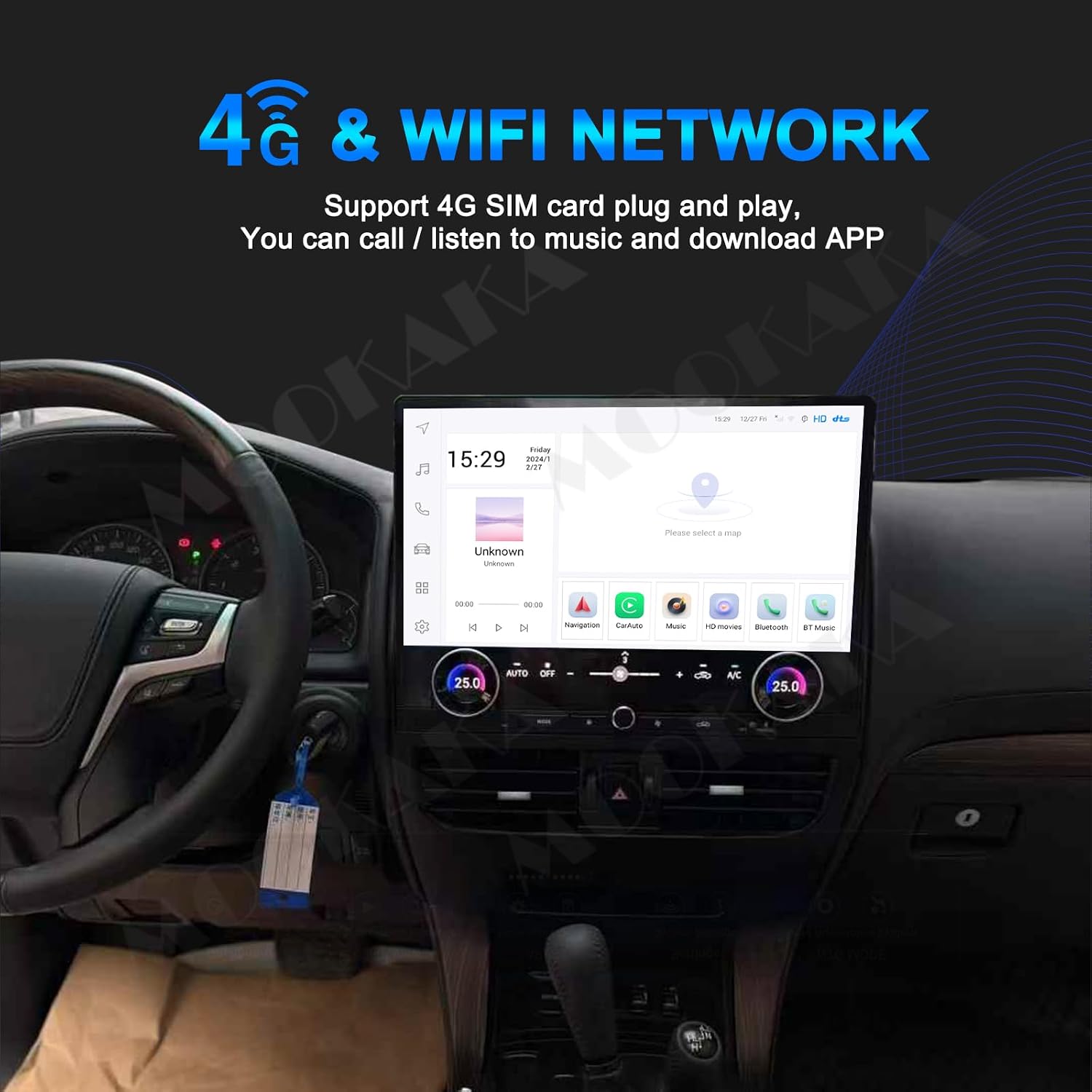
Figure 5.4: 4G and Wi-Fi network support.

Figure 5.5: Bluetooth 5.1 connectivity.
5.5 Audio & Video Playback
Enjoy high-quality audio and video directly on the head unit.
- Music Player: Access your music library, playlists, and radio functions.
- Video Player: Play high-definition videos on the IPS touch screen.
- DSP Equalizer: Adjust sound settings to your preference using the 16-segment EQ.

Figure 5.6: DSP Equalizer interface for audio customization.

Figure 5.7: High-definition video playback.
5.6 Steering Wheel Control
The unit supports steering wheel control (SWC) settings, allowing you to manage audio tracks, volume, and other functions directly from your steering wheel for enhanced safety.

Figure 5.8: Steering Wheel Control configuration.
5.7 Mirror Link
Mirror your smartphone screen directly onto the head unit display for convenient access to your phone's content.

Figure 5.9: Mirror Link functionality.
5.8 Climate Control Integration
The unit integrates with your vehicle's climate control system, allowing you to manage temperature and fan settings directly from the touch screen.
Video 5.1: Demonstration of the car radio's features, including climate control integration and various applications.
6. Maintenance
To ensure the longevity and optimal performance of your MOOKAKA car radio, follow these maintenance guidelines:
- Cleaning: Use a soft, dry cloth to clean the screen and exterior. Avoid abrasive cleaners or solvents.
- Software Updates: Periodically check for and install software updates to ensure the system has the latest features and security patches.
- Environmental Conditions: Avoid exposing the unit to extreme temperatures, direct sunlight for prolonged periods, or excessive moisture.
- Power Management: Ensure the vehicle's electrical system is in good working order to prevent power fluctuations that could damage the unit.
7. Troubleshooting
If you encounter issues with your car radio, refer to the following common troubleshooting steps:
- No Power: Check all power connections and the vehicle's fuse box. Ensure the ignition is on.
- No Sound: Verify volume settings, audio source selection, and speaker connections. Check if the mute function is active.
- Touch Screen Unresponsive: Restart the unit by turning off the vehicle's ignition and then restarting. If the issue persists, perform a factory reset (refer to settings).
- GPS Signal Loss: Ensure the GPS antenna is properly installed and has a clear view of the sky. Update map data if necessary.
- Bluetooth/Wi-Fi Connection Issues: Ensure Bluetooth/Wi-Fi is enabled on both the head unit and your device. Try re-pairing or reconnecting.
- System Slow/Freezing: Close unnecessary applications. If the issue persists, consider a factory reset. Back up important data before resetting.
For persistent issues not resolved by these steps, please contact MOOKAKA technical support.
8. Specifications
| Feature | Specification |
|---|---|
| Brand | MOOKAKA |
| Model | B0FX4SZ594 |
| Operating System | Android 13 |
| Display Size | 16.8 inches |
| Display Type | IPS Touchscreen |
| Connectivity Technology | Bluetooth 5.1, Wi-Fi |
| GPS Navigation | GPS + GLONASS, Supports Apple Maps, Google, Waze |
| Memory Storage Capacity | 64 GB (variant dependent, current model 8-128GB) |
| Item Weight | 8 pounds |
| Package Dimensions | 24 x 11 x 9 inches |
| Included Components | Cables, Installation tool |
9. Warranty & Support
Your MOOKAKA 16.8" Android 13 Car Radio comes with a 1-Year Warranty from the date of purchase. This warranty covers manufacturing defects and malfunctions under normal use.
For technical support, warranty claims, or any questions regarding installation and operation, please contact the seller, MOKAKA Official Store, through your purchase platform. They can provide specialized assistance and guidance.