
HP UltraBook
HP 14-inch Laptop User Manual
Model: UltraBook
Introduction
This manual provides essential information for setting up, operating, maintaining, and troubleshooting your HP 14-inch laptop. This device features an Intel Celeron N4500 Dual-Core CPU, 8GB RAM, 256GB SSD, and comes with Windows 11 Home.
Setup
1. Unboxing and Initial Inspection
Carefully remove the laptop and all accessories from the packaging. Verify that all components are present:
- HP 14-inch Laptop
- Power Adapter
- Recovery USB
- Documentation
2. Connecting to Power
Connect the power adapter to the laptop's power port and then plug it into a wall outlet. It is recommended to fully charge the battery before first use.
3. First Boot and Windows 11 Setup
Press the power button to turn on the laptop. Follow the on-screen instructions to complete the Windows 11 Home setup, which includes:
- Selecting your region and keyboard layout.
- Connecting to a Wi-Fi network.
- Signing in with or creating a Microsoft account.
- Setting up a PIN or password.
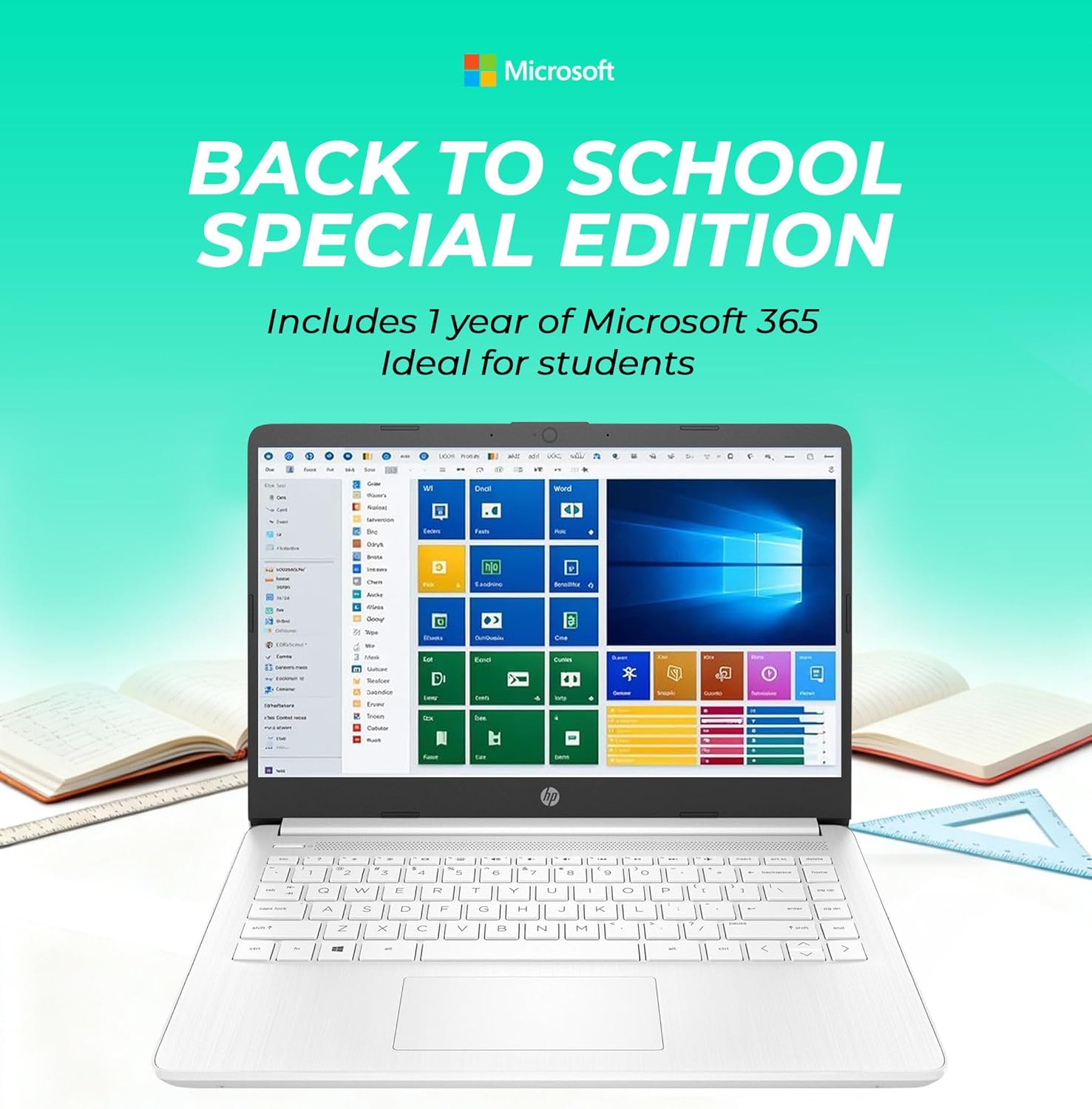
Figure 1: HP 14-inch Laptop with Windows 11 interface.
Operating
1. Power On/Off and Sleep
- Power On: Press the power button located on the side or keyboard deck.
- Shut Down: Click the Start button, then Power > Shut down.
- Sleep: Close the lid or click the Start button, then Power > Sleep.
2. Using Windows 11
Your laptop comes with Windows 11 Home, offering a redesigned user interface and features like Microsoft Copilot AI for assistance with tasks. Explore the Start menu for applications and settings.
3. Microsoft 365 Web Apps and OneDrive
Access Microsoft 365 Web Apps (Word, Excel, PowerPoint, etc.) through your web browser. Your purchase includes 1TB of OneDrive cloud storage for document and file management.
4. Connecting Peripherals and Ports
The laptop features various ports for connecting external devices:
- 1 x USB 2.0
- 1 x USB 3.2 Gen 1 (Type-A)
- 1 x USB-C 3.2 Gen 1 (DisplayPort 1.2 compatible)
- 1 x HDMI 1.4b (for external displays)
- 1 x Headphone / Mic Combo Jack
- 1 x Multi-Format SD Media Card Reader
- 1 x AC smart pin (power adapter)
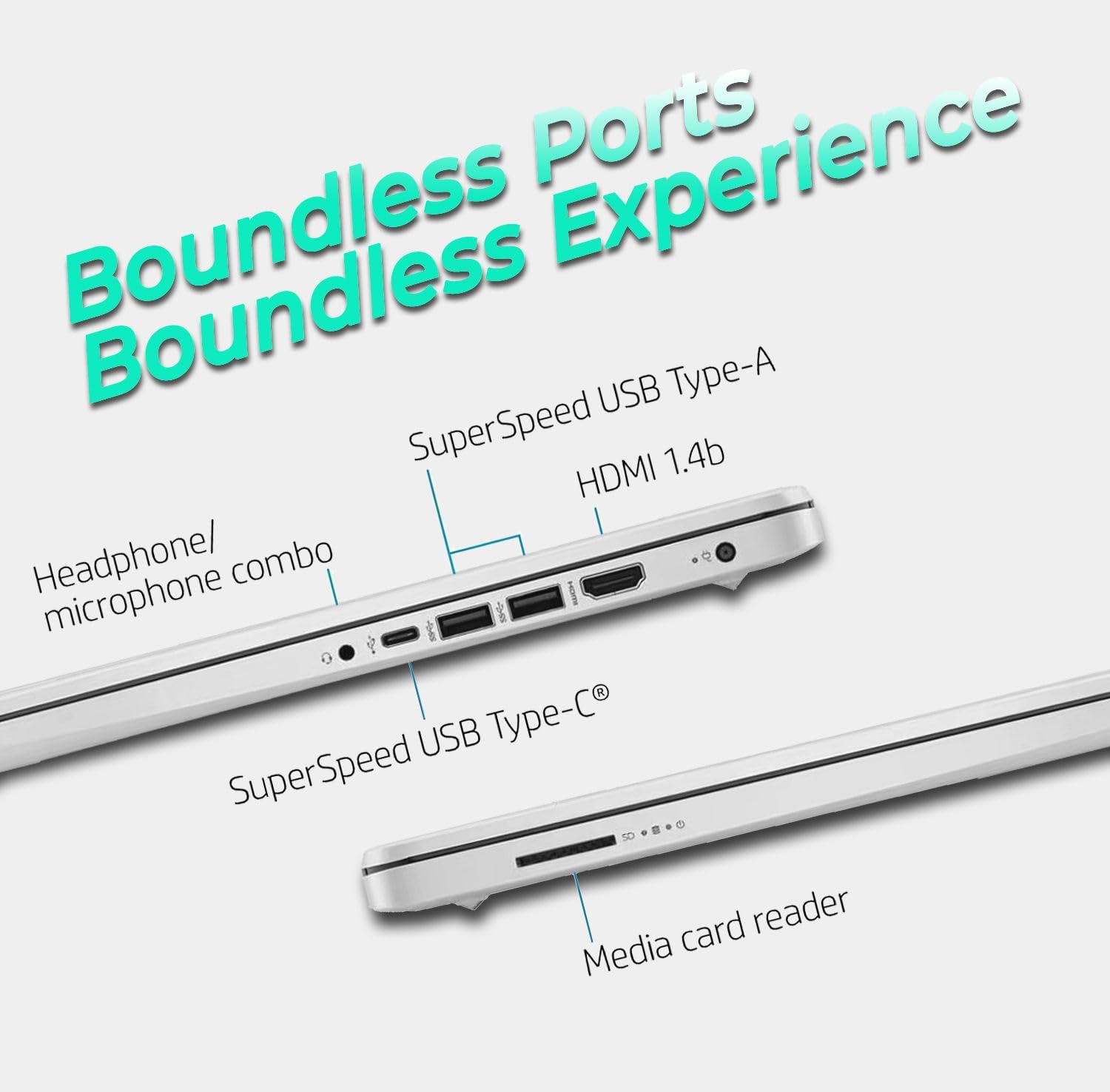
Figure 2: Laptop ports for connectivity.
5. Wireless Connectivity
The laptop supports WiFi 802.11ax and Bluetooth 5.4 for wireless connections to networks and peripherals.
6. Display
The 14-inch HD (1366 x 768) display features a micro-edge design and BrightView technology. It also includes an anti-glare coating for improved eye comfort.
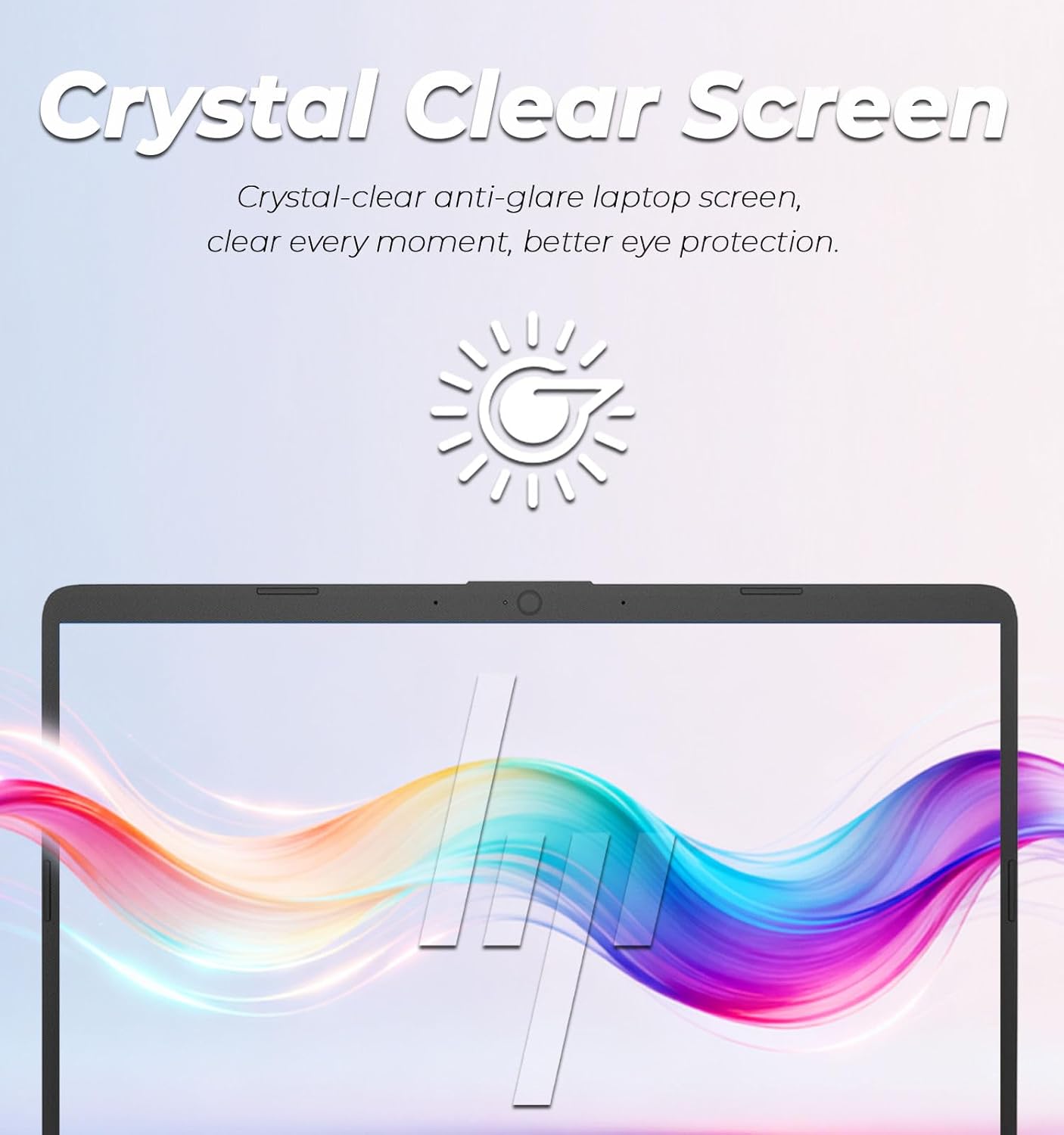
Figure 3: Crystal clear anti-glare display for eye protection.
Maintenance
1. Cleaning the Laptop
- Use a soft, lint-free cloth to clean the screen and exterior.
- For stubborn marks, dampen the cloth slightly with water or a screen-safe cleaner.
- Avoid harsh chemicals, abrasives, or excessive moisture.
2. Battery Care
- Avoid extreme temperatures.
- Do not leave the laptop plugged in constantly at 100% charge for extended periods.
- For optimal battery health, allow the battery to discharge partially before recharging.

Figure 4: Laptop battery life indication.
3. Software Updates
Regularly update Windows and drivers to ensure optimal performance and security. Windows Update can be accessed via Settings > Windows Update.
4. Data Backup
Regularly back up important data to an external drive or cloud storage (like the included 1TB OneDrive) to prevent data loss.
Troubleshooting
1. Laptop Does Not Power On
- Ensure the power adapter is securely connected to both the laptop and a working power outlet.
- Verify the power outlet is functional by plugging in another device.
- Try holding the power button for 15-20 seconds to perform a hard reset.
2. Screen Remains Blank
- Check if the laptop is powered on (indicator lights).
- Connect an external monitor to see if a display appears there. If so, the laptop screen may have an issue.
- Adjust screen brightness using function keys.
3. Wi-Fi Connectivity Issues
- Ensure Wi-Fi is enabled in Windows settings.
- Restart your router and modem.
- Forget the network and reconnect.
- Update Wi-Fi drivers through Device Manager.
4. Slow Performance
- Close unnecessary applications running in the background.
- Check Task Manager for processes consuming high CPU or RAM.
- Ensure Windows and drivers are up to date.
- Run a disk cleanup.
- Consider running a malware scan.
Specifications
| Feature | Detail |
|---|---|
| Model Name | UltraBook |
| Processor | Intel Celeron N4500 Dual-Core (up to 3.6 GHz) |
| Graphics | Integrated Intel Graphics |
| Operating System | Windows 11 Home 64-bit |
| RAM | 8GB DDR4 SDRAM |
| Storage | 256GB SSD + 1TB OneDrive Cloud Storage |
| Display | 14-inch HD (1366 x 768), micro-edge, BrightView, 220 nits, 45% NTSC |
| Wireless | WiFi 802.11ax, Bluetooth 5.4 |
| Audio | High Definition (HD) Audio, Stereo speakers |
| Keyboard | US English, Non-Backlit Full Size Keyboard |
| Webcam | HP True Vision 720p HD camera with temporal noise reduction |
| Ports | 1x USB 2.0, 1x USB 3.2 Gen 1, 1x USB-C 3.2 Gen 1 (DisplayPort 1.2), 1x AC smart pin, 1x HDMI 1.4b, 1x Headphone/Mic Combo, 1x Multi-Format SD Media Card Reader |
| Battery Life | Up to 12 Hours |
| Color | Snowflake White |
| Dimensions (L x W x Th) | 12.76 x 8.86 x 0.71 inches |
| Weight | 3.24 lbs |
| Included Software | 1 Year Microsoft 365 Subscription |
Warranty and Support
For warranty information and technical support, please refer to the documentation included with your product or visit the official HP support website. Keep your purchase receipt and product serial number handy when contacting support.
HP Support Website: support.hp.com
Related documentsUltraBook


Ask a question about this manual
Ask about setup, troubleshooting, compatibility, parts, safety, or missing instructions. Manuals+ will review the question and use this page’s manual context to help answer it.