
1. Introduction
This manual provides detailed instructions for the installation, operation, and maintenance of your ZSUS X99-8D4 Motherboard Set Kit. This kit includes the ZSUS X99-8D4 motherboard, an Intel Xeon E5 2650 V4 CPU, and 16GB (1x16GB) of DDR4 2133MHz memory. Please read this manual thoroughly before proceeding with installation to ensure proper setup and optimal performance.
2. Product Overview
The ZSUS X99-8D4 motherboard is designed for high-performance computing, supporting Intel LGA2011-3 processors and DDR4 memory. It features an NVMe M.2 slot for high-speed storage and Gigabit Ethernet for reliable network connectivity.
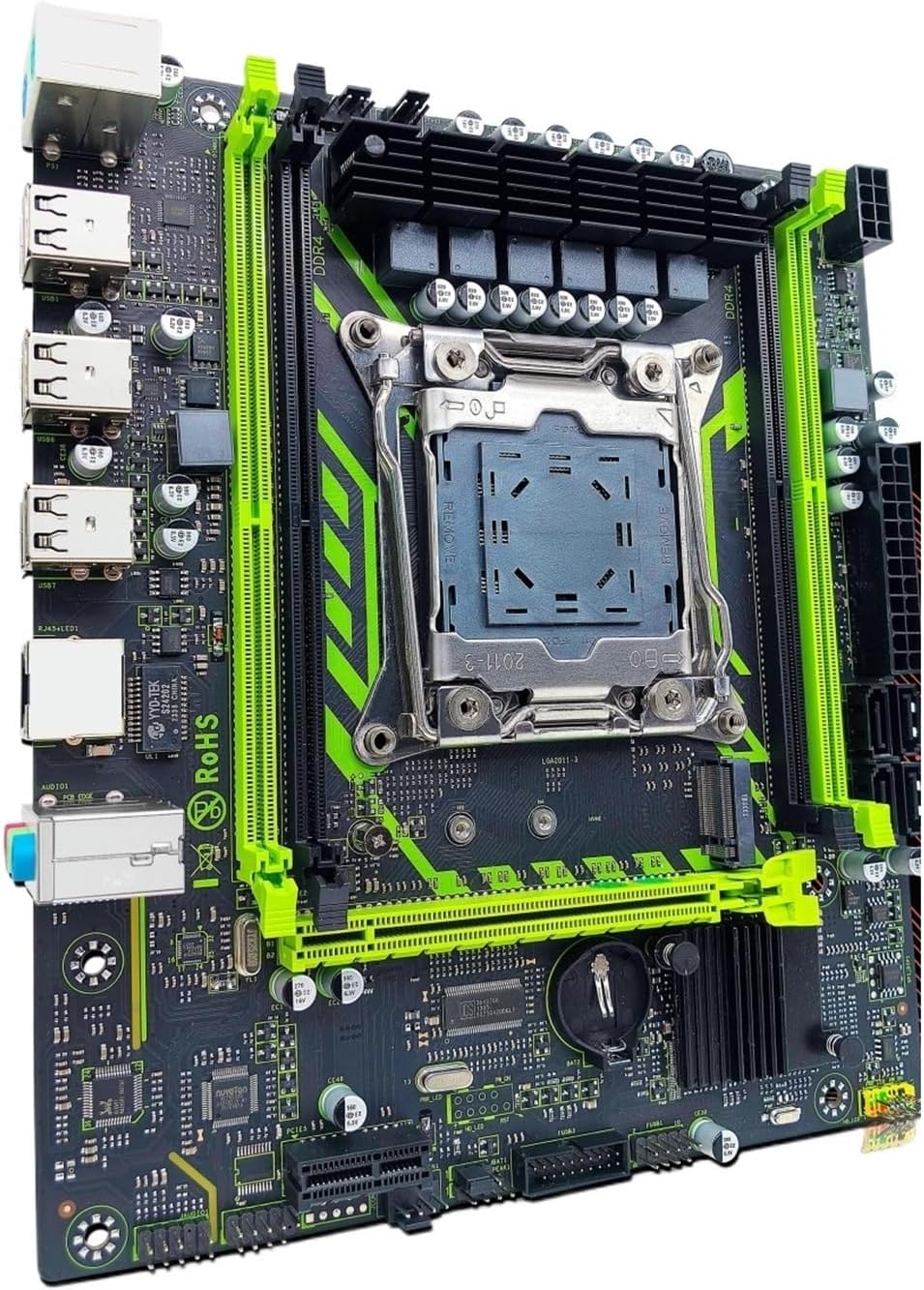
Figure 2.1: ZSUS X99-8D4 Motherboard Set Kit. This image displays the complete motherboard kit, including the motherboard, CPU, and RAM, ready for installation.
Key Features:
- CPU Support: LGA2011-3 socket for Intel Xeon E5 V3/V4 series processors.
- Memory: 4x DDR4 memory slots, supporting up to 128GB of RAM.
- Storage: NVMe M.2 slot (2280 form factor) for high-speed SSDs, and multiple SATA 2.0 ports.
- Expansion: 1x PCIe x16 slot (PCI-E 3.0) for graphics cards, 1x PCIe x1 slot.
- Networking: Integrated Gigabit Ethernet (1000Mbps).
- USB: Multiple USB 2.0 ports.
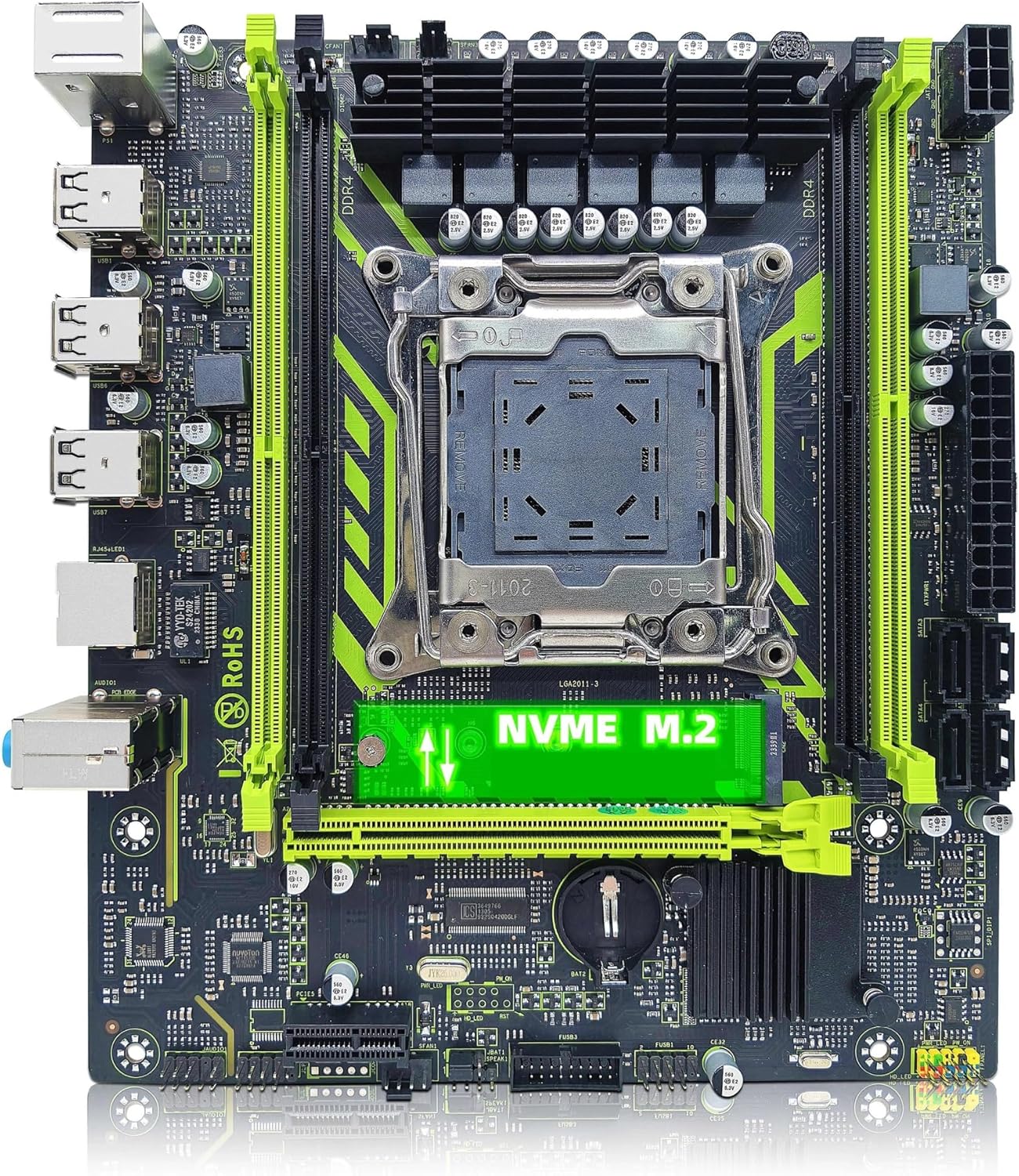
Figure 2.2: ZSUS X99-8D4 Motherboard highlighting the NVMe M.2 slot. This image shows the motherboard with the NVMe M.2 slot clearly visible, indicating its location for SSD installation.
3. Setup and Installation
Before beginning installation, ensure your system is powered off and unplugged. Wear an anti-static wrist strap to prevent electrostatic discharge (ESD) damage to components.
3.1 Unpacking and Inspection
Carefully remove all components from their packaging. Verify that all items listed in your kit are present and undamaged. The kit typically includes the motherboard, CPU, RAM, I/O shield, and SATA cable.
3.2 Motherboard Installation
- Install the I/O shield into the rear opening of your computer case.
- Align the motherboard with the standoffs inside your computer case.
- Secure the motherboard with screws, ensuring it is firmly seated and not touching any metal parts of the case directly.

Figure 3.1: ZSUS X99-8D4 Motherboard with dimensions. This image illustrates the physical dimensions of the motherboard, showing a width of 215mm and a length of 190mm, which is useful for case compatibility.
3.3 CPU Installation (Intel Xeon E5 2650 V4)
- Locate the LGA2011-3 CPU socket on the motherboard.
- Open the CPU socket retention mechanism by pushing down and out on the lever(s).
- Carefully place the Intel Xeon E5 2650 V4 CPU into the socket, aligning the gold triangle on the CPU with the corresponding mark on the socket. Do not force the CPU into place.
- Close the retention mechanism to secure the CPU.
- Apply a thin, even layer of thermal paste to the top of the CPU.
- Install your CPU cooler according to its manufacturer's instructions.
3.4 RAM Installation (DDR4)
- Locate the four DDR4 memory slots on the motherboard.
- Open the clips at both ends of the memory slot.
- Align the notch on the 16GB DDR4 memory module with the key in the memory slot.
- Press down firmly on both ends of the memory module until the clips snap into place.
3.5 NVMe M.2 SSD Installation
- Locate the NVMe M.2 slot on the motherboard.
- Remove the M.2 standoff screw.
- Insert the M.2 SSD into the slot at a 30-degree angle.
- Push the SSD down and secure it with the standoff screw.
3.6 Graphics Card and Other PCIe Devices
- Locate the PCIe x16 slot for your graphics card.
- Open the retention clip at the end of the slot.
- Align your graphics card with the slot and press down firmly until it clicks into place.
- Secure the graphics card to the case with a screw.
- Install any other PCIe x1 expansion cards as needed.
3.7 Power Supply Connections
- Connect the 24-pin ATX power connector from your power supply to the motherboard.
- Connect the 8-pin CPU power connector (and 4-pin if available/needed) to the corresponding sockets near the CPU.
- Connect SATA power cables to your storage devices.
3.8 Front Panel and Peripheral Connections
- Connect the front panel headers (Power SW, Reset SW, HDD LED, Power LED) to the designated pins on the motherboard. Refer to the motherboard diagram for correct pin assignments.
- Connect USB 2.0 headers from your case to the motherboard.
- Connect the front panel audio header.
- Connect SATA data cables from your storage devices to the SATA 2.0 ports on the motherboard.

Figure 3.2: ZSUS X99-8D4 Motherboard with labeled ports and connectors. This image provides a detailed layout of the motherboard, indicating the locations of the CPU socket, DDR4 slots, PCIe slots, SATA ports, USB headers, and power connectors.

Figure 3.3: ZSUS X99-8D4 Motherboard I/O Shield and SATA Cable. This image shows the included I/O shield for the rear panel and a SATA data cable, essential accessories for system assembly.
4. Operating Instructions
4.1 First Boot
- After all connections are made, connect your monitor, keyboard, and mouse.
- Plug in the power cord and turn on your power supply.
- Press the power button on your computer case.
- The system should power on and display the BIOS/UEFI splash screen.
4.2 BIOS/UEFI Setup
During the initial boot, press the designated key (usually DEL or F2) to enter the BIOS/UEFI setup utility. Here you can configure boot order, system time, and other hardware settings. Ensure your storage device with the operating system is set as the primary boot device.
4.3 Driver Installation
After installing your operating system, install the necessary drivers for the motherboard chipset, LAN, and audio. These drivers are typically provided on a CD/DVD or can be downloaded from the manufacturer's website. Installing the correct drivers ensures optimal performance and stability.
5. Maintenance
5.1 Cleaning
Regularly clean your computer's interior to prevent dust buildup, which can lead to overheating. Use compressed air to remove dust from fans, heatsinks, and motherboard components. Ensure the system is powered off and unplugged before cleaning.
5.2 BIOS Updates
Periodically check the manufacturer's website for BIOS/UEFI updates. Updates can improve system stability, add support for new hardware, or fix bugs. Follow the update instructions carefully to avoid damaging the motherboard.
6. Troubleshooting
This section addresses common issues you might encounter.
6.1 No Power / No Boot
- Check all power connections: 24-pin ATX, 8-pin CPU, and power button header.
- Ensure the power supply switch is in the 'ON' position.
- Test the power supply with another system or a power supply tester if possible.
6.2 No Display
- Ensure your monitor is connected to the graphics card (not the motherboard's I/O if no integrated graphics are present).
- Reseat the graphics card and memory modules.
- Try a different display cable or monitor.
6.3 Memory Errors
- Ensure memory modules are fully seated in their slots.
- Try booting with one memory module at a time to identify a faulty stick or slot.
- Verify memory compatibility with the motherboard.
6.4 System Instability / Crashes
- Check CPU and GPU temperatures to ensure they are within safe operating limits.
- Ensure all drivers are up to date.
- Run memory diagnostic tools to check for RAM errors.
7. Specifications
| Feature | Specification |
|---|---|
| Model | ZSUS X99-8D4 |
| CPU Socket | LGA 2011-3 |
| Supported CPU | Intel Xeon E5 V3/V4 series (e.g., E5 2650 V4 included) |
| Memory Type | DDR4 |
| Memory Slots | 4 |
| Max Memory Capacity | 128 GB |
| Storage Interface | M.2 (NVMe 2280), SATA 2.0 |
| PCIe x16 Slots | 1 (PCI-E 3.0) |
| PCIe x1 Slots | 1 |
| LAN Speed | 1000Mbps (Gigabit Ethernet) |
| USB Ports | 6 x USB 2.0 (rear I/O) |
| Audio Ports | 3 x Jacks |
| Form Factor | ATX (approx. 215mm x 190mm) |
| Certification | RoHS, CE |
8. Warranty and Support
For warranty information and technical support, please refer to the documentation provided with your purchase or contact the seller directly. Keep your proof of purchase for warranty claims.


