
1. Introduction
This manual provides essential information for the safe and efficient use of your Haier H55C95EUX 55-inch OLED 4K HDR Smart TV. Please read these instructions thoroughly before operating your television and retain them for future reference.
The Haier H55C95EUX features a 55-inch OLED display for deep blacks and vibrant colors, 4K HDR resolution, a 144Hz refresh rate for smooth motion, integrated Harman Kardon sound, and the Google TV operating system for smart functionality and voice control.

Image 1.1: Overview of Haier C95 Series OLED TV features, highlighting Harman Kardon audio, 144Hz gaming, Dolby Vision IQ, Dolby Atmos, HDR10+, Google TV, and 3GB RAM with 32GB storage.
2. Safety Information
Always follow basic safety precautions when using this television to reduce the risk of fire, electric shock, and injury.
- Power Source: Connect the TV only to an AC 220-240V, 50/60Hz power supply.
- Ventilation: Ensure adequate ventilation around the TV. Do not block ventilation openings.
- Water and Moisture: Do not expose the TV to rain or moisture. Do not place objects filled with liquids, such as vases, on the TV.
- Cleaning: Unplug the TV from the wall outlet before cleaning. Use a soft, dry cloth. Do not use liquid cleaners or aerosol cleaners.
- Mounting: If wall-mounting, ensure the wall mount is compatible with the VESA standard (100 x 100 mm) and can support the TV's weight.
- Children: Supervise children to ensure they do not play with the television.
3. What's in the Box
Carefully unpack the box and ensure all items are present and undamaged.
- Haier H55C95EUX 55-inch OLED 4K HDR Smart TV
- Remote Control
- User Manual (this document)
- Power Cable
- TV Stand Components (if applicable)
4. Setup
4.1 Physical Installation
Before installation, consider the TV's dimensions to ensure proper placement.

Image 4.1: Front view dimensions of the 55-inch Haier TV, indicating a width of 1225mm and a height of 749mm.

Image 4.2: Detailed dimensions of the Haier 55-inch TV, showing measurements with and without the stand.
Stand Installation
- Place the TV face down on a soft, flat surface to prevent screen damage.
- Attach the stand components to the designated slots on the bottom of the TV using the provided screws.
- Ensure the stand is securely fastened before placing the TV upright.
Wall Mounting
If wall-mounting, use a VESA-compatible mount (100 x 100 mm) and follow the mount manufacturer's instructions. Ensure the wall can support the TV's weight.
4.2 Connecting Devices
Your TV is equipped with multiple ports for connecting external devices.
- HDMI: Connect Blu-ray players, game consoles, or set-top boxes to the HDMI 2.1 ports for high-quality audio and video.
- USB: Connect USB storage devices for media playback.
- Ethernet: For a stable wired internet connection.
- Bluetooth: Connect wireless headphones or other Bluetooth devices.
4.3 Initial Power-On and Setup
- Connect the power cable to the TV and a wall outlet.
- Press the power button on the remote control or the TV.
- Follow the on-screen instructions to complete the initial setup, including language selection, network connection (Wi-Fi or Ethernet), and Google TV account login.
5. Operating Your TV
5.1 Remote Control
The included remote control allows you to navigate the TV's features. It may feature a solar cell for eco-friendly charging and USB-C for backup charging.

Image 5.1: The Haier TV remote control, featuring navigation, volume, and app access buttons.
5.2 Google TV Interface
Your TV runs on Google TV, providing access to a wide range of streaming services, apps, and personalized content.

Image 5.2: The Google TV home screen, showcasing various streaming applications and content recommendations.
Voice Control
Use the built-in voice control feature to search for content, launch apps, and control your TV hands-free. Simply say "Hey Google" or press the voice assistant button on your remote.

Image 5.3: Demonstrating voice control functionality with the Haier TV and Google TV.
5.3 Picture and Sound Settings
OLED Technology
The OLED display provides absolute blacks and infinite contrast for a lifelike viewing experience.

Image 5.4: Visual representation of OLED technology, showcasing deep blacks and vibrant colors.
Harman Kardon Sound
Experience immersive audio with clear dialogues and cinematic depth, delivered by the integrated Harman Kardon sound system.

Image 5.5: Depiction of the Harman Kardon sound system, emphasizing clear and powerful audio.
Dolby Atmos
Enjoy three-dimensional, immersive sound that moves around you, enhancing your audio experience.
144Hz Refresh Rate
The 144Hz refresh rate ensures smooth and fluid motion, ideal for fast-paced content like gaming and sports.

Image 5.6: Visual comparison illustrating the fluidity of 144Hz motion compared to 60Hz, particularly beneficial for gaming.
6. Maintenance
6.1 Cleaning Your TV
- Always unplug the TV before cleaning.
- Use a soft, dry, lint-free cloth to wipe the screen and cabinet.
- For stubborn marks, lightly dampen the cloth with water or a specialized screen cleaner. Never spray cleaner directly onto the screen.
- Avoid using abrasive cleaners, waxes, or solvents.
6.2 Software Updates
Your Haier TV may receive software updates to improve performance and add new features. Ensure your TV is connected to the internet to receive these updates automatically or check for them manually through the settings menu.
7. Troubleshooting
If you encounter issues with your TV, refer to the following common solutions:
| Problem | Possible Solution |
|---|---|
| No Power | Check if the power cable is securely connected to the TV and the wall outlet. Ensure the outlet is functioning. Try pressing the power button on the TV itself. |
| No Picture, but Sound is Present | Check the input source. Ensure the connected device is powered on and functioning correctly. Try a different HDMI cable or port. |
| No Sound, but Picture is Present | Check the volume level. Ensure the TV is not muted. Verify audio output settings (e.g., internal speakers, external sound system). Check audio cables if using external speakers. |
| Remote Control Not Working | Check the remote control's battery level. Ensure there are no obstructions between the remote and the TV's IR sensor. If it's a solar remote, ensure it has sufficient light exposure. |
| Network Connection Issues | Restart your router and modem. Check Wi-Fi password. If using Ethernet, ensure the cable is connected properly. Try connecting to a different network if available. |
8. Specifications
| Feature | Detail |
|---|---|
| Model Name | H55C95EUX |
| Screen Size | 55 Inches |
| Display Technology | OLED |
| Resolution | 4K (3840 x 2160) |
| Refresh Rate | 120 Hz (Motion Enhancement: 144Hz) |
| HDR Format Supported | Dolby Vision |
| Operating System | Google TV |
| Internal Storage | 32 GB |
| Audio System | Harman Kardon 2.1 Sound System |
| Surround Sound Format | Dolby Atmos |
| Connectivity | Bluetooth, Ethernet, HDMI (x4), USB (x1) |
| Wireless Technology | Bluetooth, Wi-Fi |
| Control Method | Remote Control, Voice |
| Product Dimensions (DxWxH) | 29.5P x 122.5l x 76.8H cm (with stand) |
| VESA Mounting Standard | 100 x 100 mm |
| Energy Efficiency Class (SDR) | F (77 kWh/1000h) |
| Energy Efficiency Class (HDR) | G (70 kWh/1000h) |
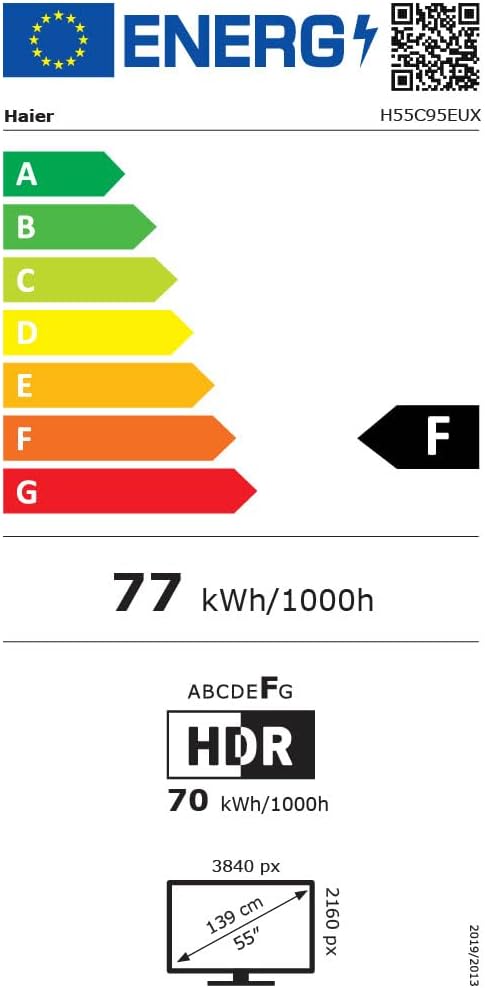
Image 8.1: EU Energy Label for the Haier H55C95EUX TV. For more details, visit the EPREL database.
9. Warranty & Support
Your Haier H55C95EUX television comes with a 2-year manufacturer's warranty. Please retain your proof of purchase for warranty claims.
For technical support, service, or further inquiries, please refer to the contact information provided on the official Haier website or your local authorized service center.


