
1. Introduction
This manual provides detailed instructions for the installation, operation, maintenance, and troubleshooting of your Inexaccessories Android 13 Car Radio. Please read this manual thoroughly before using the product to ensure proper function and safety. Keep this manual for future reference.
2. Applicable Car Models
This car in-dash GPS navigation head unit is designed to fit the following vehicle models:
- Dodge RAM 2002-2006
- Dodge Dakota 2002-2004
- Dodge Neon 2004-2005
- Dodge Stratus 2004-2006
- Dodge Caravan 2004-2007
- Dodge Intrepid 2002-2004
- Dodge Durango 2002-2003
- Dodge Viper 2005-2006
For other compatible Chrysler and Jeep models, refer to the compatibility image below.

3. What's in the Box
Verify that all components are present in the package:
- Car Radio Head Unit
- Back-up Camera
- RCA Cable
- Power Cable
- Microphone Cable
- USB Cable
- Radio Cable
- GPS Antenna
- Protocol Box
- User Manual (this document)

4. Setup and Installation
Professional installation is recommended. Ensure the vehicle's battery is disconnected before beginning installation. Refer to the wiring diagram provided with your unit for specific connections.
4.1 Wiring Connections
- Power Cable: Connect the power cable to the vehicle's power source, ensuring correct polarity.
- RCA Cable: Connect for audio/video input/output as needed (e.g., external amplifier, subwoofer).
- USB Cable: Connect for USB device input or charging.
- Radio Cable: Connect to the vehicle's antenna.
- GPS Antenna: Mount the GPS antenna in a location with a clear view of the sky for optimal signal reception.
- Reversing Input: Connect the backup camera's video output to this input.
- Protocol Box (CANBUS): Connect the CANBUS box to your car's computer bus for illumination and reverse detection, if applicable to your vehicle model.
- Microphone Cable: Connect the external microphone for improved call quality.
4.2 Initial Power On
After all connections are secure, reconnect the vehicle's battery. The unit should power on automatically or by pressing the power button. Follow any on-screen prompts for initial setup.

Video: Overview of the Car Radio for Dodge RAM 2002-2006. This video demonstrates the physical unit and its features, providing a visual guide to its appearance and basic functions within the vehicle.
Video: Car radio for 2002 Ram. This video provides a general demonstration of the car radio's interface and features, specifically highlighting its compatibility and functionality in a 2002 Dodge Ram.
5. Operating Instructions
5.1 System Overview (Android 13 & Memory)
The unit operates on an Android 13 system with 4GB RAM and 64GB internal storage, ensuring smooth performance and quick app loading. The QLED touch screen offers a high-definition visual experience.
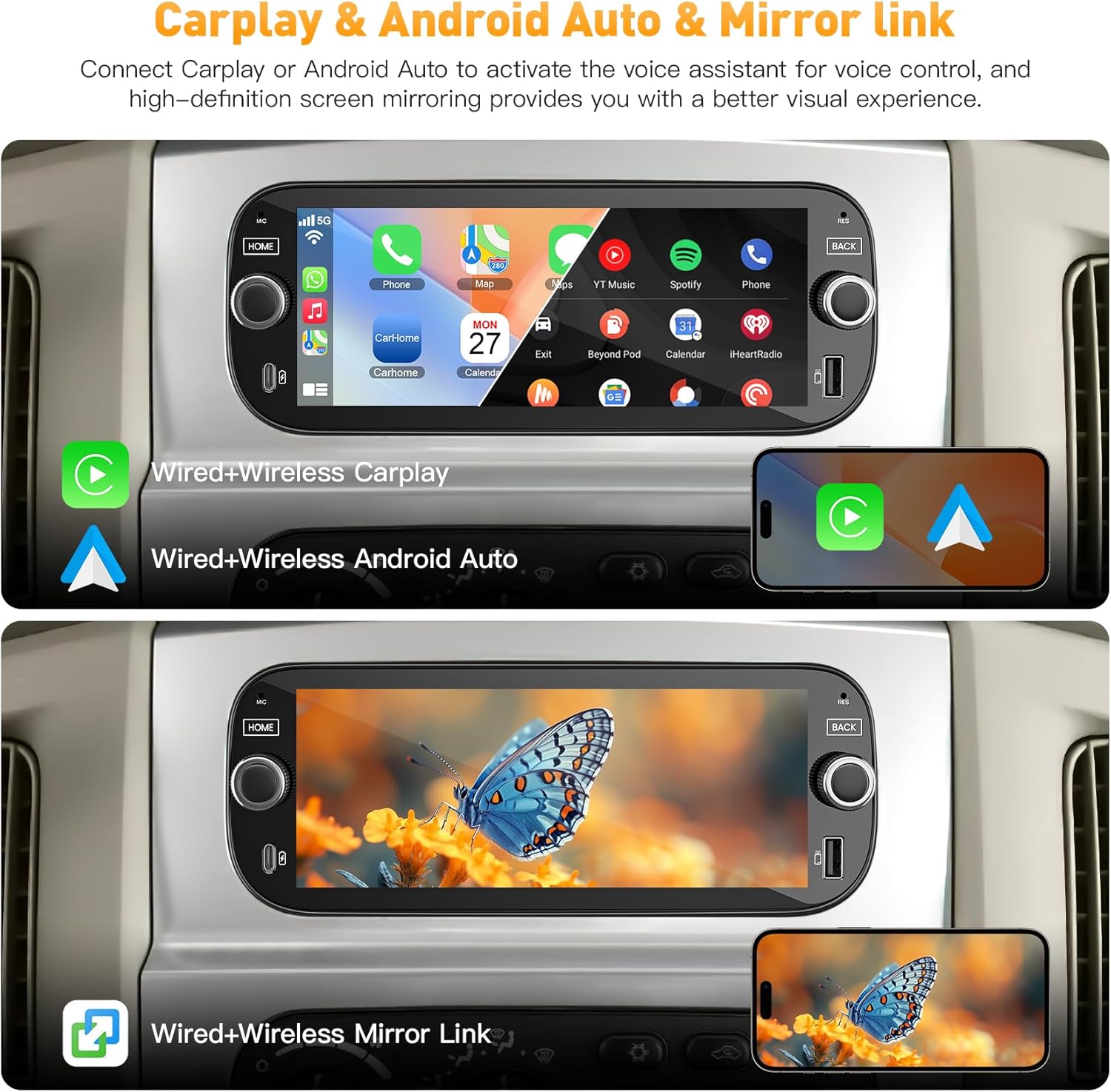
5.2 Wireless CarPlay & Android Auto
Connect your smartphone wirelessly or via USB to access Apple CarPlay or Android Auto. This allows for seamless integration of your phone's functions, including navigation, music, calls, and messages, directly on the car radio display. Activate your smart voice assistant (Siri or Google Assistant) for hands-free control.
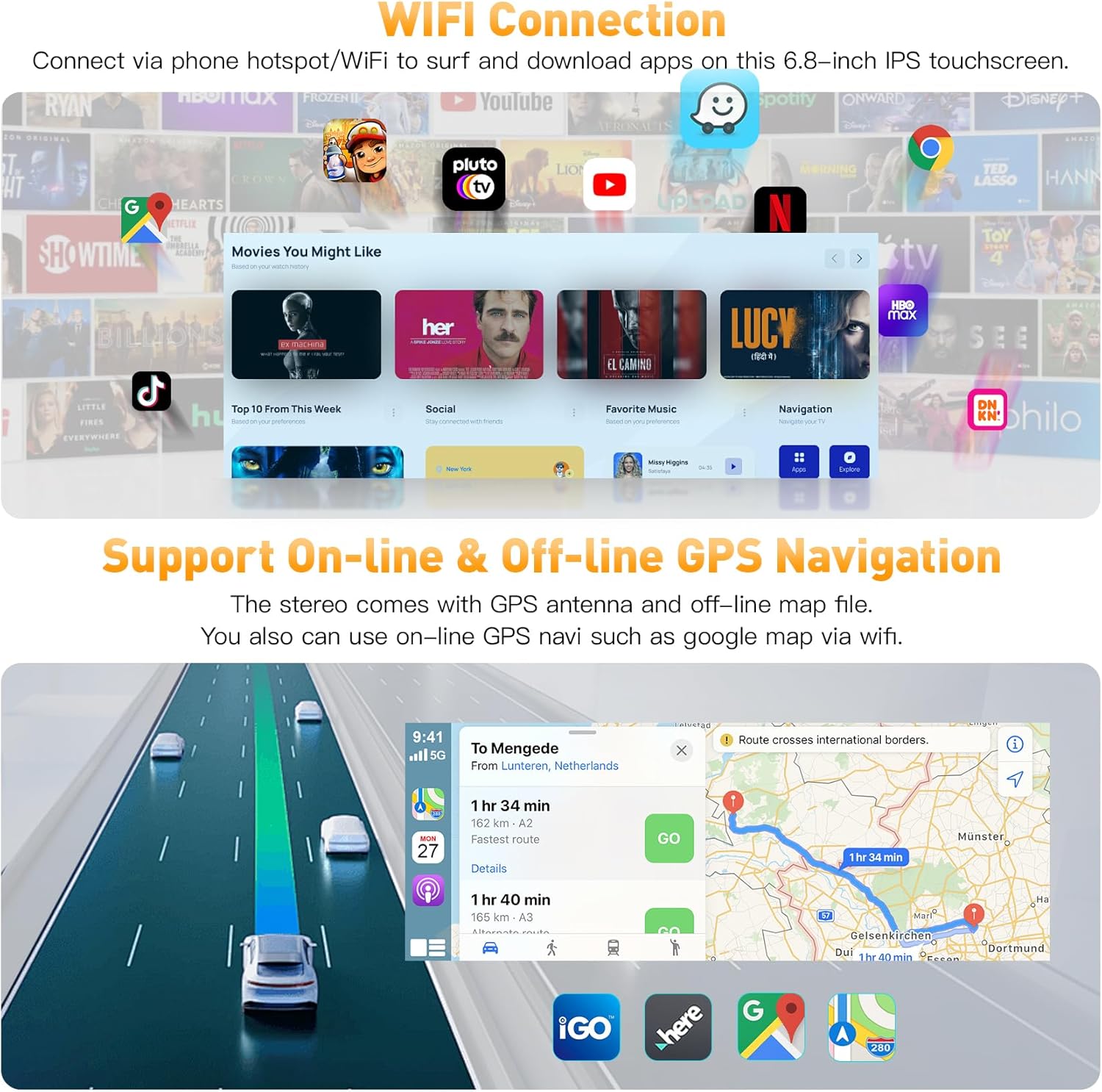
5.3 GPS Navigation & WiFi Connectivity
The unit supports both offline and online GPS navigation. For online maps and other internet-dependent features, connect the unit to a WiFi hotspot (e.g., from your smartphone) to access various applications and services.
5.4 Steering Wheel Control (SWC)
The unit integrates with your vehicle's original steering wheel controls. This allows you to manage audio functions, answer calls, and navigate menus without taking your hands off the steering wheel. Refer to the system settings for learning and configuring SWC buttons.

Video: Instructions for use. This comprehensive video demonstrates various operational aspects of the car radio, including menu navigation, feature activation, and general user interface interaction.
Video: How to operate the split-screen function! This video specifically demonstrates how to activate and use the split-screen feature on the car radio, allowing two applications to run simultaneously.
Video: Car Stereo for Dodge Ram 1500/2500/3500. This video provides a detailed look at the car stereo's features and how it functions within the specified Dodge Ram models.
5.5 Backup Camera
When shifting into reverse, the car radio screen automatically displays the feed from the included 170° wide-view, night vision, waterproof backup camera, enhancing safety and visibility.
5.6 QLED Touch Screen & Split-Screen Mode
The 6.8-inch QLED touch screen offers a 1280x720 resolution for vivid and clear visuals. The split-screen mode allows you to run two applications side-by-side, such as navigation and music, for increased convenience.

5.7 Bluetooth & FM Radio
The unit features built-in Bluetooth for hands-free calling and music streaming. It includes an internal microphone and supports an external microphone for clear communication. The FM radio function allows you to tune into your favorite stations.

5.8 DSP & EQ Settings
Utilize the Digital Sound Processor (DSP) and Equalizer (EQ) settings to customize your audio experience. Adjust frequency bands and sound effects to match your preferences.
5.9 Quick Charging & U-Disk Connect
The unit is equipped with integrated Type-A/C ports for fast phone charging. You can also connect a USB disk (U-Disk) to play your own music and video files directly through the system.

6. Maintenance
To ensure the longevity and optimal performance of your car radio, follow these maintenance guidelines:
- Cleaning: Use a soft, dry cloth to clean the screen and exterior. Avoid abrasive cleaners or solvents.
- Software Updates: Periodically check for available software updates to ensure the system runs efficiently and has the latest features.
- Temperature: Avoid exposing the unit to extreme temperatures for extended periods.
- Connections: Periodically check all wiring connections to ensure they are secure and free from corrosion.
7. Troubleshooting
If you encounter issues with your car radio, refer to the following common troubleshooting steps:
| Problem | Possible Cause | Solution |
|---|---|---|
| Unit does not power on | Loose power connection, blown fuse, vehicle battery issue. | Check all power connections. Inspect vehicle fuses. Ensure vehicle battery is charged. |
| No sound or poor sound quality | Incorrect wiring, speaker issues, volume too low, EQ settings. | Verify speaker wiring. Adjust volume and EQ settings. Check RCA connections. |
| GPS signal loss or inaccuracy | GPS antenna obstruction, poor antenna placement. | Ensure GPS antenna has a clear view of the sky. Reposition antenna if necessary. |
| Bluetooth connectivity issues | Device not paired, Bluetooth off, interference. | Ensure Bluetooth is enabled on both devices. Re-pair the device. Reduce interference. |
| Screen difficult to view with polarized sunglasses | Screen polarization orientation. | This is a characteristic of some QLED screens with polarized lenses. Adjust head tilt or consider a matte screen protector. |
| Slow WiFi connection | Weak signal, antenna issue, network congestion. | Ensure strong WiFi signal. Check WiFi antenna connection. Try a different hotspot. |
| Call latency | Bluetooth connection quality, microphone issue. | Ensure strong Bluetooth connection. Use an external microphone for better performance. |
If the problem persists after attempting these solutions, please contact customer support.
8. Specifications
| Feature | Detail |
|---|---|
| Brand | Inexaccessories |
| Operating System | Android 13 |
| Memory Storage Capacity | 64 GB |
| Screen Size | 6.8 Inches |
| Display Type | QLED, Touch Screen |
| Resolution | 1280x720 |
| Connectivity Technology | Bluetooth, WiFi |
| Special Features | Wireless CarPlay & Android Auto, GPS Navigation, Split Screen Function, Backup Camera & SWC, Bluetooth & Voice Control, Quick Charging |
| Supported Satellite Navigation System | GPS |
| Audio Output Mode | Stereo |
| Mounting Type | Dashboard Mount |
| Included Components | Back-up Camera, Microphone Cable, Power Cable, RCA Cable |
9. Warranty and Support
9.1 Warranty Information
This product comes with a 2-Year Warranty from the manufacturer, Inexaccessories. The warranty covers defects in materials and workmanship under normal use. Please retain your proof of purchase for warranty claims.
9.2 Customer Support
For technical assistance, troubleshooting not covered in this manual, or warranty inquiries, please contact Inexaccessories customer support through the retailer where the product was purchased or refer to the contact information provided with your product packaging.