Introduction
Thank you for choosing the Magcubic Smart Projector HY300GT. This portable projector offers a seamless smart entertainment experience with built-in Android 11, 2K support, and advanced features like automatic keystone correction and voice control. This manual provides essential information for setting up, operating, and maintaining your projector to ensure optimal performance.
Setup
1. Unboxing and Initial Inspection
Carefully remove all components from the packaging. Ensure all items listed below are present and undamaged.
- Magcubic Smart Projector HY300GT Unit
- Remote Control
- Power Adapter
- Instruction Manual
2. Connecting Power
Connect the power adapter to the projector's power input port and then plug it into a power outlet. The projector does not have an internal battery and requires continuous power for operation.
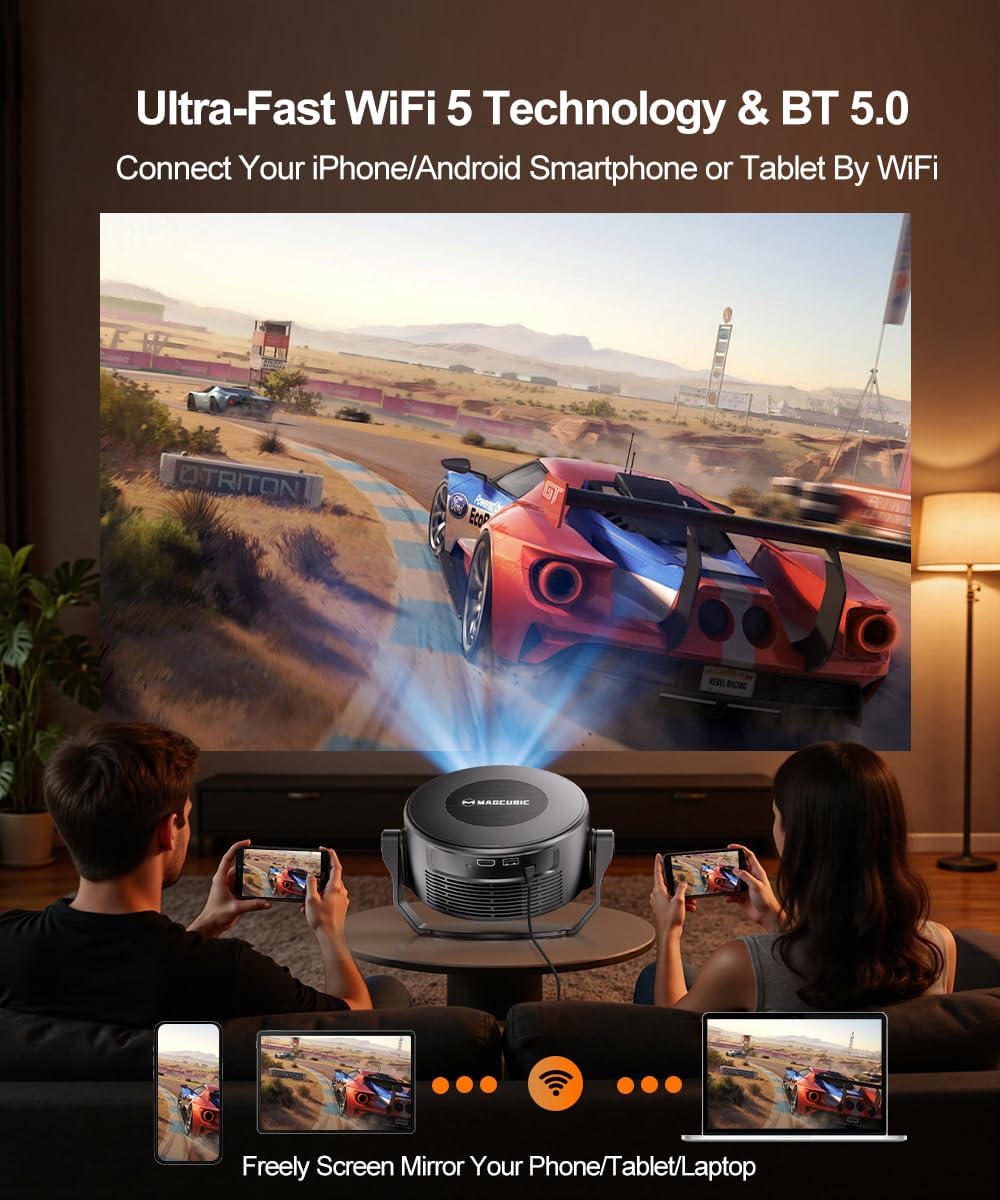
Image: Rear view of the Magcubic HY300GT projector, highlighting the power input, HDMI, USB, and audio ports for connectivity.
3. Positioning the Projector
Place the projector on a stable, flat surface. The unique portable and foldable split design allows for flexible positioning. You can adjust the angle of projection by tilting the main unit on its base. For optimal viewing, a distance of 5.2 feet from an 80-inch screen is recommended.

Image: The Magcubic HY300GT projector demonstrating its flexible projection capabilities, including projecting onto a ceiling from a bedside table.
4. Initial Power On
Press the power button on the projector or the remote control to turn on the device. The projector will boot up and display the main interface.
Operating Instructions
1. Navigation and Remote Control
Use the provided remote control to navigate the projector's interface. The remote features dedicated buttons for popular apps like YouTube, Netflix, Prime Video, and Google Play for quick access. It also includes navigation arrows, an OK button, volume controls, and a mute button.
Video: A demonstration of the projector's main interface and remote control functionality, showing navigation through apps and settings.
2. Adjusting Focus and Keystone Correction
The HY300GT features automatic hardware keystone correction, which adjusts the image in real-time to ensure a uniform and high-quality display, even with side projection. It also supports 80%-100% zoom function for screen size adjustment. For manual focus, use the dedicated focus buttons on the remote control.

Image: The projector automatically correcting a tilted image of a motocross rider, illustrating the hardware keystone correction feature.
3. Connectivity (Wi-Fi & Bluetooth)
The projector supports 2T2R 802.11a/b/g/n/ac 2.4G&5G WIFI5 for fast and stable internet connectivity. Bluetooth 5.0 allows connection to wireless headphones or external speakers for enhanced audio. You can also effortlessly cast content from your smartphone, tablet, or PC screen.

Image: The projector's dual-band Wi-Fi and Bluetooth 5.0 capabilities are shown, with diagrams illustrating connections to external speakers and screen mirroring from a phone.
4. Using Built-in Android 11 and Voice Assistant
The projector comes with built-in Android 11, providing access to over 10,000 apps directly from the homepage, including YouTube, Prime Video, and Hulu. Use the smart voice assistant by pressing the voice button on the remote and issuing commands like "open YouTube" or "adjust volume."

Image: The projector's screen shows the Android 11 home interface with app icons, while a remote control illustrates how to use voice commands for operation.
Key Features
- Seamless Smart Entertainment: Built-in Android 11 with access to over 10,000 apps (YouTube, Prime Video, Hulu).
- Smart Voice Assistant: Control the projector with simple voice commands for easy operation.
- Stunning Picture Quality: 260 ANSI lumens brightness, native 720P resolution with 2K support, and 10000:1 high contrast for vivid and sharp images.
- Advanced Keystone Correction: Automatic hardware keystone correction maintains 100% original resolution and supports 80%-100% zoom.
- Optimal Viewing: 0.8:1 throw ratio, recommended 5.2 feet distance for an 80-inch screen.
- Rich Audio & Stable Connectivity: Built-in 5W speaker, Bluetooth 5.0, and 2.4G&5G WIFI5 for a seamless audio-visual experience.
- Portable & Foldable Split Design: Detachable main body and base for mobile entertainment or free-form projection.
Specifications
| Brand | Magcubic |
| Model | HY300GT |
| Item Weight | 2.4 pounds |
| Package Dimensions | 9.02 x 7.44 x 5.67 inches |
| Display Resolution | 1280 x 720 (Native), 2K Support |
| Brightness | 260 ANSI Lumens |
| Contrast Ratio | 10000:1 |
| Connectivity Technology | Wi-Fi (2.4G&5G WIFI5), Bluetooth 5.0 |
| Special Features | Smart Voice Assistant, 5W Speaker, Auto Keystone Correction, Built-in Android 11 |
Maintenance
1. Cleaning the Projector
Regularly clean the projector vents to prevent dust buildup, which can cause overheating and affect performance. Use a soft, dry cloth to clean the exterior surfaces. Do not use liquid cleaners or harsh chemicals.
2. Lens Care
Gently clean the projector lens with a lens cleaning cloth. Avoid touching the lens directly with your fingers to prevent smudges.
Troubleshooting
1. No Power / Not Turning On
- Ensure the power adapter is securely connected to both the projector and a working power outlet.
- Verify that the power outlet is functional by plugging in another device.
- Try pressing the power button on the projector unit itself, not just the remote.
2. Blurry Image / Focus Issues
- Allow the automatic keystone correction to complete its cycle.
- Use the dedicated focus buttons on the remote control to manually adjust the focus.
- Ensure the projection surface is flat and free from obstructions.
3. No Sound
- Check the volume level on the projector and the connected source device.
- Ensure the projector is not muted (check the mute button on the remote).
- If using external Bluetooth speakers, ensure they are properly paired and connected.
Warranty and Support
- 30-Day Return or Exchange: Products are eligible for return or exchange within 30 days of purchase.
- Lifetime Technical Support: Magcubic offers lifetime technical support for your projector.
- 24/7 Service Professional: Access to professional service support around the clock.
For any inquiries or assistance, please contact Magcubic customer support.


